
Add a product – name, price, stock and photos
This page shows you how to add a product by hand in SmartPOS Hub: the basic details, the price, the locations that sell it, the stock you have now and the photo. It is for shop owners and managers setting up their catalog. To add many products at once, use the Product Library or an Excel import.
Before you start
Section titled “Before you start”- Create the units, categories and brands you need, or use Import prebuilt to add them in one click. You can also add them from inside the product form with the + buttons.
- Add your business locations, so you can choose where the product is sold.
- Add your tax rates if you charge tax.
- Your role needs the product add permission (and the opening stock permission to enter stock).
Product types
Section titled “Product types”| Type | Use it for | Guide |
|---|---|---|
| Single | One item with one price, for example a bottle of water | This page |
| Variable | The same product in several versions, for example sizes or colours, each with its own price and stock | Variable products |
| Combo | A bundle sold as one item; its stock comes from the products inside it | Combo and service products |
Add a single product
Section titled “Add a single product”-
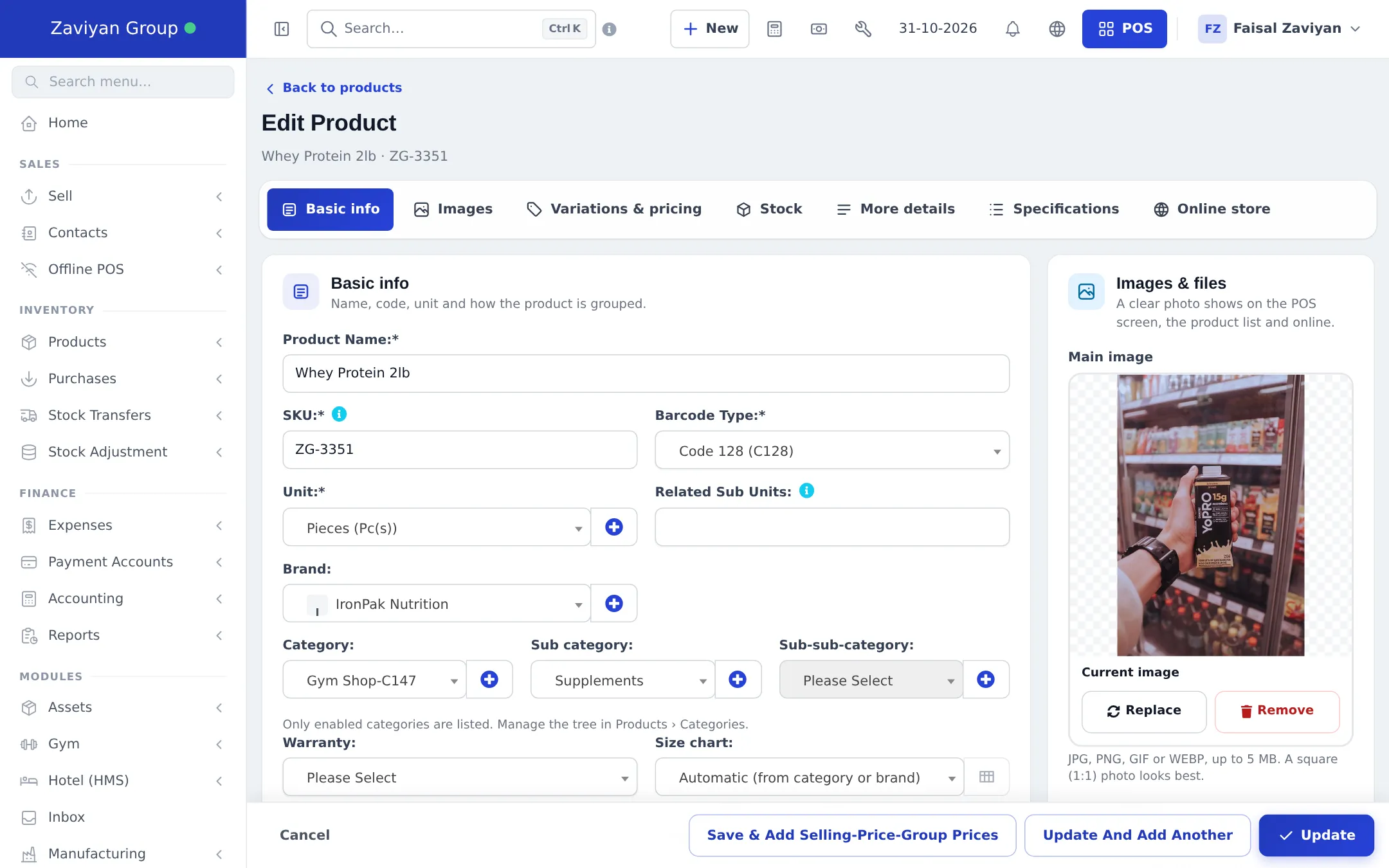
Open Products › Add Product (or Products › List Products and click Add, or + New › Add Product in the top bar). The form has tabs: Basic info, Images, Pricing, Stock, More details, Specifications and, if you have an online store, Online store.
-
In Basic info, type the Product Name. Leave SKU empty to create one automatically, or scan the item’s barcode into it. Keep Barcode Type as Code 128 (C128) unless your labels need another type (EAN-13 for a 13-digit manufacturer barcode).
-
Choose the Unit (for example Pieces or Kilogram). If the product is also sold in packs, pick them in Related Sub Units. Choose the Brand, then Category, Sub category and Sub-sub-category. Only enabled categories are listed. Optionally choose a Warranty and a Size chart.
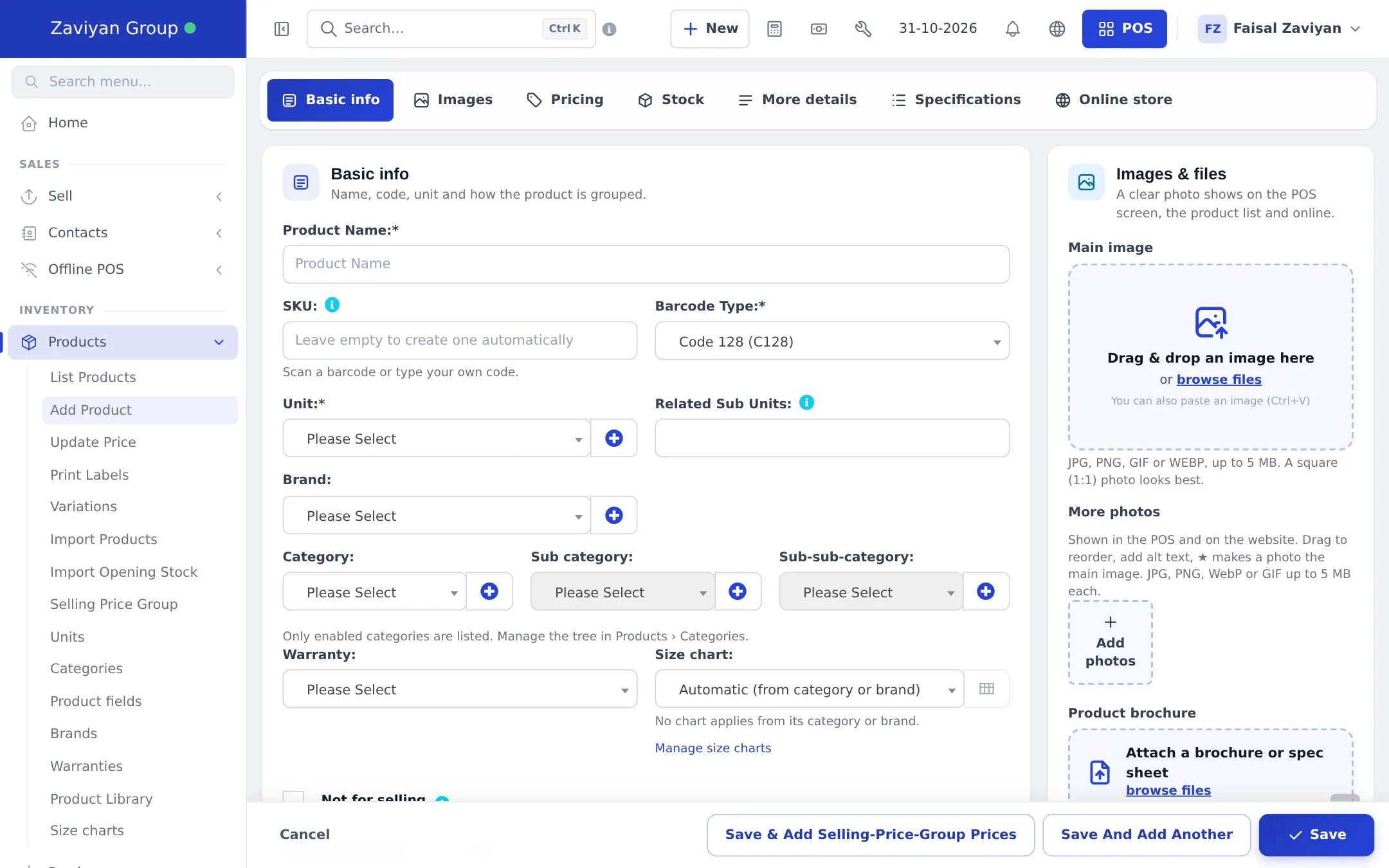
Basic info: name, code, unit and how the product is grouped. -
Add a Short description and Product Description if you want them on receipts or your website. Tick Not for selling only for items you never sell (raw materials, packaging).
-
Go to Pricing. Keep Product Type as Single. Choose the Applicable Tax and the Selling Price Tax Type (Exclusive = tax is added on top, Inclusive = the price already contains tax).
-
Enter the Default Purchase Price (Exc. tax or Inc. tax, the other is calculated). The x Margin(%) is filled with your default margin and the Default Selling Price is calculated. Change the margin or type the selling price directly; the other value follows.
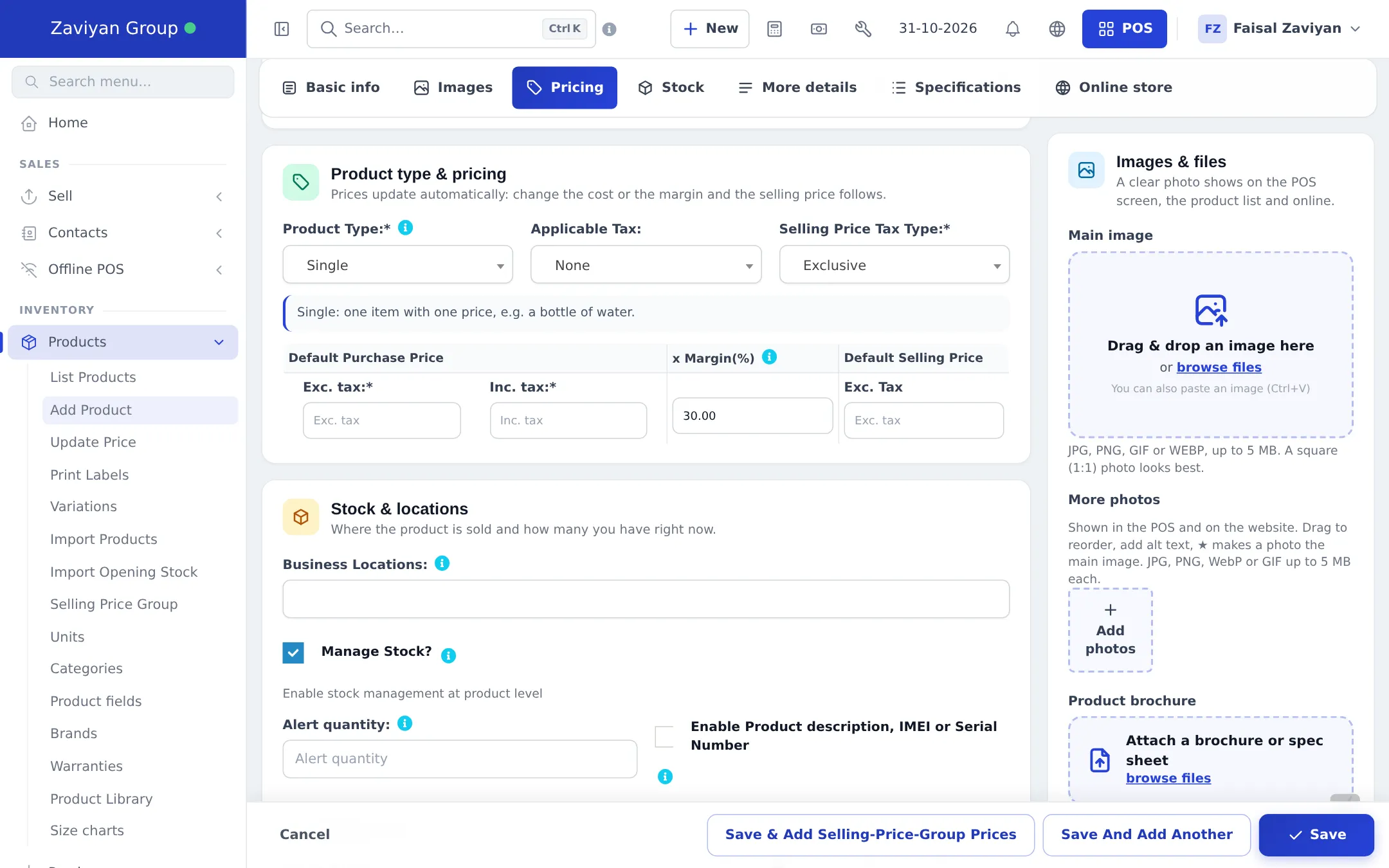
Change the cost or the margin and the selling price follows. -
Go to Stock. In Business Locations, choose every branch that sells this product. Keep Manage Stock? ticked to count stock (untick it for services). Set an Alert quantity to get a low-stock alert. Tick Enable Product description, IMEI or Serial Number if staff must type a serial or IMEI when selling (see Serial, IMEI and lots).
-
Under Opening stock, enter how many you have right now at each location and the Stock date. Leave it empty or 0 if you have none. More on this in Opening stock.
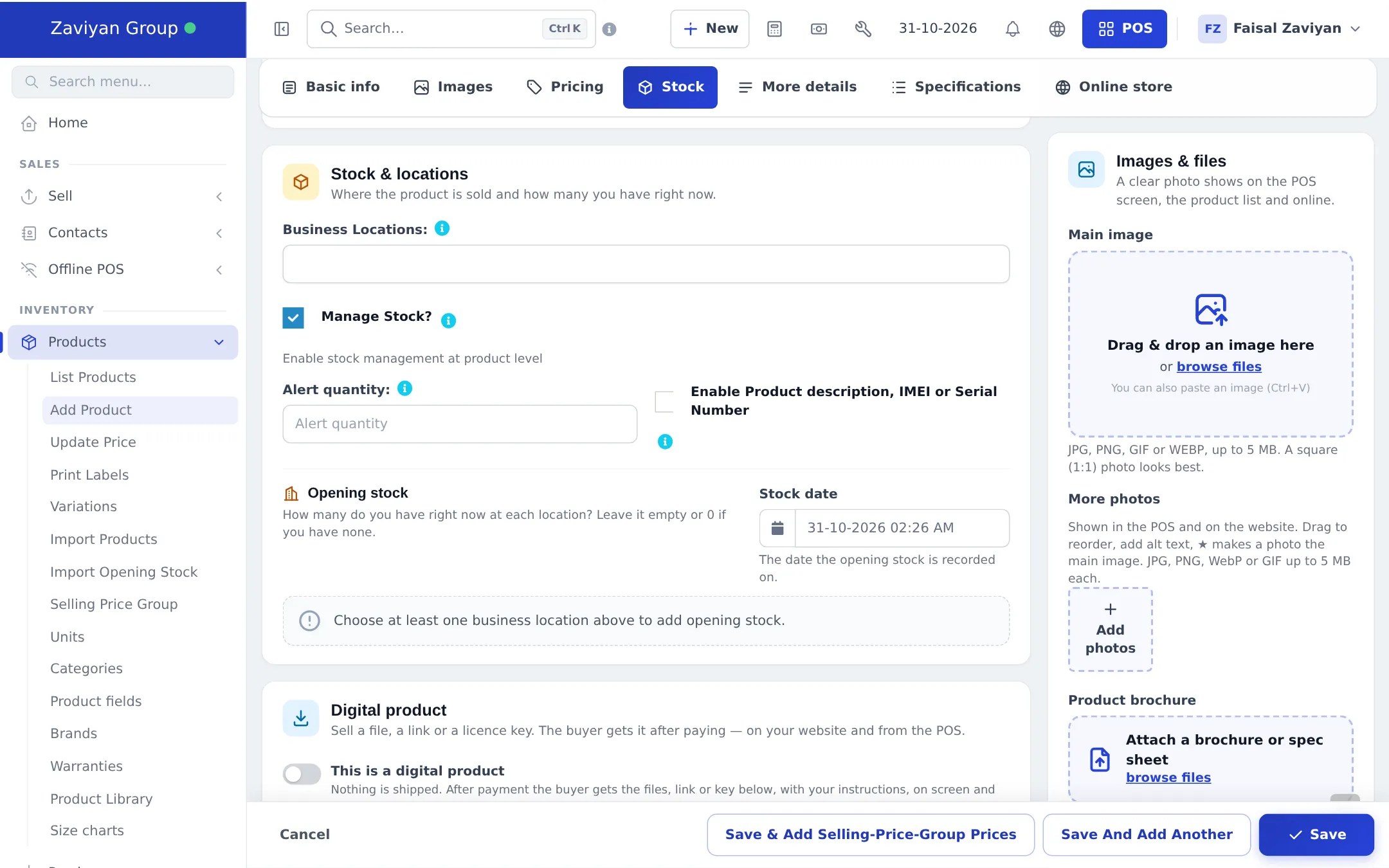
Choose the locations first, then the opening stock rows appear per location. -
In Images & files on the right, drag a Main image (JPG, PNG, GIF or WEBP, up to 5 MB, square looks best). Add More photos or a Product brochure if you like.
-
Click Save. Use Save And Add Another to start the next product straight away, or Save & Add Selling-Price-Group Prices to set group prices next.
Find and edit products
Section titled “Find and edit products”Products › List Products shows every product with photo, locations, purchase and selling price, current stock, type, category, brand and tax. Use Filters to narrow the list, and the Actions menu on a row to View, edit, Add or edit opening stock, see the Product stock history, Add or edit Group Prices, duplicate or delete.
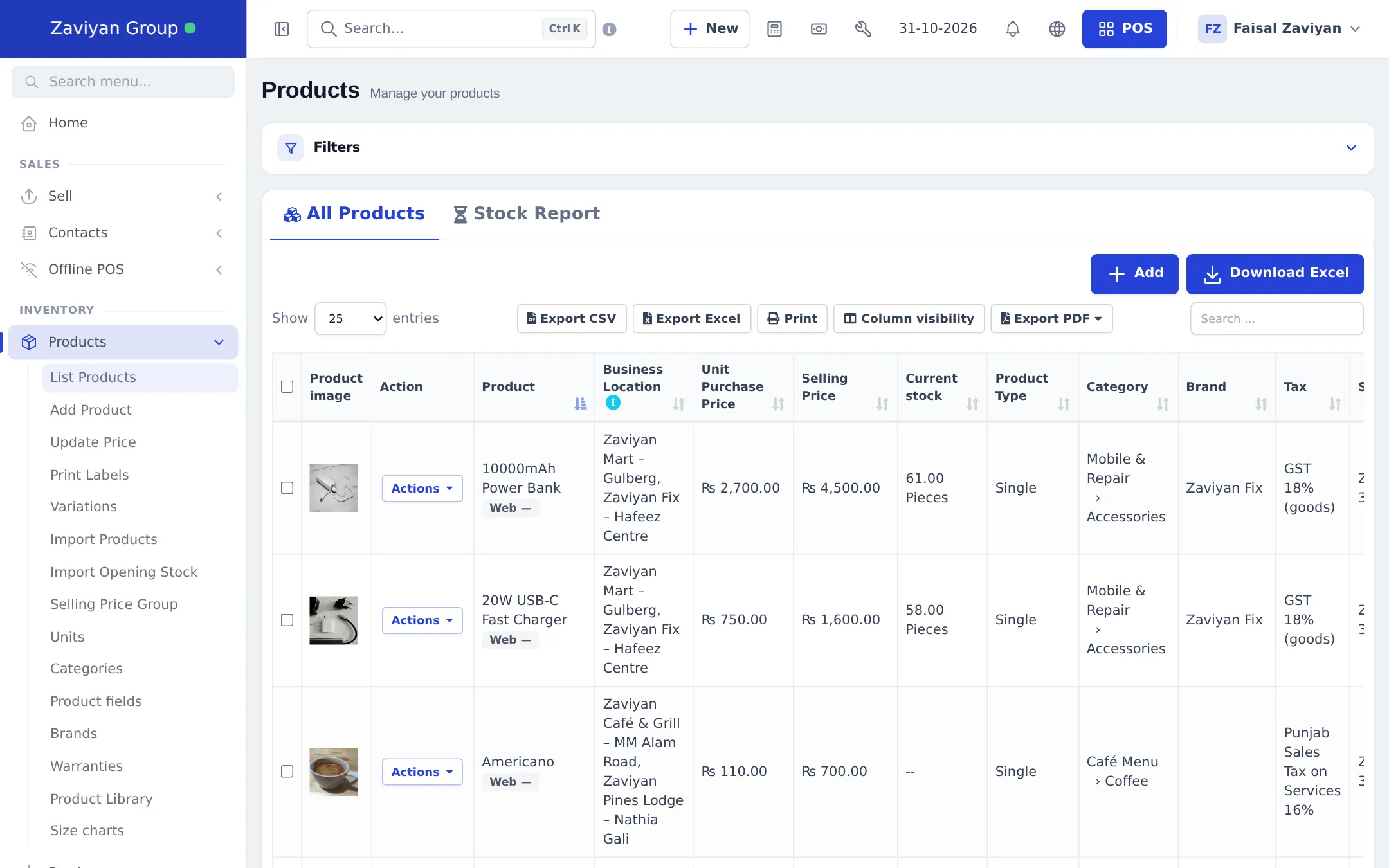
When you edit a product, the same tabs are at the top, so you can jump straight to Variations & pricing or Stock.
Add a product from your phone
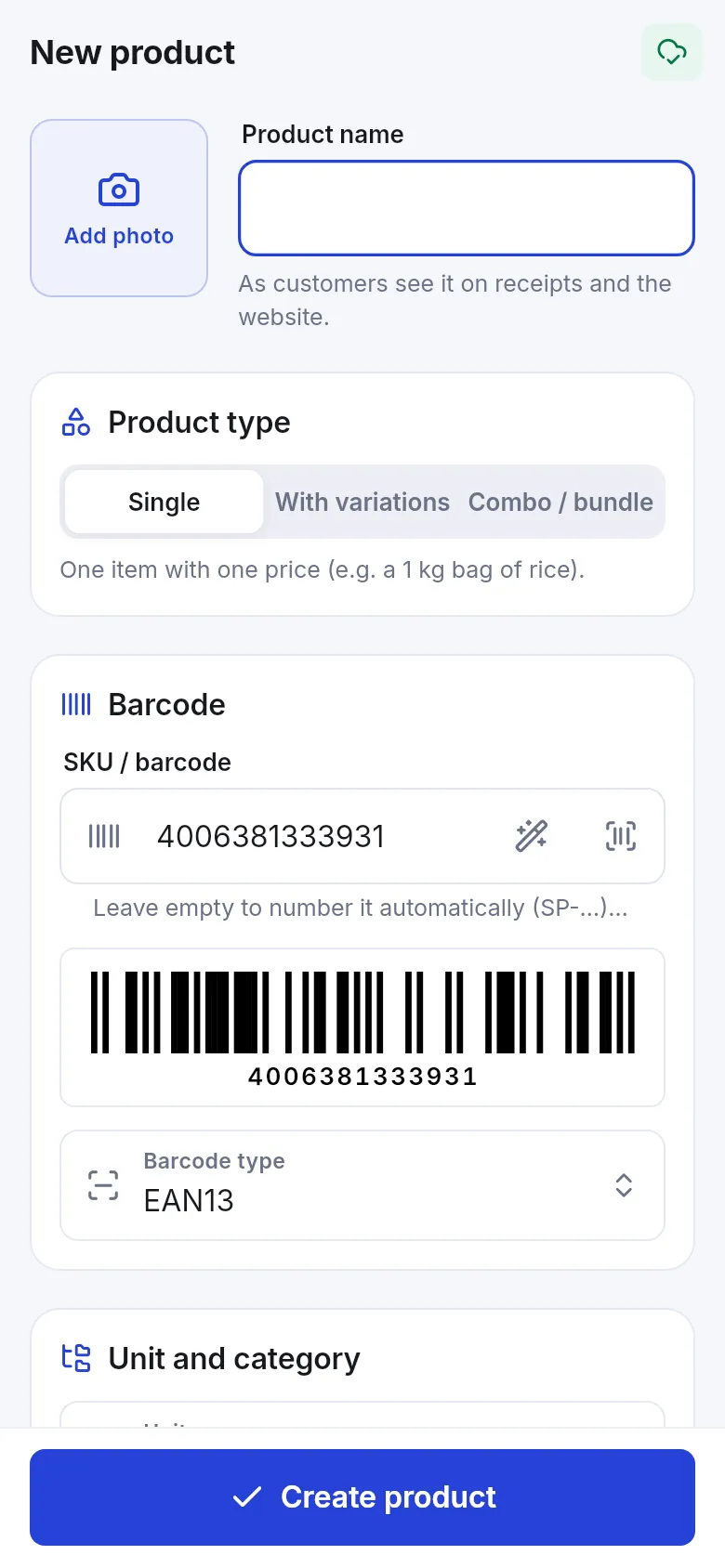
Section titled “Add a product from your phone”In the SmartPOS Business app, open Products and tap +. The New product screen asks for the photo, name, Product type (Single, With variations or Combo / bundle), the barcode (scan it with the camera), unit and category, prices and stock. Tap Create product to save.
Tips and mistakes to avoid
Section titled “Tips and mistakes to avoid”- Scan the real barcode into SKU when you can. If an item has several barcodes (unit, pack, old label), add the others as additional barcodes.
- Pick the Unit carefully. Once a product has sales, changing its unit changes how old quantities read.
- Forgetting a location is the most common reason a product “does not show” in a branch’s POS.
- Use Inclusive tax type if your shelf prices already include tax, so the till price matches the shelf.
Related pages
Section titled “Related pages”Frequently asked questions
Do I have to type a SKU?
No. Leave SKU empty and SmartPOS Hub creates one automatically. If the item has a manufacturer barcode, scan it into the SKU field so it opens the product at the till.
How is the selling price worked out?
Enter the purchase price and a margin percent, and the selling price is calculated for you. You can also type the selling price and the margin updates. The default margin comes from your business settings.
What does Not for selling do?
A product marked Not for selling is hidden from the sales screens. Use it for raw materials, packaging or items you only use inside the business.
Can I add a product from the POS screen?
Yes. When a scanned barcode is not found, the POS offers Add new product with this barcode, which opens a quick add form with the barcode filled in. The product is added to the cart after saving.
Can I add products from my phone?
Yes. The SmartPOS Business app has a New product screen with photo, product type, barcode scanner, unit and category, prices and stock.
Why can't I sell a product in one of my branches?
The product is only available in the Business Locations you selected on it. Edit the product and add that location under Stock & locations.