
Salon step 1: branches and modules
Start your salon or spa with two things every other screen depends on: a business location for each branch and the modules an appointment business uses. This page is for the owner or an admin setting up the account for the first time.
Before you start
Section titled “Before you start”- You are signed in as the owner or an admin with access to Settings.
- Your business name, currency, time zone and logo are set in Settings › Business Settings (see Business settings).
- You know the address and opening hours of each branch.
Add one location per branch
Section titled “Add one location per branch”- Open Settings › Business Locations and click Add.
- Enter the branch name (for example “Clifton Flagship” or “Mall Branch”), address, city and country. Clients see this name on the online booking page.
- Choose the Invoice scheme and the invoice layouts for POS and for sales. Keep Default if you have not designed receipts yet.
- Save. Repeat for every branch.
See Locations for every field.
Switch on the modules a salon uses
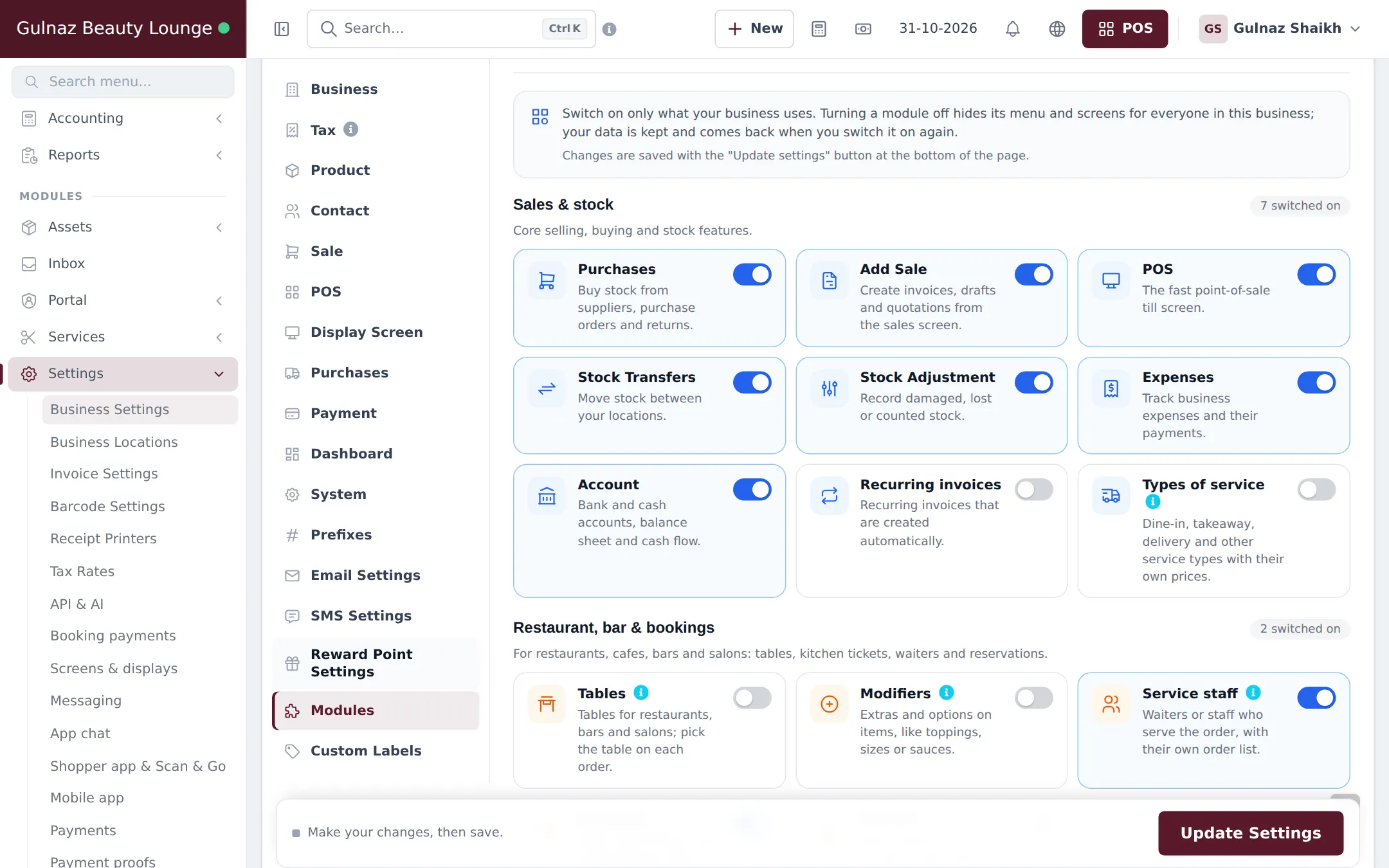
Section titled “Switch on the modules a salon uses”- Open Settings › Business Settings and click the Modules tab.
- Under Sales & stock, keep Purchases, Add Sale and POS on. Stock Transfers and Stock Adjustment are useful if you sell retail products.
- Under Restaurant, bar & bookings, switch on Service staff if you want to pick the stylist on quick POS sales. Leave Tables and Modifiers off.
- Under Industry modules, switch on:
- Services: service menu, staff hours, appointments, online booking, commission and reports.
- Product Library: ready-made catalogs for retail products such as shampoo, skin care and makeup.
- Mobile app: if stylists will use the SmartPOS Business app.
- Shopper app & Scan & Go and Website & online store: if clients will book or shop online.
- Click Update Settings at the bottom of the page.
Set opening hours
Section titled “Set opening hours”Online time slots and staff without their own hours use the business opening hours. Open Bookings, click Settings and fill in Opening hours for each day. You can also reach it from the Business hours button on Services › Settings.
What happens next
Section titled “What happens next”The Services group appears in the sidebar (Overview, Appointments, Staff calendar, My appointments, Services, Staff, Reports, Settings) and Bookings appears under Sales. The Services overview shows a Get started checklist until you have added services, staff and online booking. Continue with step 2: your service menu.
Frequently asked questions
Do I need a separate location for each salon branch?
Yes, if the branch has its own address, cash drawer or retail stock. Each location has its own invoice numbering, receipts, register and stock, and clients choose the branch on the online booking page.
Why can't I see the Services menu?
Three things must be true. Your plan includes the Services module, the Services switch is on in Settings › Business Settings › Modules, and your role has the Services permissions. Business admins get every permission automatically.
Do I need to switch on Bookings as well?
No. With Services on, the Bookings page opens for your appointments. Switch Bookings on too only if you also take table reservations.
What is the Service staff switch for?
It adds a Select service staff box to the POS, so a walk-in sale can name the stylist. Sales with a service staff member show in Reports › Service Staff Report.
Does switching a module off delete its data?
No. Turning a module off hides its menus and screens. Your services, staff and appointments are kept and come back when you switch it on again.