
POS V2 and how it compares with POS V1
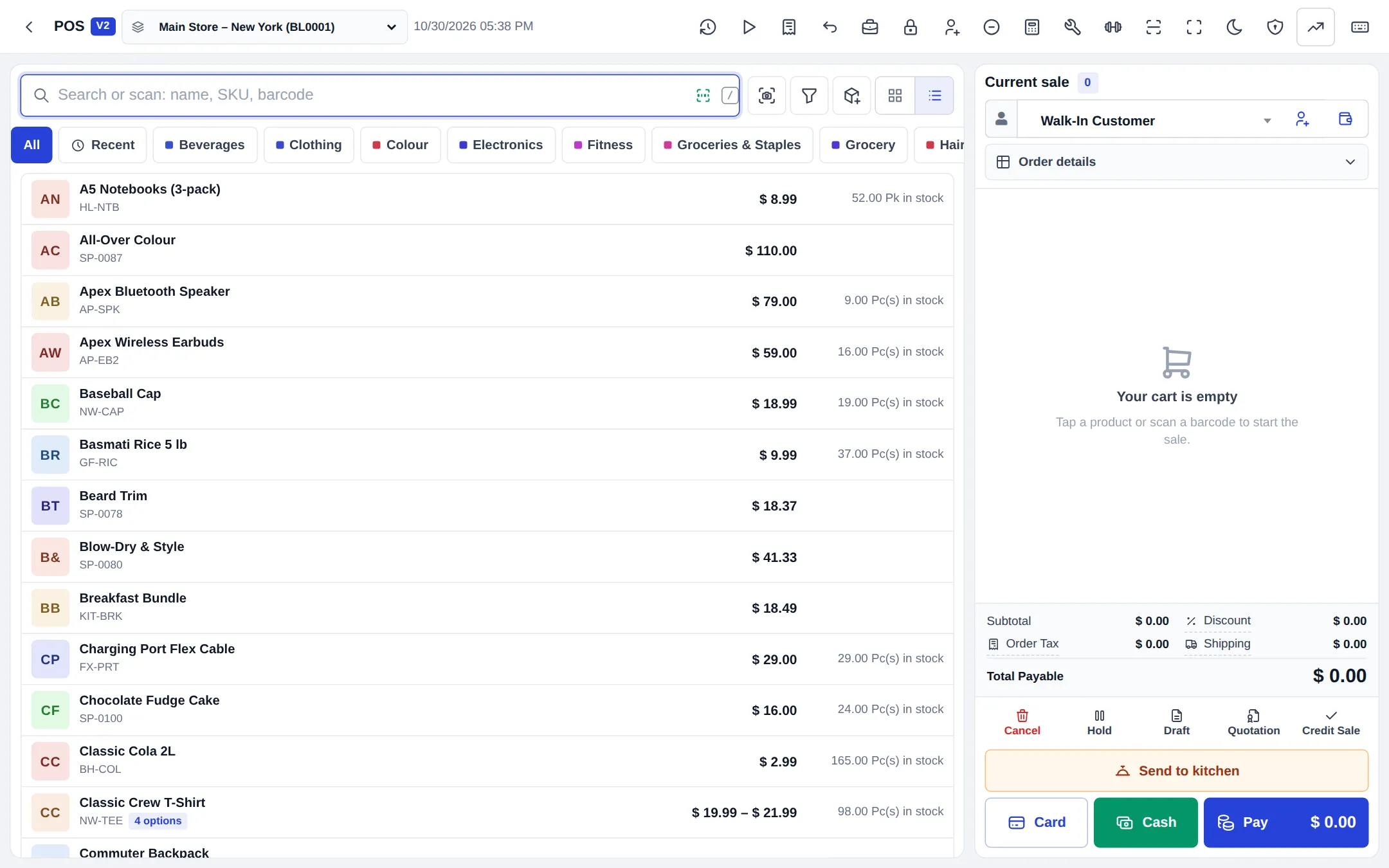
POS V2 is the newer SmartPOS Hub point-of-sale screen: a clean, touch-friendly layout with instant search, a side cart and a big payment window. It uses the same sale engine as POS V1, so you can switch between them at any time. This page compares the two and shows how to set POS V2 up for your shop.
POS V1 vs POS V2
Section titled “POS V1 vs POS V2”| POS V1 (classic) | POS V2 (new) | |
|---|---|---|
| Open it | Sell › POS / POS button (when V1 is the default), or Switch to POS V1 in V2 | Try POS V2 in V1, or set as default (then Sell › POS opens it) |
| Layout | Sale form + cart left, product tiles right; all fields visible | Products left, current sale right; order fields folded into Order details |
| Speed | Fast | Faster: in-browser search for catalogues up to 600 products, background add-to-cart, no side menu to load |
| Search | Name / SKU / barcode | Name / SKU / barcode, scanner-first mode, grid or list view |
| Styles | One layout | Retail / mart, Café / bakery, Restaurant, Pharmacy, Services / salon, per location |
| Payment window | Multiple Pay with denominations | Same window re-skinned: method tiles, keypad, quick-cash buttons, split, big change display |
| Keyboard | V1 shortcuts | All V1 shortcuts + V2 keys (e.g. / search, F6 exact cash, Alt+1…4 quick cash, F7 hold, F8 resume, ? cheat sheet) |
| Theme | Light | Light, Dark or Same as the device |
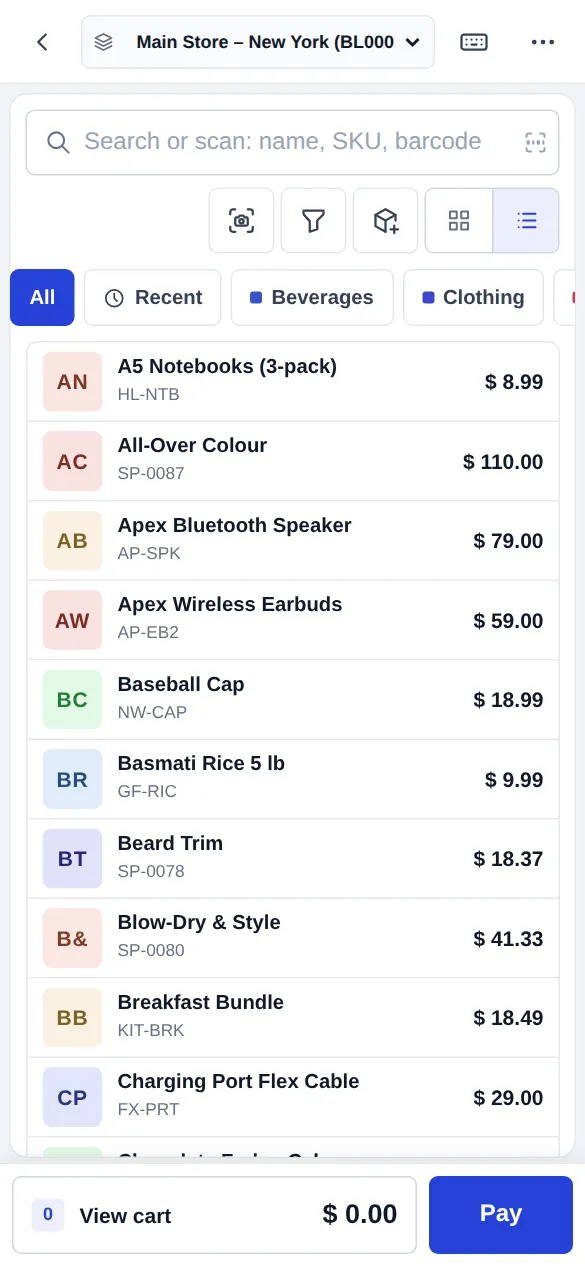
| Phone | One scrolling column with bottom dock | Product list + View cart / Pay bar, cart as a sheet |
| Admin help | — | POS features panel: what each user sees and why |
| Sales, stock, register, receipts | Same | Same |
Which should I use? Choose V2 for busy counters, touch screens, barcode-heavy shops and restaurants. Keep V1 if your team relies on seeing every field at once. You can keep both: cashiers switch with Try POS V2 / Switch to POS V1.
Make POS V2 your default
Section titled “Make POS V2 your default”- Go to Settings › Business Settings and open the POS tab.
- In the POS V2 section, set POS opened by the POS button and the menu to POS V2 (new).
- Choose a POS style for the business, and optionally a Style per location (leave Same as business to inherit).
- Adjust the display: Product view, Product tile size, Show product pictures, Show stock badges, Show prices on product tiles, Show the Favourites tab.
- Checkout options: Scanner first, Quick cash buttons (for example
500,1000,5000), Start the next sale automatically after a sale, Sound when a product is added, Colour theme. - Press Update Settings.
Sell with POS V2
Section titled “Sell with POS V2”- Search or scan (
/jumps to search). Tap a product to add it; tap again to add one more. - Pick the customer in the Current sale panel (F3). Open Order details for table, service type, staff, agent or kitchen options.
- Change quantities with + / − or the keyboard; select a line to change price or discount.
- Finish with Cash, Card, Pay (opens the payment window for split, part payment and other methods) or Credit Sale. Hold parks the sale.
- Press
?in POS V2 to see every keyboard shortcut. - Big catalogue (more than 600 products at a location)? Search uses the server instead — still fast, just type a few letters.
- Suspended sales and recent transactions opened from V2 also open in V2.
Frequently asked questions
Do POS V1 and POS V2 save sales differently?
No. Both use the same sale engine, settings, register, receipts and reports. A sale started in one can be finished or edited in the other.
How do I make POS V2 open when I press POS?
Go to Settings › Business Settings › POS, section POS V2, and set POS opened by the POS button and the menu to POS V2 (new). Both versions stay available.
What is a POS style?
A layout preset for your kind of shop - Retail / mart, Café / bakery, Restaurant, Pharmacy or Services / salon. It changes only the layout and defaults, never what people may do. You can set a different style per location.
Why is POS V2 faster?
It searches small catalogues inside the browser, adds products in the background without freezing the screen, and skips loading the side menu.
Does POS V2 have a dark mode?
Yes. Choose Light, Dark or Same as the device under Colour theme in the POS V2 settings, or switch it from the POS V2 menu.
Why can't my cashier see a button in POS V2?
It is hidden by the plan, a setting or the role. Admins can open the POS features panel (shield icon) to see the reason and where to switch it on.