
Barcodes, extra barcodes and printing labels
Fast, accurate scanning is the heart of a busy counter. This page explains how barcodes work in SmartPOS Hub: the SKU of each product, extra barcodes for the same item, what to do when a scan finds nothing, and how to print barcode labels for shelves and products.
SKU and barcode type
Section titled “SKU and barcode type”Every product (and every variant) has a SKU. It is the code your scanner reads.
- If the item has a manufacturer barcode, scan it into SKU on the product form, and set Barcode Type to match (EAN-13 for 13 digits, UPC-A for 12).
- If not, leave SKU empty. SmartPOS Hub creates one, and you print your own labels with Code 128 (C128).
- Products from the Product Library come with their manufacturer barcode, or a library-made in-store barcode when none is known.
Add extra barcodes to a product
Section titled “Add extra barcodes to a product”One product often carries several real barcodes: the unit and the multipack, an old and a new label, or a supplier’s code. Add them as Additional barcodes:
- Open Products › List Products and choose Actions › View on the product.
- Scroll to Additional barcodes.
- Scan or type the code in Scan or type a barcode and click Add. For a variable product, choose the variant.
- To remove one, click Remove next to it.
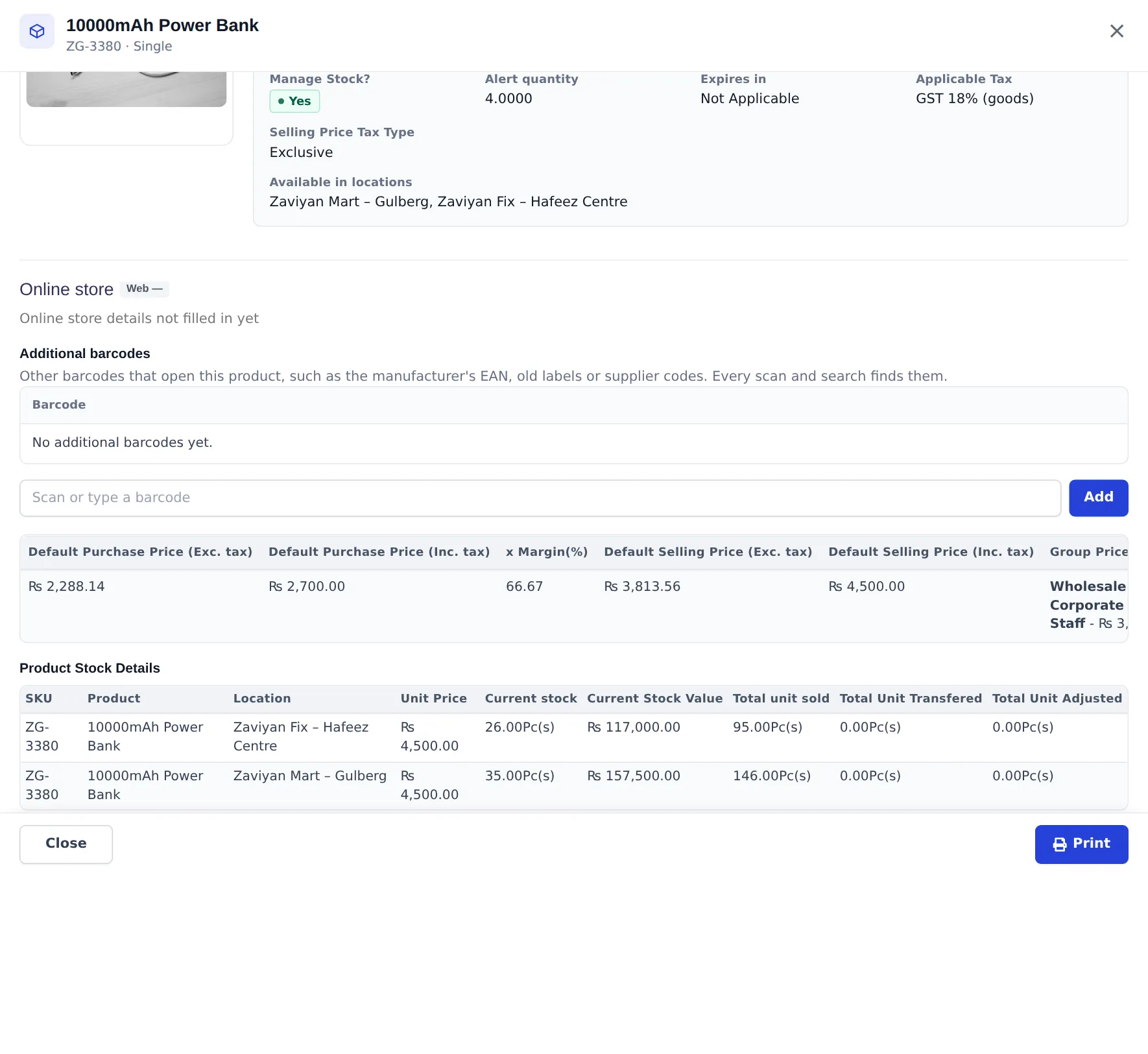
A barcode can belong to only one product. If it is already used, you see which product has it.
“No product found” at the till
Section titled ““No product found” at the till”When a cashier scans a code that no product uses, the POS opens No product found (if their role allows adding products or linking barcodes):
- Choose Add new product with this barcode to open the quick add form with the code as the SKU. After saving, the product is added to the sale.
- Or choose Link to an existing product. Search by name or SKU, or scan the product’s own barcode, and pick it. The window says “From now on, barcode … will open …”. Click Link barcode. The product is added to the sale.
The same works with the camera scanner and in the SmartPOS Business app. More in POS overview and Product barcodes module.
Print labels
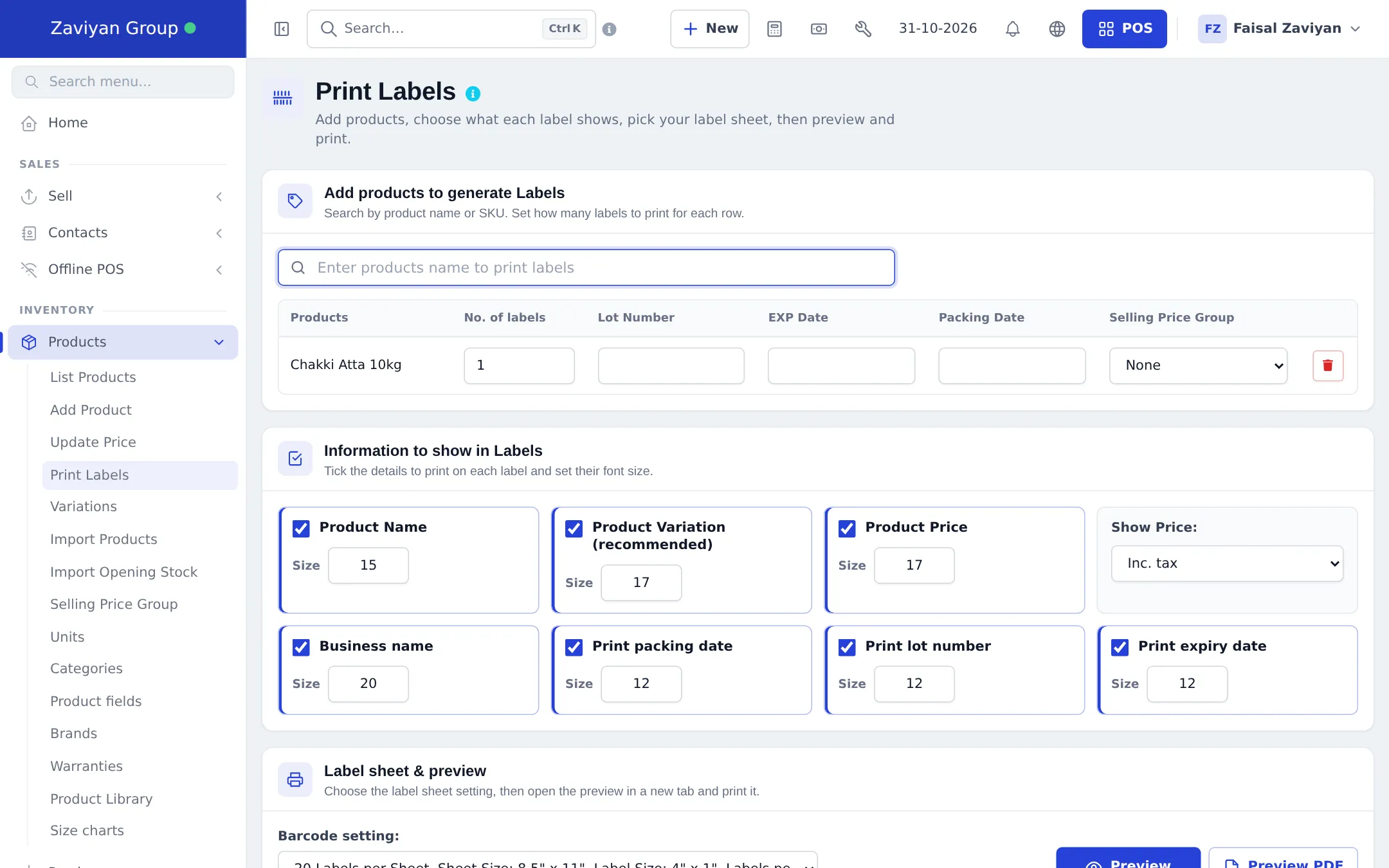
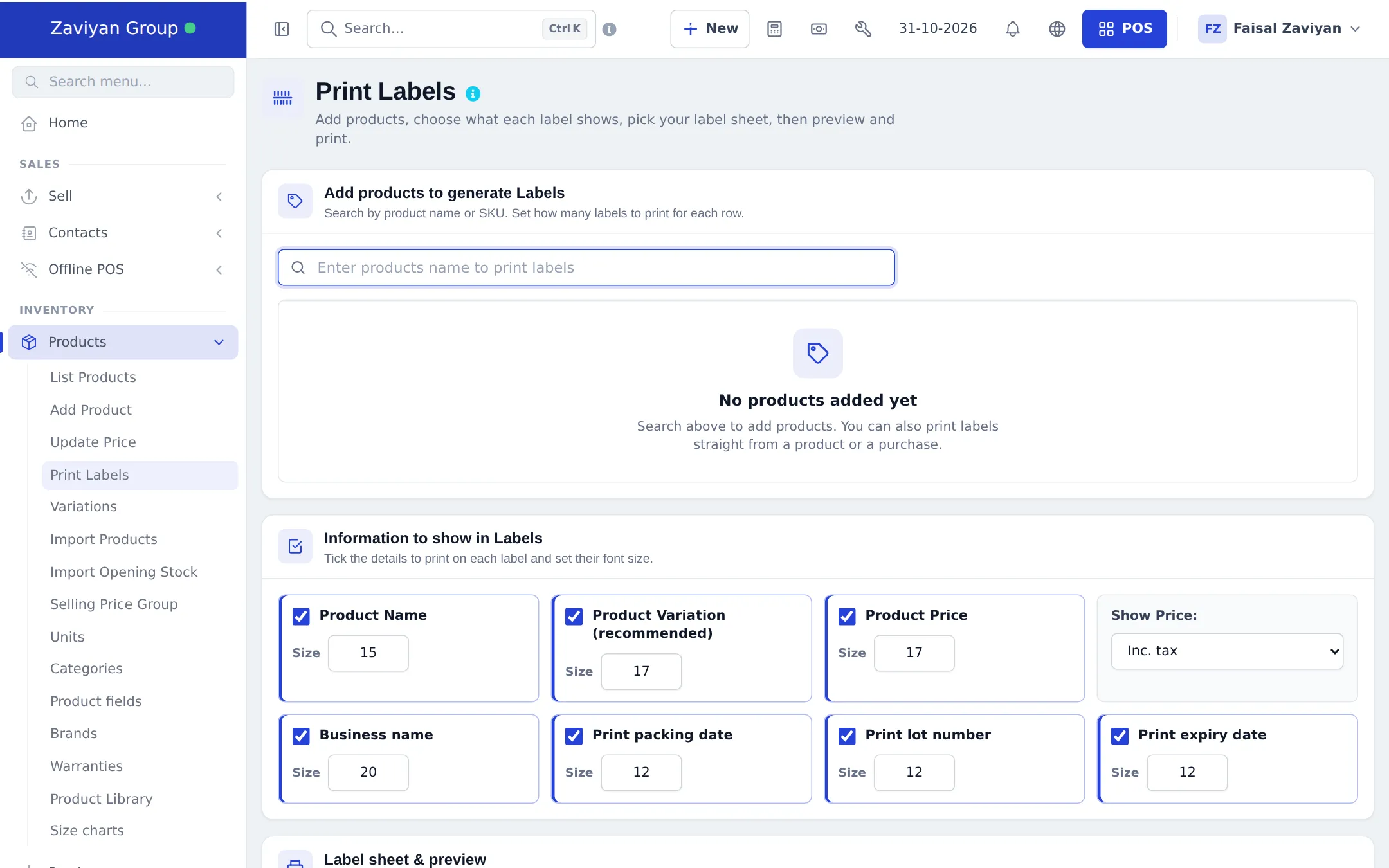
Section titled “Print labels”- Open Products › Print Labels. (Or choose Labels in a product’s Actions menu, or print from a purchase.)
- In Add products to generate Labels, type a product name and pick it. Set No. of labels per row, and optionally Lot Number, EXP Date, Packing Date and a Selling Price Group for the price shown.
- In Information to show in Labels, tick what to print and set each Size: Product Name, Product Variation (recommended), Product Price, Business name, Print packing date, Print lot number, Print expiry date. Choose Show Price: Inc. tax or Exc. tax.
- In Label sheet & preview, choose the Barcode setting that matches your paper (labels per sheet and label size).
- Click Preview (or Preview PDF) and print from the new tab.
Tips and mistakes to avoid
Section titled “Tips and mistakes to avoid”- Print a test sheet on plain paper and hold it over the label paper before using real labels.
- For weighed items (fruit, meat), use a unit with Allow decimal and type the weight at the till.
- If a scan adds the wrong product, check Additional barcodes of both products; a code may be linked to the wrong one.
Related pages
Section titled “Related pages”Frequently asked questions
Can one product have more than one barcode?
Yes. Besides its SKU, a product can have additional barcodes, such as the manufacturer's EAN, an old label or a supplier code. Every scan and search finds them.
What happens when I scan a barcode that isn't in my store?
The POS shows No product found with two choices - Add new product with this barcode, or Link to an existing product. Linking means that barcode opens that product from now on.
Who can link barcodes?
Users whose role has Link barcodes to products. Adding a new product needs the product add permission. Admins can do both.
Which label sizes are supported?
Choose a barcode setting for your label sheet or roll in Settings › Barcode Settings. Import prebuilt there adds presets for common rolls and A4 and Letter sheets, with a drawing of the layout.
Can labels show price, expiry date and lot number?
Yes. In Information to show in Labels tick Product Name, Product Variation, Product Price, Business name, Print packing date, Print lot number and Print expiry date, and set the font size of each.
Should the price on labels include tax?
Choose Inc. tax or Exc. tax in Show Price. Use the same as your shelf prices.