
Set up devices - printers, scanners, displays, phones
This guide shows how to connect the hardware a shop or restaurant uses with SmartPOS Hub: receipt printers, barcode scanners, label printers, the customer display, kitchen screens and staff phones with the SmartPOS Business app. It is for owners and managers setting up a till. Most devices work in minutes with no drivers to install in SmartPOS Hub.
What you can connect
Section titled “What you can connect”| Device | Where to set it up | Notes |
|---|---|---|
| Receipt printer (80 mm / 58 mm) | Location Settings button, and Settings › Receipt Printers | Browser printing works with any printer |
| Barcode scanner | Nothing to set up | Scans into the POS search like a keyboard |
| Phone or tablet camera | POS camera button, or the Business app | Needs a secure page and camera permission |
| Label printer / label sheets | Settings › Barcode Settings, then Products › Print Labels | Sheets (A4, Letter) or rolls |
| Customer display (second screen) | Settings › Screens & displays | Opens from the POS top bar |
| Kitchen screens | Settings › Screens & displays | One link per kitchen station |
| Staff phones and tablets | Settings › Mobile app | SmartPOS Business app for Android |
| Cash drawer | Usually connected to the receipt printer | Opens when the receipt prints, if the printer supports it |
Receipt printer
Section titled “Receipt printer”The simple way: browser printing
Section titled “The simple way: browser printing”- Install the printer on the computer the way you would for any program, and set it as the default printer.
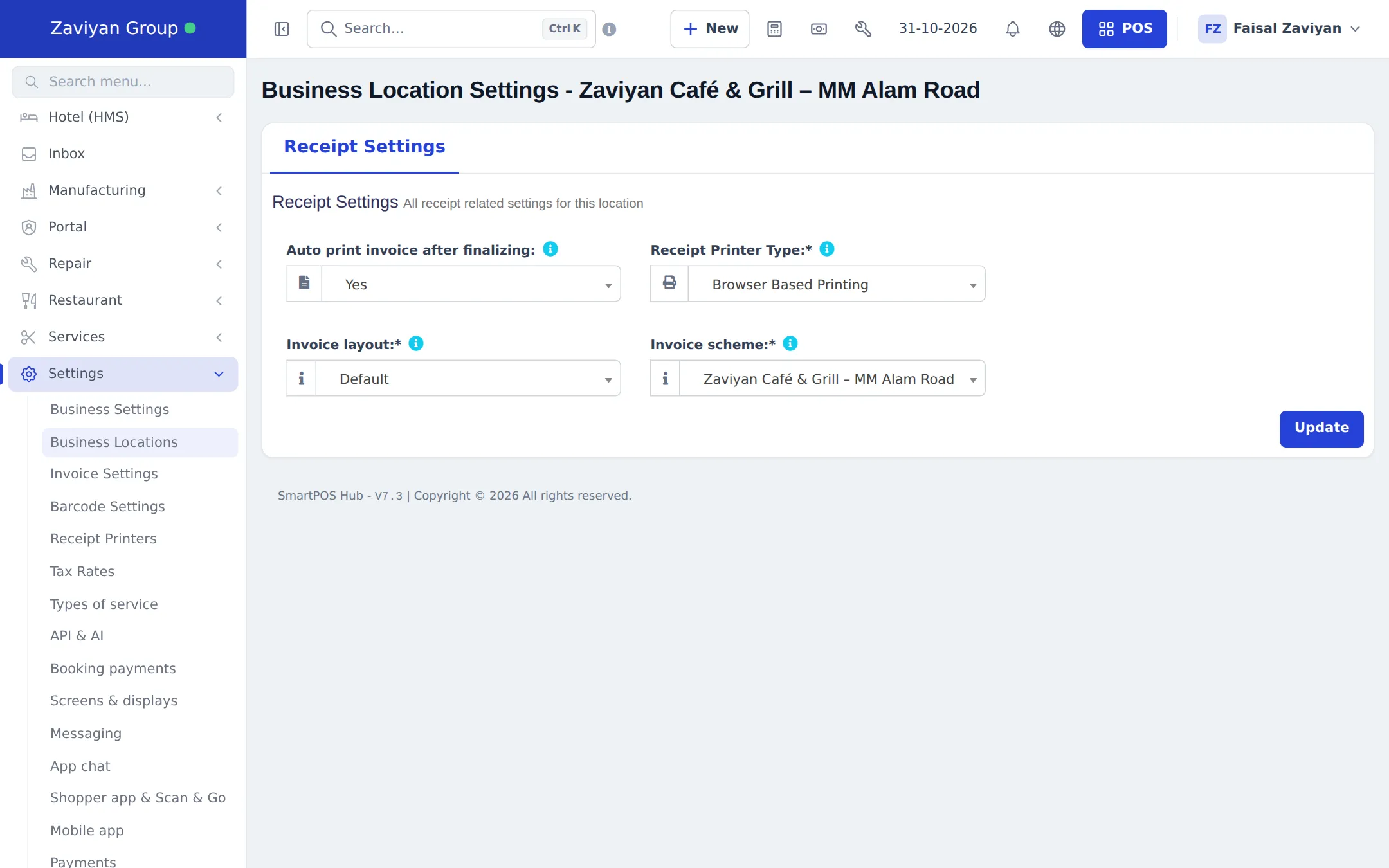
- In SmartPOS Hub, open Settings › Business Locations and click Settings next to the location.
- Set Receipt Printer Type to Browser Based Printing.
- Set Auto print invoice after finalizing to Yes if the receipt should open for printing after every sale.
- Choose the Invoice layout (receipt design) for this location and click Update.
Direct printing to a network or USB printer
Section titled “Direct printing to a network or USB printer”Use this when you want receipts to go straight to a receipt printer without the browser’s print window.
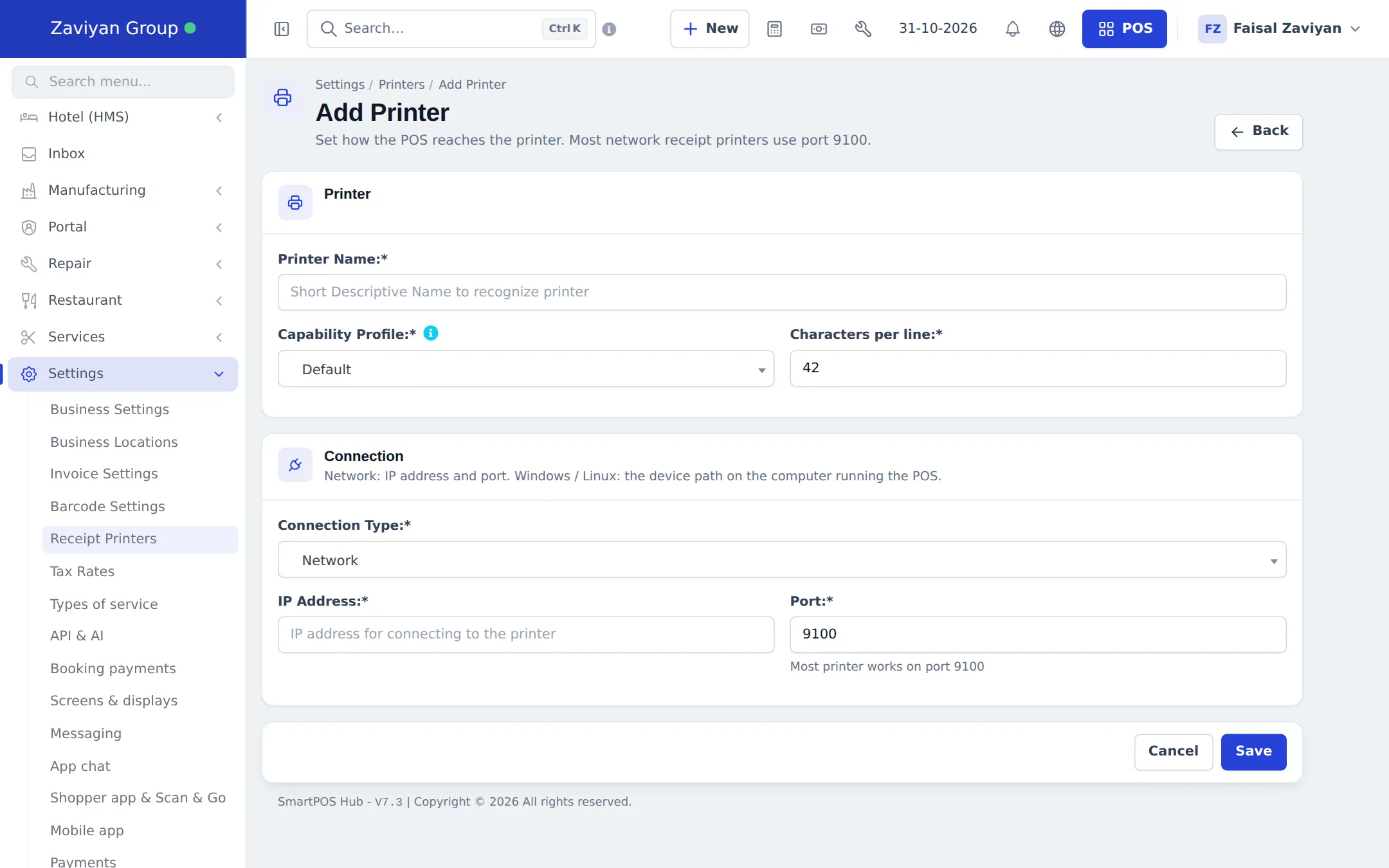
- Open Settings › Receipt Printers and click + Add Printer (or Import prebuilt to add common 80 mm, 58 mm and kitchen printers in one go).
- Enter a Printer Name, the Capability Profile and Characters per line (42 or 48 for 80 mm paper, 32 for 58 mm).
- Choose the Connection Type: for Network, enter the printer’s IP Address and Port (most use 9100); for Windows or Linux, enter the printer path on the computer running the POS.
- Click Save, then choose this printer on the location’s Settings page.
More detail: Receipt printers and barcode printers.
Barcode scanner
Section titled “Barcode scanner”- Plug the USB scanner into the computer (or pair the Bluetooth scanner).
- Open the POS and click in the product search box.
- Scan a product. It is added to the cart.
If the product is not found, the POS offers Add new product with this barcode or Link to an existing product (when your role allows it). See Barcodes and labels.
Camera scanning: on a phone or tablet browser the POS shows a camera button next to the product search. Tap it, allow the camera, and point at the barcode. Turn on Continuous to scan many items in a row.
Label printer
Section titled “Label printer”Set the label size once under Settings › Barcode Settings (or Import prebuilt for common sheets and rolls), then print from Products › Print Labels. See Barcodes and labels and Receipt printers and barcode printers.
Customer display and kitchen screens
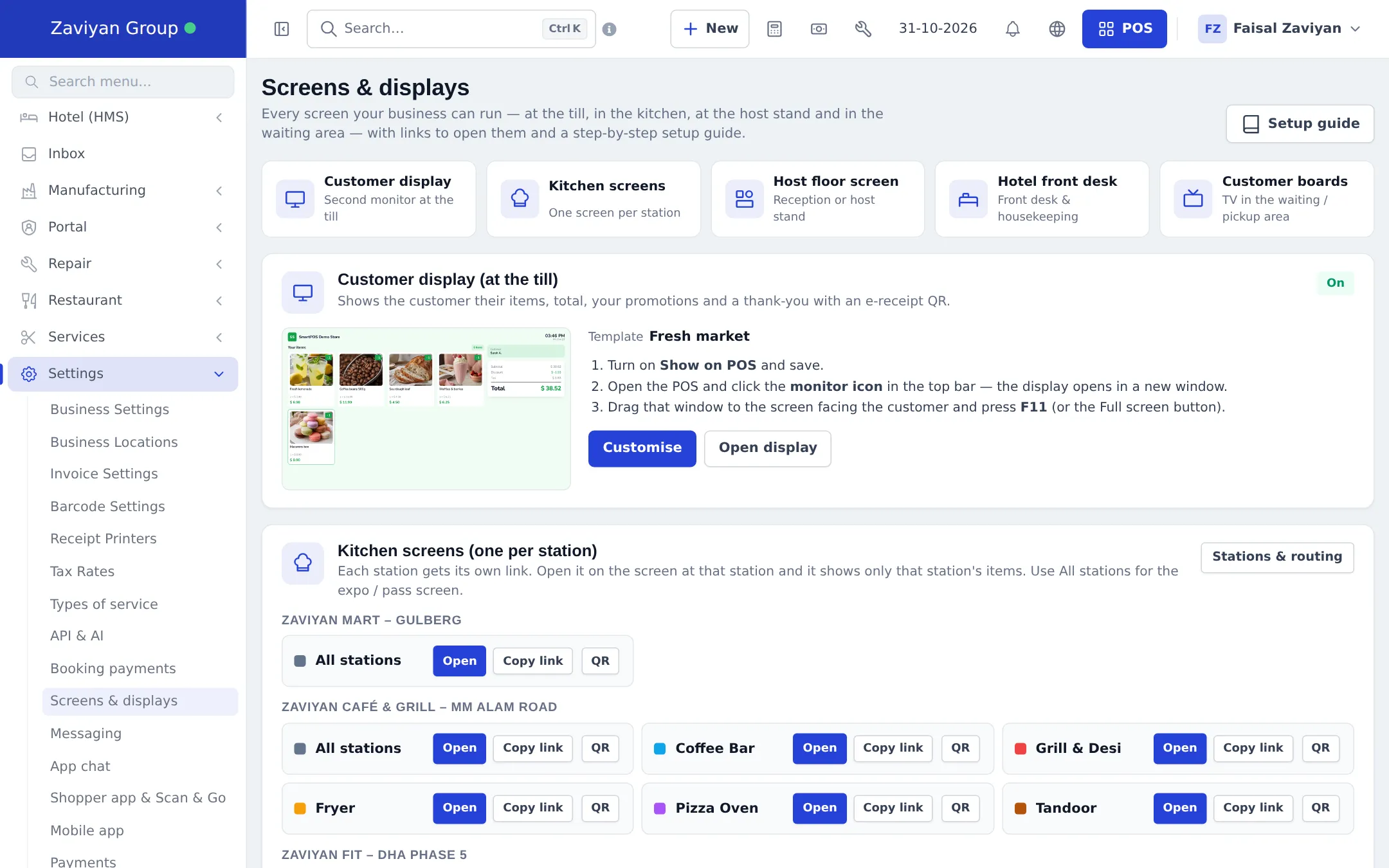
Section titled “Customer display and kitchen screens”Settings › Screens & displays lists every screen your business can run, with Open, Copy link and QR buttons and a Setup guide:
- Customer display (second monitor at the till): turn on Show on POS under Customise, open the POS, click the monitor icon in the top bar, drag the new window to the customer screen and press F11.
- Kitchen screens (one per station), Host floor screen, Hotel front desk and Customer boards (order status on a TV), when those modules are on.
Staff phones: the SmartPOS Business app
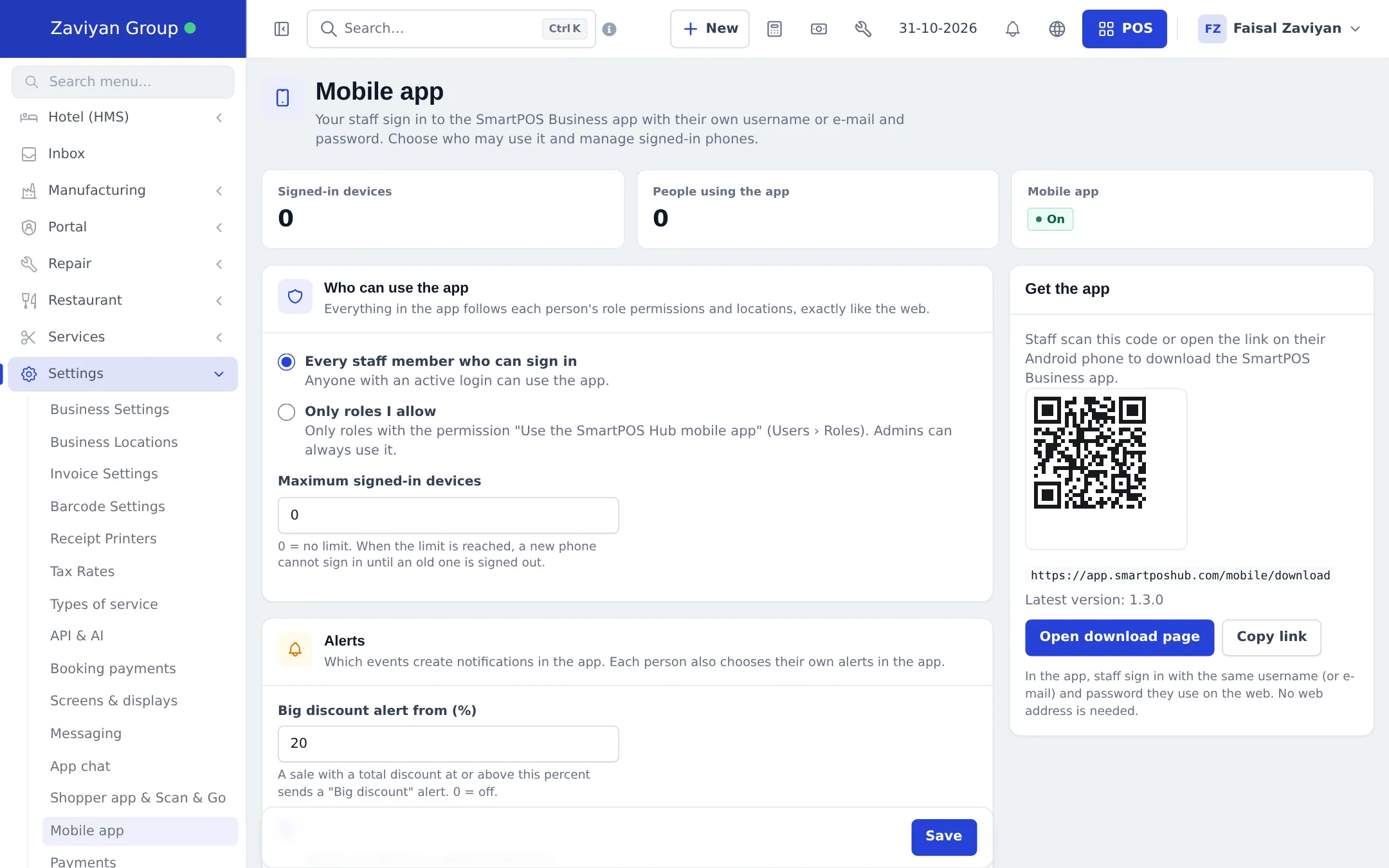
Section titled “Staff phones: the SmartPOS Business app”- Open Settings › Mobile app.
- Under Who can use the app, choose Every staff member who can sign in or Only roles I allow (then tick the permission on those roles).
- Optional: set Maximum signed-in devices, the Big discount alert from (%) and low-stock alerts. Click Save.
- Under Get the app, staff scan the QR code or open the link on their Android phone, then install the app.
- In the app, staff sign in with the same username (or e-mail) and password they use on the web. No web address is needed.
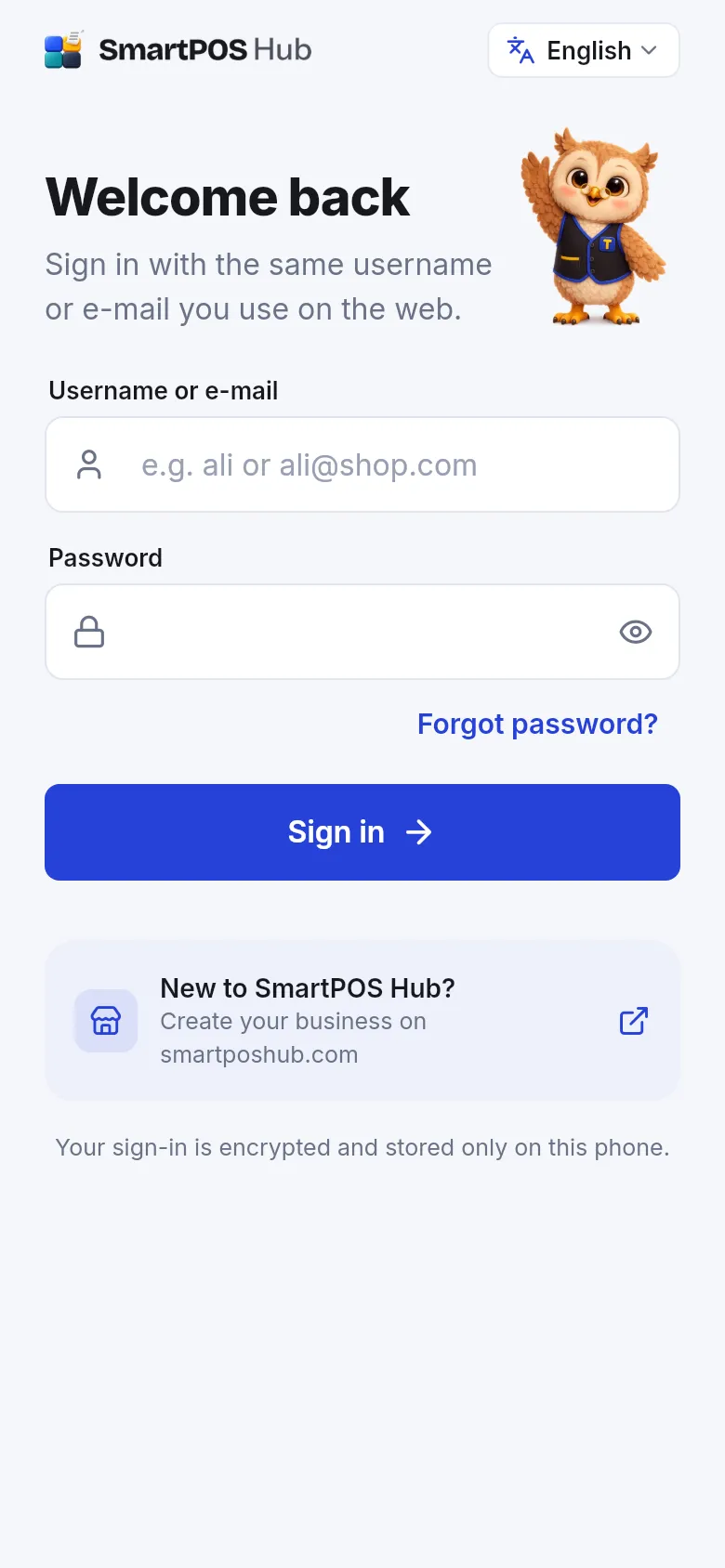
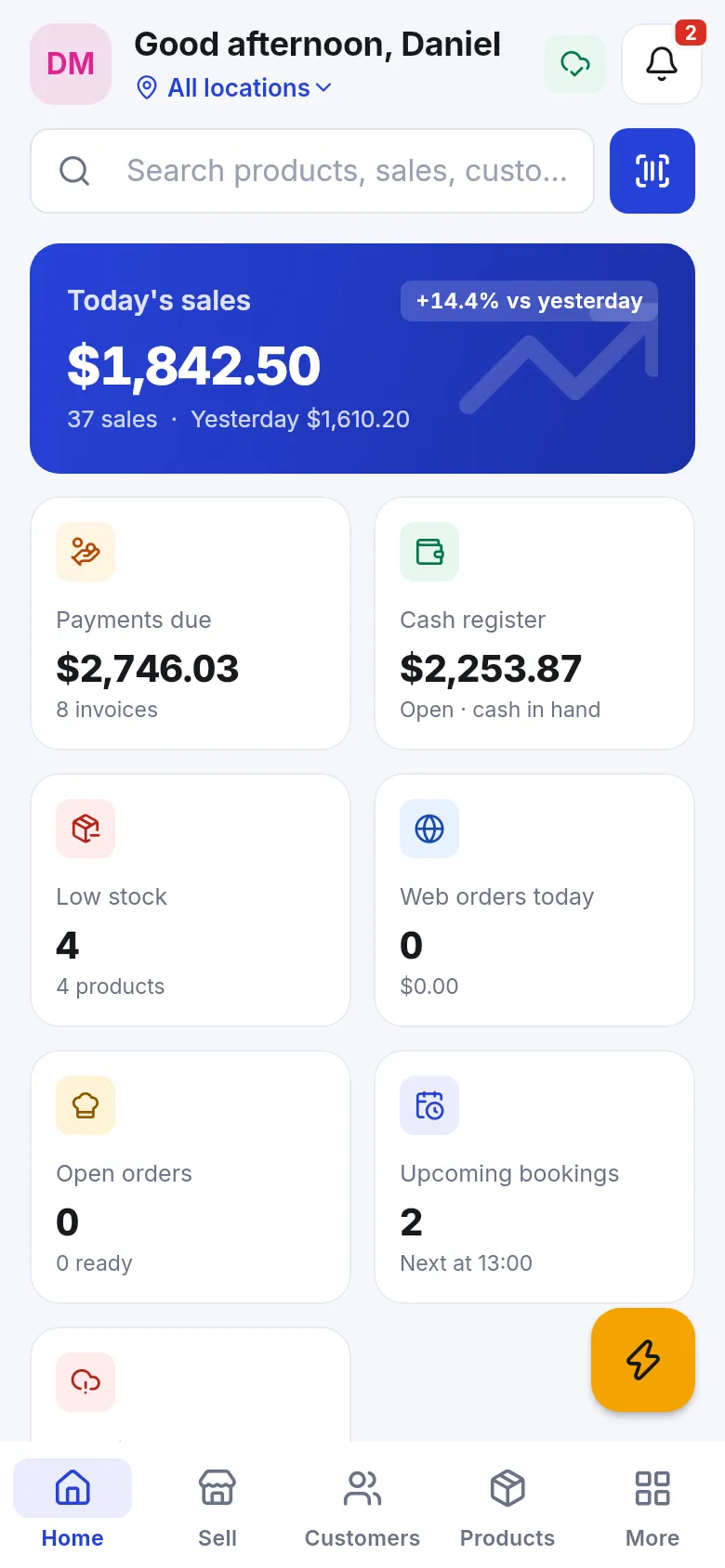
Everything in the app follows each person’s role and locations, exactly like the web. Signed-in phones are listed at the bottom of Settings › Mobile app; signing one out stops it at once. Full guide: SmartPOS Business app.
Tips and mistakes to avoid
Section titled “Tips and mistakes to avoid”- Test print from each till before opening; check the logo and that text is not cut at the edge (adjust Characters per line).
- Give each printer a fixed IP address in your router, otherwise network printing stops when the address changes.
- Use a kitchen-only role for kitchen screens, never the owner’s login.
- Set a device limit if staff might sign in on personal phones.
Related pages
Section titled “Related pages”Frequently asked questions
Do I need a special receipt printer?
No. With Browser Based Printing any printer your computer can print to works, including 80 mm and 58 mm thermal printers. For printing straight to a network or USB receipt printer, add it under Settings, Receipt Printers.
Which barcode scanners work?
Any USB or Bluetooth scanner that types the code and presses Enter, like a keyboard. Plug it in, click the POS search box and scan. No setup is needed in SmartPOS Hub.
Can I scan barcodes with a phone camera?
Yes. On the POS opened in a phone or tablet browser, tap the camera button next to the product search. The SmartPOS Business app also has a built-in scanner.
How do I show the customer their items on a second screen?
Turn on the customer display in Settings, Screens and displays, open the POS, click the monitor icon in the top bar and drag the new window to the screen facing the customer.
Is the SmartPOS Business app free?
The app is included when the Mobile app module is in your plan and switched on. Staff sign in with their normal username or e-mail and password.
Is there an iPhone app?
Not yet. The SmartPOS Business and SmartPOS Shopper apps are for Android phones and tablets. On an iPhone or iPad use the web app in Safari.
How do I sign a lost phone out?
Open Settings, Mobile app, find the phone under Signed-in devices and sign it out. It stops working at once.
Can I keep selling when the internet goes down?
Yes, with the Offline POS module. It keeps sales on the device and sends them when the connection is back. See the Offline selling guide.