
Products and stock in the app - add, count, transfer
With SmartPOS Business you can manage your catalogue and stock from the shop floor: add products by scanning their barcode, check stock and stock lots at every location, count shelves by scanning, transfer and write off stock and print shelf labels. This page is for owners, managers and stock staff.
Before you start
Section titled “Before you start”- Your role needs product permissions (view, add, edit) and stock permissions (adjust, transfer, count) as set in User Management › Roles on the web.
- Categories, brands, units, tax rates and variation templates are set up on the web; the app uses them. See Categories, brands and units.
Find and view products
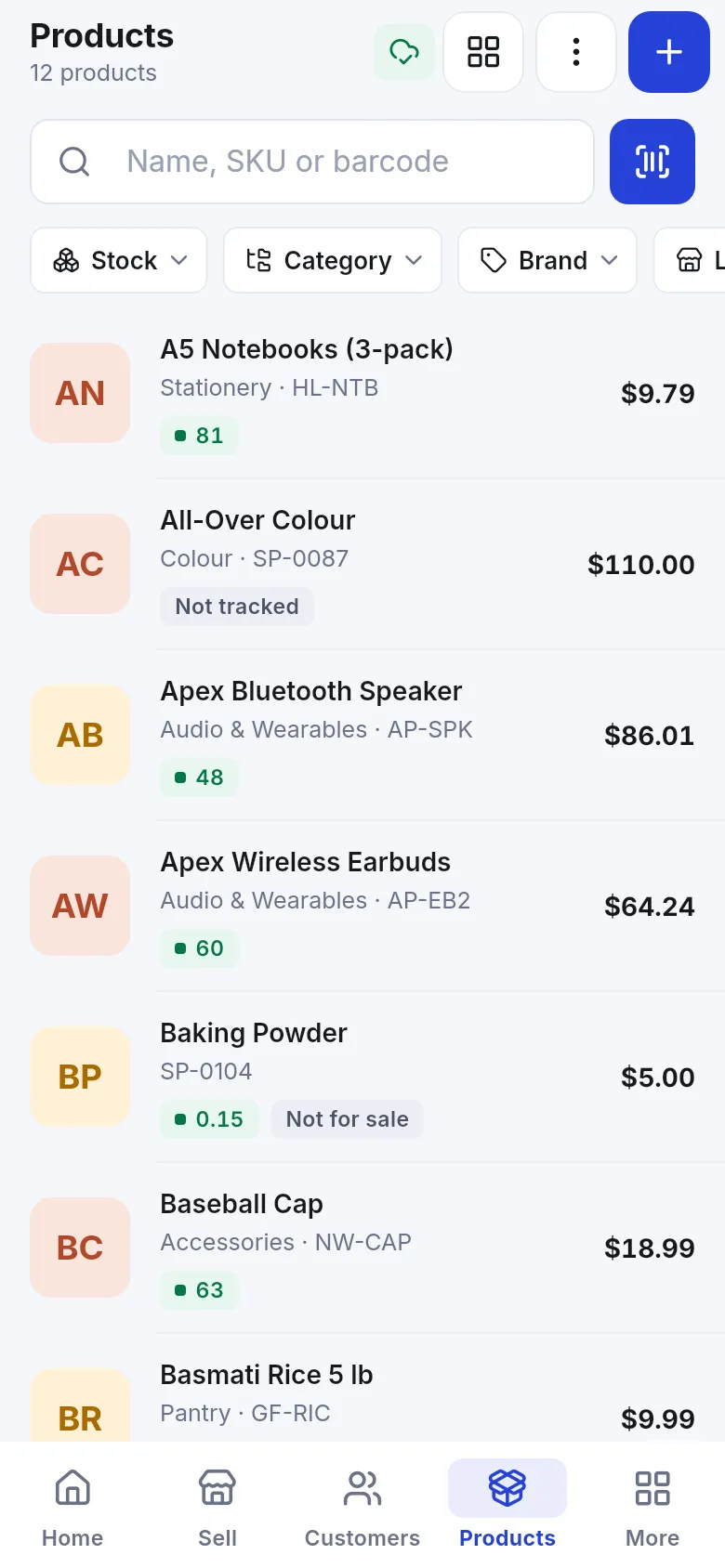
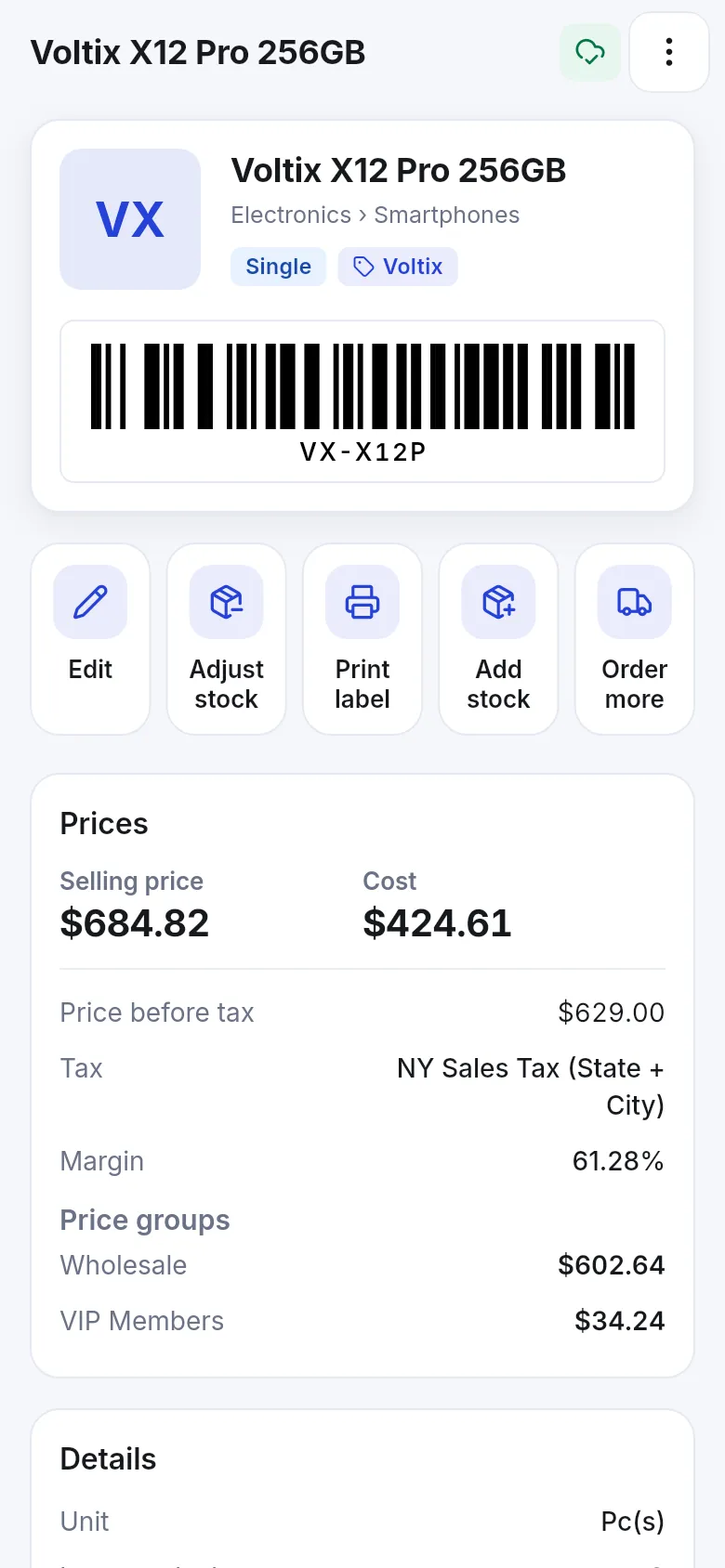
Section titled “Find and view products”Open Products (bottom tab or More). Search by Name, SKU or barcode or scan; filter by Stock, Category and Brand. Tap a product to see its barcode, Prices (selling price, cost, price before tax, tax, margin, price groups), details and stock by location. Quick actions on the product page: Edit, Adjust stock, Print label, Add stock and Order more.
Add a product
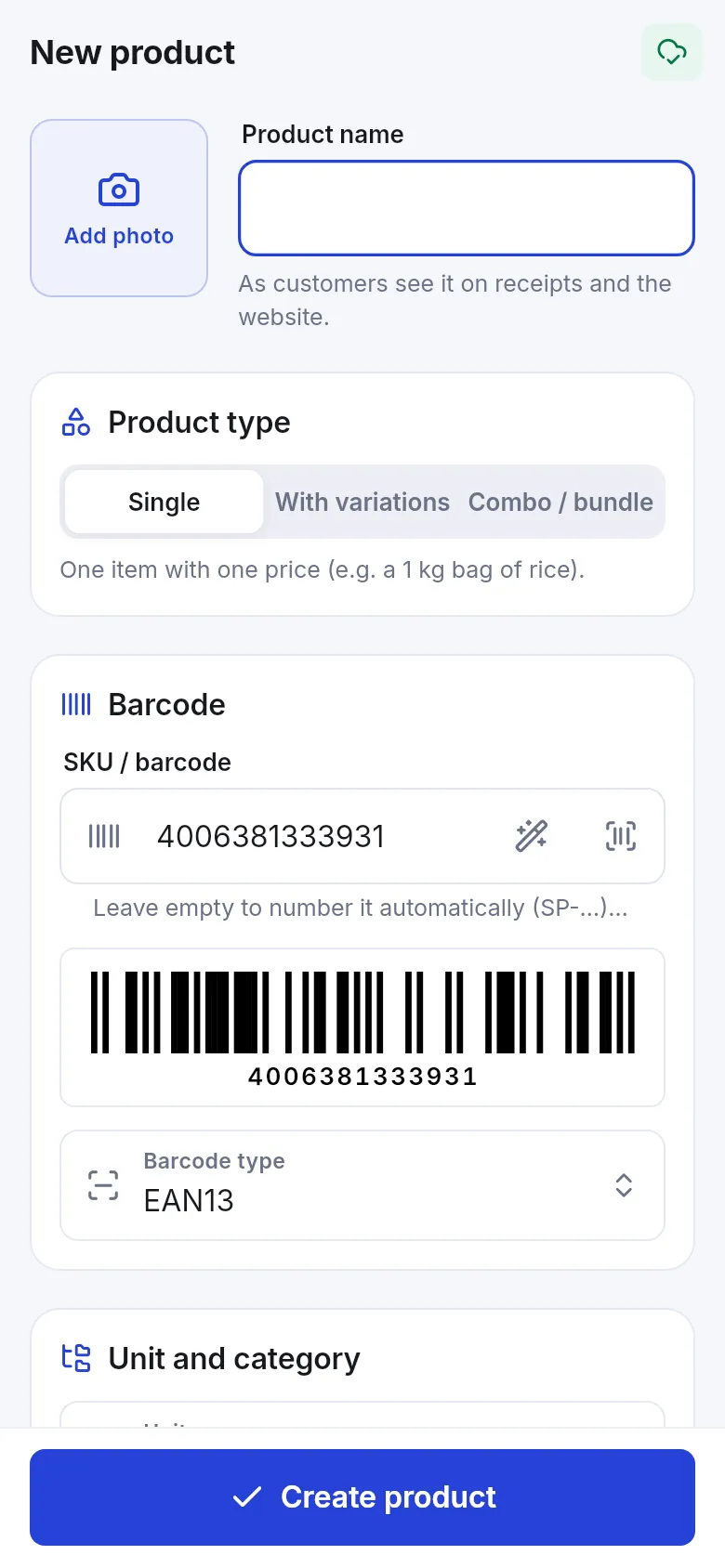
Section titled “Add a product”- In Products, tap + (or scan an unknown barcode and choose Add new product with this barcode).
- Enter the Product name and tap Add photo to take or choose a picture.
- Pick the Product type: Single, With variations or Combo / bundle.
- Under Barcode, scan the maker’s barcode into SKU / barcode, or leave it empty to number it automatically. Choose the Barcode type if needed.
- Set Unit and category, then the Cost (before tax) and selling price – the margin is worked out for you – and the tax.
- Optional: price groups, warranty, expiry, serial numbers, custom fields – the same fields as the web form.
- Under Opening stock, enter what you have on the shelf now per location (each line is a stock lot with its cost and date).
- Tap Create product.
Stock by store and stock lots
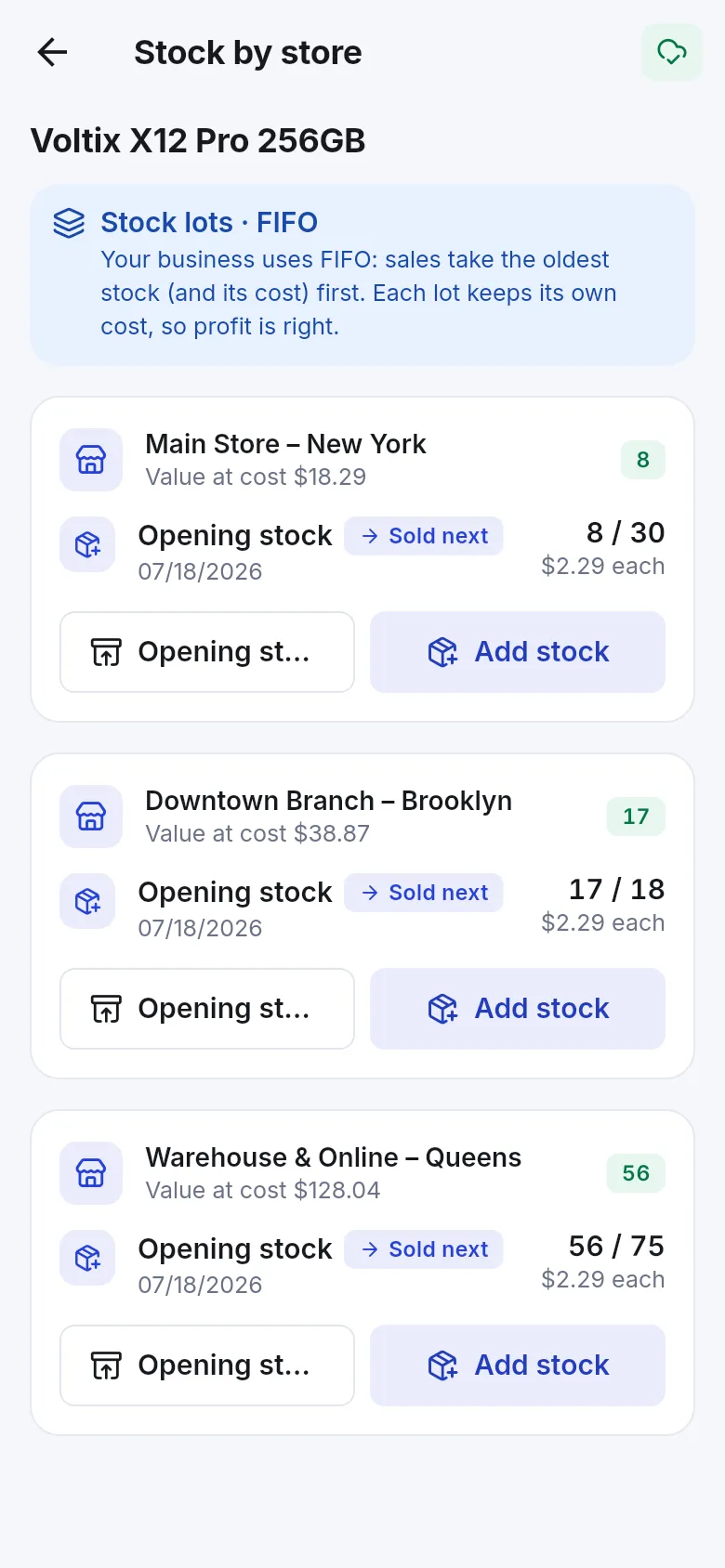
Section titled “Stock by store and stock lots”On a product, open Stock by store. For each location you see the quantity and Value at cost, and the Stock lots in the order sales use them (FIFO or LIFO, as set for your business). Each lot keeps its own cost, so profit is right. Tap Add stock on a location to receive more, or edit the Opening stock lots.
Add stock books new stock as a purchase so costs and supplier balances stay right: choose the supplier (or leave Walk-in supplier), date, quantity, Unit cost (exc. tax) and expiry if used, then tap Receive stock.
The Stock screen
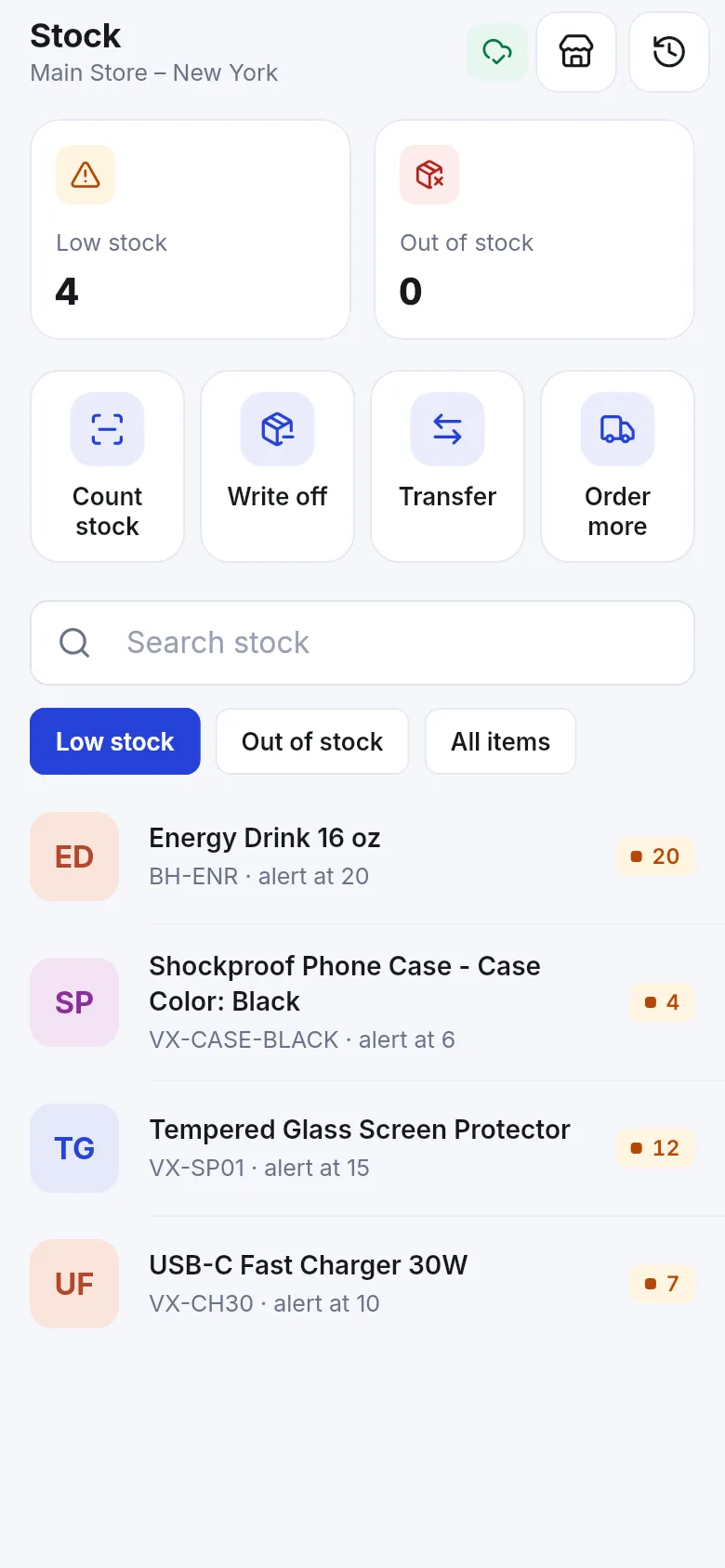
Section titled “The Stock screen”Stock (from More or the Quick menu) shows Low stock and Out of stock counts, actions Count stock, Write off, Transfer and Order more, and lists of low-stock, out-of-stock or all items.
Count stock by scanning
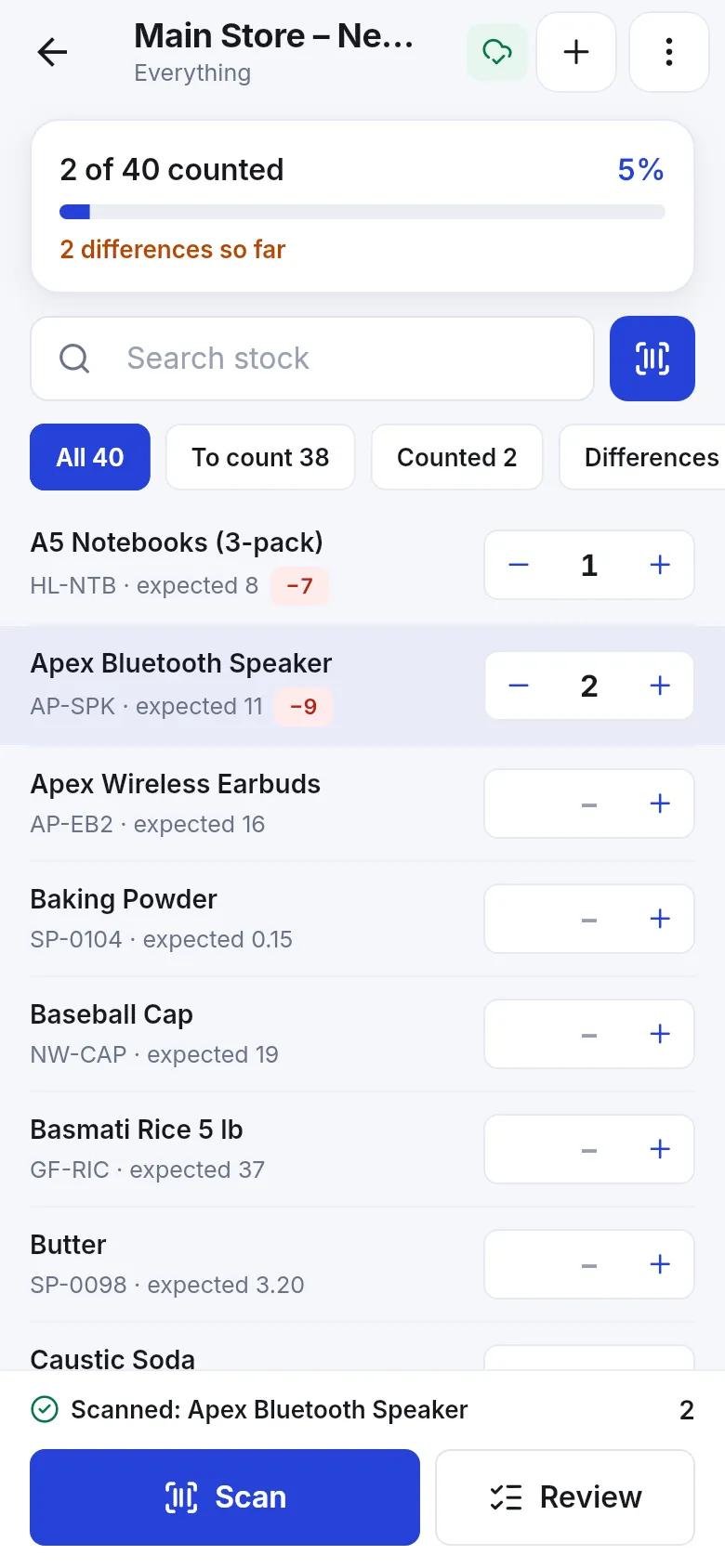
Section titled “Count stock by scanning”- Tap Count stock, then New stock count. Pick the location and, if you like, Only this category. Turn on Blind count to hide expected quantities while counting.
- We save what the system expects now; then scan or type what you find.
- Tap Scan and scan each item, or use + and − on a line. The bar shows … of … counted and the differences so far. Filter by To count, Counted or Differences.
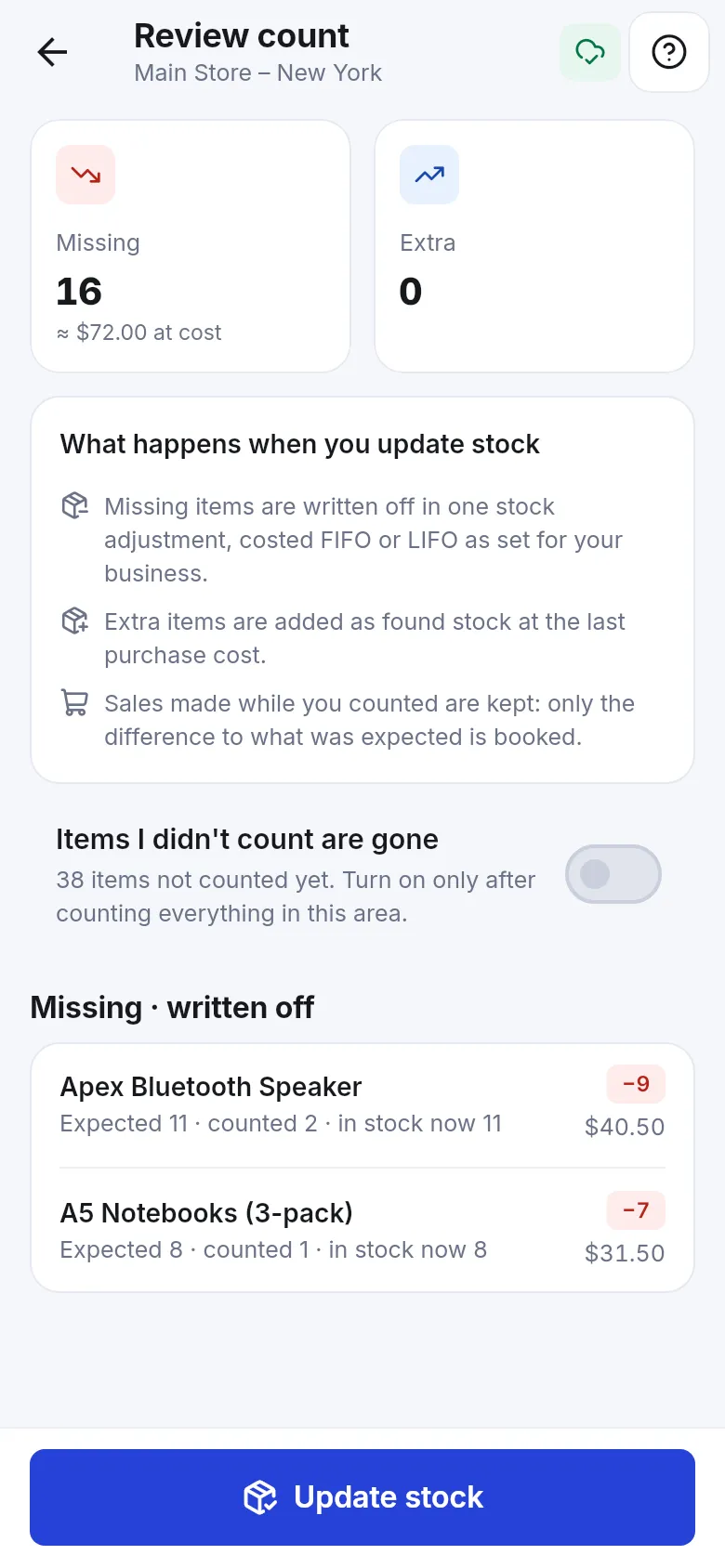
- Tap Review. The app shows Missing and Extra items with their value at cost and explains what will happen: missing items are written off, extra items are added at the last purchase cost, and sales made while you counted are kept.
- Leave Items I didn’t count are gone off unless you counted the whole area.
- Tap Update stock.
Transfer and write off
Section titled “Transfer and write off”- Transfer: choose From and To locations, find or scan items, choose the status (Delivered moves stock right away, or On the way / Pending), add an optional shipping cost and note, then tap Transfer.
- Write off: choose the location, find or scan items, pick a reason (Damaged, Expired, Lost or stolen, Used in store, Other) and whether it is an everyday loss, enter any money recovered, then tap Write off.
Print labels
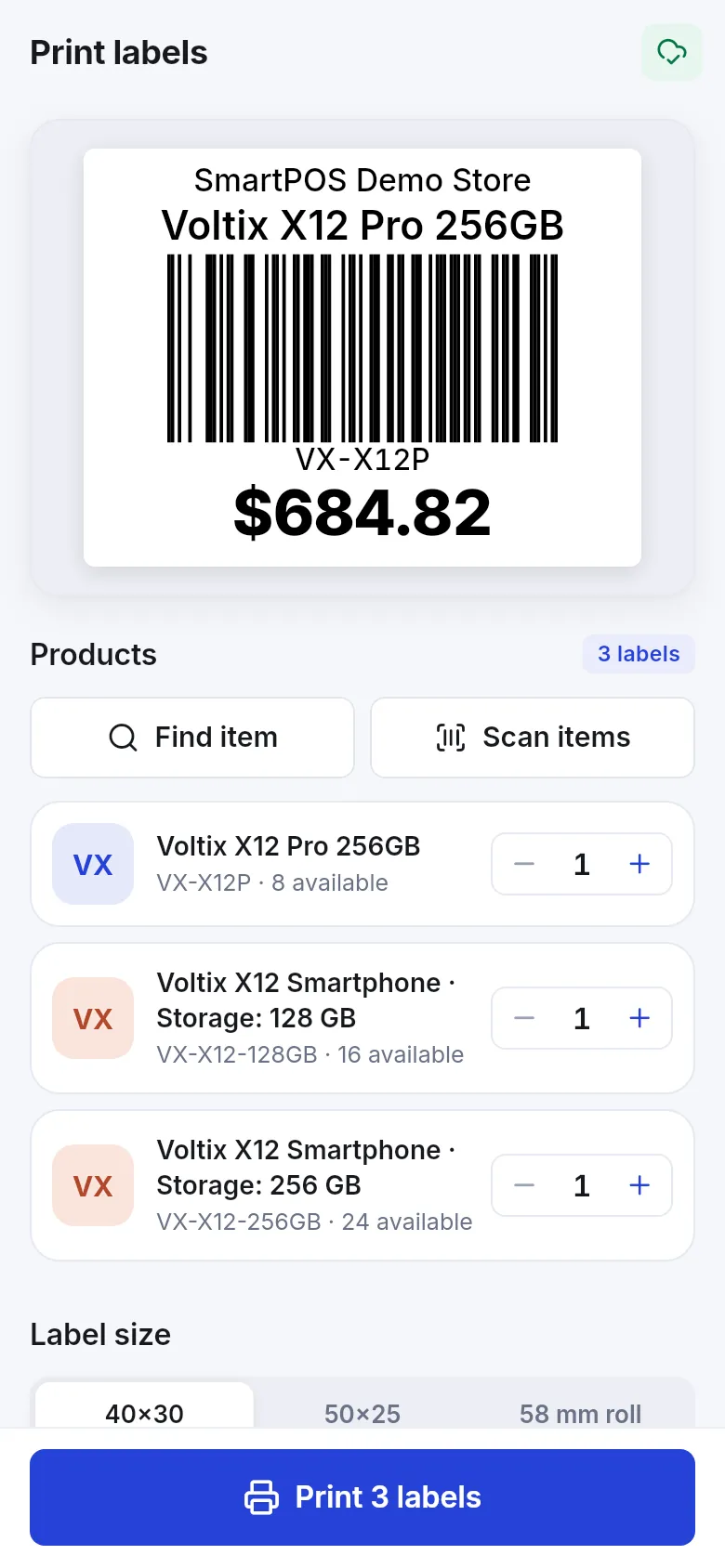
Section titled “Print labels”Open Print labels (Quick menu › Products, or Print label on a product). Find or scan items, set how many labels each, choose the label size and printer, and tap Print … labels. Label and receipt printers connect over Bluetooth.
Tips and mistakes to avoid
Section titled “Tips and mistakes to avoid”- Scan the maker’s barcode when you create a product; then scanning at the till just works.
- Use Link to an existing product for a supplier’s second barcode instead of creating a duplicate product.
- Count one area at a time and review before updating.
- Most product and stock changes need a connection; only POS sales queue offline.
Related pages
Section titled “Related pages”Frequently asked questions
Can I add a new product from my phone?
Yes. Open Products, tap +, fill in the name, photo, product type, barcode, prices and opening stock, and tap Create product. You need permission to add products.
Can I create products with sizes and colours in the app?
Yes. Choose With variations as the product type and build the variants from your variation templates, like on the web. Combo / bundle products are supported too.
What are stock lots?
Each delivery, opening stock entry or transfer-in is a lot with its own cost and date. Sales use the lots in your business's FIFO or LIFO order so the profit is right. Products › Stock by store shows them.
Does stock counting work offline?
Starting a count needs a connection to load the expected stock. The counting itself works offline once started.
What happens to items I did not count?
By default nothing. Turn on Items I didn't count are gone on the review screen only if you counted the whole area and want uncounted items written off.
Will sales made during a count be lost?
No. The app books only the difference between what you counted and what was expected when you started, so sales made while you count are kept.
How do I add stock without a full purchase?
Open the product and tap Add stock. It records a purchase in the background (with Walk-in supplier if you don't choose one), so costs and supplier balances stay right.