
Your online store - run it from the Website menu
Your SmartPOS Hub online store is a custom website that sells straight from your live catalog. This page explains, in plain words, what the Website menu does (run the store’s operations) and what it does not do (edit pages or themes), and walks you through each screen you use day to day.
How the online store works
Section titled “How the online store works”Think of it in two parts:
| Part | Where it lives | Who changes it |
|---|---|---|
| Design and content - pages, layout, colors, texts, blog, policies | The store’s own website files | Built for you; changed with AI, by SmartPOS support or your developer |
| Everything that is data - products, prices, stock per location, categories, customers, orders, invoices, reviews, questions, coupons, payments, delivery | SmartPOS Hub | You, from the Website menu and the rest of SmartPOS Hub |
Because the store reads everything live, there is nothing to sync. When a cashier sells the last item, the store shows it as sold out within seconds; when you change a price in Products, the store shows the new price.
Before you start
Section titled “Before you start”- The Website & online store module is on (see the box above).
- Your store has been built and connected. Ask SmartPOS support if Website › Overview says Store not connected yet.
- Products have photos, descriptions and prices, and are marked to show on the website.
- Locations that sell online have an address and opening hours (Settings › Business Locations).
- At least one payment method is set up in Settings › Payments.
The Website menu at a glance
Section titled “The Website menu at a glance”| Menu item | What you do there |
|---|---|
| Overview | Store status (Live / Maintenance / Offline), connection, today’s orders, 30-day sales, visitors, the Needs your attention queues and the Store setup checklist |
| Orders | Every online order, with filters and a detail page. See Website orders |
| Returns & refunds | Return requests from the store and your return policy |
| Reviews / Questions | Approve product reviews, reply in public, answer customer questions |
| Prescriptions | Pharmacies only: check prescriptions before an order is released |
| Payment proofs | Check bank-transfer receipts customers upload |
| Forms & webhooks | Entries from the store’s forms (contact, quote, trade-in…), webhooks and their delivery log |
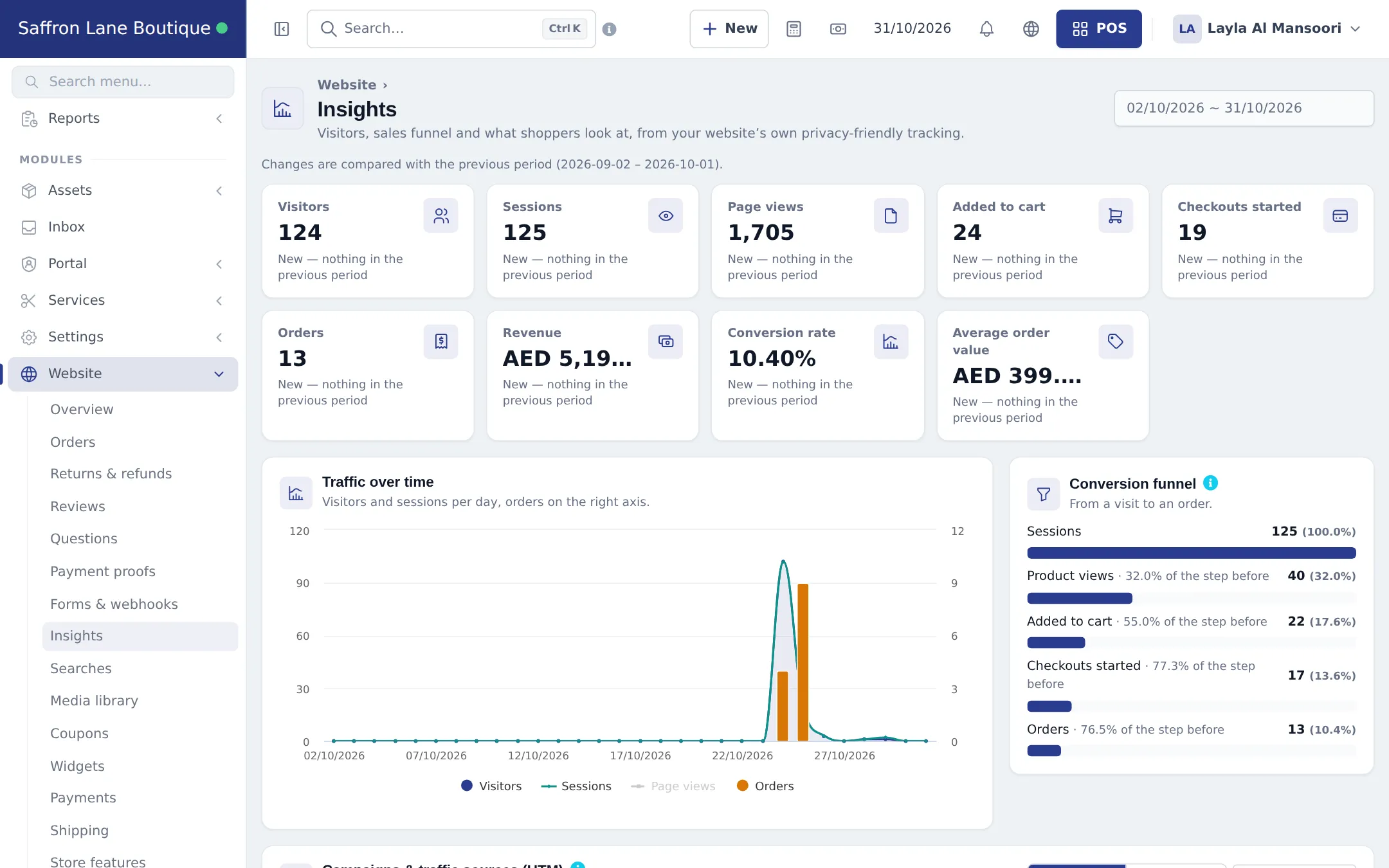
| Insights | Visitors, sessions, add to cart, checkouts, orders, revenue, conversion and campaign (UTM) results |
| Searches | What customers search for, including searches with no results |
| Media library | Every image of your business in one place |
| Coupons | Discount codes for the store and widgets |
| Widgets | Copy-paste shop widgets. See Widgets |
| Payments | Which payment methods the store offers per location and order type |
| Shipping | Delivery zones and prices, with a Try an address checker |
| Store features | Switches for what the store does (see below) |
| Store info | A read-only summary of what the store shows: name, currency, contact, locations, hours, policies |
| Settings & API | Checkout rules, stores and time slots, catalog and prescriptions, and the connection details |
Step 1 - Check the overview and go live
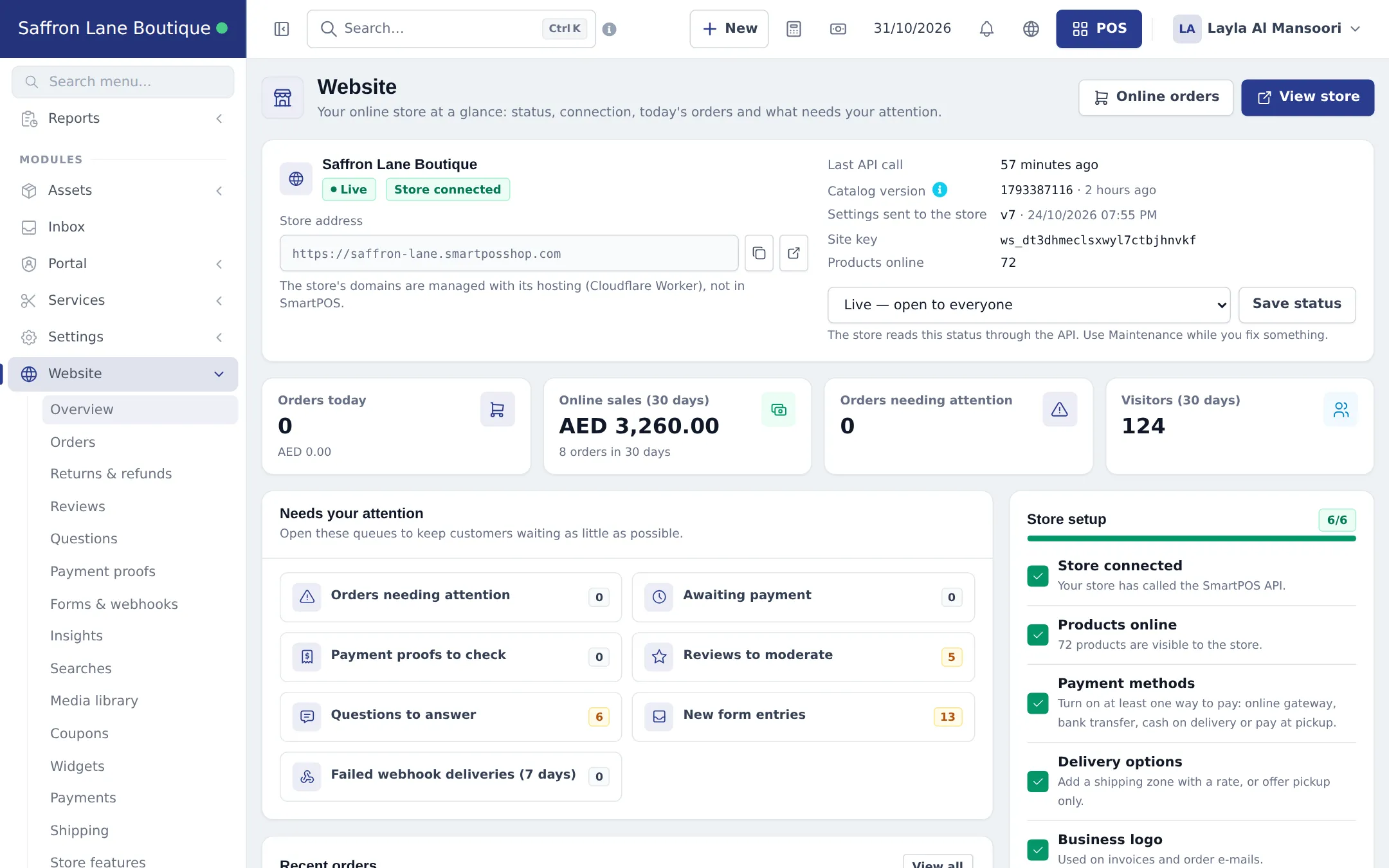
Section titled “Step 1 - Check the overview and go live”- Open Website › Overview.
- Look at the Store setup checklist on the right. Each line has a Fix link: store connected, products online, payment methods, delivery options, business logo and store is live.
- Work down Needs your attention: orders needing attention, awaiting payment, payment proofs to check, reviews to moderate, questions to answer, new form entries and failed webhook deliveries.
- When everything is ready, choose Live - open to everyone under Site status and press Save status.
Step 2 - Choose what the store does (Store features)
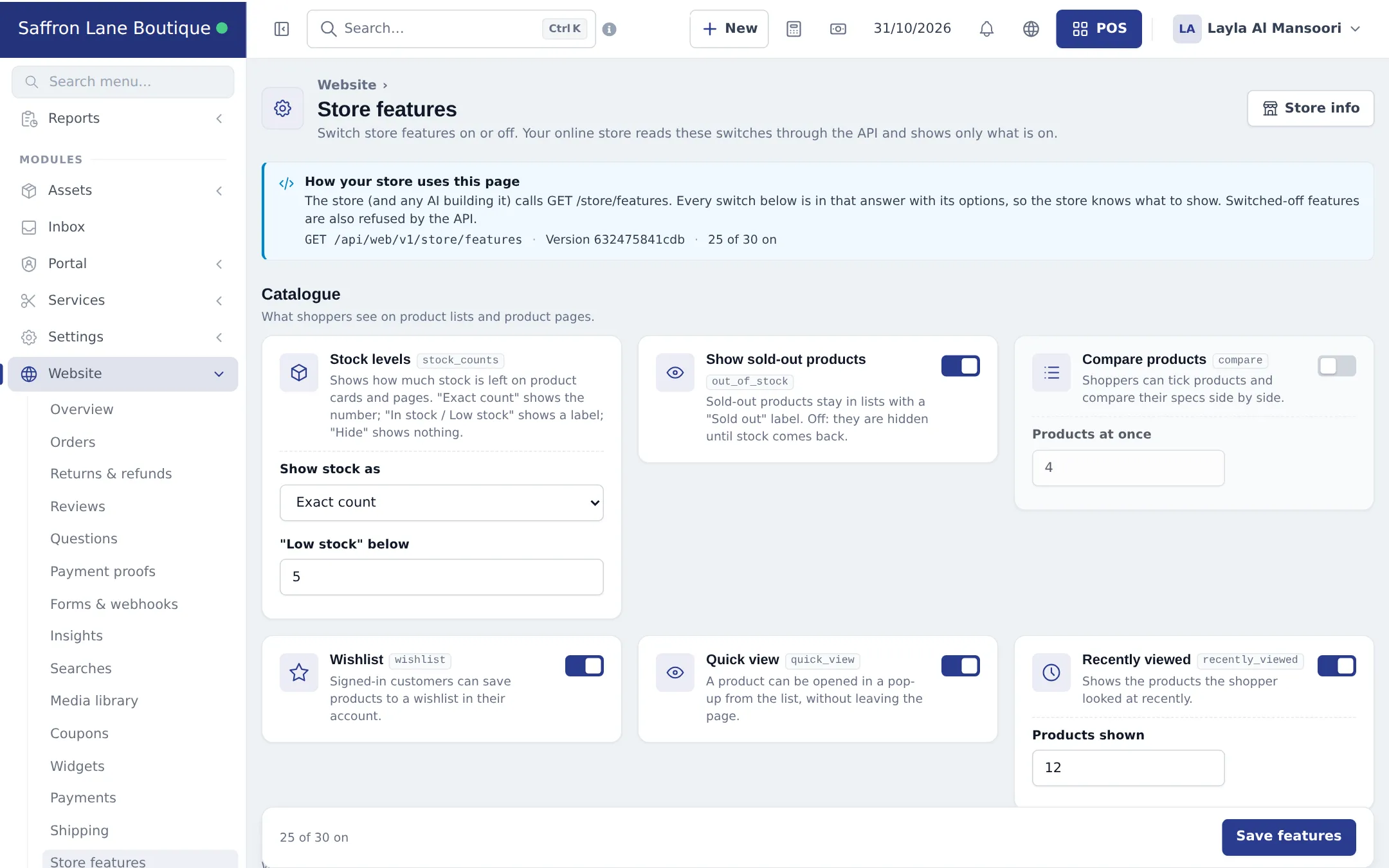
Section titled “Step 2 - Choose what the store does (Store features)”Website › Store features has one card per feature, each with a switch and a one-line explanation. The groups are:
- Catalogue: stock counts (hide, badge or number), out-of-stock products, compare, wishlist, quick view, recently viewed.
- Social: reviews (moderation, verified buyers only, photos), questions, social proof (people viewing, recent orders).
- Checkout: guest checkout, delivery, pickup, dine-in, time slots, minimum order, coupons, gift note, order notes, cancel window.
- Pharmacy: prescriptions, with approval before release.
- Customer accounts: accounts, sign in with a code, reorder, invoices.
- Marketing: newsletter, visitor tracking consent, abandoned carts.
- Search: suggestions and popular searches.
Save, and the store picks up the change within seconds. A switched-off feature disappears from the store.
Step 3 - Moderate reviews and answer questions
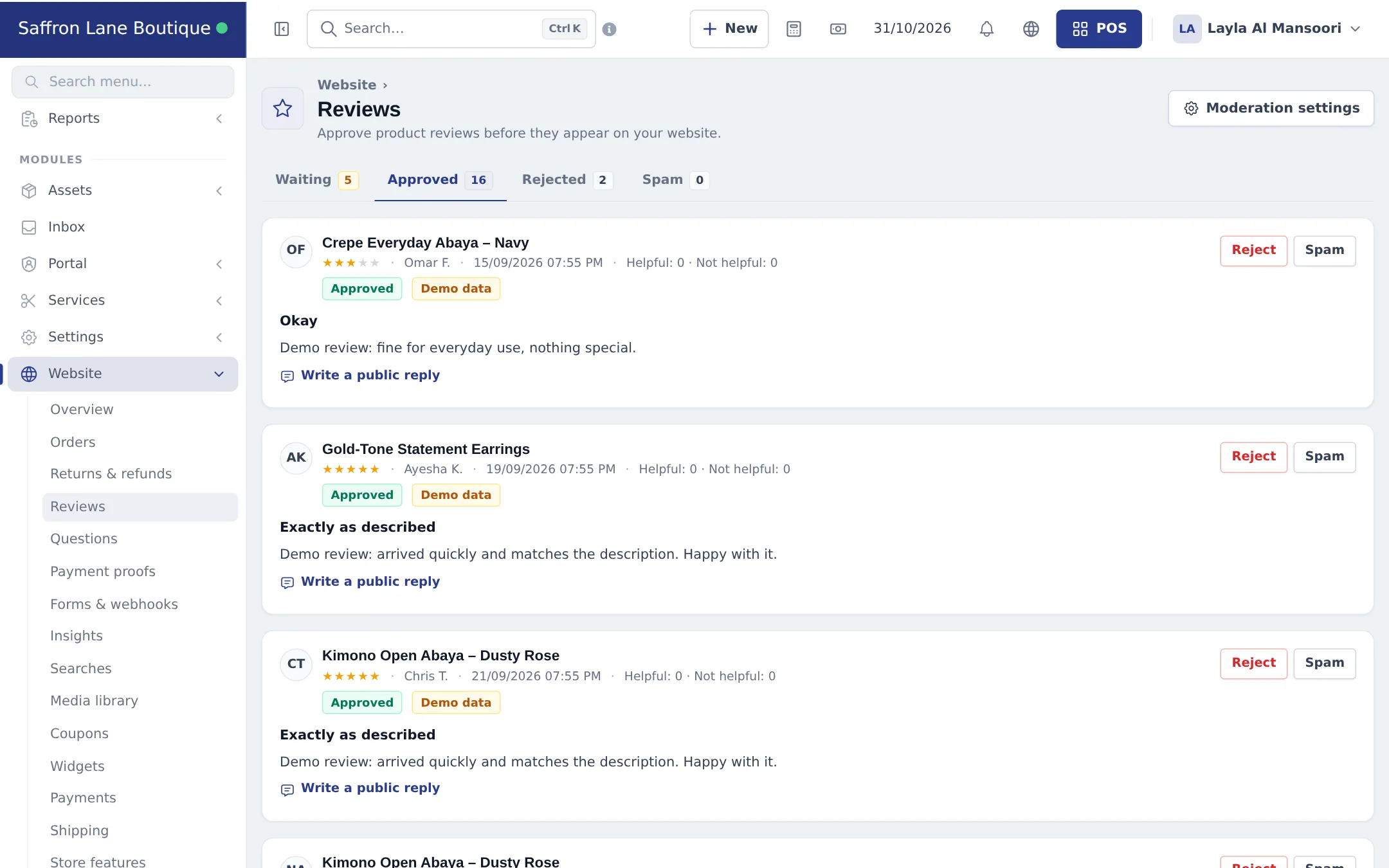
Section titled “Step 3 - Moderate reviews and answer questions”- Open Website › Reviews. New reviews wait under Waiting.
- Read each review, then press Approve, Reject or Spam. Approved reviews appear on the product page. A Verified buyer label shows when the reviewer bought the product.
- Optional: Write a public reply under a review.
- Use Moderation settings to decide whether reviews need approval.
- Open Website › Questions and answer customer questions the same way.
Step 4 - Check checkout rules and the connection (Settings & API)
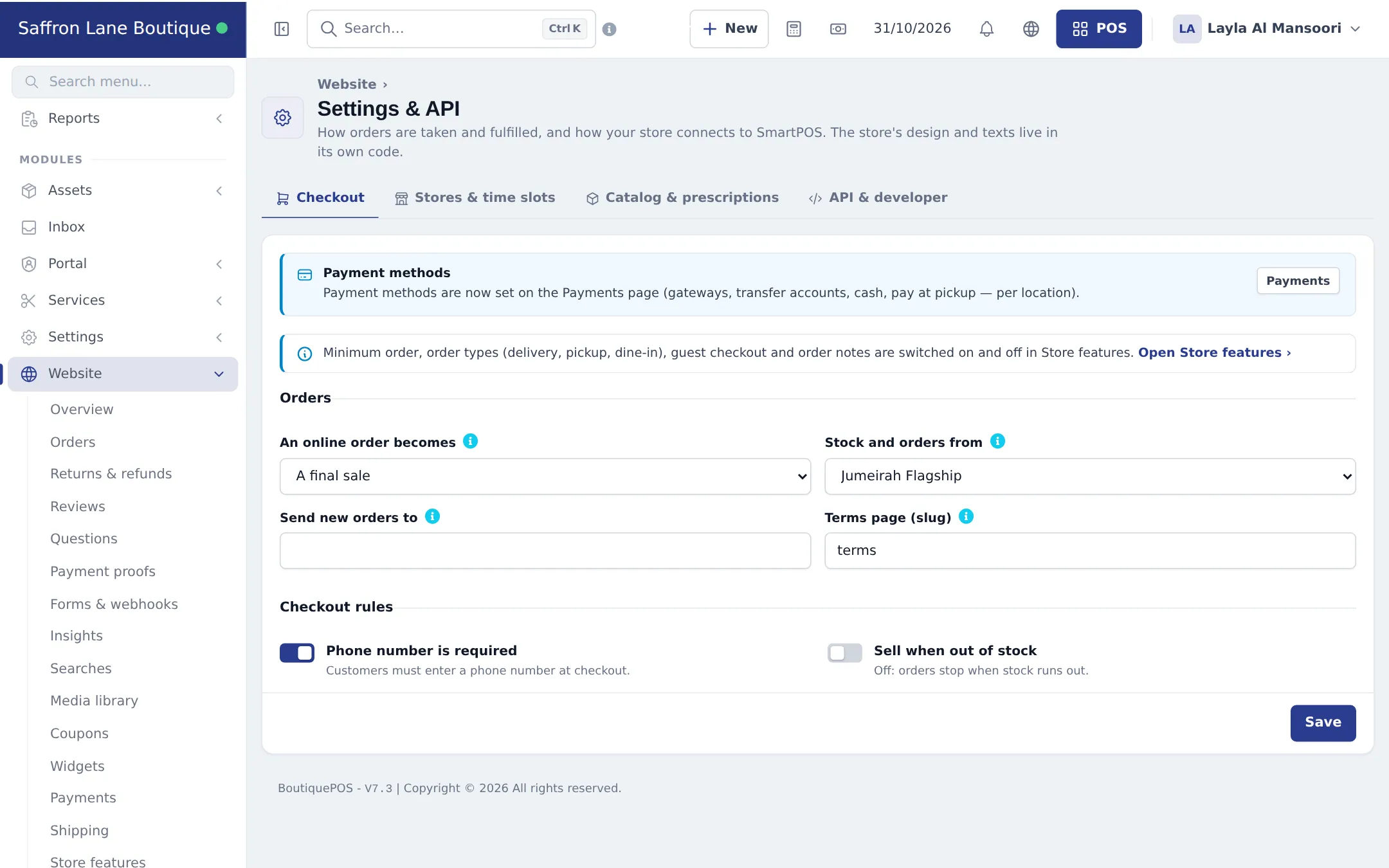
Section titled “Step 4 - Check checkout rules and the connection (Settings & API)”Website › Settings & API has four tabs:
- Checkout: what an online order becomes (for example A final sale), which location’s stock it uses (Stock and orders from), who is e-mailed about new orders, the terms page, Phone number is required and Sell when out of stock. Payment methods themselves are on the Payments page, and order types, minimum order, guest checkout and order notes are in Store features.
- Stores & time slots: which locations sell online, pickup and delivery slots.
- Catalog & prescriptions: show all sellable products or only marked ones, sold-out products, prescription approval, form e-mails.
- API & developer: the connection status, the API base URL and the Site key. The store secret is never shown again after it is created; a business admin can make a new one with Generate new secret (your password is asked). The live store stops working until the new secret is saved in its hosting, so only do this together with SmartPOS support or your developer.
Step 5 - Watch results in Insights
Section titled “Step 5 - Watch results in Insights”Website › Insights shows visitors, sessions, page views, add to cart, checkouts, orders, revenue, conversion and average order value for a date range, compared with the previous period. The campaign table splits results by UTM source, medium and campaign, so you can see which ads and posts bring orders. Export the table as CSV.
Tips and mistakes to avoid
Section titled “Tips and mistakes to avoid”- No products online? The checklist line Products online shows 0 when no product is marked for the website and “show all sellable products” is off. Mark products, or switch the catalog option on in Settings & API › Catalog & prescriptions.
- No payment options at checkout? Turn on at least one method in Website › Payments (pay at pickup, cash on delivery, bank transfer or an online gateway from Settings › Payments).
- Delivery not offered? Add a delivery zone with a price in Website › Shipping, then use Try an address.
- Don’t rotate the store secret casually. It disconnects the live store until the new secret is installed.
- Domain, design and text changes are not in SmartPOS Hub - ask support.
Related pages
Section titled “Related pages”Frequently asked questions
Can I edit my store's pages, theme or menus inside SmartPOS Hub?
No. SmartPOS Hub has no page or theme editor. Your store is a custom-coded website. Its design and texts are changed in the store's own files, usually with AI, by SmartPOS support or your developer. Inside SmartPOS Hub you run operations - orders, reviews, payments, delivery, features and settings.
How do I get an online store?
Contact SmartPOS support. The store is built for your business and connected to your account. Until it is connected, Website › Overview shows "Store not connected yet". If you only need ordering on an existing website, use widgets instead.
Do I have to copy my products to the website?
No. The store reads products, prices, stock per location, categories, brands and specifications from SmartPOS Hub live. A price or stock change at the till shows on the store within seconds.
How do I hide a product from the store?
Products appear online when they are marked to show on the website, or when your website settings show all sellable products. Untick the product's website option or hide its category to remove it.
How do I close the store for a while?
On Website › Overview, set Site status to Maintenance (visitors see a notice) or Offline (the store is closed) and press Save status. Switch back to Live when you are ready.
Who on my team can work on the website?
Anyone whose role has the Website permissions. On Website › Overview, the Team access card can create a "Web Manager" role with every website permission for you.
Where do I change the store's domain?
The domain is managed with the store's hosting, not in SmartPOS Hub. Ask SmartPOS support to change or add a domain.
Can customers create accounts on my store?
Yes, when Accounts is switched on in Website › Store features. Customers can sign in, see orders and invoices, save addresses and reorder.