
Put your store in the SmartPOS Shopper app
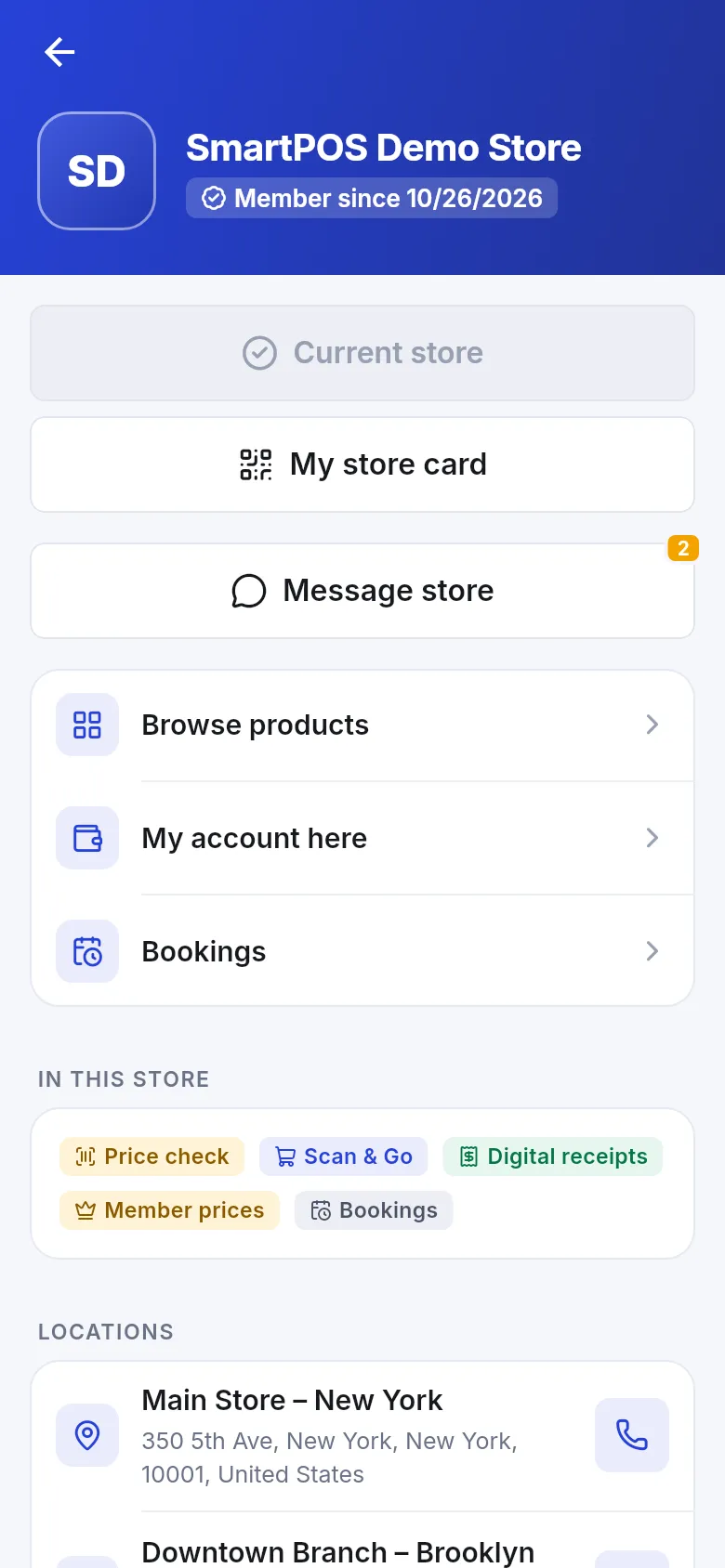
The SmartPOS Shopper app gives your customers your store in their pocket: browse and order, check prices, see member prices, Scan & Go, show a store card at the counter, keep receipts, book and chat. This page shows the shop owner how to switch it on, invite customers and choose what they can do.
What customers can do
Section titled “What customers can do”| Feature | Where you switch it |
|---|---|
| Join your store, see your store page, hours and branches | General + Store profile |
| Price check by scanning a barcode | Always on when the store is in the app |
| Member prices | Members see their member prices |
| Scan & Go (scan into a cart, pay at the counter) | Scan & Go - see Scan & Go |
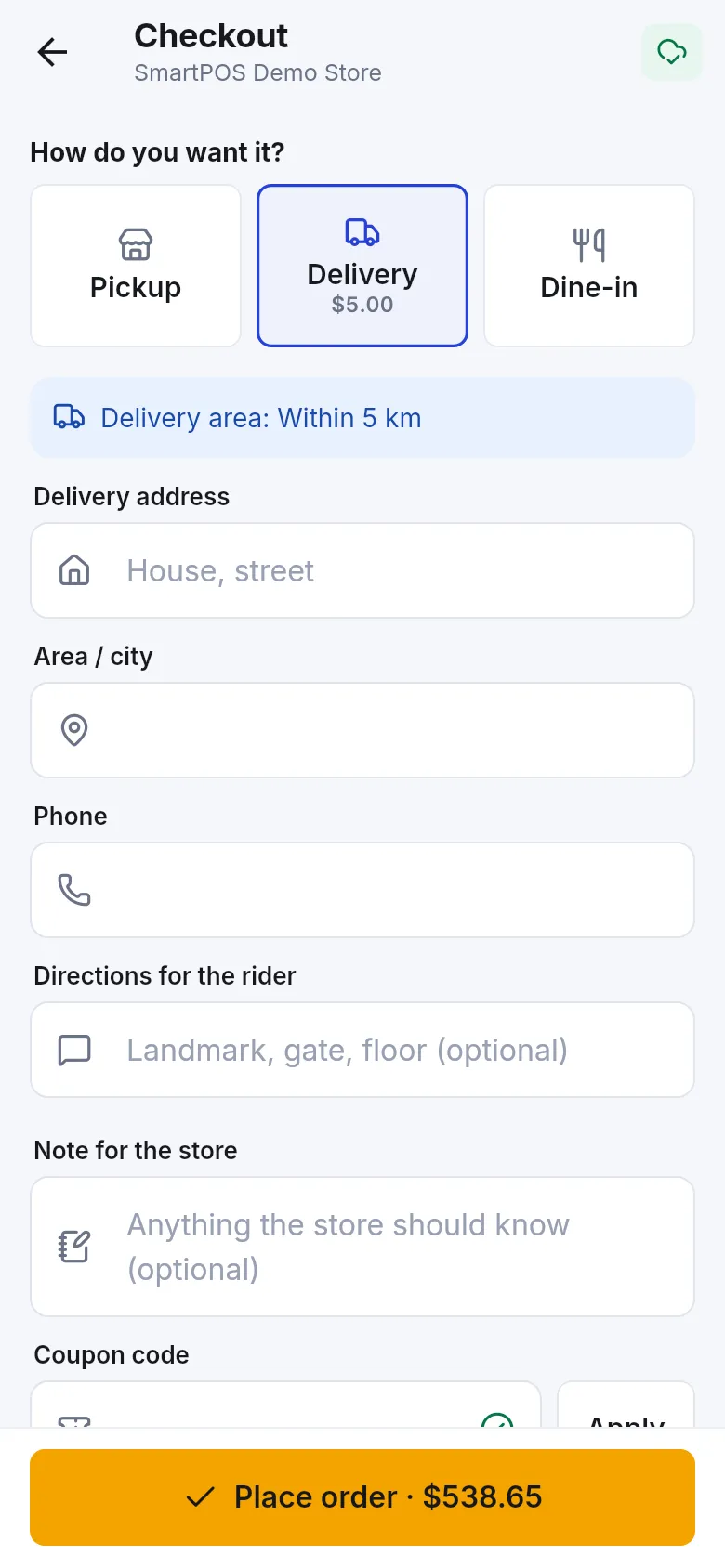
| Order for pickup, delivery or dine-in | Ordering from the app |
| My store card at the counter (so the sale goes on their account) | Always on for members |
| Receipts and their account with you | Always on for members |
| Book tables, appointments, rooms, gym and repairs | Services, rooms, gym and repairs in the app (when those modules are on) |
| Chat with you | Settings › App chat - see chat |
Step 1 - Switch on your store (General)
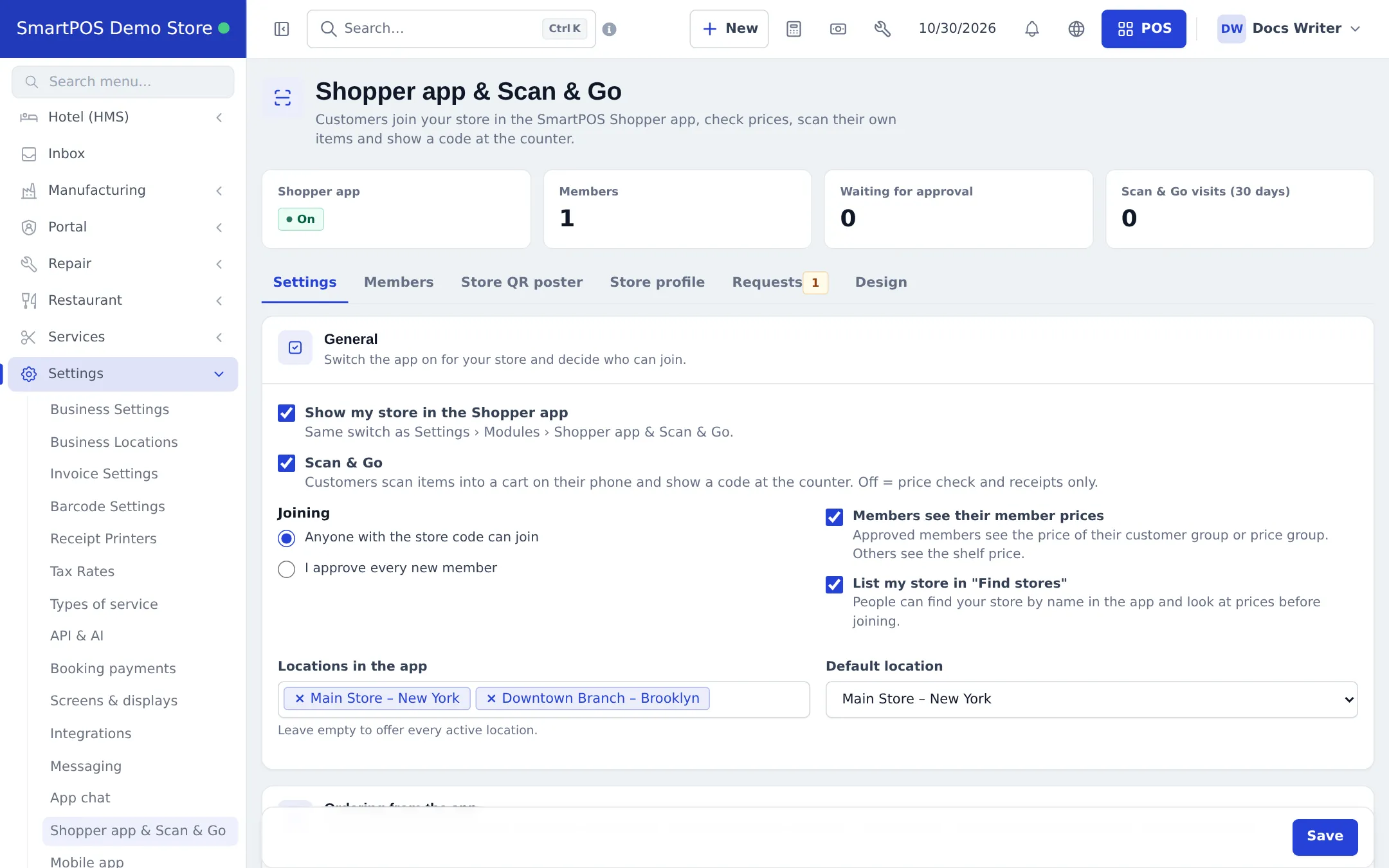
Section titled “Step 1 - Switch on your store (General)”- Open Settings › Shopper app & Scan & Go. The tiles at the top show whether the Shopper app is on, Members, Waiting for approval and Scan & Go visits (30 days).
- On the Settings tab, tick Show my store in the Shopper app.
- Tick Scan & Go if customers may scan items into a cart (off = price check and receipts only).
- Choose Joining: Anyone with the store code can join, or I approve every new member.
- Tick Members see their member prices and List my store in “Find stores” if you want them.
- Under Locations in the app, pick the branches customers can use (leave empty for every active location) and the Default location.
- Press Save.
Step 2 - Turn on ordering in the app
Section titled “Step 2 - Turn on ordering in the app”- In Ordering from the app, tick Take orders in the app. A line shows what is Recommended for your business.
- Store location: Shoppers choose a location (restaurants and branches - each has its own menu, stock and prices) or One location for every order (online shops - orders come from the fulfilment location).
- How shoppers get their order: Pickup at the store, Delivery, Dine-in (order at the table), and optionally Let guests pick their table.
- Delivery charge: a Fixed delivery fee, or Use my Website shipping zones. Set the Minimum order for delivery, Free delivery over (0 = never free) and the Delivery area (shown to shoppers).
- Payment: Pay at the store or table, Cash on delivery, and Online payment (uses the gateway set up for your website - see Payments for online orders).
- Set Orders per shopper per hour to stop fake or repeated orders, then Save.
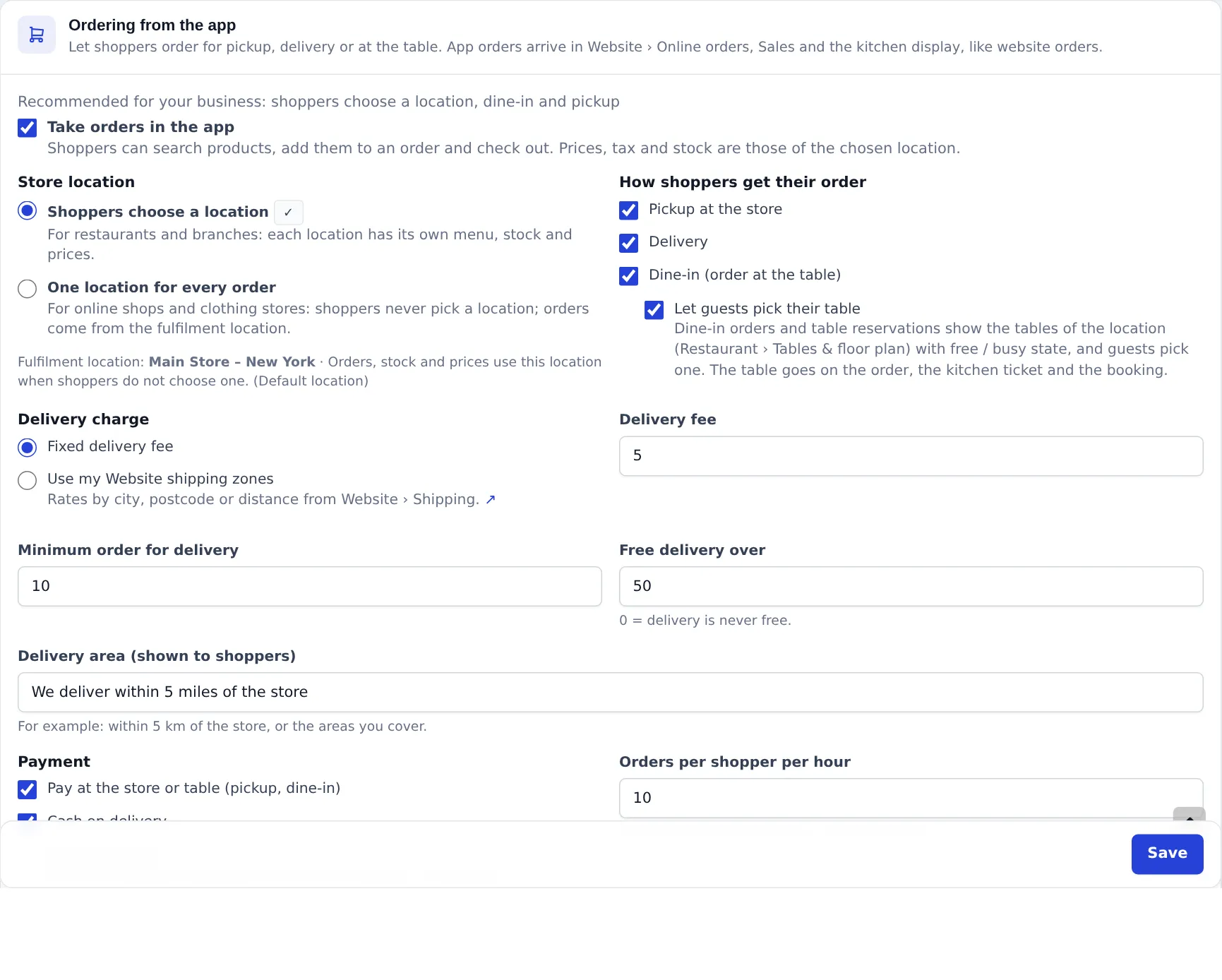
App orders appear in Website › Orders, in Sell › All sales and on the kitchen display, exactly like website orders. Prices, tax and rounding follow your POS settings.
Step 3 - Products, counter checks and bookings
Section titled “Step 3 - Products, counter checks and bookings”- Products: Hide these categories, Hide these products, ID check needed for these categories / products, Weigh at the counter (items sold by weight are marked automatically) and Show stock as “In stock / Low / Out of stock” with Low stock below.
- Checks at the counter (for Scan & Go): bag checks and blocking rooted phones - see Scan & Go.
- Shop tab: up to 8 banners and switches for categories, on sale and new arrivals - see Store profile and design.
- Currency display (mobile apps & receipts): symbol or code, and its position.
- Services, rooms, gym and repairs in the app: shows which booking sections are live. A section appears only when its module is in your plan, switched on and set up.
Step 4 - Invite customers with the store code and poster
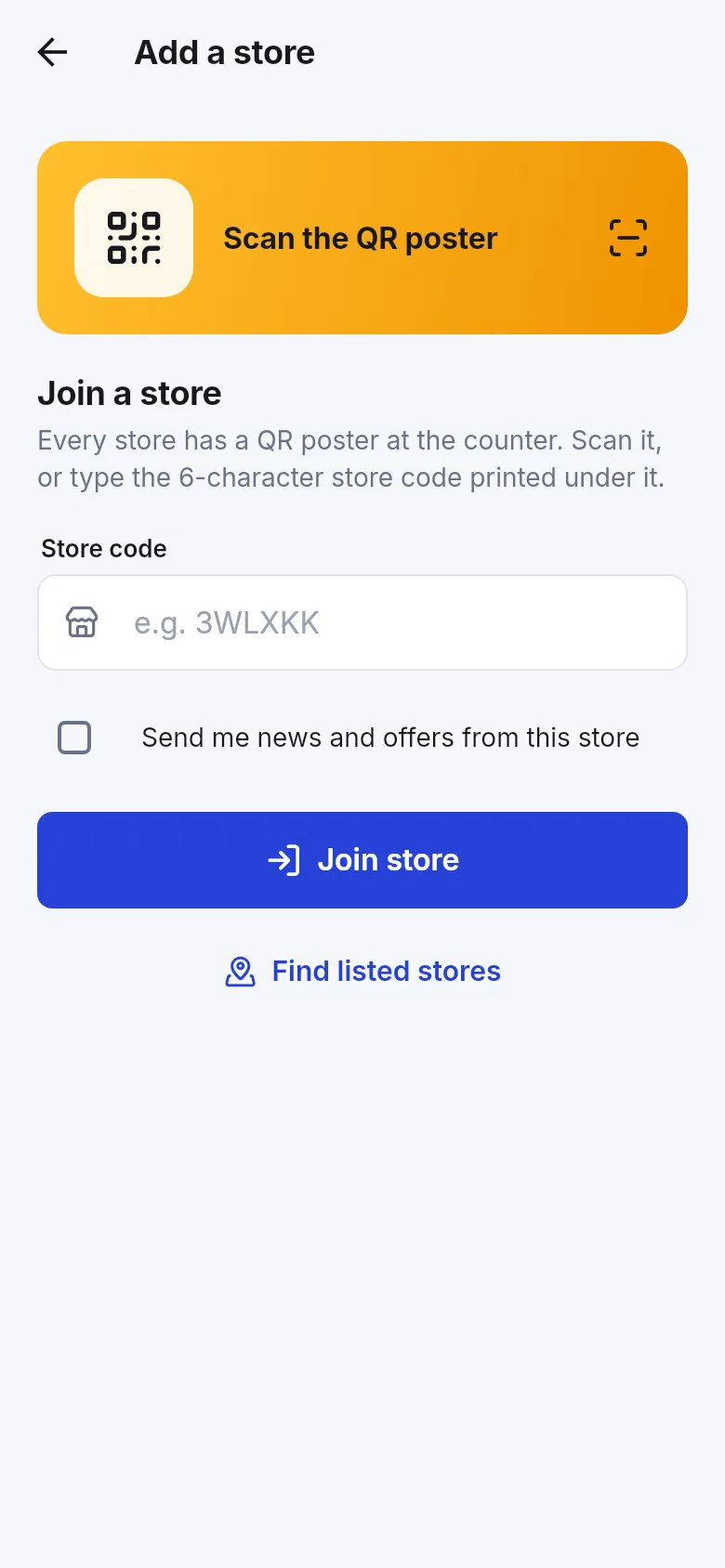
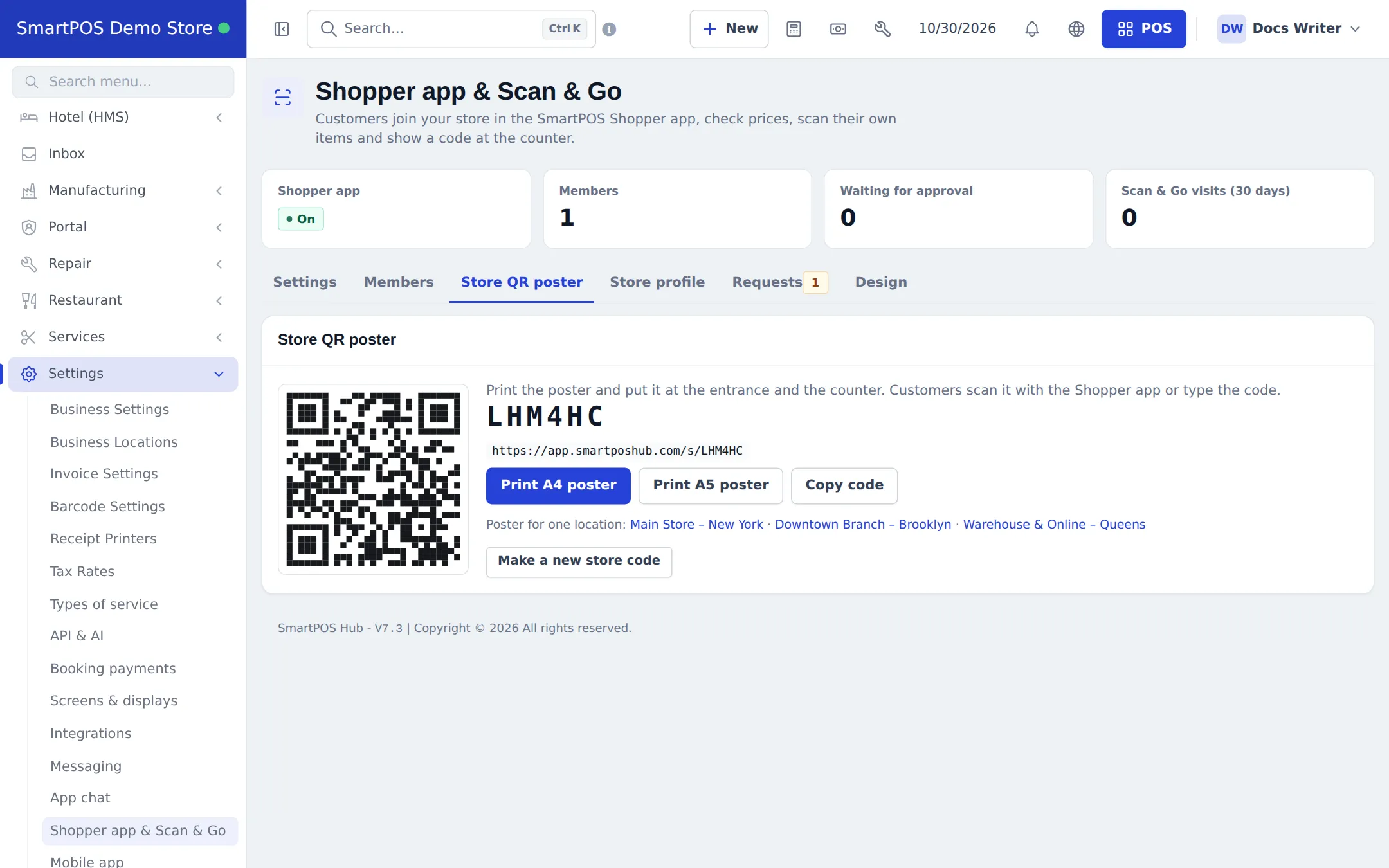
Section titled “Step 4 - Invite customers with the store code and poster”- Open the Store QR poster tab. You see your QR code, your store code and your join link.
- Press Print A4 poster or Print A5 poster and put it at the entrance and the counter. Use Poster for one location to print a branch poster.
- Share the join link on WhatsApp or social media, or Copy code to tell customers.
Step 5 - Approve members
Section titled “Step 5 - Approve members”When joining needs approval, open the Members tab. New people wait under Waiting; press Approve or Decline. Members lists everyone who joined, with how they joined (store code, QR poster or Find stores), their customer record and their Scan & Go visits. Remove takes someone out of your store in the app.
What happens to the customer record
Section titled “What happens to the customer record”- Joining creates one record in your business: an existing customer with the same verified e-mail, or a new lead marked “Shopper app”.
- The first purchase or counter scan turns the lead into a customer with the same record, so chats, carts and history stay attached.
- Each store is separate: a shopper who joins two stores is a different record in each.
Related pages
Section titled “Related pages”Frequently asked questions
What is the SmartPOS Shopper app?
It is the free app for your customers. They join your store, browse and order, check prices, use Scan & Go, show their store card at the counter, keep receipts, book tables or appointments and chat with you.
How do customers find my store?
They scan your store QR poster, type your 6-character store code, open your join link, or find you in "Find stores" when you tick List my store in "Find stores".
Do customers need my approval to join?
Only if you choose "I approve every new member". With "Anyone with the store code can join", they join at once. A cashier who may add customers can also approve a waiting member by scanning their store card at the counter.
Does a customer who joins become a customer record?
They become a lead first (or are linked to an existing customer with the same verified e-mail). The lead turns into a customer, with the same record, at their first purchase or counter scan.
Can customers order from the app?
Yes, when you tick "Take orders in the app" and choose pickup, delivery and/or dine-in. App orders arrive in Website › Orders, Sales and the kitchen display, like website orders. This needs the Website module.
Can customers see member prices?
Yes. With "Members see their member prices" ticked, approved members see the price of their customer group or price group. Others see the shelf price.
Can I hide some products from the app?
Yes. In the Products section choose "Hide these categories" or "Hide these products". You can also mark items that need an ID check or weighing at the counter.
Is the Shopper app on Google Play?
Yes. Customers install SmartPOS Shopper for Android from Google Play at https://play.google.com/store/apps/details?id=com.smartposhub.shopper. An iPhone version is planned.
What if my store code leaks?
Press "Make a new store code" on the Store QR poster tab. Old posters stop working for new members; print new ones.