
Variable products – sizes, colours and other versions
A variable product is one product sold in several versions, such as T-shirt sizes, phone storage and colours, or protein flavours. Each version (variant) has its own SKU, price and stock, but customers and reports see them under one product. This page shows you how to build variants, price them in bulk and switch them on or off.
Before you start
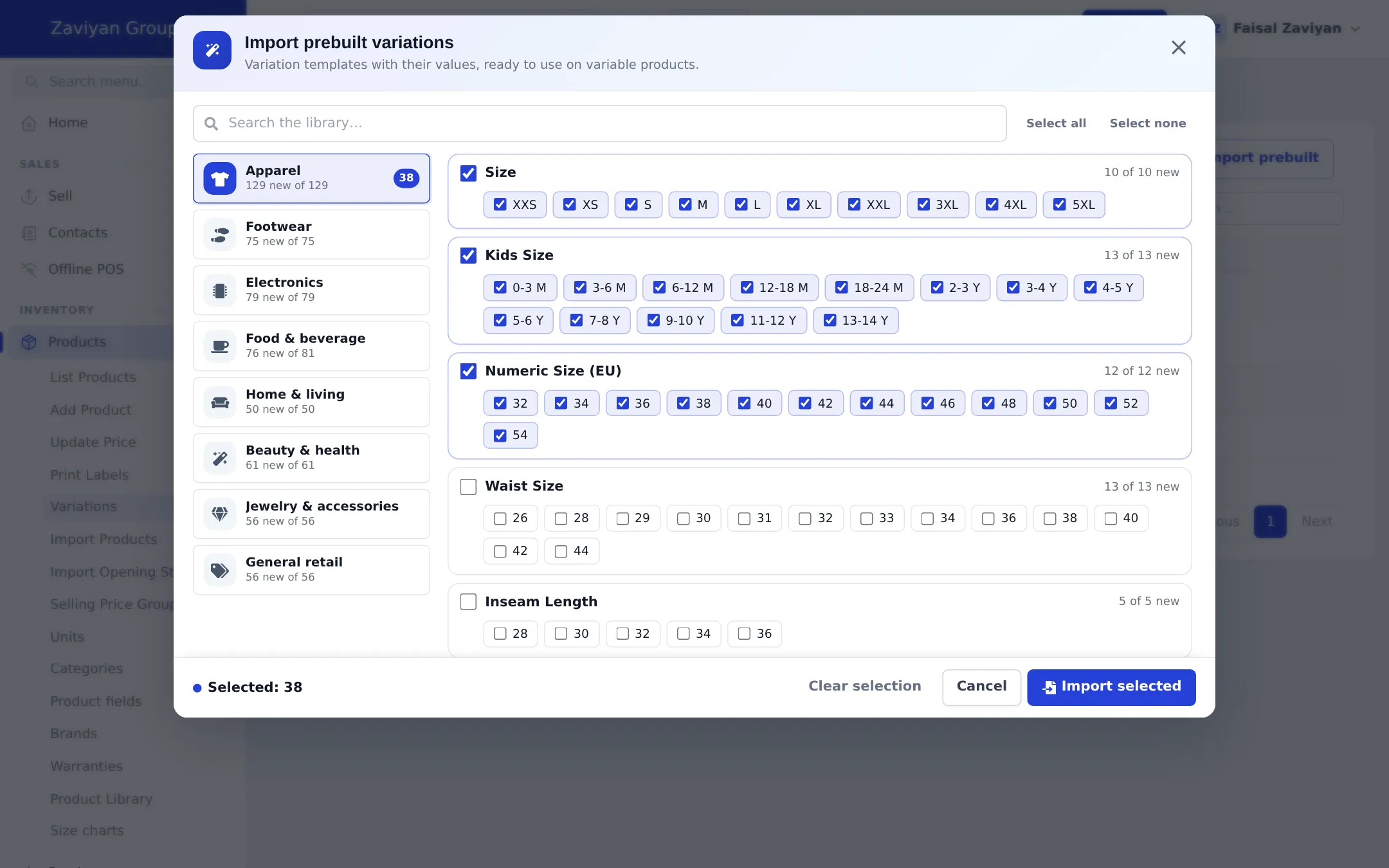
Section titled “Before you start”- Optional: add variation templates under Products › Variations, or click Import prebuilt there to add ready-made ones (Size, Kids Size, Numeric Size, Colour, Storage and more).
- Read Add a product for the fields every product has (name, unit, category, locations).
Create a variable product
Section titled “Create a variable product”- Open Products › Add Product and fill in Basic info as for any product.
- Go to Pricing and set Product Type to Variable. The section is now called Variations & pricing.
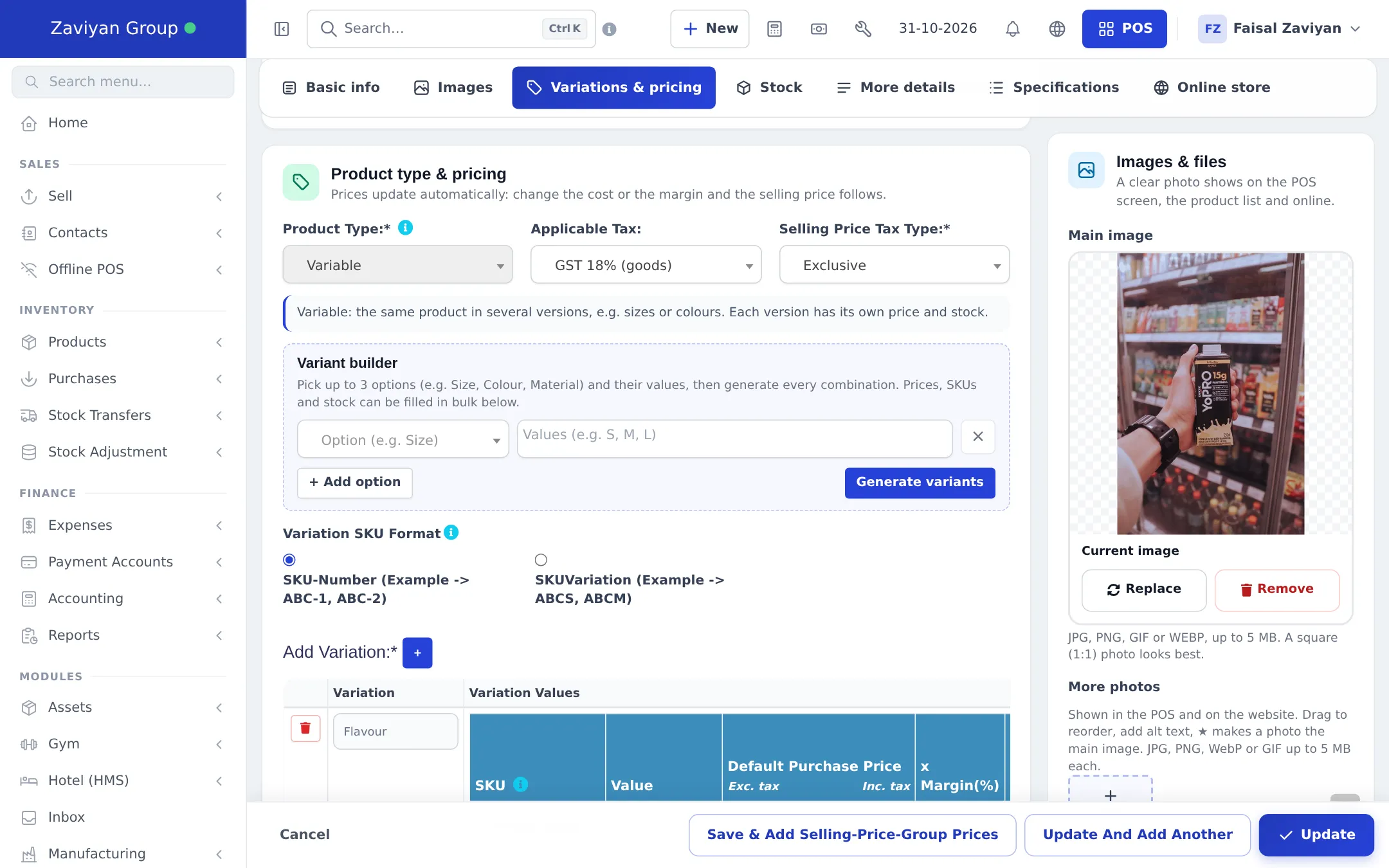
- In the Variant builder, pick an option in Option (e.g. Size) (a template, or type a new one) and type its Values (e.g. S, M, L).
- Click + Add option for a second or third option, for example Colour.
- Click Generate variants. Every combination is created as a row, for example “S / Red”, “S / Blue”… Duplicates are skipped.
- Choose the Variation SKU Format: SKU-Number (ABC-1, ABC-2) or SKUVariation (ABCS, ABCM). Type a SKU per row if the variants have their own barcodes.
- For each row enter the Default Purchase Price, x Margin(%) and selling price, or use the bulk editor below.
- In Stock, choose the locations and enter opening stock per variant.
- Click Save.
Fill prices in bulk and switch variants on or off
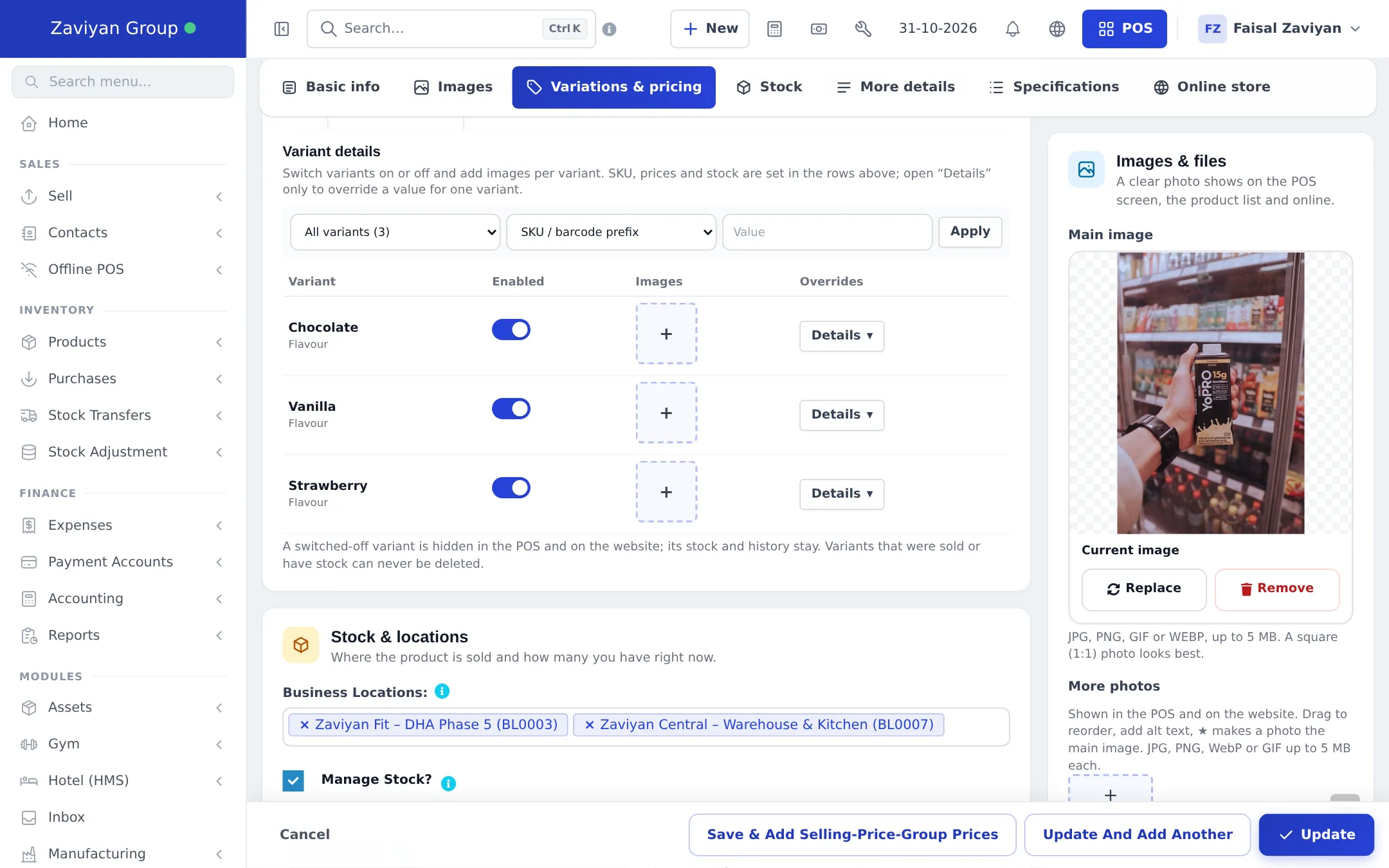
Section titled “Fill prices in bulk and switch variants on or off”Below the variant rows, Variant details lists every variant with:
- Enabled – switch a variant off to hide it from the POS and the website. Its stock and history stay.
- Images – add one or more photos for that variant (the first is the main one).
- Overrides – Details opens per-variant values such as compare-at price, GTIN, MPN, weight and size, for when one variant differs from the product.
The bar at the top is the bulk editor: choose All variants or one option value, pick a field (SKU / barcode prefix, purchase price, margin, selling price, opening stock, weight, on/off), type the Value and click Apply.
Selling a variable product
Section titled “Selling a variable product”At the POS, scanning a variant’s SKU adds that exact variant. Searching by the product name shows the variants to pick from. Stock, purchases and reports are kept per variant, and price groups and discounts can be set per variant too.
Excel import of variable products
Section titled “Excel import of variable products”In Import Products, set Product Type to variable, put the option name in Variation Name and the values separated by | in Variation Values (for example S|M|L). Prices, SKUs and opening stock for variants also use | in the same order.
- Use the same option names everywhere (Size, not size and Sizes). Templates help.
- Variant photos show in the POS grid and on your website, so customers see the right colour.
- In the Product Library, Electronics items with storage and colour arrive as variable products automatically.
Related pages
Section titled “Related pages”Frequently asked questions
How many options can a variable product have?
Up to 3 options (for example Size, Colour and Material) in the variant builder, and up to 100 variants generated in one go.
Can each variant have its own barcode?
Yes. Every variant has its own SKU, which can be its barcode. Leave it empty and SmartPOS Hub numbers the variants from the product SKU, for example ABC-1, ABC-2.
Can I delete a variant that already sold?
No. A variant with sales, purchases, stock adjustments or stock can never be deleted. Switch it off instead; it disappears from the POS and the website but its history stays.
Do I need to create variation templates first?
No. You can type a new option and its values in the variant builder. Templates from Products › Variations or Import prebuilt save typing and keep names consistent.
Can I set the same price for every variant at once?
Yes. The bulk editor in Variant details applies a value to all variants, or only to one option value such as only Red.