
Bakery step 2: products, weighed items and units
A bakery has two kinds of products: raw materials you buy and use (flour, sugar, butter, eggs, cake boxes) and finished products you bake and sell (loaves, croissants, cakes). Both are normal products in SmartPOS Hub. This step also covers selling by weight and by the dozen.
Before you start
Section titled “Before you start”- Locations and modules are set (step 1).
- Your role has Add product.
1. Set up units
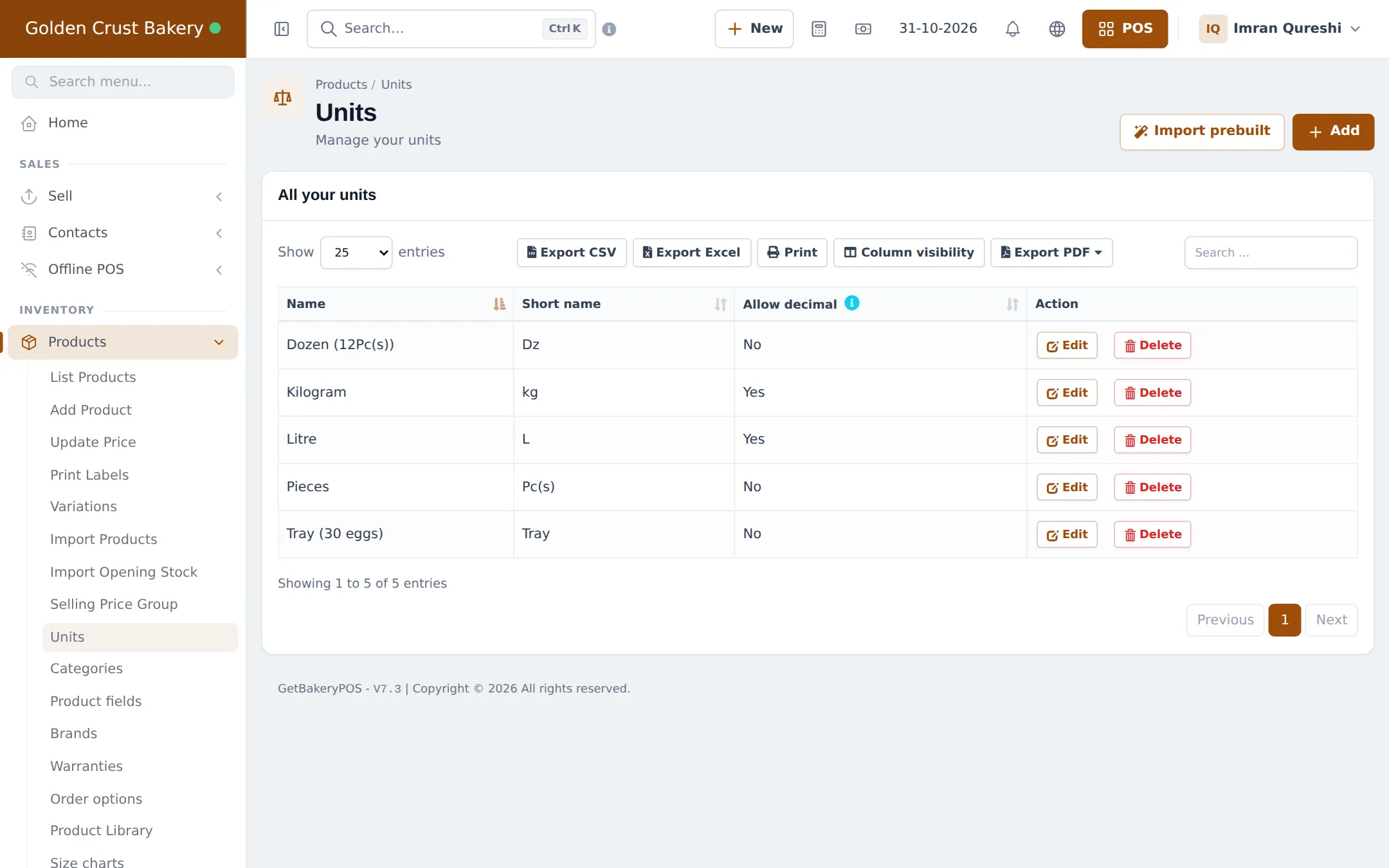
Section titled “1. Set up units”- Open Products › Units. Click Import prebuilt for common units, or Add.
- For weighed goods, make sure Kilogram (kg) has Allow decimal = Yes.
- For packs, switch on Enable Sub Units in Settings › Business Settings › Product, then add a unit such as Dozen, tick Add as multiple of other unit and enter 12 times base unit Pieces.
- Trays of eggs work the same way for buying (Tray = 30 eggs).
More: Categories, brands and units.
2. Add raw materials
Section titled “2. Add raw materials”- Open Products › Add Product.
- Enter the name (Fine Flour 50 kg), the unit you use in recipes (kg) and keep Manage Stock? ticked.
- Enter the purchase price. Save.
- Enter opening stock at the bakehouse, or buy it in with a purchase (Opening stock, Purchases).
3. Add finished products
Section titled “3. Add finished products”- Add each bakery item with its category (Breads, Pastries, Cakes, Biscuits), selling price and photo.
- Keep Manage Stock? ticked: production adds stock and sales take it away.
- Set the Expiry Period (for example 2 days for bread, 5 days for cakes).
- For sizes, choose Variable and add a variation per size (Variable products).
- For pack sizes, pick the related Sub Units (Dozen).
4. Weighed items at the till
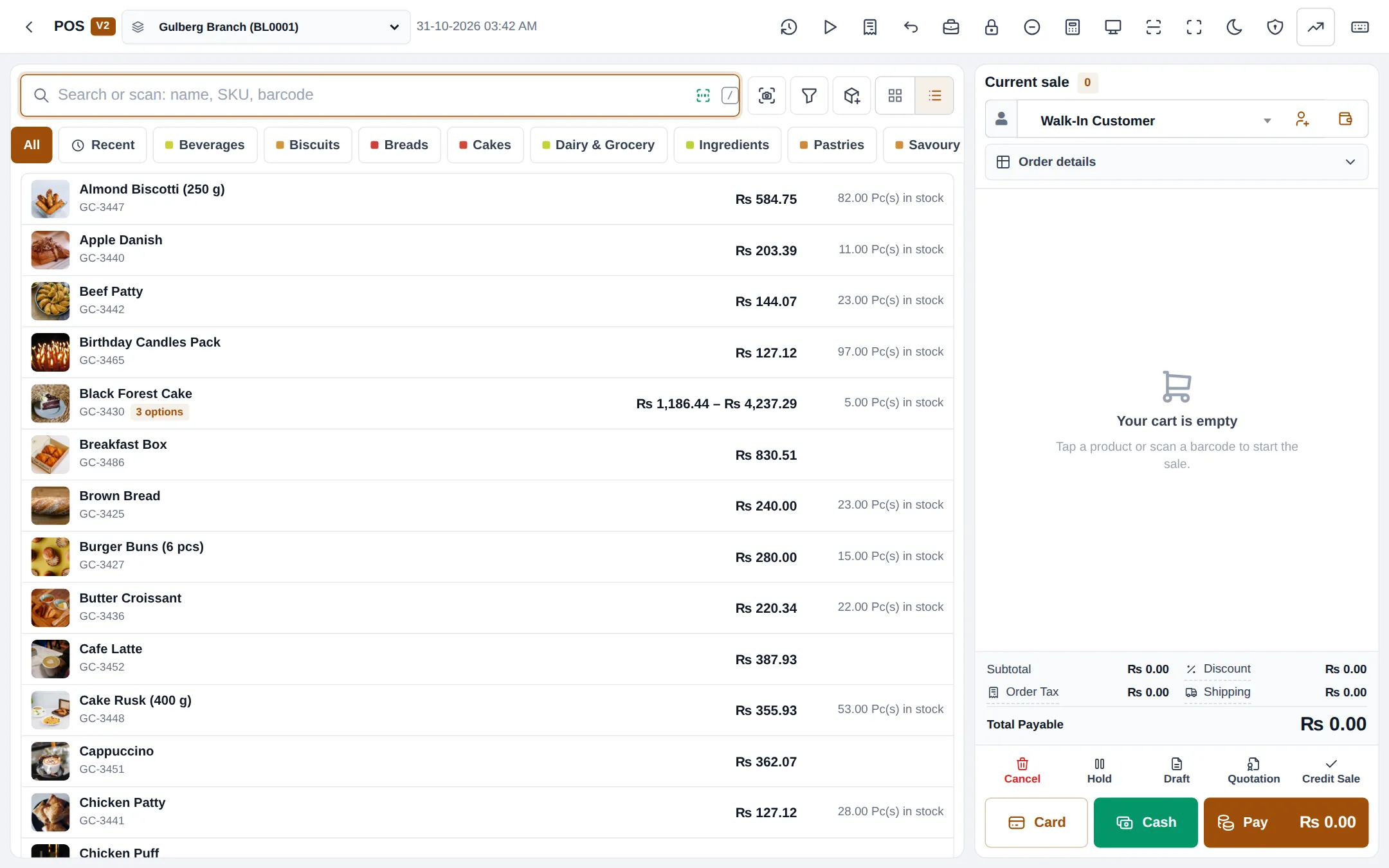
Section titled “4. Weighed items at the till”Type the weight as the quantity (0.75 kg), or use a label-printing scale: turn on Enable Weighing Scale in Settings › Business Settings › POS and set the scale barcode format so a scanned label adds the right product and weight. See Mart step 4: barcodes, weighed items and labels.
Tips and mistakes to avoid
Section titled “Tips and mistakes to avoid”- Use the same unit in the product and the recipe (kg of flour, not “bags”), or buy in bags and use a sub-unit.
- Don’t put raw materials in the same categories as finished goods; it keeps the POS clean.
Next step
Section titled “Next step”Frequently asked questions
Do raw materials need to be products?
Yes. Flour, butter, eggs and boxes are products with Manage Stock on, bought with purchases. Mark them as not for selling if you don't want them on the POS.
How do I sell cookies by weight?
Give the product a unit that allows decimals, such as Kilogram, and type or weigh the quantity at the till, for example 0.75 kg. With a label-printing scale, turn on the weighing scale barcode setting.
Can I sell buns one by one and by the dozen?
Yes. Switch on Enable Sub Units, create Dozen as a multiple of Pieces (12 times base unit), and select it as a sub-unit on the product. The cashier picks Pc(s) or Dozen on the cart line.
Should a cake in three sizes be one product?
Yes, as a variable product with one variation per size (1 lb, 2 lb, 3 lb). Each size gets its own price, stock and recipe.
Can I import products from a spreadsheet?
Yes. Use Products › Import Products with the Excel template, or start from the Product Library for common items.