
Boutique step 6: seasonal sales and discounts
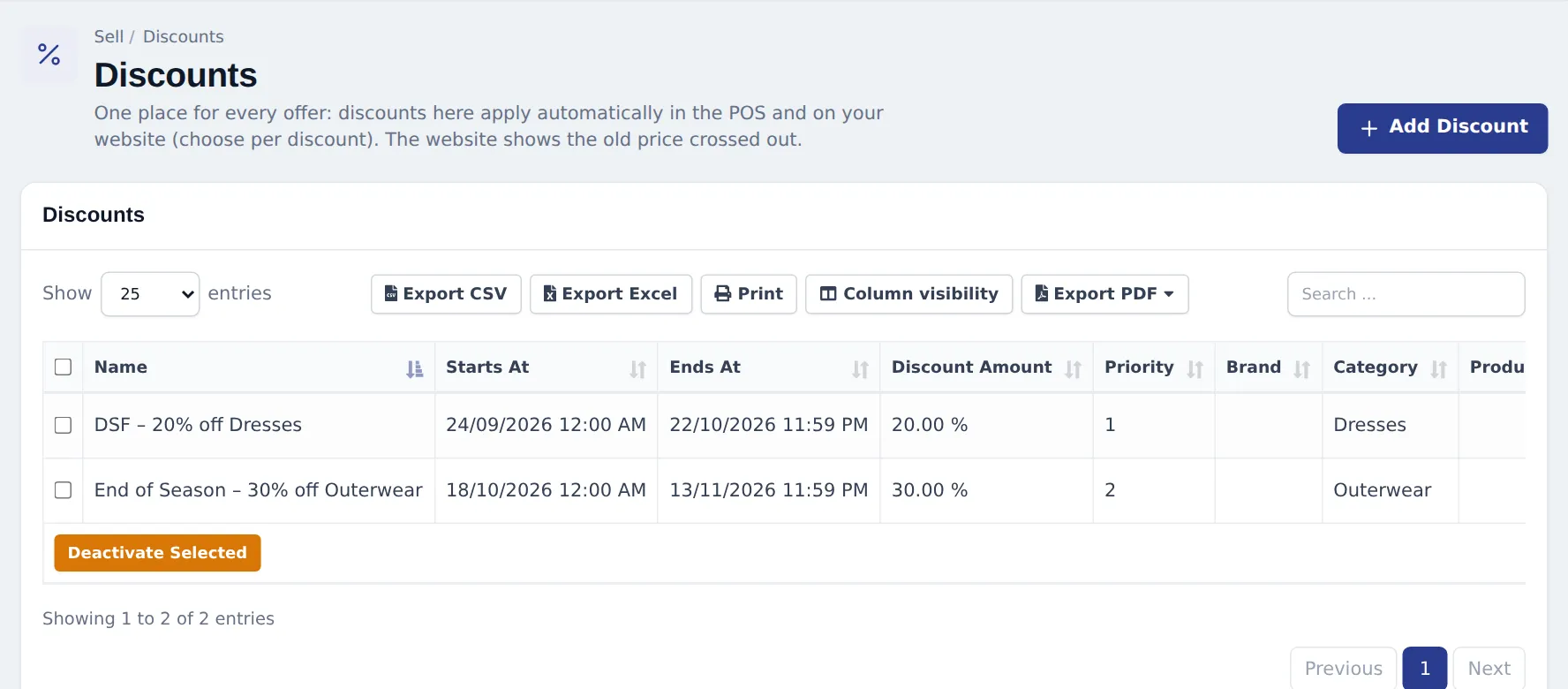
Fashion runs on seasons: new arrivals at full price, then end-of-season markdowns, holiday offers and private sales for your best customers. Sell › Discounts handles all of it without touching your product prices.
Before you start
Section titled “Before you start”- Categories and brands are set on your products (step 1), because discounts usually target a category or brand.
- Decide whether the offer is for the shop, the website or both.
Create a seasonal discount
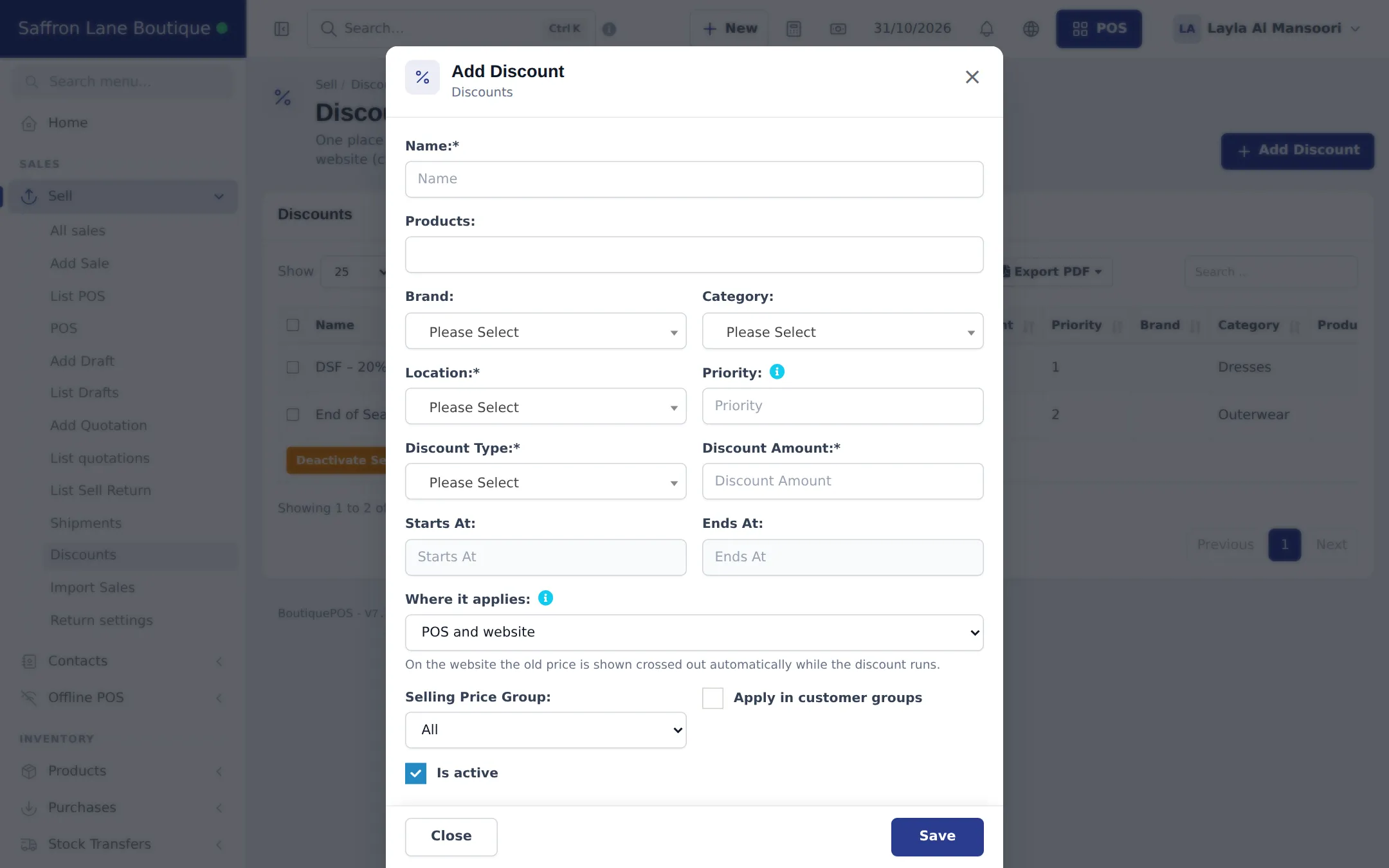
Section titled “Create a seasonal discount”- Open Sell › Discounts and click Add Discount.
- Enter a Name customers can read, for example “End of Season – 30% off Outerwear”.
- Choose what it covers: a Brand, a Category, or single Products.
- Pick the Location (each store can run its own offer) and a Priority (1 wins over 2).
- Set Discount Type (percentage or fixed) and the Discount Amount.
- Set Starts At and Ends At.
- Choose Where it applies: POS and website, POS only (in store) or Website only (online store).
- Optional: limit it to a Selling Price Group, or tick Apply in customer groups. Keep Is active ticked and click Save.
Season calendar ideas
Section titled “Season calendar ideas”| When | Offer | Setup |
|---|---|---|
| End of season | 30–50% off last season’s category | Category discount, both channels |
| Eid, Diwali, Christmas | 15–20% off occasion wear | Category or brand discount, 1–2 weeks |
| Black Friday / White Friday | Storewide % for 3 days | One discount per top category, priority 1 |
| VIP preview | Sale price two days early | Discount limited to the VIP price group or customer group |
| Clearance of single pieces | Fixed price off a few products | Product discount, POS only |
Prices for VIPs and staff
Section titled “Prices for VIPs and staff”For a permanent lower price (VIP, staff, trade), create a selling price group in Products › Selling Price Group, enter group prices per product, and link the group to a customer group. See Price groups and Customer groups.
- Set the end date every time. The offer stops by itself, so nobody has to remember to switch it off.
- Check margins before big markdowns: Reports › Profit / Loss Report and the product’s purchase price.
- Reprint tags only for permanent price changes. For temporary offers the till applies the discount; the tag keeps the full price.
Frequently asked questions
Do I have to change prices for a sale?
No. A discount in Sell › Discounts lowers the price automatically between its start and end date. Your normal price comes back by itself when it ends.
Does the discount show on my website?
If Where it applies is POS and website or website only. The website shows the old price crossed out while the discount runs.
Two discounts match the same dress. Which one wins?
The one with the higher priority (Priority field). Give your main seasonal sale priority 1.
Can I give VIP customers a permanent lower price?
Yes. Use a selling price group such as VIP Circle and link it to a customer group, or tick Apply in customer groups on a discount.
Can I use coupon codes online?
Yes. Website › Coupons creates codes for the online store.