
Chat with customers - Shopper app chat, no website chat
This page explains exactly how customers can chat with your business in SmartPOS Hub. In short: customers chat with you from the SmartPOS Shopper app, and your team answers from the Inbox, the contact page or the SmartPOS Business app. There is no live-chat widget for your website.
What exists and what does not
Section titled “What exists and what does not”| Status | |
|---|---|
| Chat from the SmartPOS Shopper app (“Message store”) | Available - set up in Settings › App chat |
| One Inbox for app chats, SMS, e-mail, WhatsApp and calls | Available with the Messaging module |
| Answering from the SmartPOS Business app | Available |
| A chat bubble / live-chat widget on your website or online store | Not available |
| Staff starting a new app chat with a customer | Not available - only the customer can start |
| Replying to app chats through the API or an AI assistant | Not available |
How app chat works
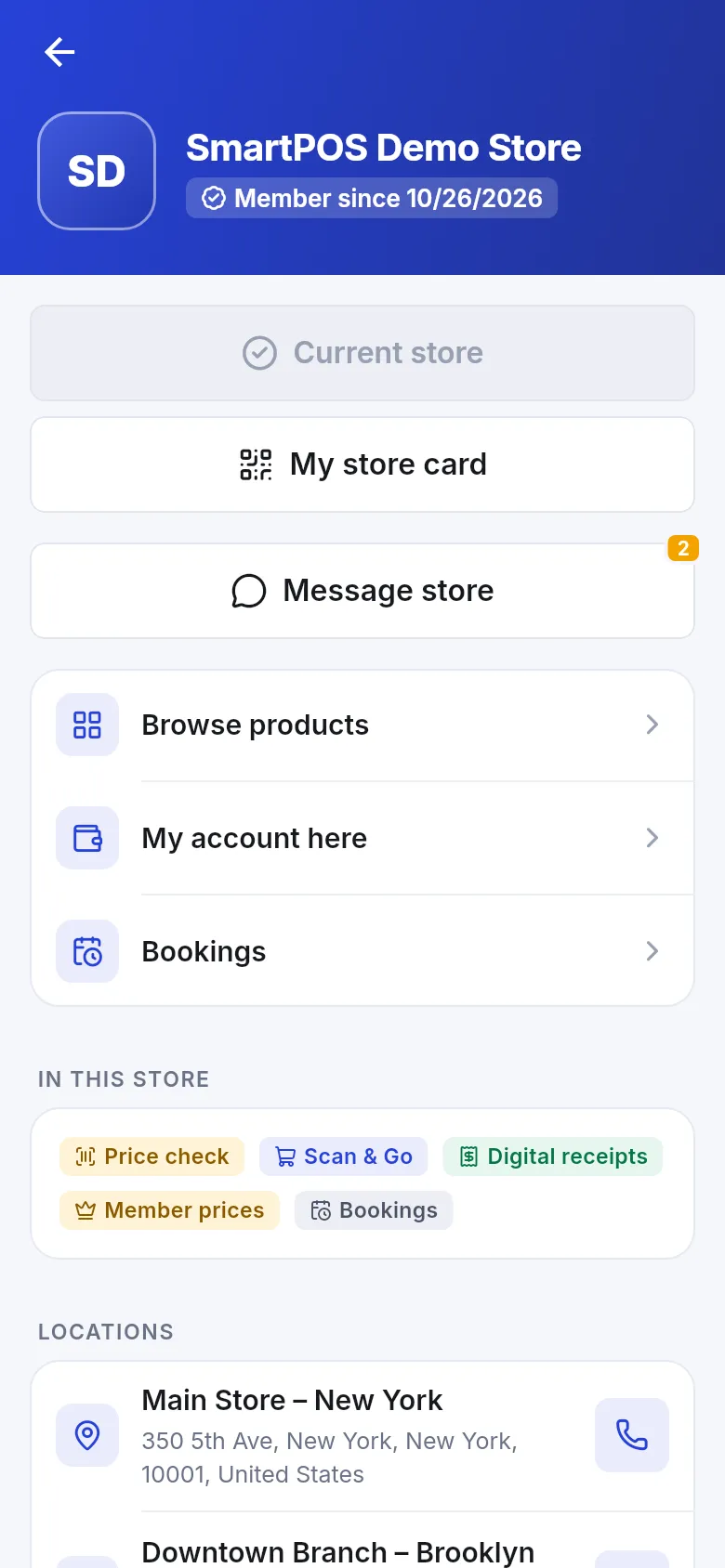
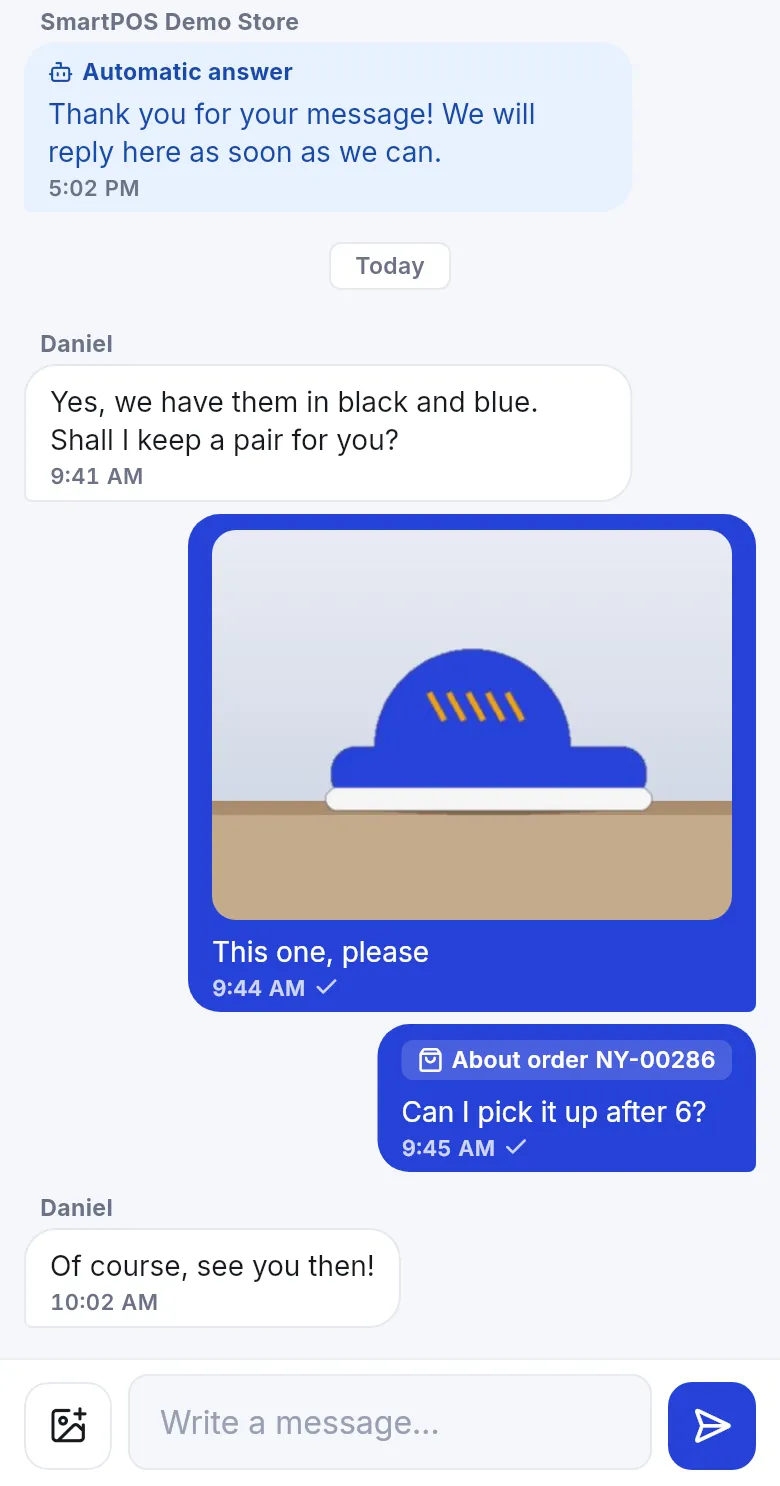
Section titled “How app chat works”- Only the customer can start. A customer who joined your store taps Message store on your store page in the Shopper app. They can ask about a product or an order, and attach a photo.
- One conversation per customer. It appears in your Inbox and on the customer’s contact page next to SMS and e-mail, so the whole history is in one place.
- Statuses: open, pending (waiting for the customer) and closed. A new message from the customer re-opens a closed chat.
- Not live: the apps check for new messages when they open and every few seconds while the chat is on screen. Staff can get Business app notifications.
Step 1 - Turn on app chat
Section titled “Step 1 - Turn on app chat”- Make sure your store is shown in the Shopper app (see Shopper app for your store).
- Switch on Messaging and Shopper app chat in Settings › Business Settings › Modules.
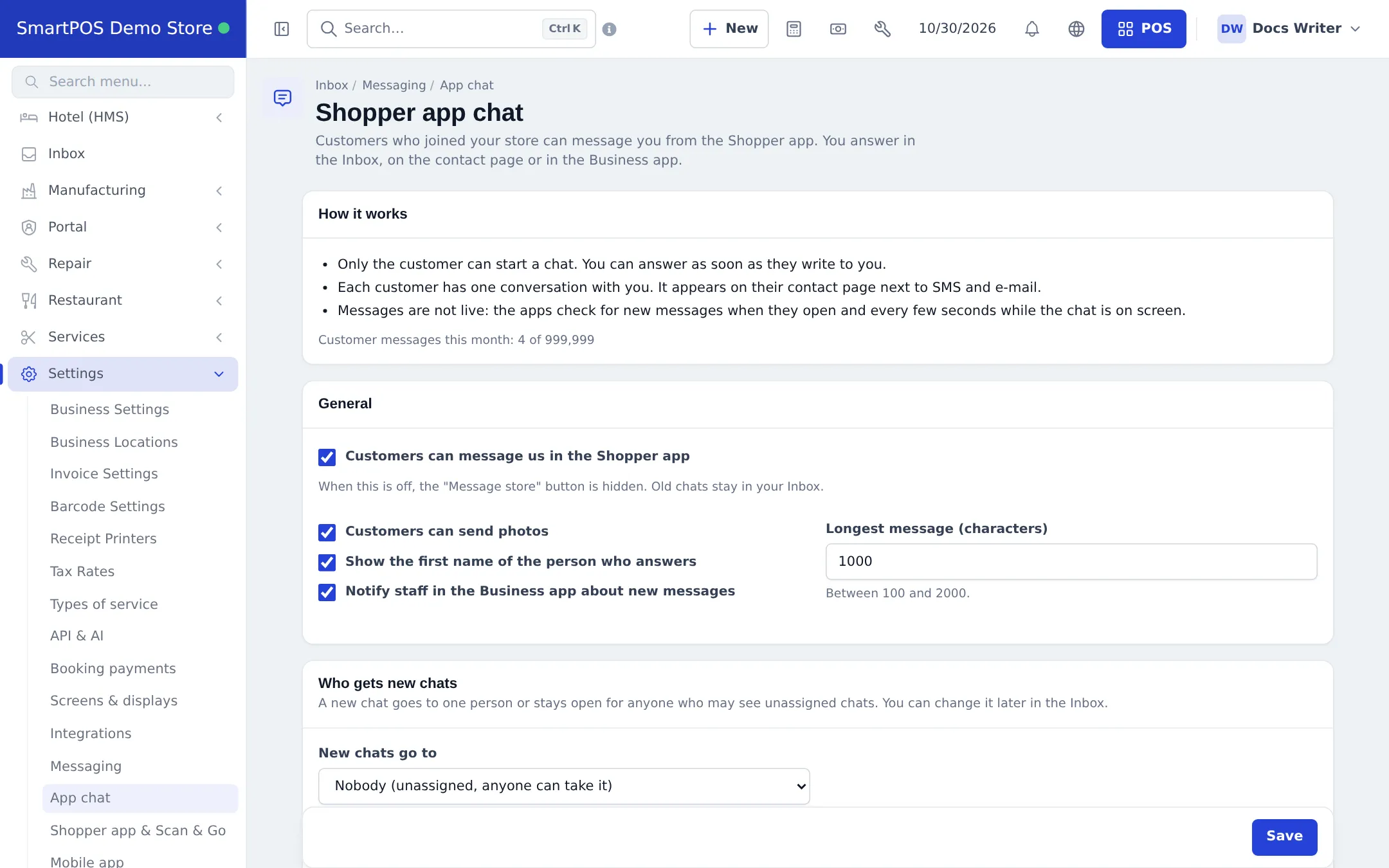
- Open Settings › App chat (also reachable from Inbox › Messaging › App chat).
- Tick Customers can message us in the Shopper app. When it is off, the “Message store” button is hidden and old chats stay in your Inbox.
- Choose the options: Customers can send photos, Show the first name of the person who answers (otherwise customers see your store name), Notify staff in the Business app about new messages, and Longest message (characters) (100 to 2000).
- Press Save.
Step 2 - Decide who gets new chats
Section titled “Step 2 - Decide who gets new chats”Under Who gets new chats › New chats go to choose:
- Nobody (unassigned, anyone can take it) - the chat waits in the unassigned pool; anyone allowed to see unassigned chats can take it.
- One person - every new chat goes to the person you pick.
- Take turns (round robin) - new chats go to the next person in People who take turns.
You can reassign any chat later from the Inbox.
Step 3 - Set automatic answers and hours
Section titled “Step 3 - Set automatic answers and hours”- Answer the first message automatically - sent once, when a customer starts a chat. Leave the text empty to use the standard text in the customer’s language.
- Answer automatically when we are closed - sent at most once every 12 hours per chat, outside your opening hours.
- Opening hours - Same as the store hours in the Shopper app, Own hours for chat, or Always open (never send the closed answer).
Step 4 - Answer chats
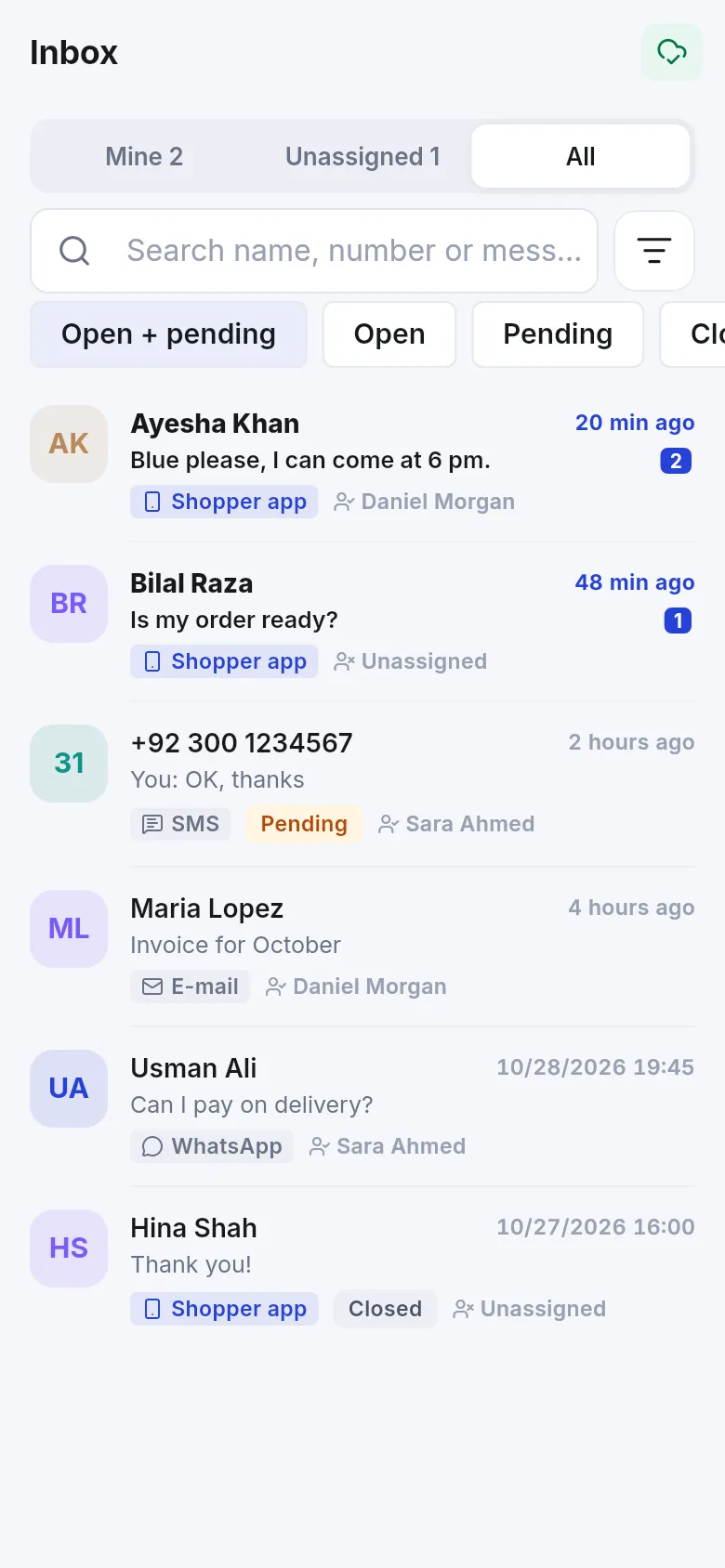
Section titled “Step 4 - Answer chats”- Open Inbox in the menu. Set the channel filter to Shopper app to see only app chats; use Open + pending to see what needs an answer.
- Open a conversation. If it is unassigned, take it or assign it to a colleague.
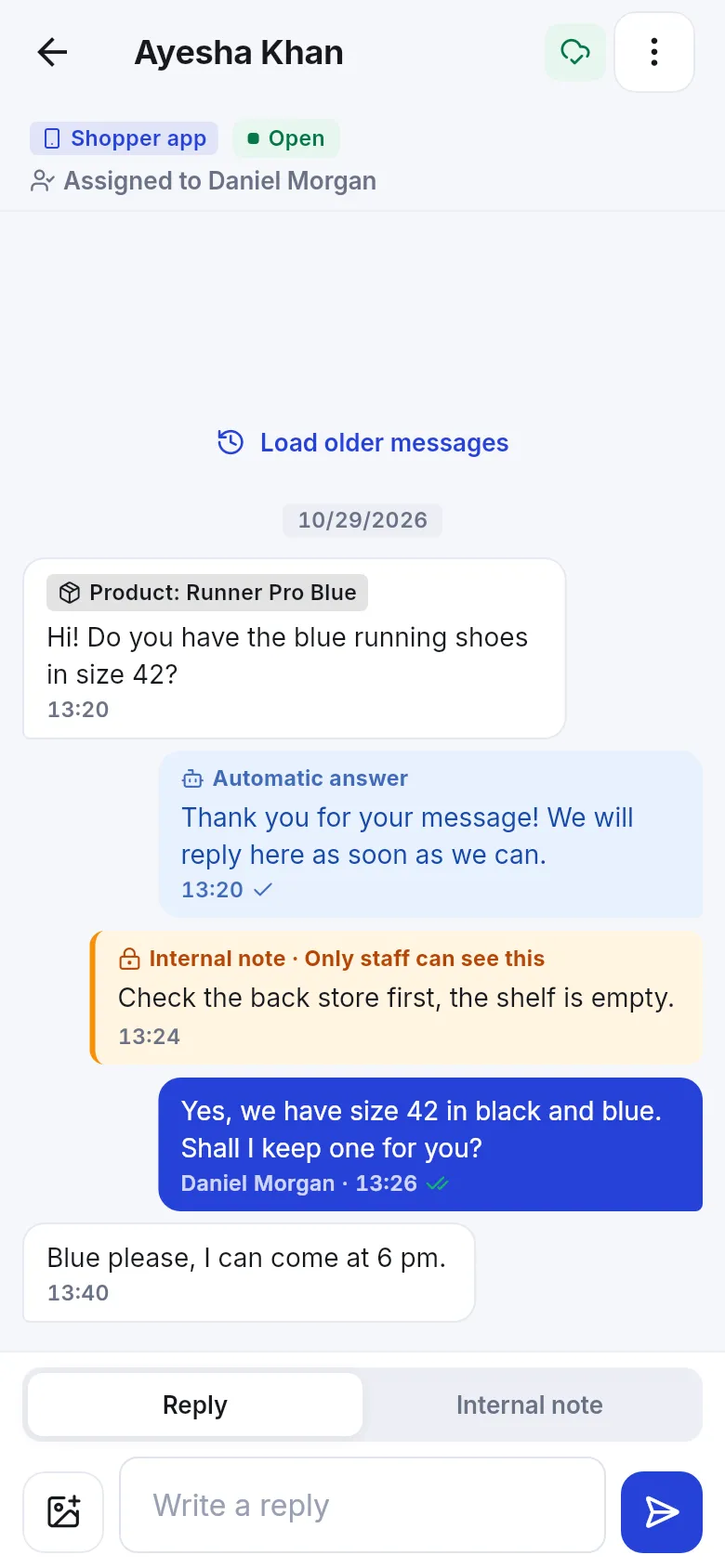
- Type your reply and send. Use Internal note for something only staff should see.
- Set the status: Mark pending while you wait for the customer, or close it when done.
- On a phone, open Inbox in the SmartPOS Business app: tabs Mine, Unassigned and All, and Reply / Internal note in each thread.
Tips and mistakes to avoid
Section titled “Tips and mistakes to avoid”- Keep the automatic first answer short and say when you usually reply.
- Use round robin for busy stores so no chat sits unanswered.
- Customers who left your store or whom you blocked cannot write. Writing again unblocks a customer who had blocked your replies.
- For order questions, open the order from the “About order” chip in the thread.
Related pages
Section titled “Related pages”Frequently asked questions
Is there a live-chat bubble for my website?
No. SmartPOS Hub does not have a website live-chat widget, and none of the eight shop widget types is a chat. Customer chat happens in the SmartPOS Shopper app.
Can I start a chat with a customer?
No. Only the customer can start an app chat, by tapping Message store in the Shopper app. Once they have written, you can reply at any time. To contact a customer first, use SMS or e-mail from their contact page.
Where do I answer app chats?
In the Inbox on the web (filter the channel Shopper app), on the customer's contact page in the Conversations tab, or in the SmartPOS Business app's inbox.
Are messages instant?
Nearly. Chats are not live like a phone call - the apps check for new messages when they open and every few seconds while the chat is on screen. Staff can get a notification in the Business app.
Can customers send photos?
Yes, if "Customers can send photos" is ticked in Settings › App chat. Photos are checked and stored privately.
Do customers see internal notes?
No. Internal notes stay in the thread for staff only and are never sent to the customer.
Can I block a customer from writing?
Yes. Staff who manage messaging can block a customer from writing; the customer can also block your replies. Both can be undone.
How many chat messages can I receive?
Your plan sets a monthly number of customer messages. The App chat page shows "Customer messages this month". Contact support to raise it.
How can website visitors reach me without a chat widget?
Show your phone and WhatsApp number on your website, use your store's contact or quote forms (entries arrive in Website › Forms & webhooks), and invite customers to join your store in the Shopper app to chat.