
Boutique step 7: online store, widgets and Shopper app
Many boutique customers discover you on social media and want to buy on their phone. SmartPOS Hub gives you three online channels that all run on your shop’s products and stock: the online store, shop widgets for any website, and your store in the SmartPOS Shopper app.
Before you start
Section titled “Before you start”- Products you want online have photos, a description and Show on website on the Online store tab (step 2).
- Size charts are attached (step 3).
- You know your delivery areas and prices, and which payment methods you accept online.
1. Set up the online store
Section titled “1. Set up the online store”- Open Website › Overview. It shows what still needs doing and the orders that need attention.
- Fill in Website › Store info (name, contact, logo) and choose which store’s stock online orders use.
- Set Website › Payments and Website › Shipping (delivery areas with prices, pickup).
- Check Website › Store features (wishlist, quick view, sold-out products shown or hidden).
- Set your online return policy in Website › Returns & refunds.
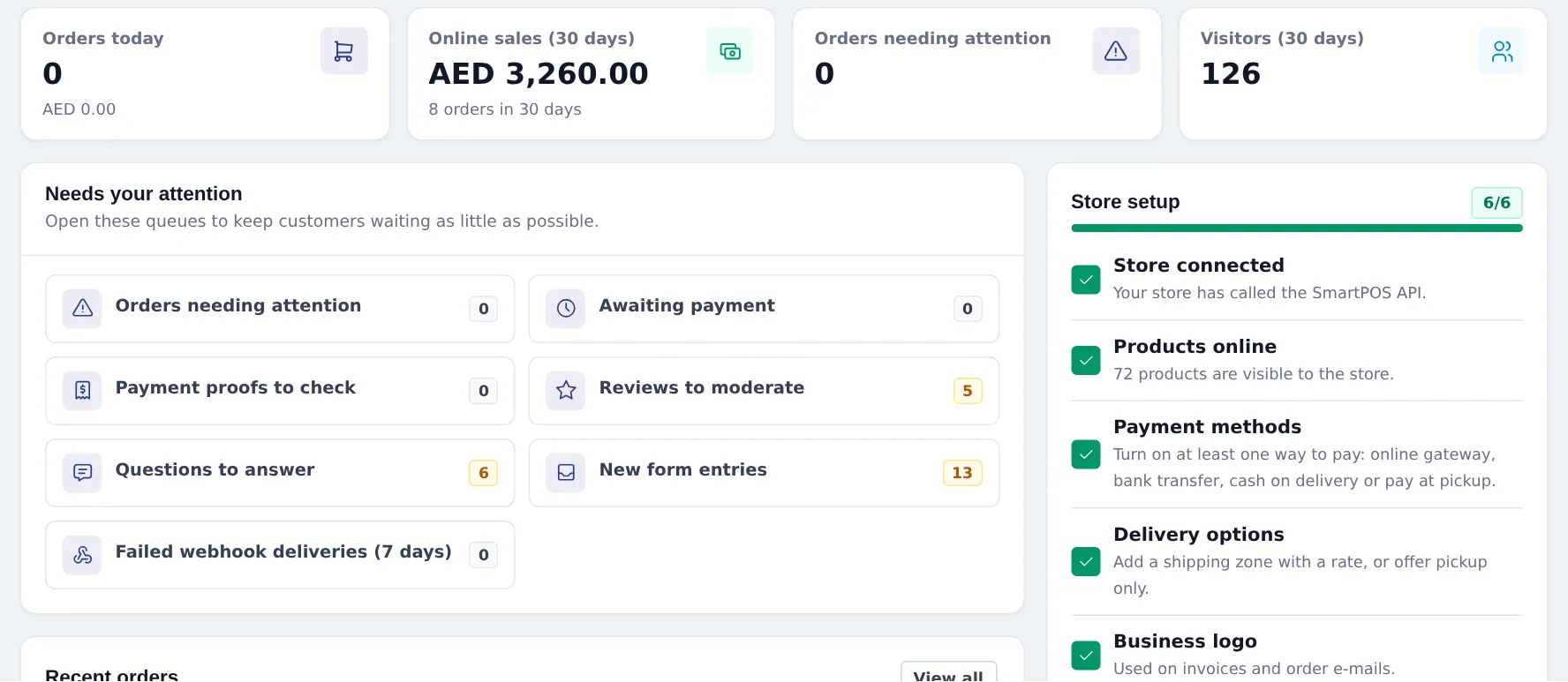
Full walkthrough: Online store and payments for online orders.
2. Add shop widgets to your website
Section titled “2. Add shop widgets to your website”- Open Website › Widgets and click New widget.
- Pick a type: Full shop, Product grid / carousel (for example best sellers), Category tiles, Search bar, Buy button for one dress, or Floating cart.
- Choose the products or categories and the look, then save.
- Click Copy embed code and paste it into your website, or use Link to share a page link on Instagram or WhatsApp.
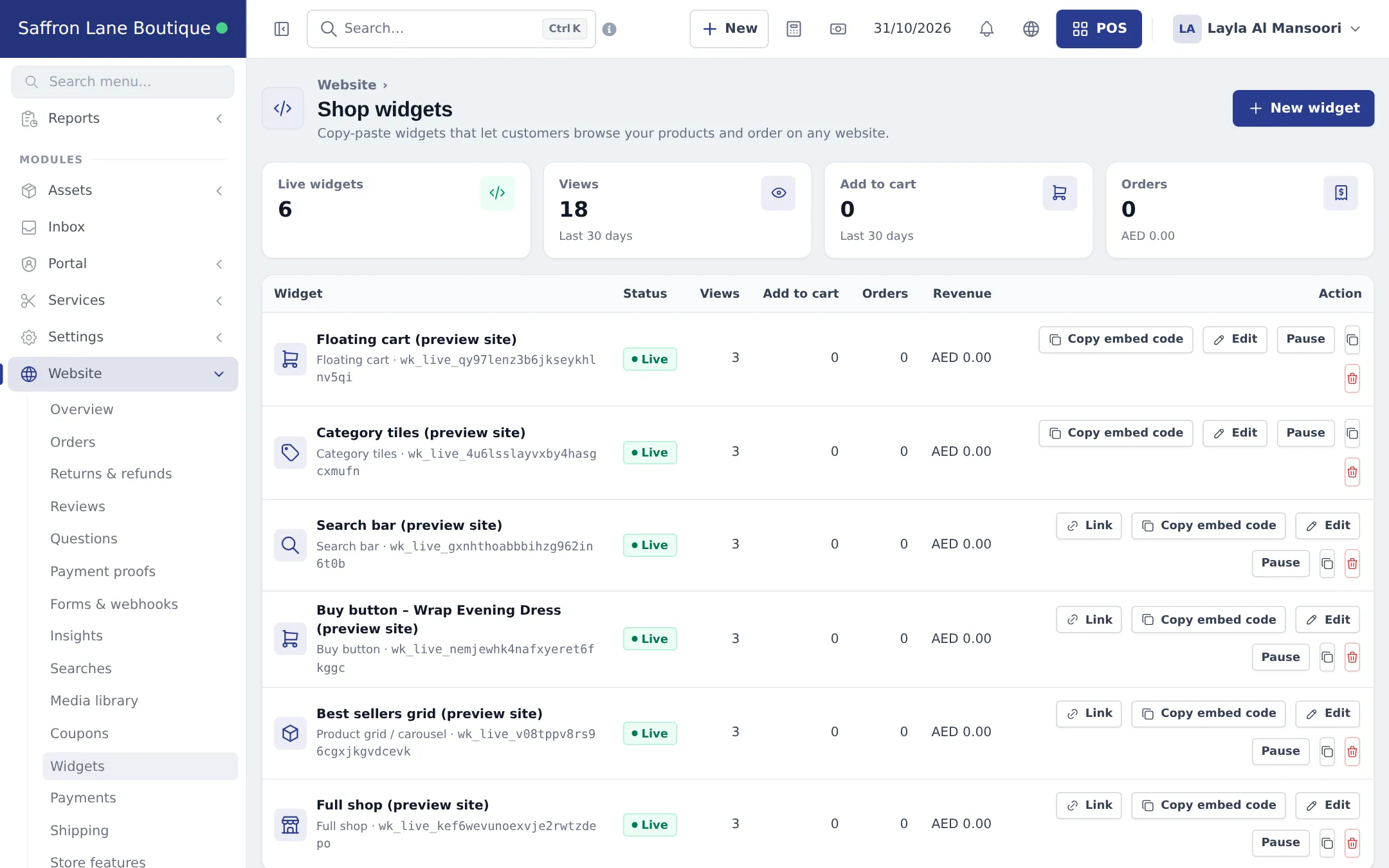
More: Widgets.
3. Your store in the SmartPOS Shopper app
Section titled “3. Your store in the SmartPOS Shopper app”- Open Settings › Shopper app & Scan & Go and switch the store on.
- Choose how customers join (anyone with the store code, or you approve each member) and print the store QR poster for the till.
- Open the Design tab and pick the Boutique look (tall photos, category names in capitals), then Save design.
- Members see their own prices if they belong to a customer group with a price group, for example your VIP Circle.
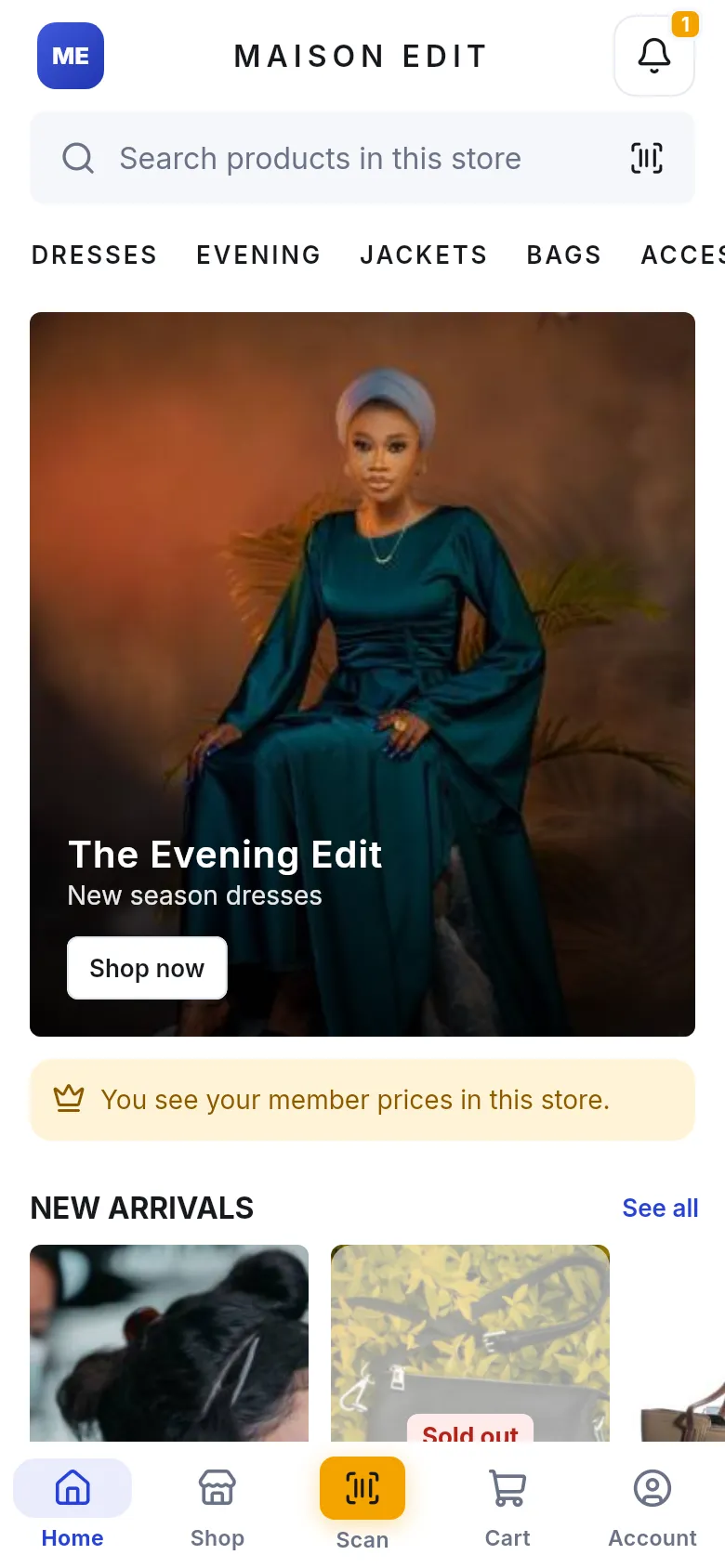
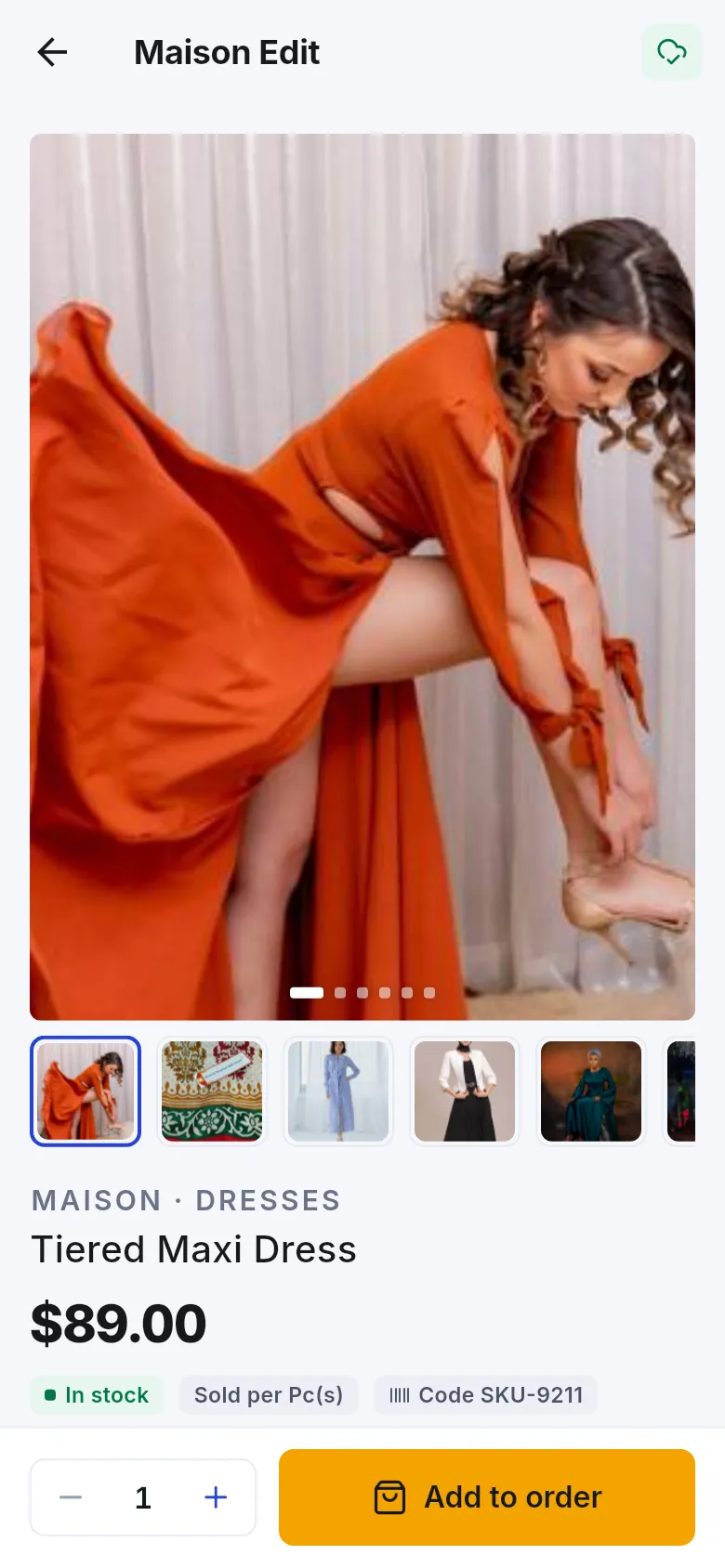
Details: Shopper app for your store and store profile and designs.
4. Handle online orders
Section titled “4. Handle online orders”Online and app orders arrive in Website › Orders. Confirm, pack and mark them shipped or collected. Payment proofs for bank transfers appear in Website › Payment proofs. See Website orders.
- Photograph every color. Variant photos sell; a gray placeholder doesn’t.
- Keep the Boutique look consistent with your Instagram: same highlight color, same banner style.
- Answer questions fast. Product questions and chats come in through Website › Questions and the inbox.
Next: daily operations.
Frequently asked questions
Do online orders use the same stock as the shop?
Yes. The online store, widgets, the SmartPOS Shopper app and the POS share products, prices and stock, so a dress sold online is gone from the shop count too.
I already have a website. Can I still sell from SmartPOS Hub?
Yes. Create a shop widget (full shop, product grid, buy button or floating cart) in Website › Widgets and paste its embed code into your site.
Which Shopper app design suits a boutique?
Boutique, with tall photos and an elegant feel. Editorial suits brands with strong photography.
Do customers see my size charts online?
Yes. Product pages show a Size guide in the size systems you chose under Markets.
Which products appear online?
Only products with Show on website switched on, on the Online store tab of the product.