
Bookings – table reservations, appointments and walk-ins
Bookings is one calendar for table reservations, service appointments and walk-ins. Restaurants, cafés and bars use it to reserve tables and run a waitlist; salons, spas, barbers and clinics see their appointments here. This page shows you how to switch Bookings on, set it up, share an online booking page and turn a booking into a sale.
What Bookings does and who it is for
Section titled “What Bookings does and who it is for”| You run… | What you use Bookings for |
|---|---|
| Restaurant, café, bar | Table reservations with party size, a waitlist for walk-ins, table suggestions, “reserved soon” on the floor plan |
| Salon, spa, barber, clinic | Appointments created by the Services module, shown by staff member on the timeline |
| Any business | General bookings (a meeting room, a consultation) with a calendar and reminders |
Every booking has a reference number, a status, a source (Walk-in, Phone, Online, POS, Other) and a timeline of what happened. The status moves through Requested → Confirmed → Arrived / Seated / In service → Completed, or ends as No-show or Cancelled.
Before you start
Section titled “Before you start”- Add at least one business location (Settings › Business Locations).
- Restaurants: add your tables first (Restaurant › Tables & floor plan) so bookings can be placed on a table. See Restaurant.
- Salons and other service businesses: set up the Services module (services and staff) so appointments can be booked by person.
First-time setup
Section titled “First-time setup”- Open Settings › Business Settings, click the Modules tab and switch on Bookings in the Restaurant, bar & bookings group. Click Update settings at the bottom of the page.
- Open Restaurant › Bookings (or Bookings in the sidebar if you do not use tables) and click Settings at the top right.
- Under Opening hours, set when each day opens and closes. Online time slots and staff without their own hours use these hours.
- Under Time slots & durations, set the Slot interval (min), the Table turn time (min), a Buffer between bookings (min), Minimum notice (min) and Book up to (days ahead).
- Under Online booking page, tick Let customers book online and, if you take reservations, Customers can reserve a table online. Decide whether to Confirm online bookings automatically.
- Under Deposit & cancellation and Notifications, choose a deposit, whether customers can cancel online, your cancellation policy, and whether to send email confirmations and reminders. Save.
- Give staff the booking permission in User Management › Roles (see the table below).
Everyday use
Section titled “Everyday use”Add a booking or a walk-in
Section titled “Add a booking or a walk-in”- Click New booking. Search the customer by name or phone (or type a new name and mobile).
- Pick the date and a time from Available times. For a table booking, enter the Party size; SmartPOS Hub lists Free tables that fit.
- Add a Customer note (allergies, occasion) or an Internal note that only staff see, and save.
- For guests who walk in, click Walk-in instead: Seat now at a free table, or choose No table free - add to waitlist. The waitlist shows how long each party has waited and an estimated wait.
Work through the day
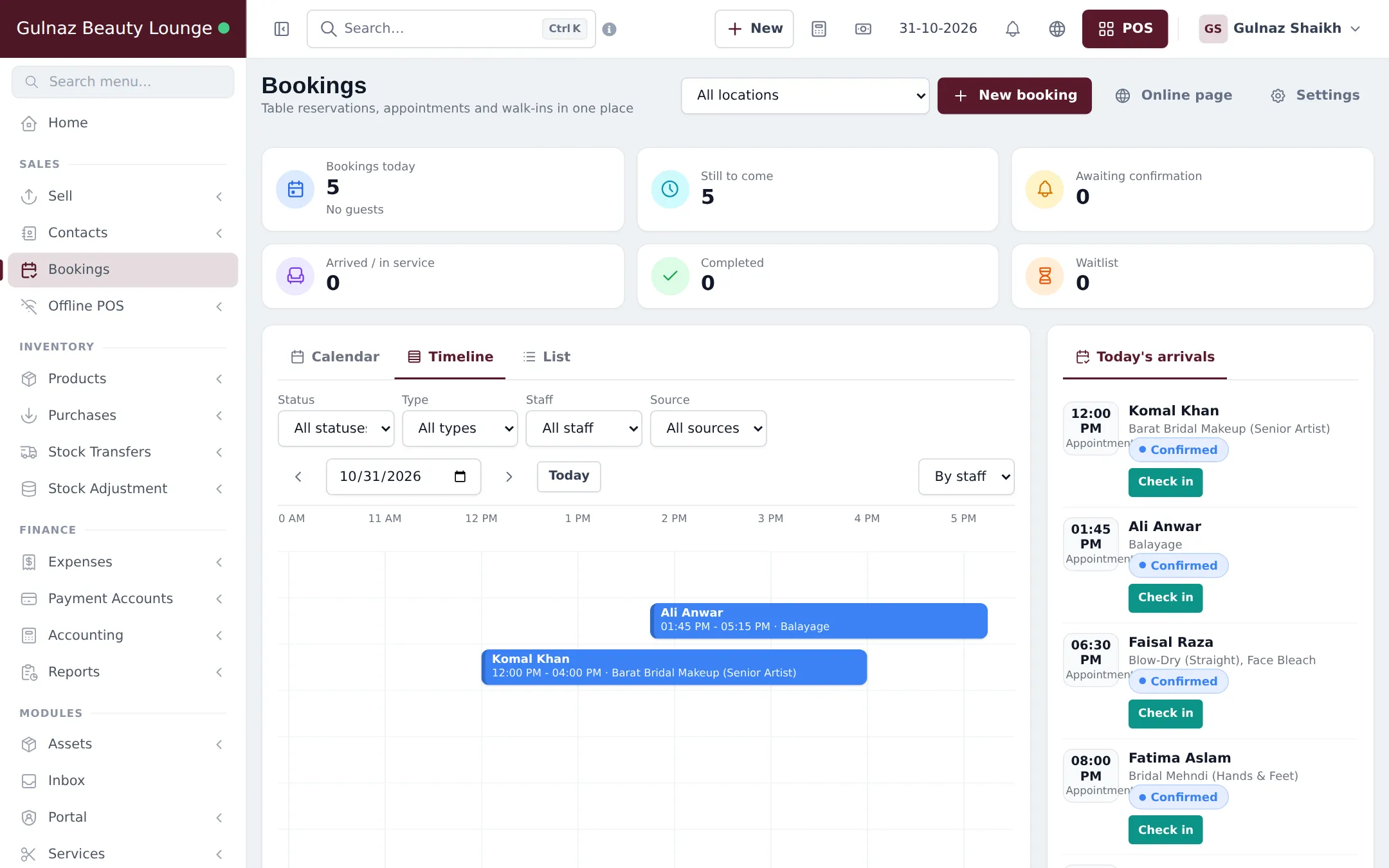
Section titled “Work through the day”- The cards at the top show Bookings today, Still to come, Awaiting confirmation, Arrived / in service, Completed and Waitlist.
- Switch between Calendar (month, week, day, agenda), Timeline (rows By table or By staff) and List. Filter by status, type, staff and source.
- Click a booking to Confirm, Check in, Seat, Start, Complete, mark No-show or Cancel booking. Drag a booking in the calendar to move it.
- Click Open in POS to bill the booking. The POS opens with the customer (and table and waiter for restaurants) filled in, and the booking is linked to the sale.
On a phone
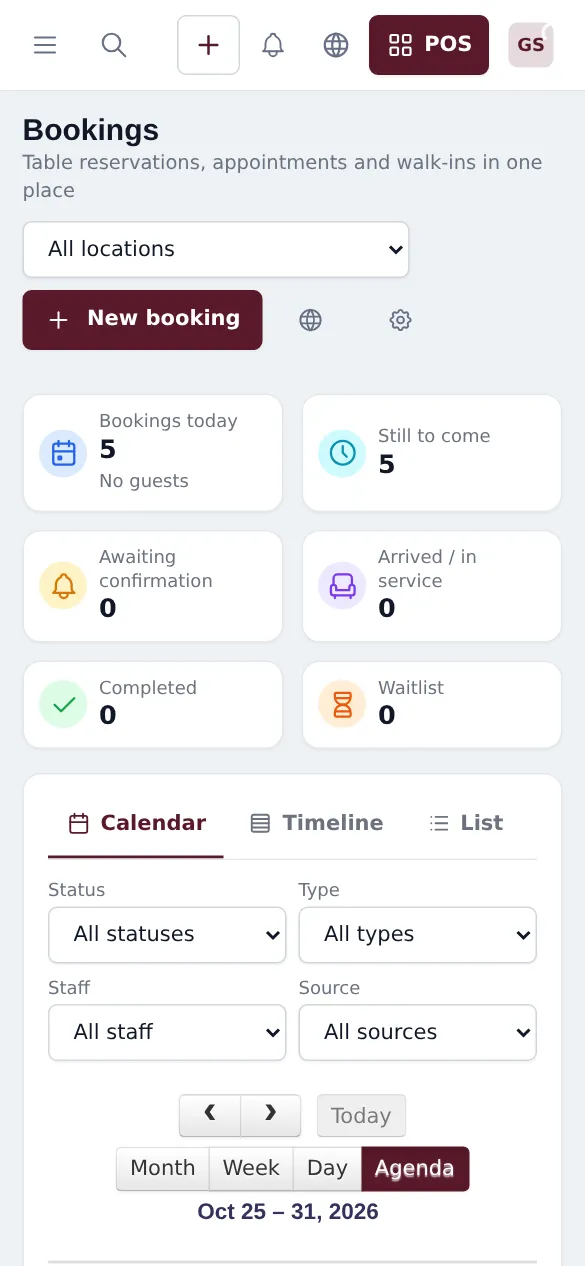
Section titled “On a phone”The Bookings page works in a phone browser too: the cards stack and the calendar switches to the agenda list.
Booking settings explained
Section titled “Booking settings explained”| Setting | What it does |
|---|---|
| Slot interval (min) | Online times are offered every this many minutes. |
| Table turn time (min) | How long a table is held for one booking (unless you enter a duration). |
| Buffer between bookings (min) | Free time kept before and after each table booking for cleaning and setup. |
| Minimum notice (min) / Book up to (days ahead) | How soon and how far ahead customers can book online. |
| Smallest party online / Largest party online | Party size limits for the online page. |
| Max bookings per slot | Only used when you have no tables. 0 = no limit. |
| Wait estimate per party (min) | Used for the waitlist estimate when no table can be predicted. |
| “Reserved soon” window (min) | A table shows as reserved on the floor plan this many minutes before a booking. |
| Booking number prefix | The letters in front of every booking number. |
| Ask for a deposit on online table bookings | Shows a deposit as due on online bookings; you take it as an advance payment. |
| Customers can cancel online / Cancel until (hours before) | Lets customers cancel from their booking link up to a deadline. |
| Email confirmations automatically / Send email reminders | Sends emails when email is set up for your business. Bookings always save, even if an email cannot be sent. |
Permissions
Section titled “Permissions”| On the Roles page | What it allows |
|---|---|
| Add/Edit/View all bookings | See and manage every booking in the business. |
| Add/Edit/View own bookings | See and manage only bookings the user took or is assigned to. |
| Services: manage all appointments / Services: manage own appointments (staff) | Service appointments, when the Services module is on. See Services. |
Admins have every permission. To change Booking settings a user needs access to business settings.
In the SmartPOS Business app
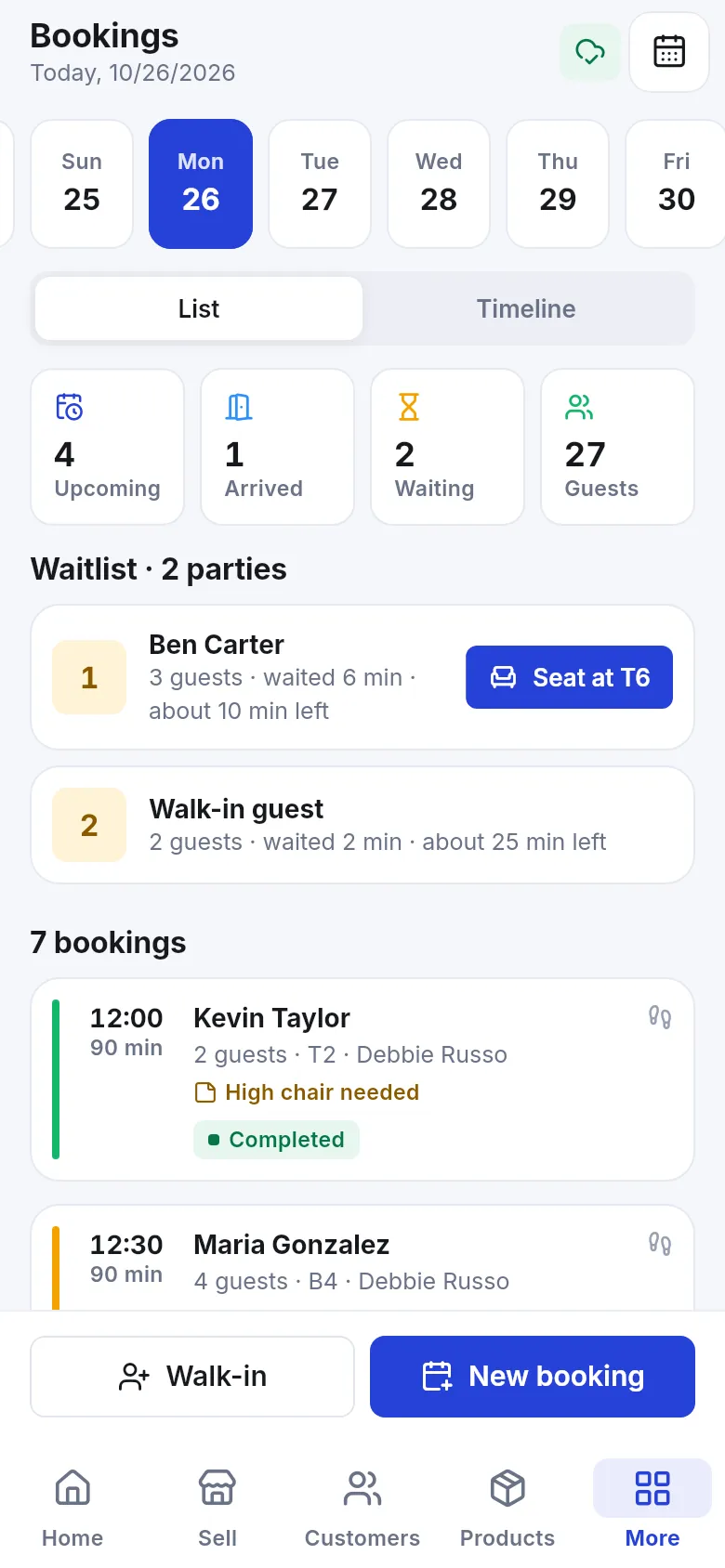
Section titled “In the SmartPOS Business app”Open More › Bookings for a day strip, a List / Timeline switch, the waitlist with Seat at buttons, and Walk-in and New booking buttons. Staff in a salon use Services › My day instead. See Bookings, hotel, gym and repair in the app.
Tips and mistakes to avoid
Section titled “Tips and mistakes to avoid”- Set Table turn time realistically. Too short and tables are double-booked in practice; too long and online slots disappear.
- Leave Confirm online bookings automatically off at first if you want to check every online request.
- Always bill through Open in POS so the booking, customer and sale stay linked in reports.
Related pages
Section titled “Related pages”Frequently asked questions
What is the difference between Bookings and the Services module?
Bookings is the shared calendar for every reservation: tables, appointments and general bookings. The Services module adds a service menu, staff hours, commission and online appointment slots on top of it. Service appointments still appear in Bookings.
Do I need a special plan for Bookings?
No. Bookings is a core feature. You only switch it on in Settings › Business Settings › Modules and give staff the booking permission. Appointments for services need the Services module, which is part of some plans.
Can customers book online?
Yes. Turn on Let customers book online in Booking settings, save, and share the link from the Online page button. You choose whether online bookings are confirmed automatically or arrive as Requested.
How do I take a deposit for a booking?
Write the agreed deposit on the booking and take the money as an advance payment in the sale when the guest arrives. To ask customers to pay online before a booking is confirmed, use Booking payments.
Can two bookings land on the same table?
No. SmartPOS Hub checks table capacity and existing bookings and shows a message when a table is already booked or too small. A manager can tick Save anyway to override the check.
Will customers get reminders?
Yes, by email, when Send email reminders is on and email is set up for your business. The reminder is sent once, the number of hours before the booking that you choose.
How does a booking become a sale?
Open the booking and click Open in POS. The POS opens with the customer, and for restaurants the table and waiter, already filled in. When the sale is saved the booking is linked to it.