
Hotel step 5: take bookings and use the room calendar
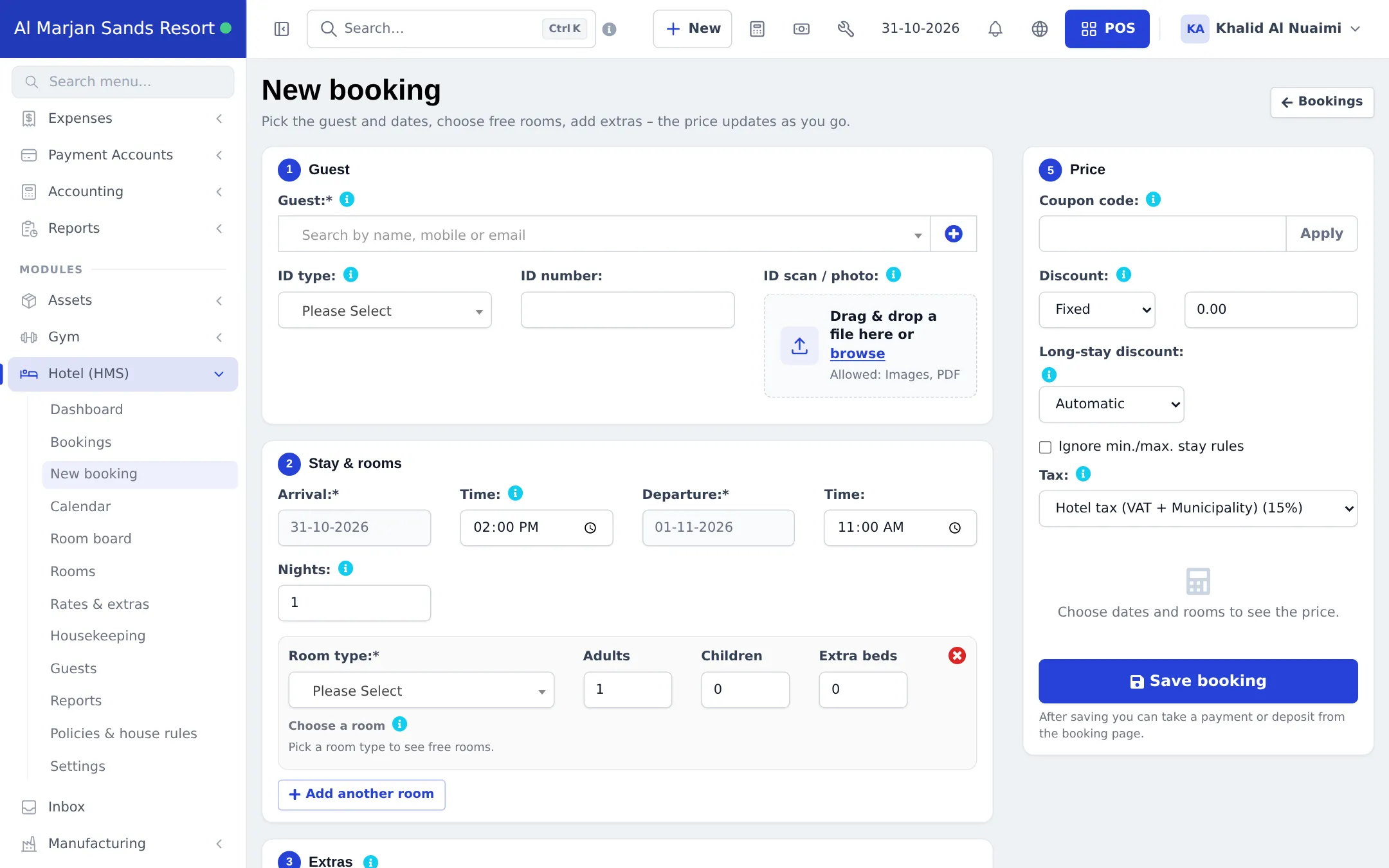
Front-desk staff take bookings on Hotel (HMS) › New booking. The form checks free rooms live and builds the price as you go, so the guest hears the total before you save.
Before you start
Section titled “Before you start”Create a booking
Section titled “Create a booking”- Click New booking (on the dashboard, the bookings list or in the sidebar).
- Guest: search by name, mobile or e-mail, or click + to quick-add a new guest. Choose the ID type (Passport, National ID card, Driving licence, Other), enter the ID number and drop an ID scan / photo if you have one.
- Stay & rooms: set Arrival and Departure with times (or type the Nights). Pick the Room type, adults, children and extra beds; free rooms appear under Choose a room — click one. Use Add another room for families or groups.
- Extras: click Add extra for breakfast, transfers or late check-out.
- Booking details: choose the Source and the Status (Pending or Confirmed), tick early check-in or late check-out, and add Special requests and an Internal note.
- Price: enter a Coupon code, a Discount (fixed or percentage), choose Long-stay discount (Automatic, None or a manual amount) and the Tax. The breakdown updates as you go.
- Click Save booking. You land on the booking page, where you can take a deposit with Add payment.
Use the room calendar
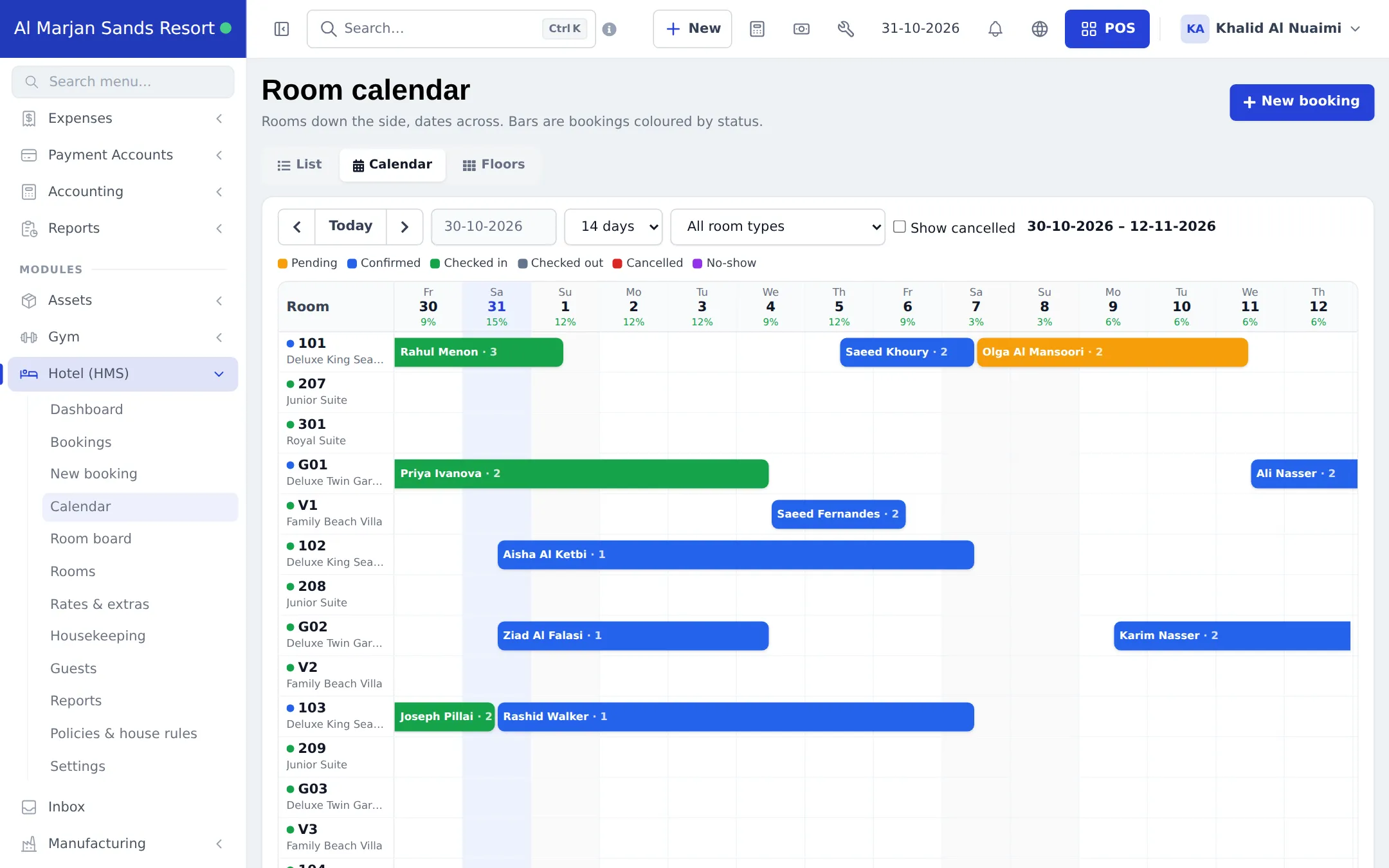
Section titled “Use the room calendar”Hotel (HMS) › Calendar shows rooms down the side and dates across (7, 14 or 30 days). Bars are coloured by status: pending, confirmed, checked in, checked out, cancelled and no-show. The header shows occupancy per day.
- Click a bar to open the booking.
- Click an empty cell to start a booking for that room and date.
- Filter by room type and location; tick Show cancelled to see cancelled stays.
Find and manage bookings
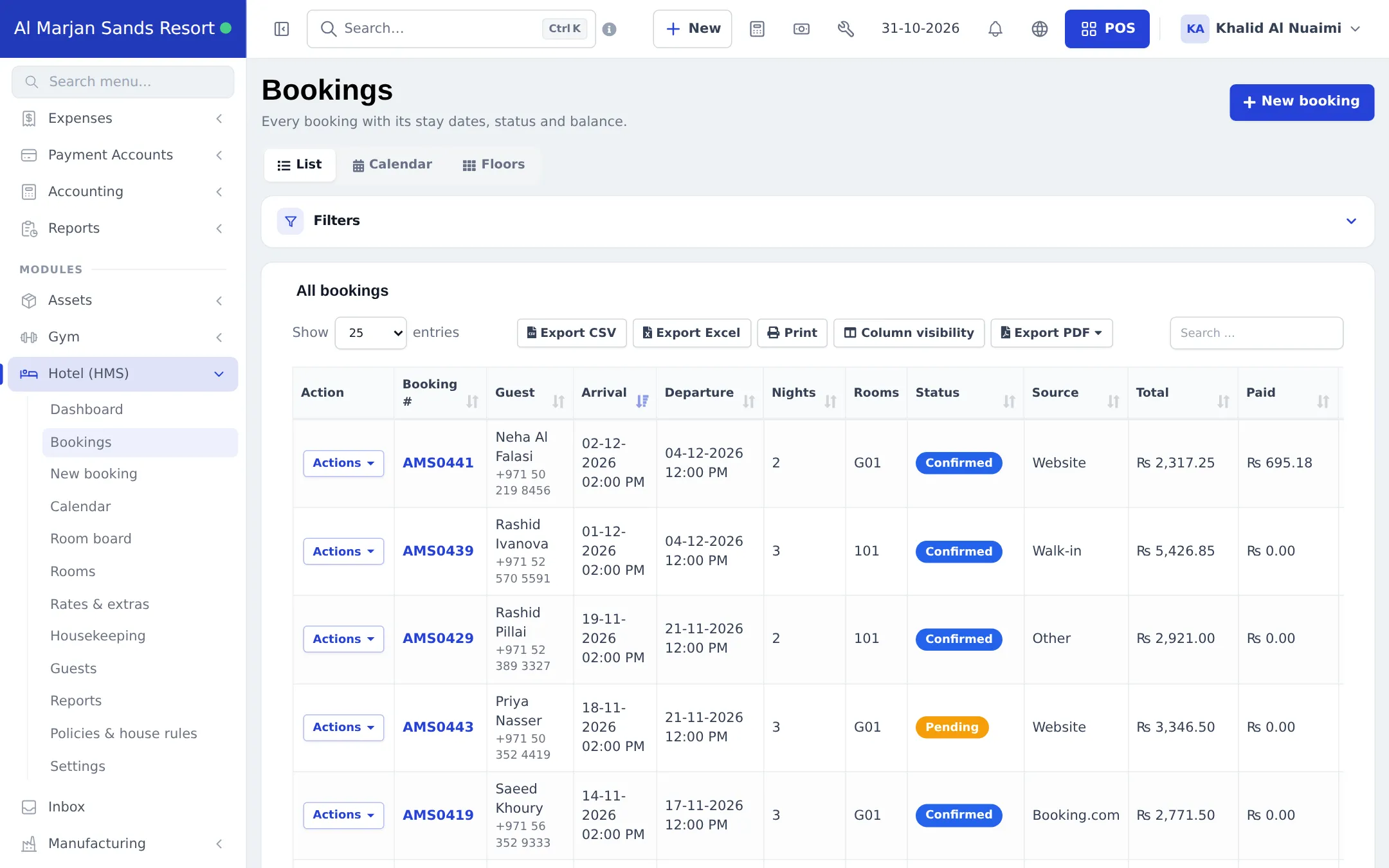
Section titled “Find and manage bookings”Hotel (HMS) › Bookings has three views: List, Calendar and Floors (click free rooms on a floor plan to book several at once). The list filters by Stay dates, Status, Room type, Source and Payment Status, and its footer totals what is booked, paid and still due. Each row’s Actions menu opens, edits, confirms, cancels or prints the booking.
Change or cancel a booking
Section titled “Change or cancel a booking”- Edit re-prices the booking with today’s rates and rules.
- Cancel and No-show ask for a reason and an optional fee. The amount owed drops to the fee, and any overpayment is flagged so you can refund it.
- Delete is only possible while the guest isn’t in house and no payments exist.
Tips and mistakes to avoid
Section titled “Tips and mistakes to avoid”- Always pick the Source. It is the only way to see later which channel brings your guests.
- Keep Pending for unpaid requests and confirm only when the deposit is in.
- Don’t create a second booking to move a guest; edit the booking or move the room at check-in.
Next step
Section titled “Next step”Frequently asked questions
Can one booking hold several rooms?
Yes. Click Add another room in the Stay & rooms section. All rooms must belong to the same location.
What is the difference between Pending and Confirmed?
Pending means the room is held but not guaranteed. Confirmed means it is guaranteed. If a deposit is required, confirm after it is paid.
How do I record where the booking came from?
Choose the Source - Walk-in, Phone, Website, Booking.com, Airbnb or Other. The dashboard and reports show bookings by source.
Can I book straight from the calendar?
Yes. Click an empty cell on Hotel (HMS) › Calendar to start a booking for that room and date. The Floors view also lets you click free rooms to book them.
How do I find a guest's booking quickly?
Use Hotel (HMS) › Bookings with the filters for stay dates, status, room type, source and payment status, or type the name or phone in the search box.
Can I store a copy of the guest's ID?
Yes. Choose the ID type, enter the number and drop a scan or photo on ID scan / photo. It is stored privately and only staff who can see the booking can open it.