
Purchases, receiving goods and expenses in the app
Record what you buy and spend while you are in the stock room or at the supplier: purchases, purchase orders, deliveries received by scanning, supplier payments, returns to suppliers and day-to-day expenses such as rent and bills. This page is for owners, managers and stock staff using SmartPOS Business.
Before you start
Section titled “Before you start”- Your role needs purchase permissions (and expense permissions for expenses).
- Suppliers can be added in the app (Customers › Suppliers) or on the web. Expense categories are set up on the web.
- All of this needs an internet connection.
The Purchases screen
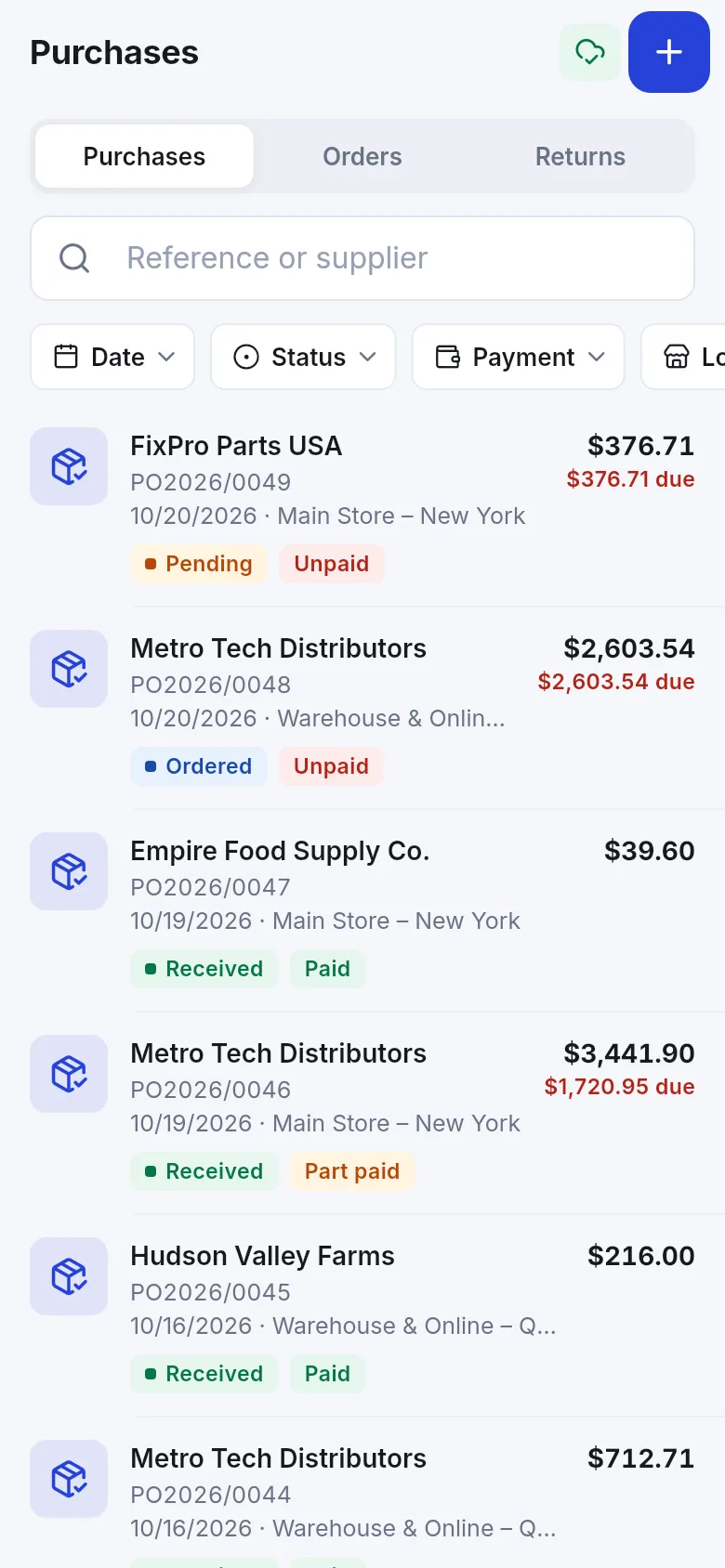
Section titled “The Purchases screen”Open Purchases from More or the Quick menu. Tabs: Purchases, Orders and Returns. Search by reference or supplier and filter by Date, Status and Payment. Each line shows the supplier, reference, location, status (Received, Pending, Ordered, Part received) and payment (Paid, Unpaid, Part paid) with any amount still due.
Record a purchase (goods in)
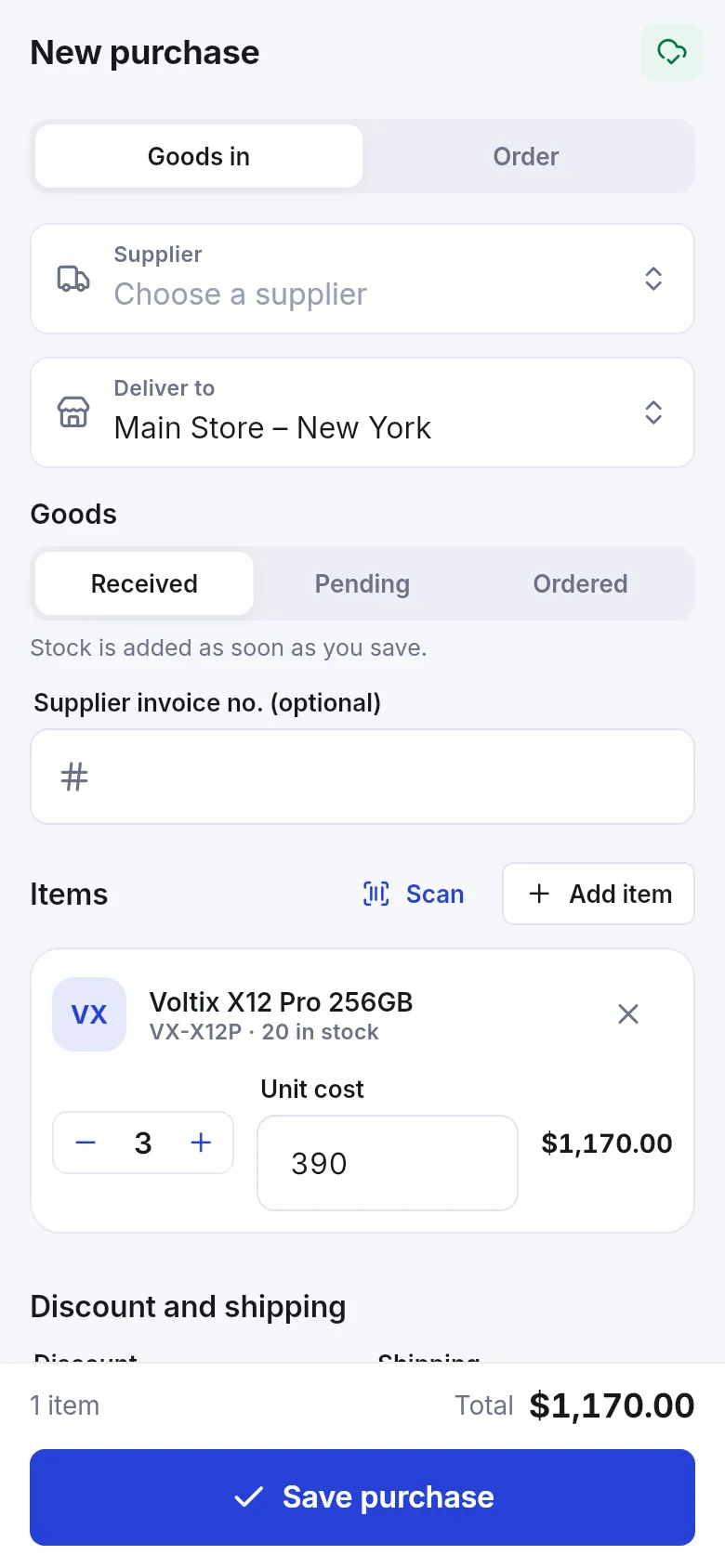
Section titled “Record a purchase (goods in)”- In Purchases, tap +.
- Choose Goods in (stock arrives now) or Order (a purchase order for later).
- Pick the Supplier and Deliver to location.
- Set the status: Received (stock is added as soon as you save), Pending or Ordered. Add the Supplier invoice no. (optional).
- Add items with Scan or Add item; set quantity and Unit cost for each.
- Add any discount and shipping, then tap Save purchase.
Receive a delivery by scanning
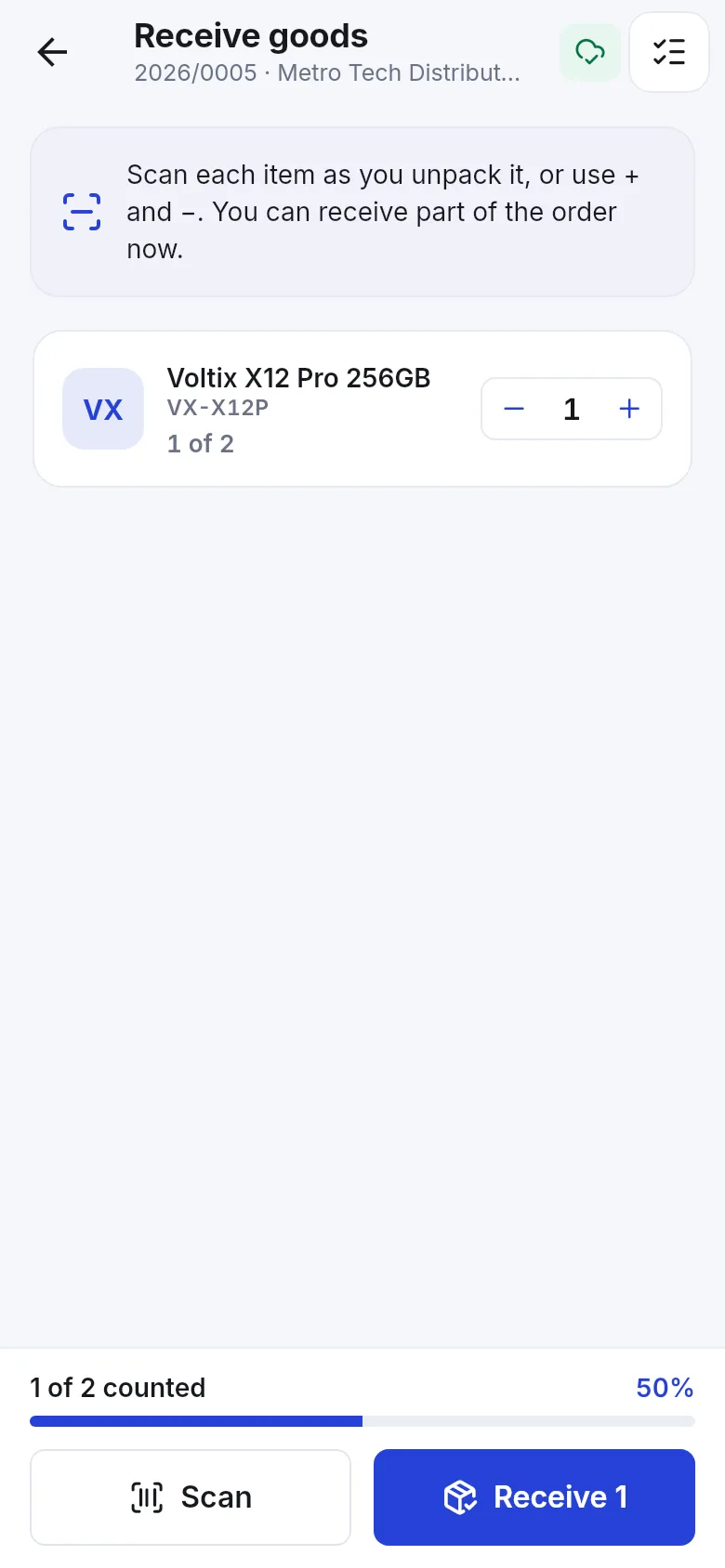
Section titled “Receive a delivery by scanning”- Open the purchase order and tap Receive goods.
- Scan each item as you unpack it, or use + and −. You can receive part of the order now. The bar shows … of … counted.
- Tap Receive …. If not everything arrived, the rest stays open on the order; tap Everything arrived when it all came.
- The app confirms Received – stock updated.
Pay the supplier, return goods, print labels
Section titled “Pay the supplier, return goods, print labels”Open a purchase to see its items, totals, Paid and Still to pay. Then:
- Add payment – amount, method, date; Save payment. The supplier’s balance in Customers › Suppliers updates.
- Return items – how many of each go back to the supplier (Up to …), then Return to supplier. Stock leaves this location now.
- Print labels – print shelf labels for the items you just received.
Add an expense
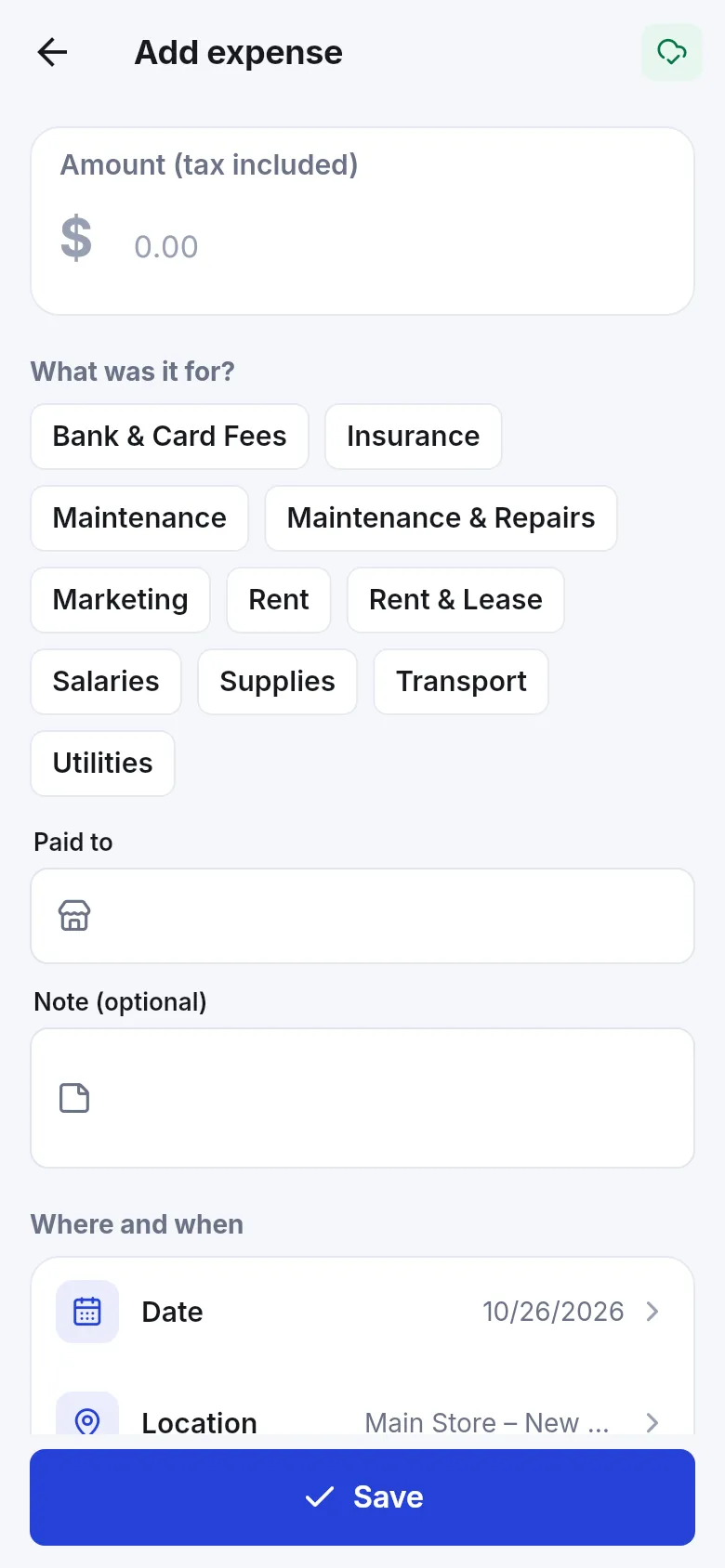
Section titled “Add an expense”- Open Expenses (More › Money) and tap Add expense.
- Enter the Amount (tax included).
- Tap a category under What was it for? (for example Rent, Utilities, Salaries).
- Fill in Paid to, a Note (optional), the date and location, and add a Receipt photo if you have one.
- Tap Save.
The Expenses list shows what you spent in the period, by category. Unpaid expenses show Still to pay with Pay now.
Related pages
Section titled “Related pages”Frequently asked questions
Can I receive a supplier delivery on my phone?
Yes. Open the purchase order, tap Receive goods and scan each item as you unpack it, or use plus and minus. You can receive part of the order now and the rest later.
How do I pay a supplier in the app?
Open the purchase and tap Add payment, enter the amount and method and tap Save payment. The supplier balance updates at once.
Can I return goods to a supplier?
Yes. Open the purchase, tap Return items, enter how many of each item go back and tap Return to supplier. Stock leaves the location now.
Can I attach a bill photo to an expense?
Yes. Add a Receipt photo when you create or edit the expense.
Can I save an expense I will pay later?
Yes. Enter the amount and leave it unpaid or part paid; the expense shows Still to pay and you can use Pay now later.
Do purchases work offline?
No. Purchases, payments and expenses need an internet connection. Only POS sales queue offline.