
Hardware step 1: stores, yard and settings
Start by telling SmartPOS Hub where you sell and hold stock, then switch on the settings a hardware store uses every day. This page covers business locations for stores, yards and warehouses, and the handful of switches in Settings › Business Settings you need before you load products.
Before you start
Section titled “Before you start”- You can sign in as the owner or an admin.
- You know which sites hold their own stock (store, lumber yard, back warehouse).
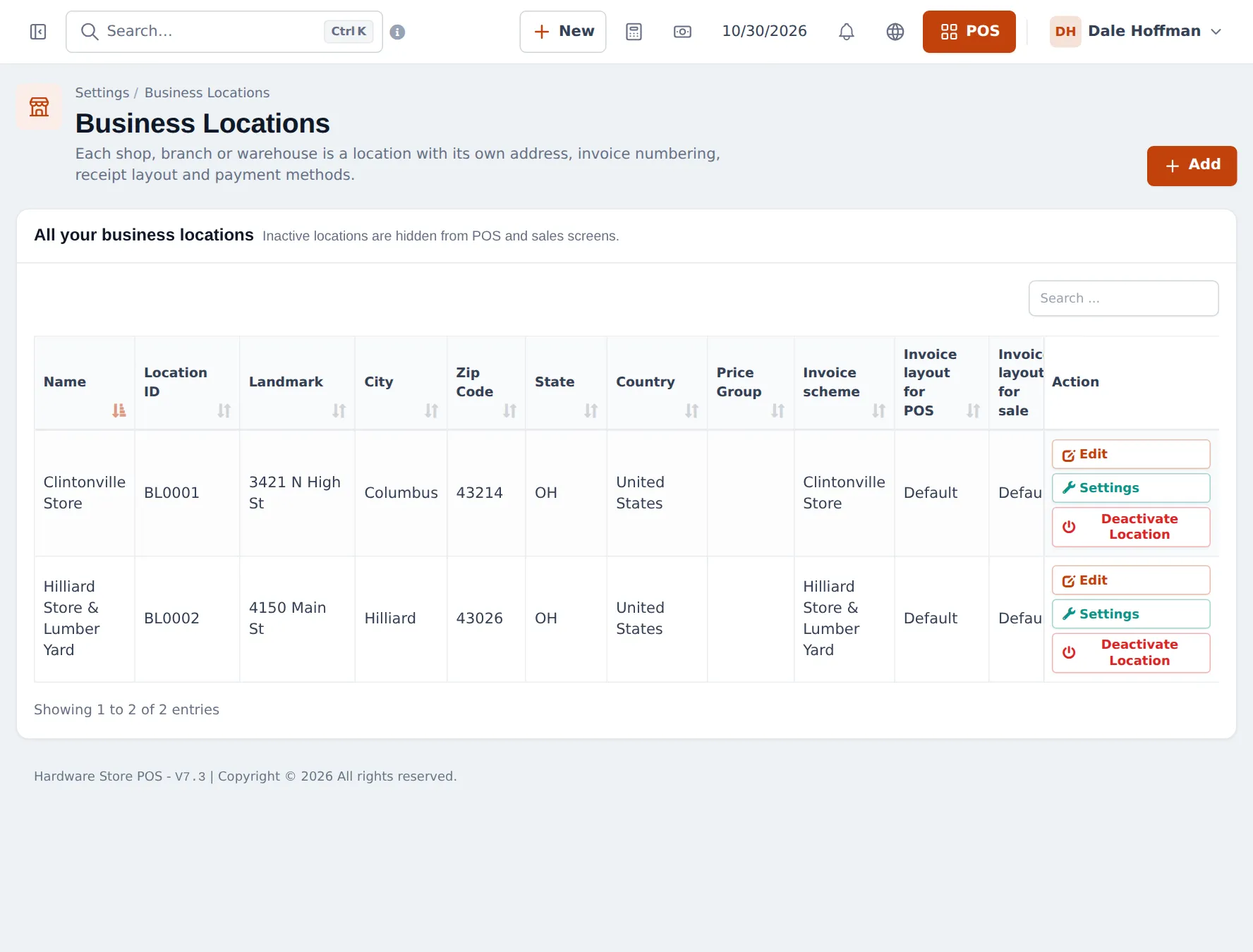
Add a location for each store and yard
Section titled “Add a location for each store and yard”- Open Settings › Business Locations and click Add.
- Enter the Name (for example Hilliard Store & Lumber Yard), the address and contact details.
- Choose the Invoice scheme (number prefix) and the Invoice layout for POS and for sales. Use a different prefix per site if you want to see at a glance where a sale was made.
- Optional: set a Default Selling Price Group for a counter that mainly serves contractors.
- Save. Repeat for each site. Use Settings on a location row for its other per-location options.
Switch on the settings a hardware store needs
Section titled “Switch on the settings a hardware store needs”Open Settings › Business Settings and check these tabs, then click Update Settings.
| Tab | Setting | Why |
|---|---|---|
| Product | Enable Sub Units | Sell by the box and by the piece, or by the coil and by the foot (step 2) |
| Product | Enable Brands | Filter and report by tool and paint brand |
| Product | Enable Warranty | Attach a warranty to power tools and print it on the invoice |
| Sale | Enable Sales Order | Take special orders (doors, windows) for later delivery |
| Sale | Allow Overselling | Only if you sometimes sell stock before the delivery is entered |
| Purchases | Enable Lot number | Optional: trace a batch of treated lumber or a paint batch |
Check which modules are on
Section titled “Check which modules are on”On the Modules tab of Settings › Business Settings you see each module as a card. A hardware store normally keeps Purchases, Add Sale, POS, Stock Transfers, Stock Adjustment, Expenses and Account on. Optional extras:
- Order options & personalisation to record cut sizes, paint colour codes or key codes on a sale line.
- Customer & partner portal so contractors can see their statements and quotes.
- Website & online store to take click-and-collect orders.
A module that your plan does not include shows as a greyed card Not in your plan with See plans.
Tips and mistakes to avoid
Section titled “Tips and mistakes to avoid”- Name locations the way staff talk about them. The name appears in every dropdown.
- Do not create a location just for “damaged stock”. Use a stock adjustment instead.
- Give each cashier only the locations they work in (User Management › Users), so sales are never recorded at the wrong site.
Frequently asked questions
Should my lumber yard be a separate location?
Yes, if it has its own stock and its own till. A separate location keeps yard stock, sales and transfers apart, and you can still see everything together in reports with All locations.
Which business settings matter most for a hardware store?
Enable Sub Units (boxes and pieces), Enable Brands, Enable Warranty for power tools, and on the Sale tab Allow Overselling if you sometimes sell before receiving. Sales orders are switched on with Enable Sales Order.
Can each store print its own receipt header?
Yes. Each location has its own invoice scheme (number prefix) and invoice layout for the POS and for Add Sale.
Can a cashier be limited to one store?
Yes. When you edit a user, choose the locations they can access. They only see those locations in the POS and in lists.
Can one location use contractor prices by default?
Yes. Set Default Selling Price Group on the location, for example for a pro desk counter. Every sale there then uses that price group.