
Hardware step 6: purchase orders and receiving
Hardware stores buy from a few big suppliers on a schedule: the co-op truck every week, lumber twice a week, paint direct to each store. Purchase orders record what you asked for; purchases record what arrived and add the stock. This page shows the whole cycle for a store with a yard.
Before you start
Section titled “Before you start”- Suppliers are added in Contacts › Suppliers with their pay term (for example 30 days).
- Products have an Alert quantity if you want low-stock warnings.
Send a purchase order
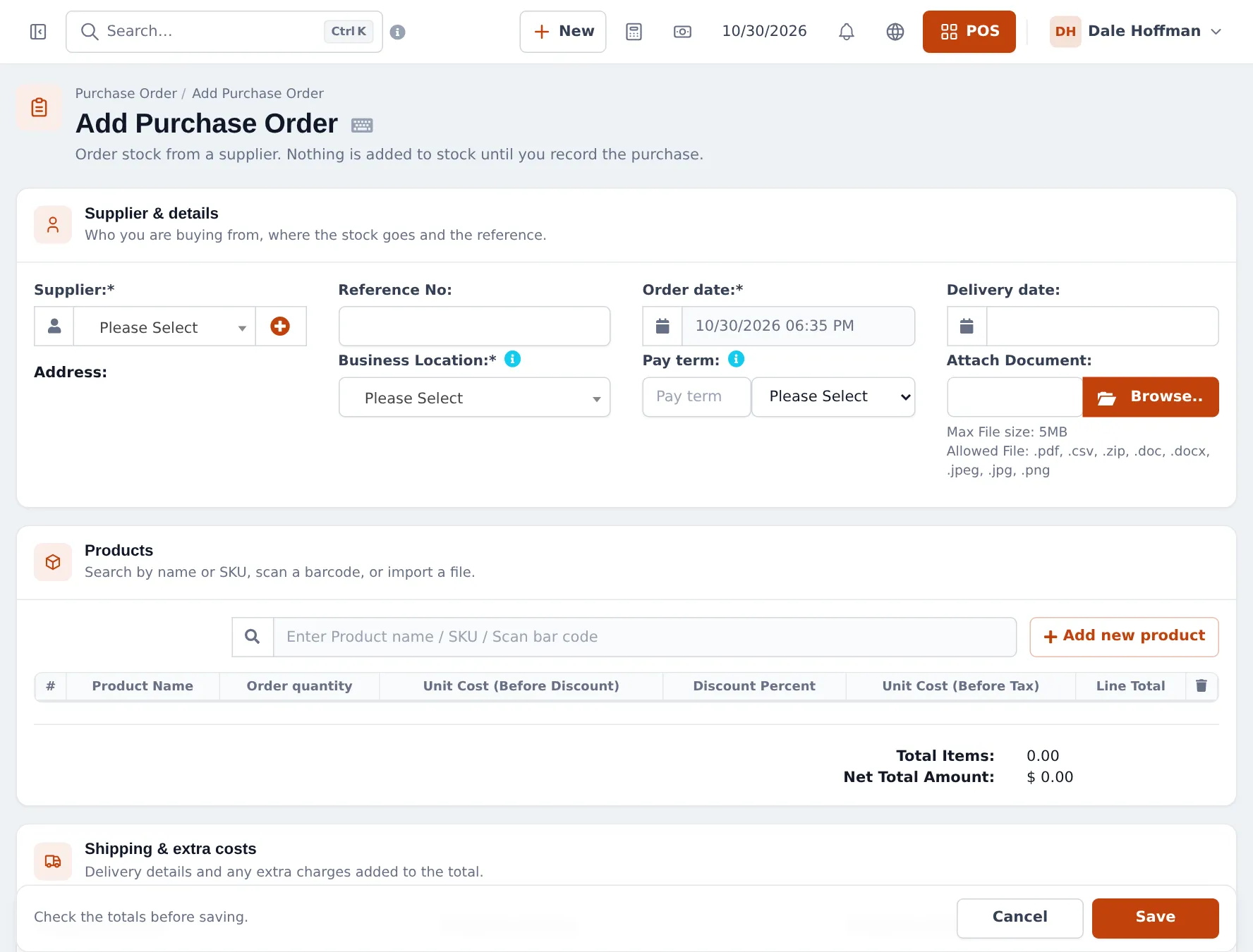
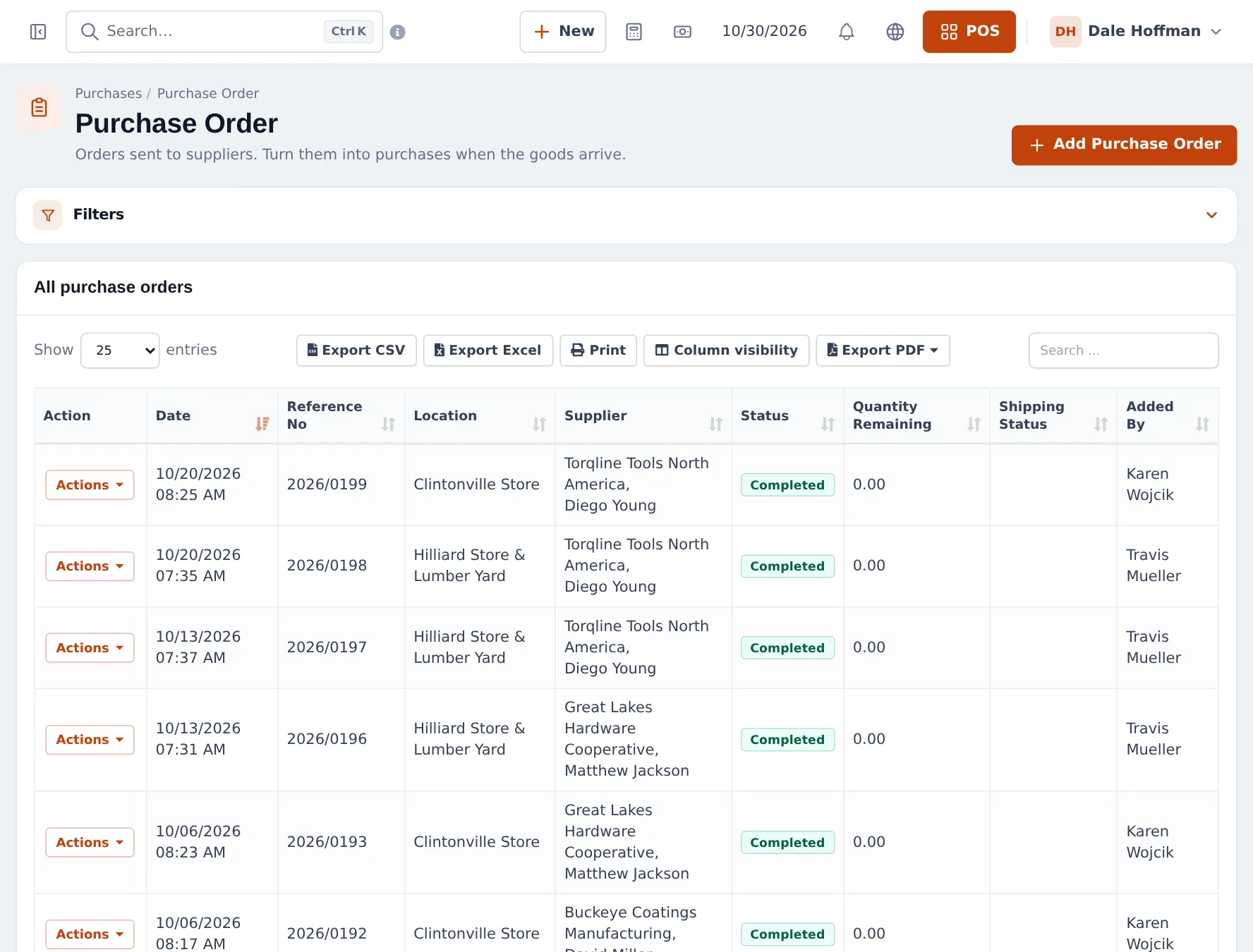
Section titled “Send a purchase order”- Open Purchases › Purchase Order and click Add Purchase Order.
- Choose the Supplier, the Business Location that will receive the goods, the Order date and, if known, the Delivery date. Add your PO number in Reference No.
- Add products by name, SKU or barcode. For each line enter the Order quantity (choose Box or Pallet where the supplier sells in packs) and the Unit Cost (Before Discount).
- Add shipping or extra costs if the supplier charges them, then click Save. Print or e-mail the order to the supplier.
Receive the delivery
Section titled “Receive the delivery”- Open Purchases › Add Purchase and choose the same Supplier.
- In Purchase Order, pick the order. The lines are copied in.
- Check quantities against the delivery note and change them if something is short or damaged.
- Set Purchase Status to Received and choose the Business Location where the goods are unloaded (usually the yard).
- Enter the supplier’s invoice number in Reference No, the Pay term, and any payment made now (or 0). Click Save.
Stock goes up at that location now, and the purchase order’s remaining quantity goes down.
Move stock from the yard to the store
Section titled “Move stock from the yard to the store”- Open Stock Transfers › Add Stock Transfer.
- Choose Location (From) (the yard) and Location (To) (the store), and the status: Pending, In Transit or Completed.
- Add the products and quantities, then save. Stock moves when the status is Completed.
See stock transfers for details.
Pay the supplier
Section titled “Pay the supplier”Purchases saved with nothing or part paid show Due or Partial in Purchases › List Purchases. Use Actions › Add payment for one purchase, or open the supplier in Contacts › Suppliers and pay several at once. The dashboard shows Purchase Payment Due.
Tips and mistakes to avoid
Section titled “Tips and mistakes to avoid”- Receive where the truck unloads, then transfer. Receiving straight into the store when the goods are in the yard makes both counts wrong.
- Use List Purchase Return for goods you send back, not a stock adjustment, so the supplier’s balance is right.
- Web stock adjustments only remove stock (damaged lumber, torn bags). New stock always comes in through a purchase or opening stock.
Next: daily operations.
Frequently asked questions
Does a purchase order change my stock?
No. Nothing is added to stock until you record the purchase. A purchase with status Received adds the stock to the chosen location.
How do I receive a purchase order?
Open Purchases › Add Purchase, choose the supplier, and pick the order in the Purchase Order field. Its lines are copied in; adjust quantities to what actually arrived and save with status Received.
What if only part of the order arrives?
Receive what came. The purchase order shows the quantity remaining, and you can link the rest to another purchase when it arrives.
Can I buy pallets and receive bags?
Yes. Choose the pallet sub-unit on the purchase line; stock is added in bags.
How do I pay suppliers on 30-day terms?
Set the pay term on the purchase or the supplier and pay later with Add payment on the purchase, or Pay on the supplier for several purchases at once.
How do I see what to reorder?
Set an alert quantity on products. The dashboard and Reports › Stock Report show items at or below it, and the POS marks them Low stock.