
Hardware step 3: load a large catalog
A hardware store easily carries 10,000 to 50,000 items. Typing them one by one is not realistic, so this step loads your catalog from a spreadsheet, sets up categories and brands that make sense on the shop floor, adds the stock you already have and prints the labels cashiers will scan.
Before you start
Section titled “Before you start”- Units and sub-units exist (step 2).
- You have your item list as a spreadsheet, for example from your co-op or main distributor.
- Optional: create your category tree first (Products › Categories), such as Fasteners › Screws, Plumbing › Fittings, Lumber & Building › Treated Lumber. Categories also become the tabs on the POS.
Import the products
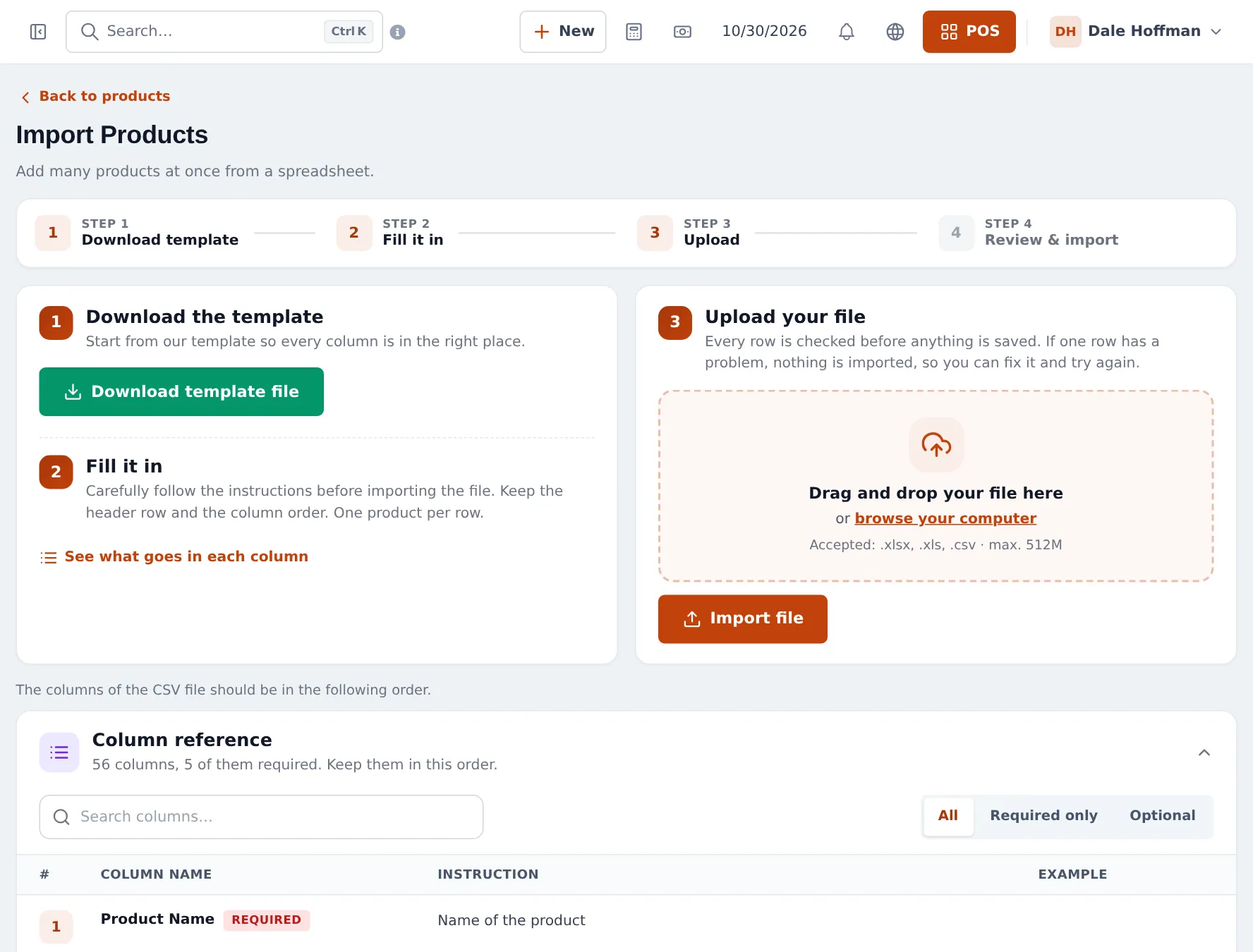
Section titled “Import the products”- Open Products › Import Products.
- Click Download template file and open See what goes in each column. 5 of the columns are required; keep the header row and the column order.
- Fill in one product per row: name, unit, category and sub-category, brand, SKU or barcode, purchase and selling price, tax, and whether to manage stock. Services such as key cutting get Manage Stock = 0.
- Save as .xlsx, .xls or .csv, drag it onto Upload your file and click Import file.
- Check the review step. If a row has a problem, nothing is saved; fix the row and upload again.
Add opening stock
Section titled “Add opening stock”- All at once: Products › Import Opening Stock. Fill in SKU, location, quantity and unit cost, and upload. Use a separate row per location (store and yard).
- One product: edit it and enter quantities on the Stock tab.
Enter quantities in the base unit: 2,000 screws, not 20 boxes. See opening stock.
Labels and barcodes
Section titled “Labels and barcodes”- Products without a barcode get an SKU automatically. Print shelf or bin labels with Products › Print Labels: add products, choose what to print (name, price, business name), pick the label sheet and print.
- Products that come with a manufacturer barcode are scanned directly; put that code in the SKU column of the import.
Check the result
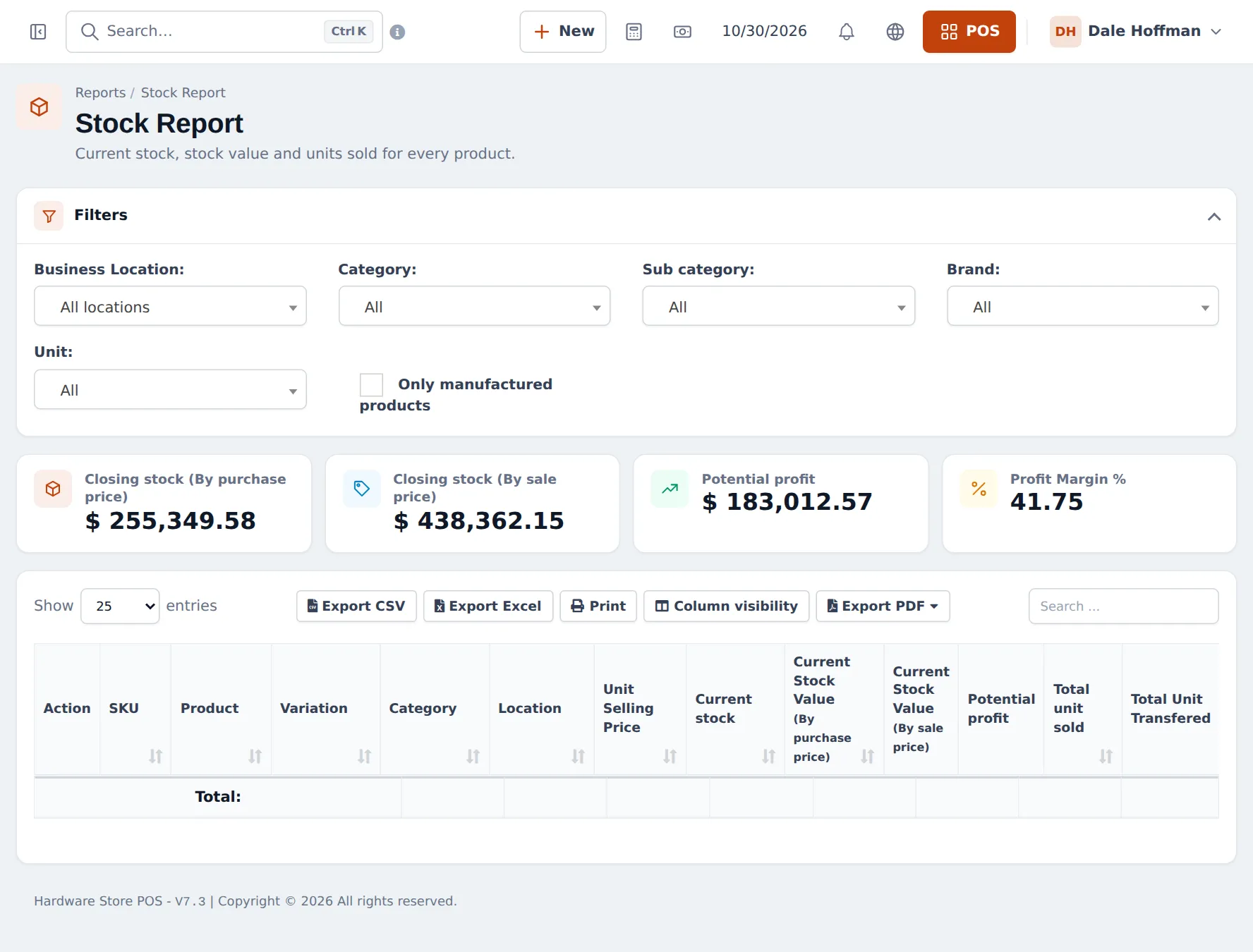
Section titled “Check the result”Open Reports › Stock Report and filter by location and category. You should see each item with its stock, value at purchase and selling price, and the potential profit.
Tips and mistakes to avoid
Section titled “Tips and mistakes to avoid”- Keep names consistent: size first, then material and finish (for example “#8 x 1-1/4 in Exterior Deck Screw”). Cashiers search by typing part of the name.
- Do not import the same file twice; it creates duplicates. Use Products › Update Price for price changes.
- Add product photos later for the best sellers; they appear on POS tiles and online.
Frequently asked questions
What is the fastest way to add 20,000 items?
Products › Import Products. Download the template, paste your supplier or co-op file into the columns in the same order, and upload it. Every row is checked first; if one row has a problem nothing is imported, so you can fix it and try again.
Can the import set units and sub-units?
It sets the base unit. The unit column must match the name or short name of a unit in Products › Units, otherwise that row is refused. Related sub-units are not in the template; leave them empty to allow every sub-unit of the base unit, or pick them on the product afterwards.
How do I add the quantities I already have?
Use Products › Import Opening Stock with SKU, location, quantity and unit cost, or type it per product on the Stock tab.
My items have no barcodes. What do I do?
Leave the SKU empty and SmartPOS Hub creates one, then print labels with Products › Print Labels. Cashiers scan the label or type part of the name or SKU.
How do I update prices for the whole store?
Products › Update Price exports the prices (and one column per price group) to a file. Change them and import the file back.
Is there a hardware catalog in the Product Library?
No. The Product Library has Mart, Pharmacy and Electronics catalogs only, so hardware stores use the spreadsheet import.