
Convenience store step 1: catalog and barcodes
A convenience store carries a few thousand fast-moving, barcoded items. The quickest way to get them in is the Product Library, then your own items on top. This page also switches on expiry tracking and prints shelf labels.
Before you start
Section titled “Before you start”- Your location exists (Settings › Business Locations).
- On Settings › Business Settings: Product tab, tick Enable Product Expiry and Enable Sub Units if needed; Purchases tab, tick Enable Lot number.
Import from the Product Library
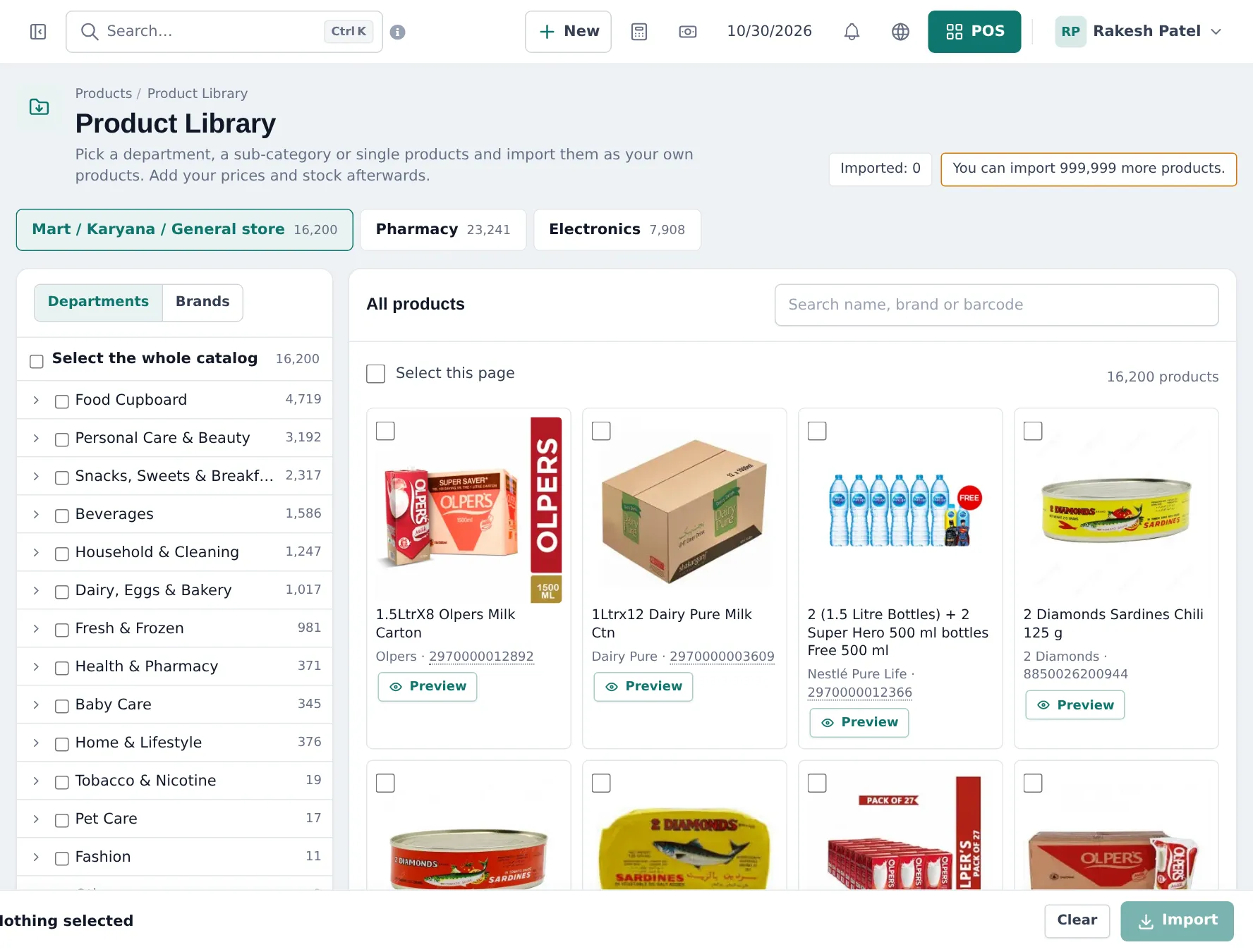
Section titled “Import from the Product Library”- Open Products › Product Library and choose Mart / Karyana / General store.
- Browse Departments (Beverages, Snacks, Sweets & Breakfast, Household & Cleaning, Personal Care…) or Brands, or search by name or barcode.
- Tick a whole department, a sub-category or single products. Preview shows a product’s details.
- Click Import, check the summary and confirm.
- Set your prices with Products › Update Price (spreadsheet) and enter opening stock.
Add your own items
Section titled “Add your own items”- Barcoded items: Products › Add Product, scan the barcode into SKU.
- Unbarcoded items (hot dogs, coffee, bagged ice): leave SKU empty; put them in a category that becomes a POS tab.
- Services (car wash token, ATM fee): untick Manage Stock?.
Labels and expiry
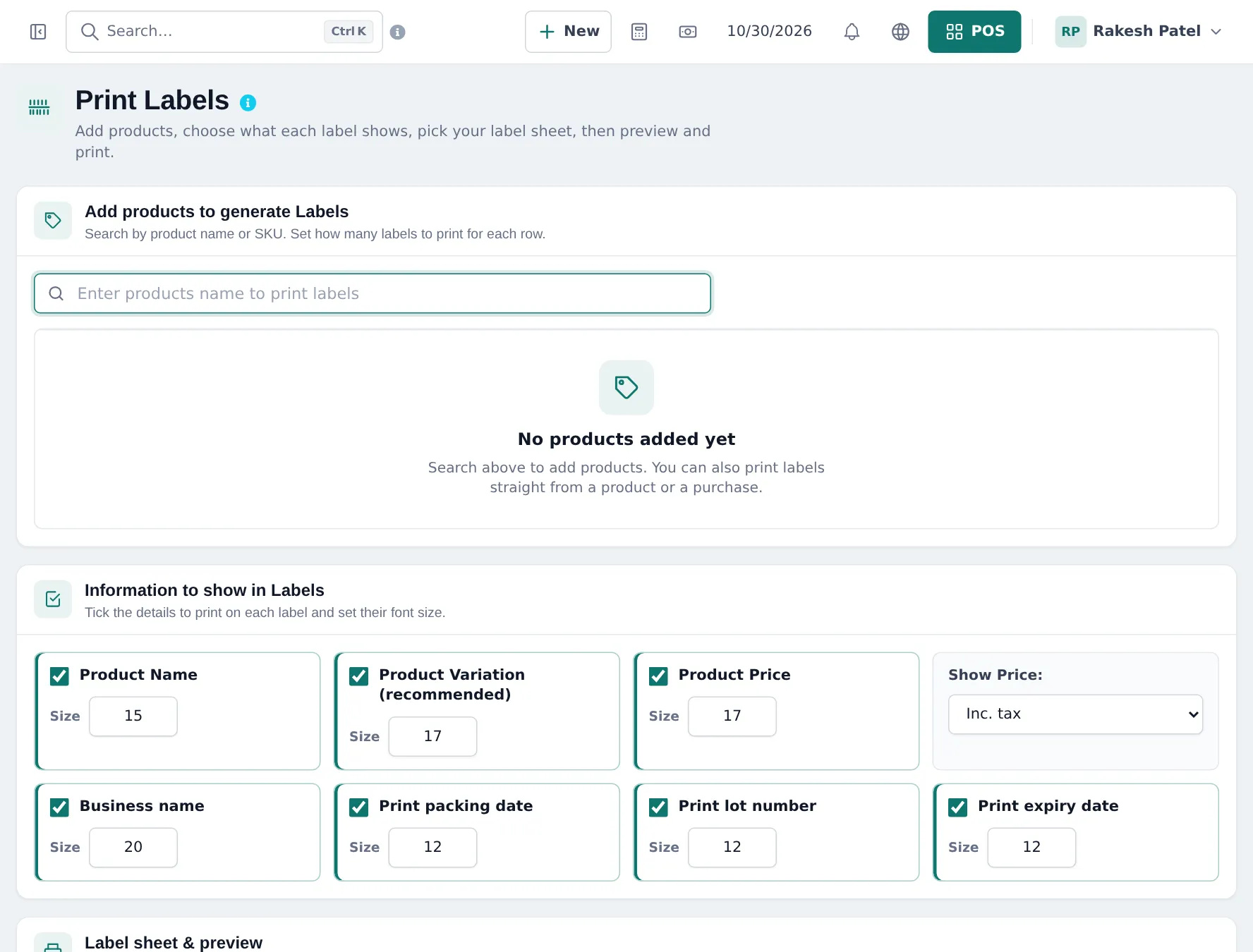
Section titled “Labels and expiry”Print shelf-edge or price labels with Products › Print Labels: add products, tick what to print (name, variation, price, business name, packing date, lot number, expiry date), choose the sheet and print.
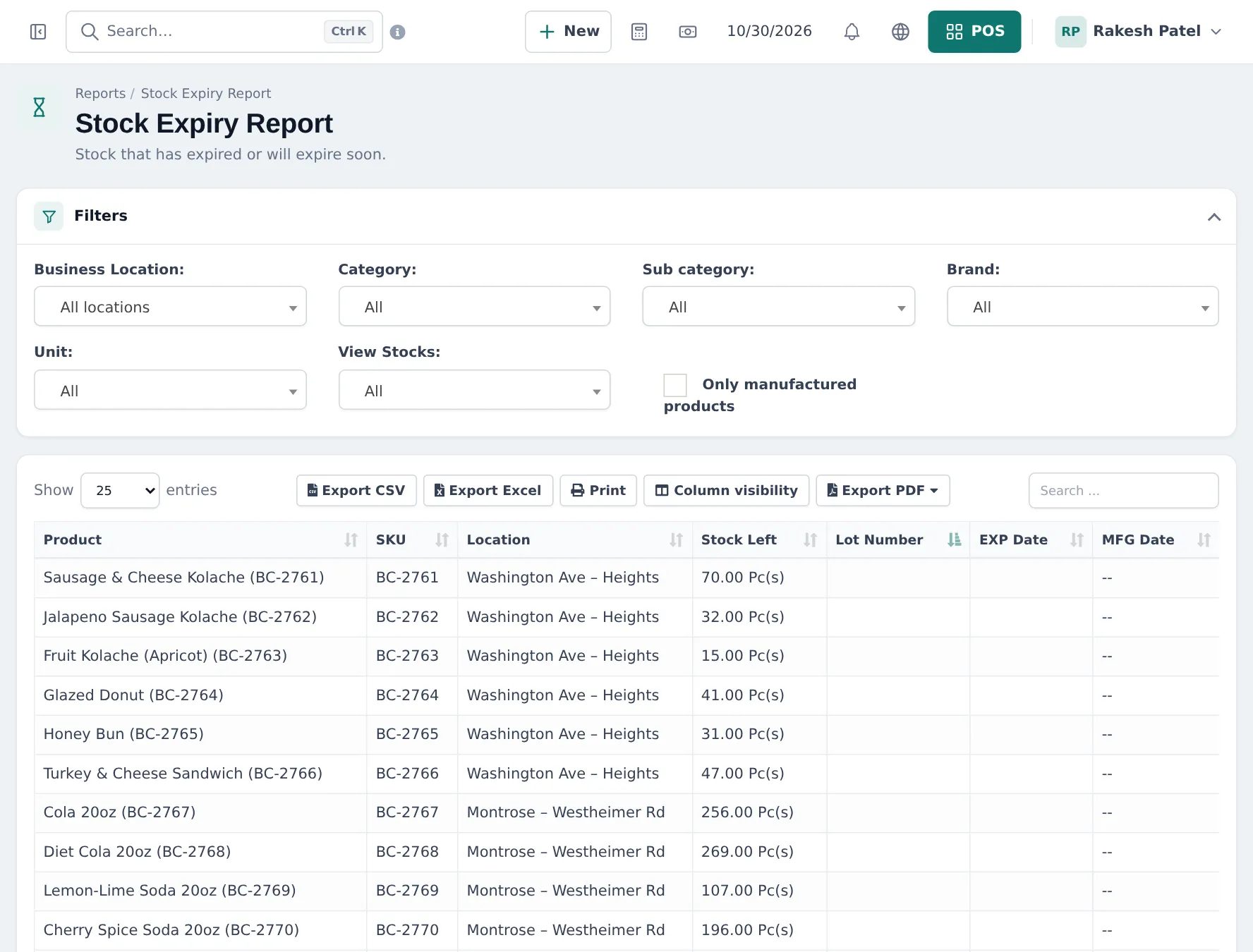
Products with dates show in Reports › Stock Expiry Report. Check it every morning for dairy and sandwiches.
Frequently asked questions
Where do the ready-made products come from?
Products › Product Library, Mart / Karyana / General store catalog. Pick departments, sub-categories or single products and import them with their barcodes, brands and photos. Add your prices and stock afterwards.
Products I sell are not in the library. What then?
Add them with Products › Add Product or a spreadsheet in Products › Import Products. Scan the manufacturer barcode into the SKU field.
Do I need expiry dates?
For dairy, bakery, sandwiches and hot food, yes. Turn on Enable Product Expiry (Product tab) and Enable Lot number (Purchases tab) and enter dates when stock arrives.
Can I sell single cans and the 12-pack?
Yes. Use a variable product with one variation per pack and barcode, or sub-units if the pack price is simply units × price.
How do I make hot food sellable without a barcode?
Put it in a category such as Hot Food; the category becomes a tab on the POS, so the cashier taps it.