
Convenience store step 3: shifts and cash registers
Convenience stores run long hours with two or three shifts a day. The cash register in SmartPOS Hub follows the cashier: each shift has its own float, sales, refunds and payouts, and its own count at the end.
Before you start
Section titled “Before you start”- Every cashier has their own user (User Management › Users) limited to their location.
- Agree the float (for example 150 in small notes and coins).
Open the shift
Section titled “Open the shift”- The cashier signs in and opens Sell › POS.
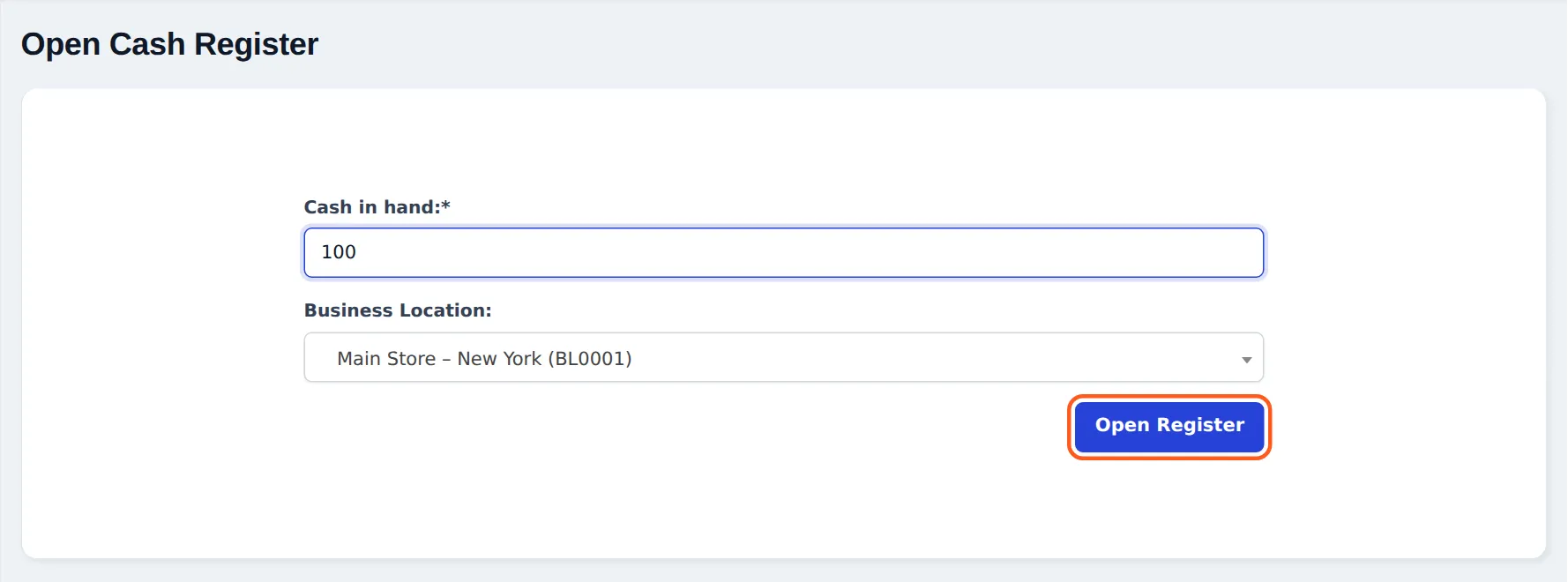
- The Open Cash Register screen asks for Cash in hand (the float) and the Business Location.
- Press Open Register. The POS opens.
During the shift
Section titled “During the shift”- Cash payouts (a delivery driver, a small supplier): Add Expense in the POS top bar.
- Cash refunds reduce the expected cash automatically.
- Contractors or regulars paying their tab: Receive Payment next to the customer; it counts as Cash Received (Due Payment).
Close the shift
Section titled “Close the shift”- Press Close Register in the POS top bar.
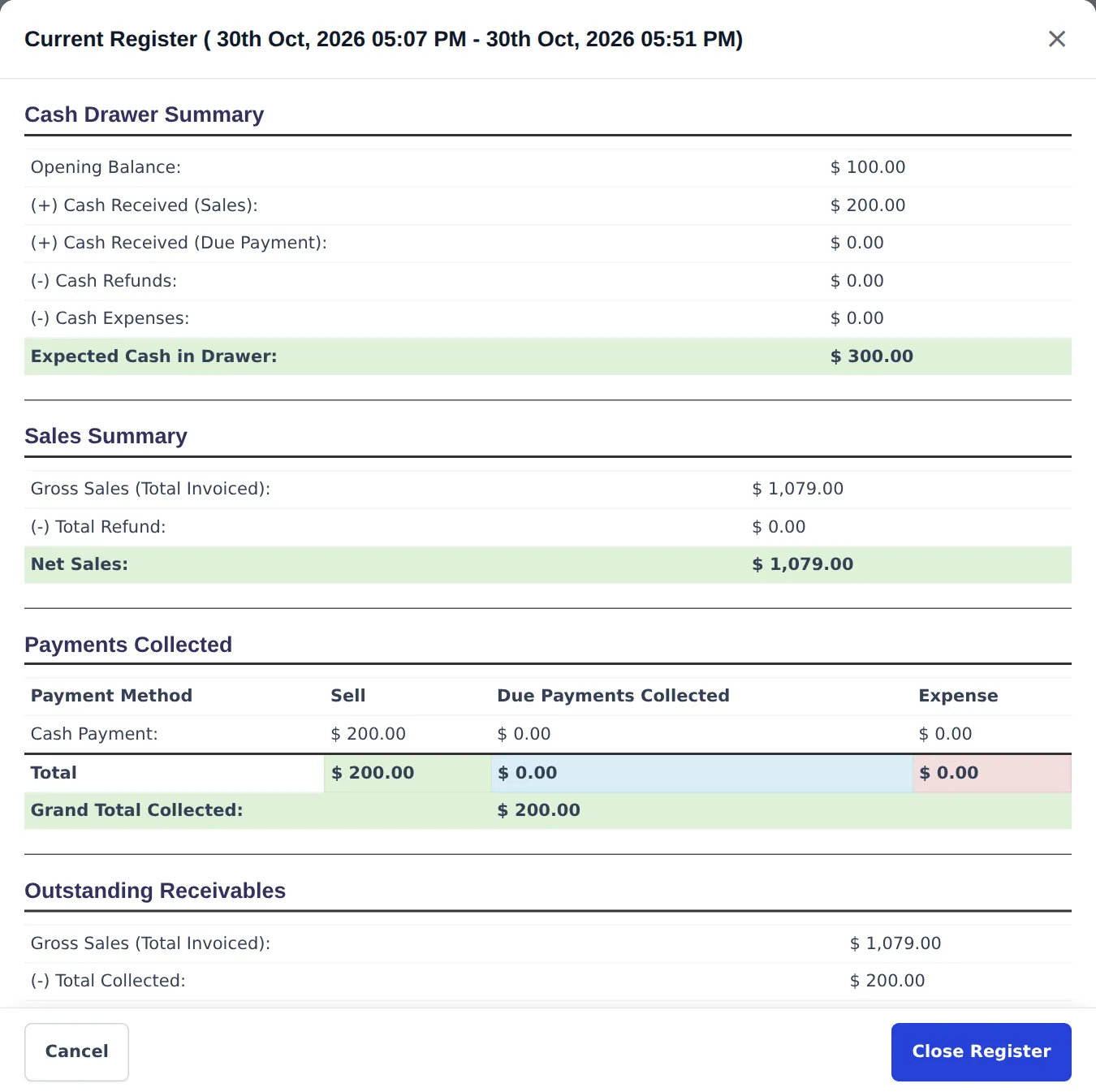
- The Current Register window shows the Cash Drawer Summary with Expected Cash in Drawer, the Sales Summary and Payments Collected by method.
- Count the drawer and enter the cash, card slips and cheques, and a Closing Note (safe drops, shortages).
- Press Close Register and print the summary for the shift envelope.
Check shifts and days
Section titled “Check shifts and days”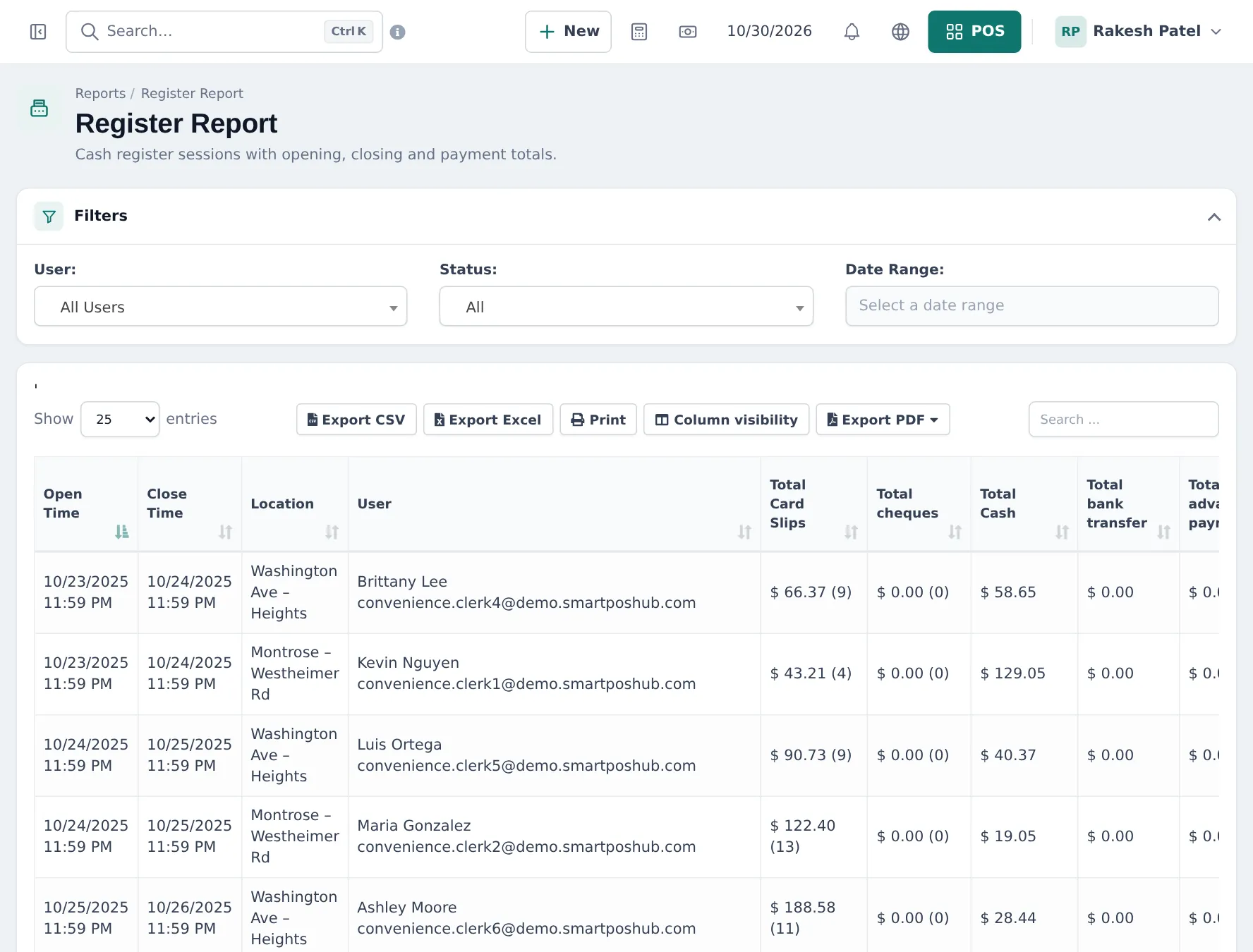
Tips and mistakes to avoid
Section titled “Tips and mistakes to avoid”- Never let a cashier sell on someone else’s login; the register and report follow the user.
- Close the register at every shift change, not only at night.
- Keep the float the same every shift; differences are easier to see.
Frequently asked questions
How do shifts work?
Each cashier signs in with their own user and opens a register with the float in the drawer. At the end of the shift they close it with the counted cash. The next cashier opens a new register.
What if two cashiers share one drawer?
Registers belong to a user. For clean accountability give each cashier their own drawer, or have one person own the register for the shift.
How do I record cash taken out for a supplier or a safe drop?
Add Expense in the POS top bar records cash paid out and reduces the expected cash. For safe drops, agree a routine and note it in the closing note.
Where do I see every shift?
Reports › Register Report lists every register with open and close time, location, user and totals by payment method. Filter by user, status and date.
The drawer is short. How do I find out why?
Compare the counted cash with Expected Cash in Drawer in the closing window, then check the shift's sales, refunds and expenses in Sell › All sales and Expenses filtered by user and time.