
App notifications - phone, e-mail and SMS alerts
SmartPOS Business tells each person about the things they care about – a new customer chat, an online order, a Scan & Go customer at the counter, low stock, a big discount – as a phone notification, an e-mail or an SMS. This page shows how to turn alerts on, pick channels per type, set quiet hours and get a daily summary.
Before you start
Section titled “Before you start”- The owner sets business-wide alert rules on the web in Settings › Mobile app › Alerts: Big discount alert from (%) and whether to send low-stock alerts.
- You only receive alerts about records you may see (your role and locations).
Turn on phone notifications
Section titled “Turn on phone notifications”A few seconds after your first sign-in the app asks once whether to turn on alerts – tap Turn on, then allow notifications in the Android dialog. If you tapped Not now:
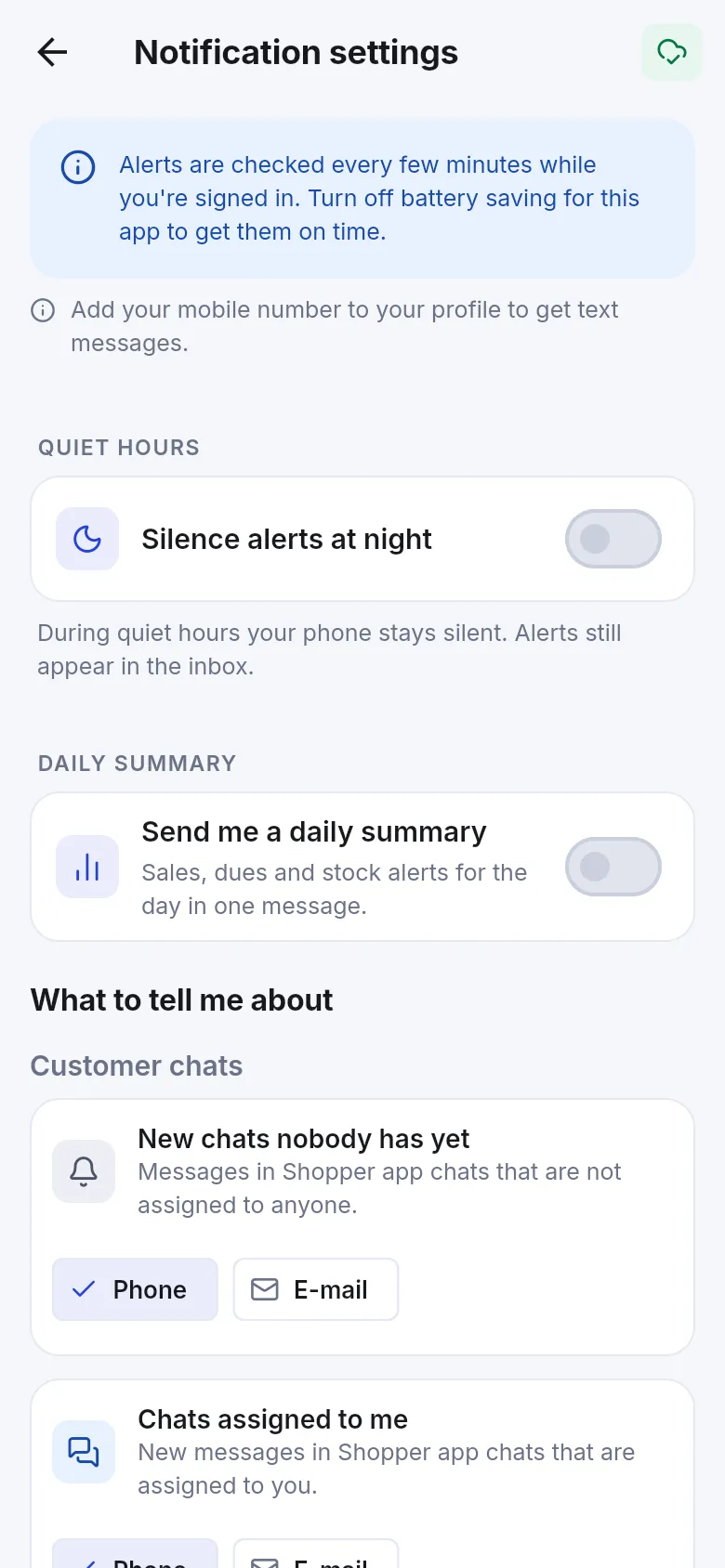
- Open Settings › Notification settings (or the gear in Notifications).
- The card at the top says Notifications are on, Get alerts on this phone (tap Turn on) or Notifications are blocked (tap Open phone settings and allow notifications for the app).
Choose what to be told about
Section titled “Choose what to be told about”Under What to tell me about, alerts are grouped as Customer chats, Orders and sales, Stock and sync, Customers and Account. For each type, tick the channels you want: Phone, E-mail, SMS. If nothing is ticked, the app says Nothing is sent for this. You can still see it in the inbox.
| Group | Types (examples) |
|---|---|
| Customer chats | New chats nobody has yet · Chats assigned to me |
| Orders and sales | New online and app orders · Scan & Go at the counter · New sales · Refunds and returns · Big discounts · New bookings · Order ready · Table calls |
| Stock and sync | Low stock · Offline sync issues |
| Customers | Portal requests |
| Account | Plan expiry · Daily summary |
E-mail is offered when your profile has an e-mail; SMS when your profile has a mobile number and the business has an SMS route. Add your mobile number to your profile to get text messages.
Quiet hours and daily summary
Section titled “Quiet hours and daily summary”- Quiet hours: turn on Silence alerts at night and set From and Until. During quiet hours your phone stays silent. Alerts still appear in the inbox.
- Daily summary: turn on Send me a daily summary and choose Send at. You get the day’s sales, dues and stock alerts in one message.
The notification inbox
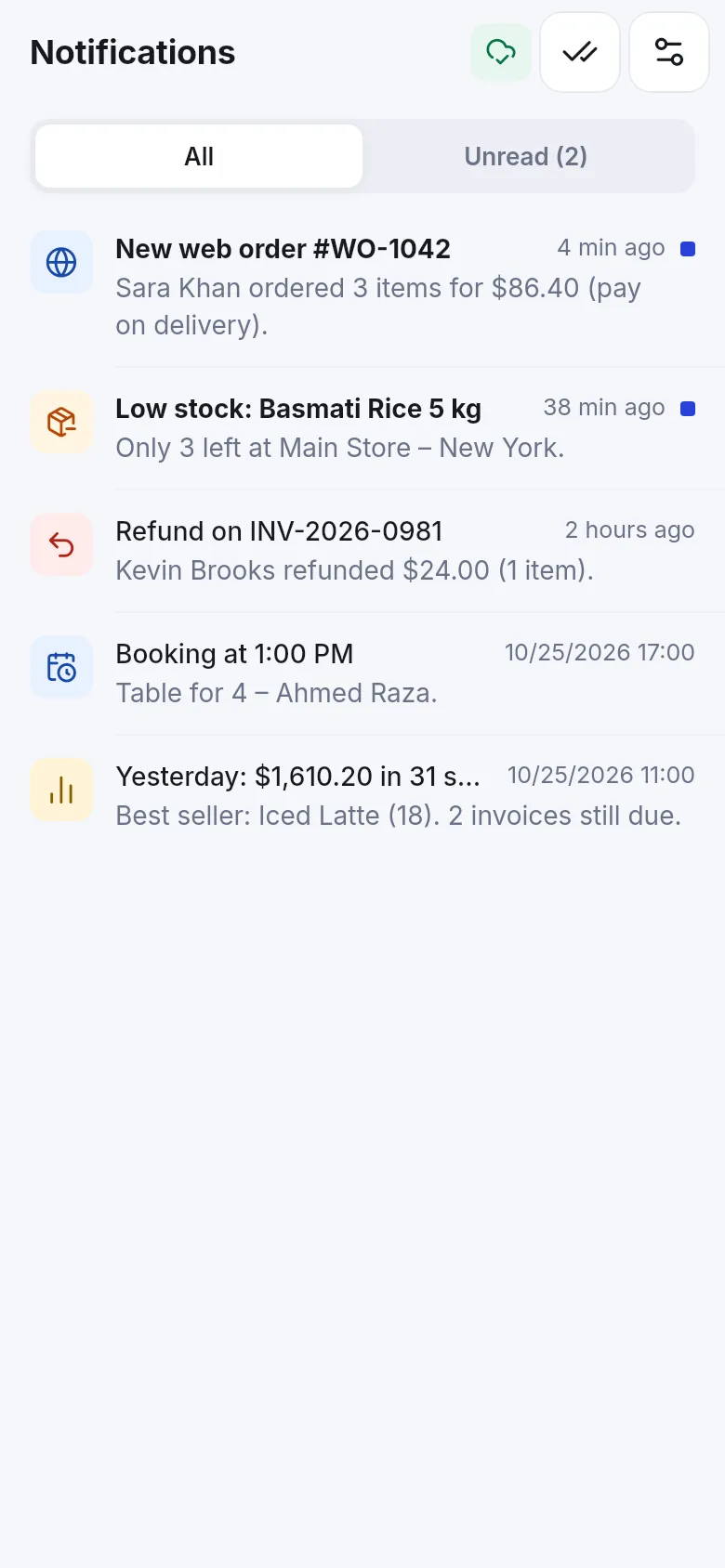
Section titled “The notification inbox”Tap the bell on Home. All and Unread list every alert with its time. Tap one to open the sale, order, chat, booking or product; the tick button marks all as read. Alerts are kept here even when phone notifications are off.
Related pages
Section titled “Related pages”Frequently asked questions
Which alerts can the app send?
Customer chats, new online and app orders, Scan & Go at the counter, new sales, refunds and returns, big discounts, new bookings, order ready, table calls, low stock, offline sync issues, portal requests, plan expiry and a daily summary. You only see the ones your role may receive.
Can I get an alert by e-mail or SMS instead of on the phone?
Yes. For each type tick Phone, E-mail or SMS in Settings › Notification settings. E-mail needs an e-mail on your profile; SMS needs your mobile number and an SMS route set up for the business.
How do I stop alerts at night?
Turn on Silence alerts at night under Quiet hours and set From and Until. The phone stays silent, SMS waits, and alerts still appear in the in-app inbox.
I don't get phone notifications. Why?
Notifications may be blocked for the app in Android settings, or battery saving may stop it. Open Settings › Notification settings: the card at the top says whether notifications are on and has Open phone settings.
Who decides the big discount limit and low-stock alerts?
The owner, on the web in Settings › Mobile app under Alerts. Each person then picks their own alerts in the app.
Are my choices shared with other staff?
No. Each person sets their own alerts, and they apply on every phone they sign in to.