
Mobile app module - SmartPOS Business for your staff
The Mobile app module lets your staff use SmartPOS Business on Android phones and tablets: sell, scan, check stock, receive goods, collect payments, answer chats and get alerts. This page covers the owner’s settings; for what staff do in the app, see the SmartPOS Business app section.
Settings › Mobile app
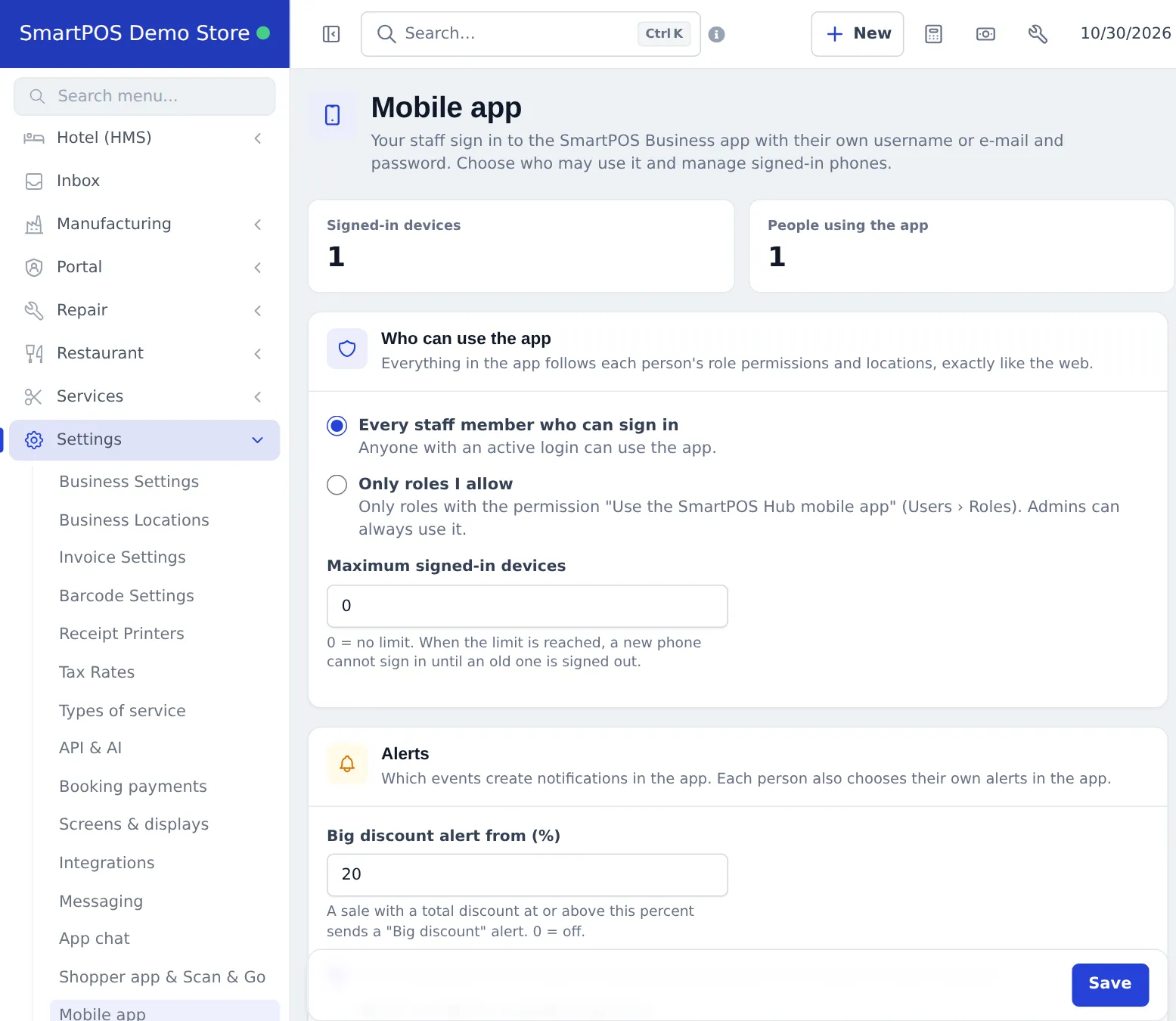
Section titled “Settings › Mobile app”- Check the tiles: Signed-in devices, People using the app and whether the Mobile app is On.
- Who can use the app: Every staff member who can sign in, or Only roles I allow.
- Maximum signed-in devices: 0 = no limit. When the limit is reached, a new phone cannot sign in until an old one is signed out.
- Alerts: choose which events create notifications, for example Big discount alert from (%). Each person also picks their own alerts in the app.
- Staff install SmartPOS Business from Google Play and sign in with their normal login.
- Press Save.
The same page also holds the Currency display (mobile apps & receipts) choice, shared with the Shopper app.
Security
Section titled “Security”- Staff sign in with their normal login; two-step sign-in applies when they use it on the web.
- Owners and admins see every signed-in phone and can sign one out remotely.
- Optional: block rooted or modified phones.
Related pages
Section titled “Related pages”Frequently asked questions
What does the Mobile app module do?
It lets your staff use the SmartPOS Business Android app with their own username or e-mail and password. No web address is needed. Everything follows each person's role permissions and locations.
How do staff install the app?
From Google Play: https://play.google.com/store/apps/details?id=com.smartposhub.business - search for SmartPOS Business. They sign in with the same username or e-mail and password they use on the web.
Can I limit who uses the app?
Yes. Choose Only roles I allow and give the permission Use the SmartPOS Hub mobile app to those roles (User Management › Roles). Admins can always use it.
Can I limit the number of phones?
Yes, with Maximum signed-in devices. 0 means no limit.
How do I sign out a lost phone?
Open the signed-in devices list on Settings › Mobile app, or the Devices screen in the app as an owner or admin, and sign the phone out.
Is it the same as the Shopper app?
No. SmartPOS Business is for your team; SmartPOS Shopper is for your customers.