
Repair module – job sheets, estimates and repair invoices
The Repair module runs a repair shop from intake to delivery: job sheets with device-specific fields, checklists and photos, deposits, estimates and approvals, technician assignment, on-site visits, a customer status page, and invoicing in the POS. It suits mobile and laptop labs, electronics and appliance repair (AC, fridge, washing machine), and vehicle workshops.
What the module includes
Section titled “What the module includes”| Menu item under Repair | What it does |
|---|---|
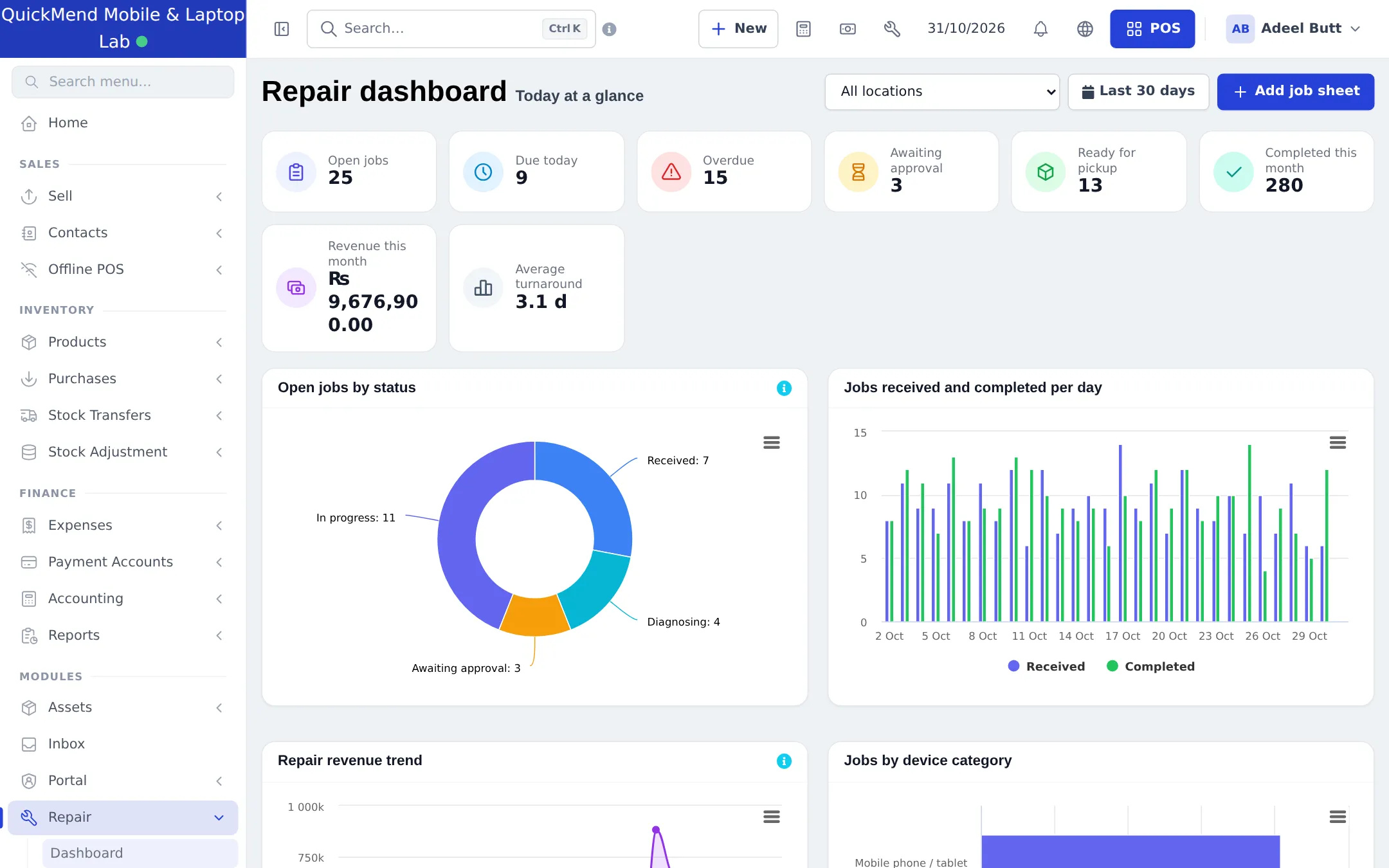
| Dashboard | Open jobs, due today, overdue, awaiting approval, ready for pickup, completed this month, revenue and average turnaround, with charts |
| Job sheets / Add job sheet | Every device in the shop, from intake to delivery |
| Repair invoices | Sales created from job sheets |
| Estimates / quotes | Estimates and the customer’s approval |
| On-site visits | Visits to the customer’s home or site |
| Repair status lookup | Find a job by number, phone, name or serial / IMEI |
| Device models | Models per brand and category with their checklist and common faults |
| Reports / Settings | Repair reports and settings |
Before you start
Section titled “Before you start”- Add the brands you repair (Products › Brands). You can mark brands for repair use.
- Add parts and labour as products (labour as a service product) so you can put them on job sheets.
- Create logins for your technicians (User Management › Users).
First-time setup
Section titled “First-time setup”- Switch the module on: Settings › Business Settings › Modules, turn on Repair module, and click Update settings.
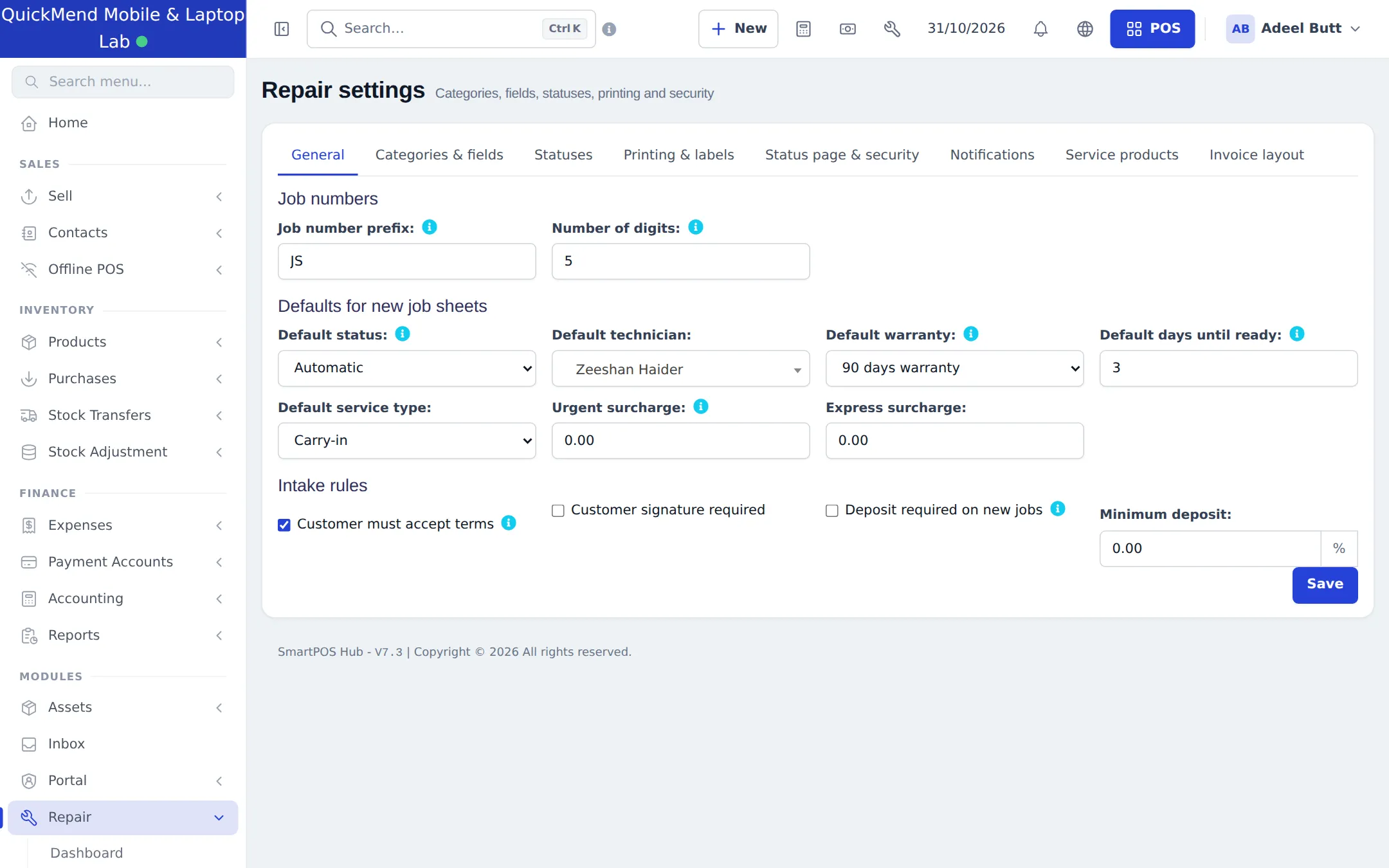
- Open Repair › Settings. On General, set the Job number prefix, default status, technician, warranty, days until ready, service type, urgent and express surcharges and intake rules (terms, signature, minimum deposit). Click Save.
- On Categories & fields, keep the device categories you repair and adjust their fields (for example IMEI, pattern lock, fuel level). On Statuses, set your status list, colours and the SMS or email text for each status.
- On Printing & labels, add your terms and label size; on Status page & security, decide whether customers can check status online and when device passwords are wiped. On Service products, choose the products used for visit charges and surcharges.
- Add common models under Repair › Device models (optional; staff can also type new models on the job form).
- Give each role its Repair permissions in User Management › Roles.
Everyday use
Section titled “Everyday use”Book in a device
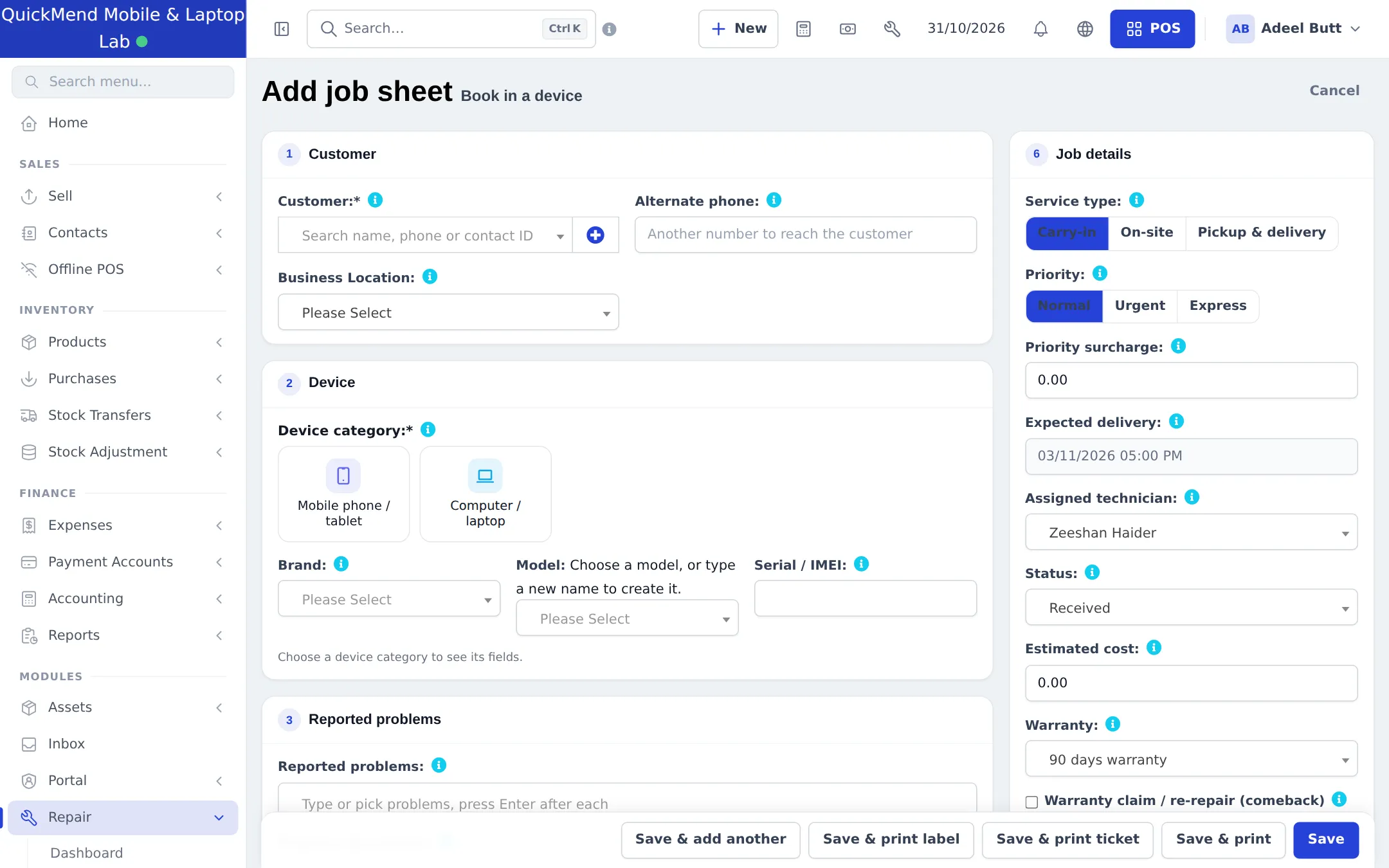
Section titled “Book in a device”- Click Add job sheet. Search or quick-add the Customer and add an Alternate phone if needed.
- Pick the Device category, then Brand, Model and Serial / IMEI. The category’s own fields appear (passcode, pattern lock, condition).
- Enter the Reported problems, tick the pre-repair checklist, list accessories received and take before photos. Capture the customer’s signature if required.
- On the right, choose Service type (Carry-in, On-site, Pickup & delivery), Priority (Normal, Urgent, Express), expected delivery, Assigned technician, Estimated cost and Warranty.
- Click Save & print ticket to give the customer a claim ticket with a QR code, or Save & print label to stick a label on the device.
Repair, approve and deliver
Section titled “Repair, approve and deliver”- Technicians change the status and add comments (internal, or visible to the customer on the status page).
- If the cost changes, create an estimate, mark it sent and record the customer’s approval.
- Record a deposit at any time; it becomes a customer advance.
- When the work is done, click Convert to invoice. The POS opens with the customer, parts, labour and any surcharge already added, and shows the deposit so you can use the Advance payment method. Stock for parts is deducted now.
- Mark the device as delivered when the customer collects it.
Permissions
Section titled “Permissions”| On the Roles page | What it allows |
|---|---|
| View all job sheets / View only own job sheets (assigned to or created by the user) | Which jobs the user sees |
| Create job sheets / Edit job sheets / Delete job sheets | Job sheet changes (delete only when not invoiced and no deposit) |
| Change job status and add comments | Status, comments and photos |
| Assign technician | Assign or change the technician |
| Record advance / deposit | Take deposits |
| Mark device as delivered | Delivery |
| View device passwords / PINs / patterns (every reveal is logged) | Reveal device secrets |
| Create estimates and record approval | Estimates |
| Convert job sheet to invoice (also needs POS sale permission) | Billing in the POS |
| Manage on-site visits / Manage device models | Visits and models |
| Repair settings (categories, fields, statuses, templates) | Settings |
| View repair dashboard / View repair reports | Dashboard and reports |
A typical technician role: View only own job sheets, Change job status and add comments and View repair dashboard — no device passwords and no delete. Admins have every permission.
In the SmartPOS Business app
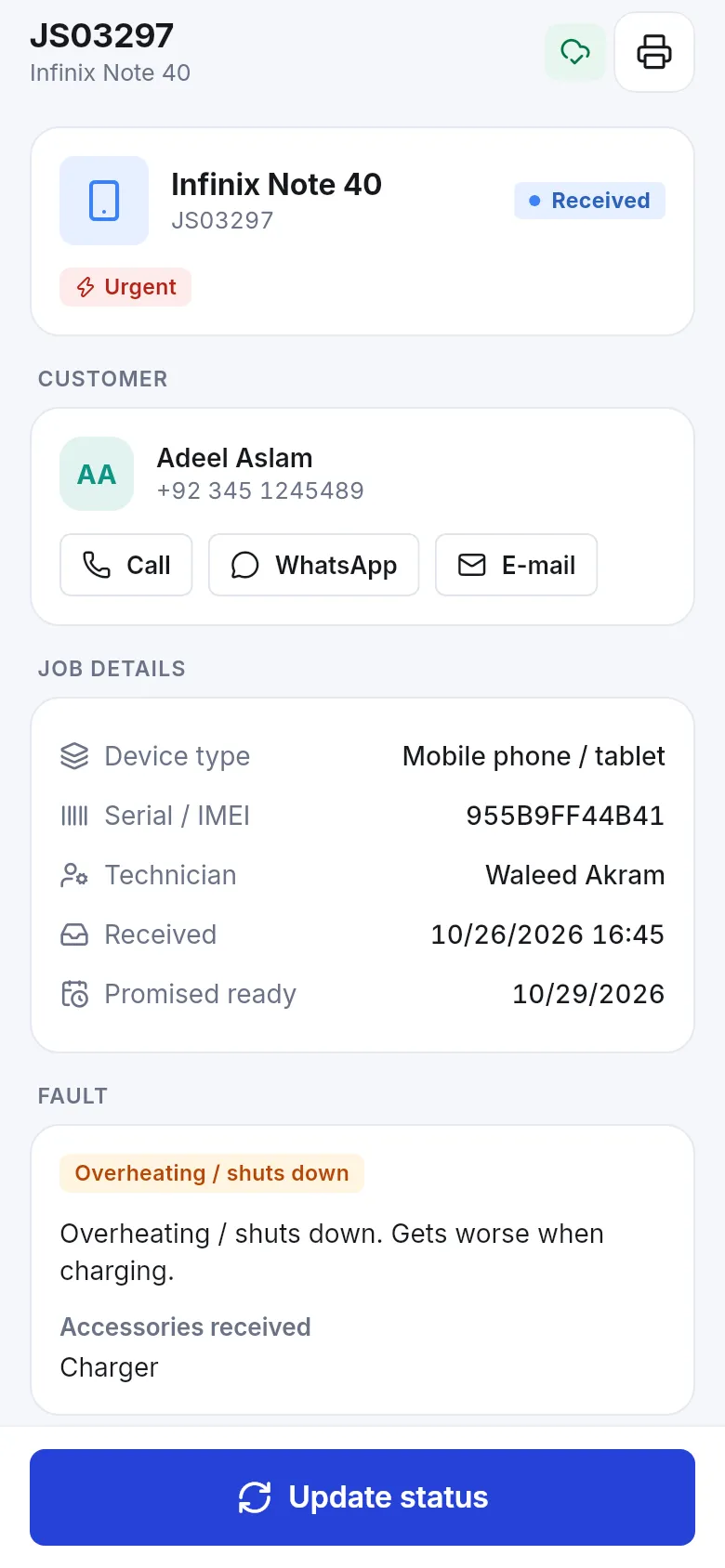
Section titled “In the SmartPOS Business app”Staff see the job list, book in a new device, open a job to call, WhatsApp or email the customer, and tap Update status. Job sheet barcodes can be scanned to open the job.
Tips and mistakes to avoid
Section titled “Tips and mistakes to avoid”- Always take a deposit through the job sheet, not as a separate sale, so it is used automatically on the invoice.
- Do not give device-password permission to everyone; every reveal is logged with the user and time.
- Use the warranty-claim / re-repair (comeback) tick for returns, so the comeback rate in reports is accurate.
Related pages
Section titled “Related pages”Frequently asked questions
Which repair businesses can use the module?
Mobile phone and tablet repair, computer and printer repair, electronics and home appliances such as AC, fridge, washing machine and TV, cars, motorbikes, bicycles and machines. Each device category has its own fields and checklist.
How do I take an advance from the customer?
Record it on the job sheet as a deposit. It is saved as a customer advance, appears in the customer ledger and the cash register, and you use it on the final invoice with the Advance payment method.
When is stock deducted for parts?
Only when the job sheet is converted to an invoice in the POS. Until then the parts on the job are a plan, not a sale.
Are device passwords and pattern locks safe?
Yes. They are stored encrypted and never shown in forms. Only users with the permission to view device passwords can reveal them, every reveal is logged, and they are wiped automatically a number of days after delivery.
Can customers check the repair status themselves?
Yes. The printed claim ticket has a QR code to your repair status page, where the customer enters the job number and the last 4 digits of their phone. You can turn the page off in Repair settings.
Can I send an estimate before repairing?
Yes. Create an estimate from the job, mark it sent, and record whether the customer approved or declined it and how (phone, in person, SMS, WhatsApp or email).
Do technicians see every job?
Only if you allow it. Give technicians View only own job sheets so they see jobs assigned to or created by them.
Can I handle on-site visits for AC or appliance repair?
Yes. Add on-site visits with a date window, technician, address and visit charge, and add the charge to the job.