
Write off damaged, expired or lost stock
A stock adjustment removes stock that you no longer have and did not sell: broken bottles, expired medicine, damaged boxes, theft, or ingredients used in the kitchen. Recording it keeps your stock figures honest and shows the loss in your reports. This page is for store managers and owners.
Before you start
Section titled “Before you start”- Your role needs Add stock adjustment (group Stock Adjustment in User Management › Roles).
- Know the location the stock is at. Each adjustment belongs to one location.
Record an adjustment
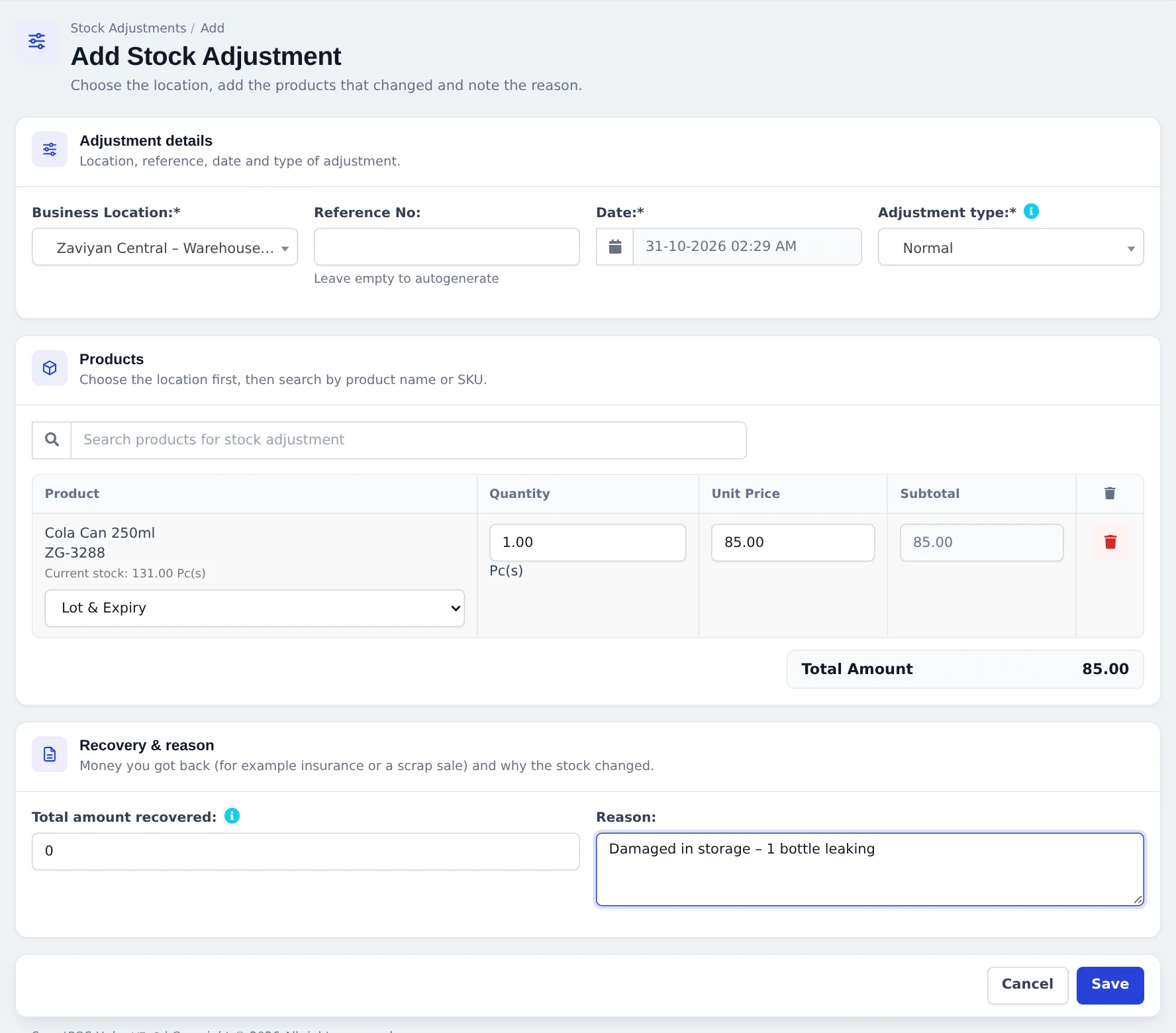
Section titled “Record an adjustment”- Open Stock Adjustment › Add Stock Adjustment.
- Under Adjustment details, choose the Business Location. Leave Reference No empty for an automatic number and check the Date.
- Choose the Adjustment type: Normal (leakage, damage, expiry) or Abnormal (fire, accident, theft).
- Under Products, search for each product in Search products for stock adjustment. The line shows the Current stock at that location.
- Enter the Quantity lost. If lots or expiry are switched on, pick the batch in Lot & Expiry. The Unit Price is filled with the cost and can be changed.
- Under Recovery & reason, enter any Total amount recovered (insurance, scrap sale) and write the Reason.
- Click Save. The quantity is taken off the location’s stock at once.
Review adjustments
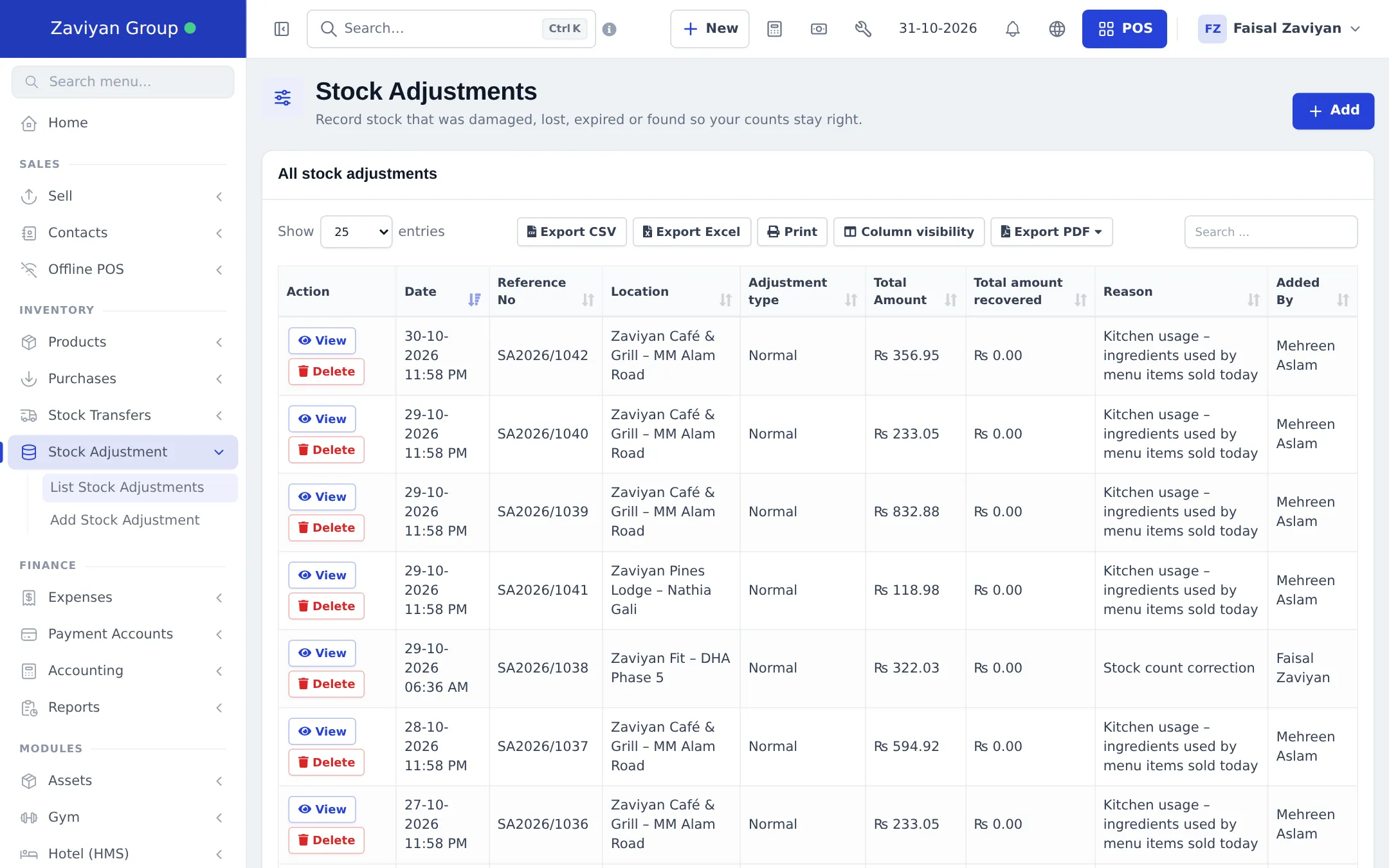
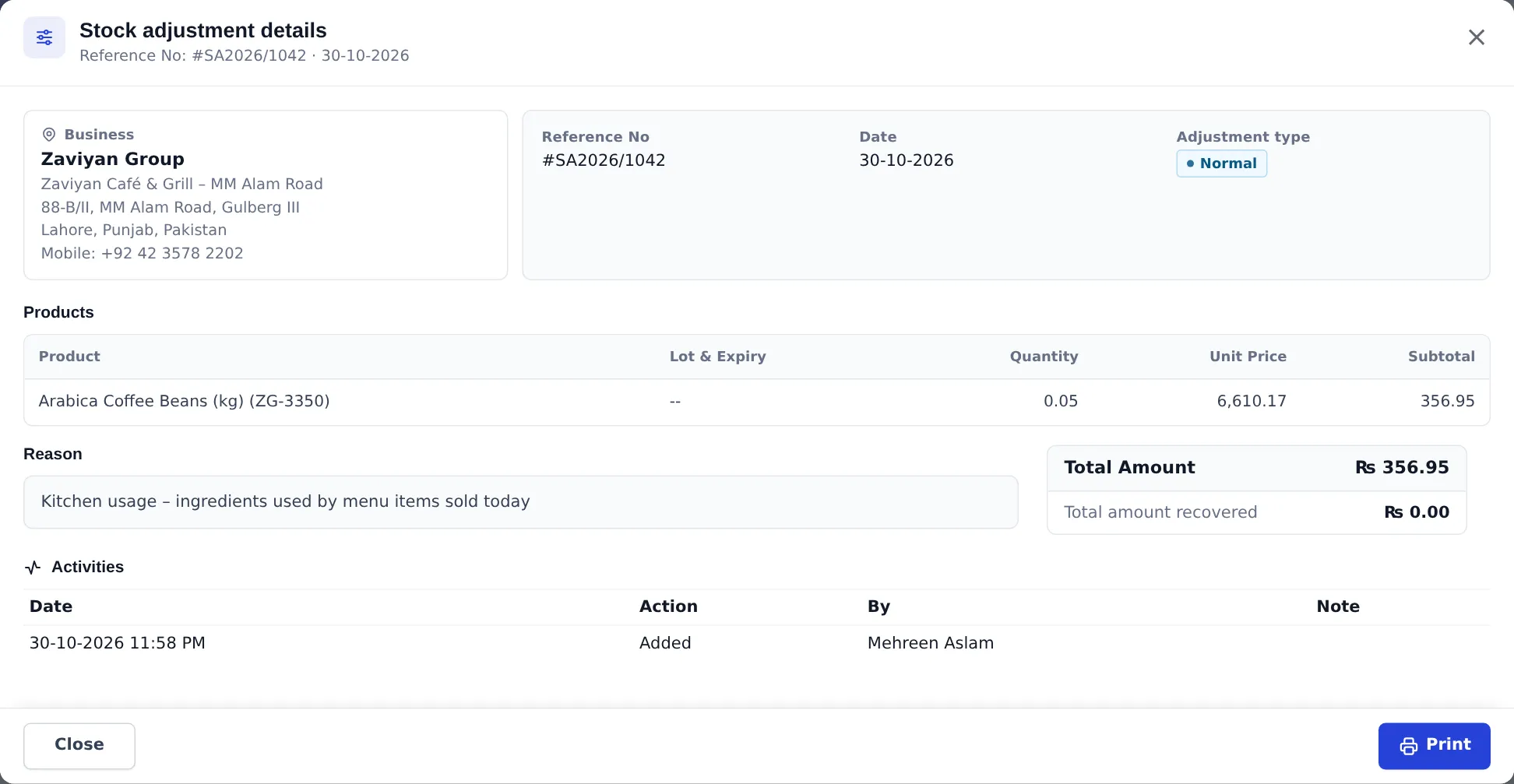
Section titled “Review adjustments”Stock Adjustment › List Stock Adjustments lists every adjustment with its location, type, total amount and amount recovered. View shows the products, the reason and who added it.
For totals over a period, open Reports › Stock Adjustment Report (see Stock reports).
Found extra stock?
Section titled “Found extra stock?”A stock adjustment only removes stock. If a count shows more than the system expects:
- Add it with opening stock or a purchase, or
- Run a stock count in the SmartPOS Business app: extra items are added as found stock automatically.
On the phone
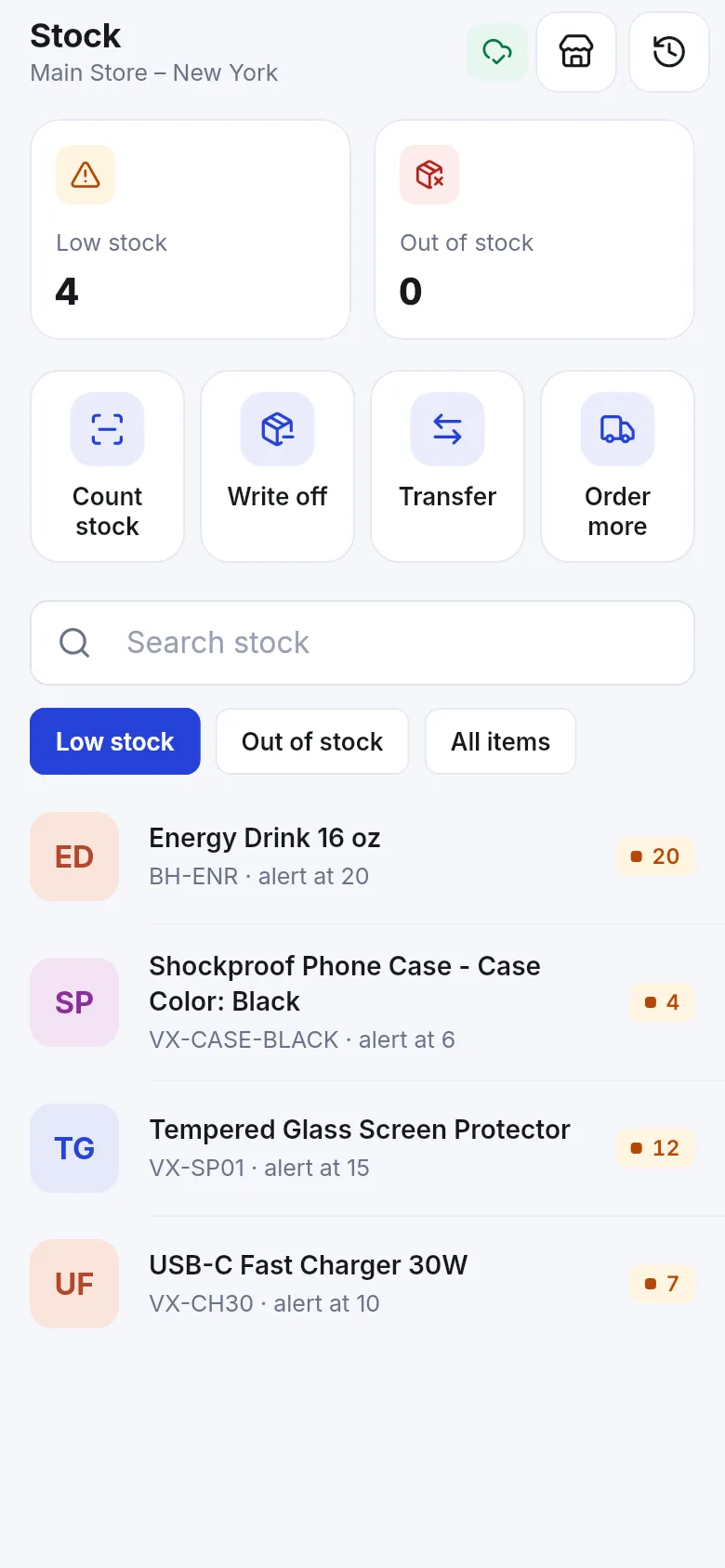
Section titled “On the phone”In the SmartPOS Business app, the Stock screen has Write off next to Count stock, Transfer and Order more, plus low-stock and out-of-stock lists.
Tips and mistakes to avoid
Section titled “Tips and mistakes to avoid”- Always write a Reason. It is the only way to tell later whether a loss was damage, theft or a counting error.
- Don’t use adjustments for returns to the supplier. Use a Purchase Return so the supplier balance goes down too.
- Restaurants: kitchen usage of ingredients is usually recorded by recipes or adjustments. Keep the reason consistent (“Kitchen usage”) so reports group it.
Related pages
Section titled “Related pages”Frequently asked questions
Does a stock adjustment add or remove stock?
It removes stock. Use it for breakage, leakage, expiry, theft, samples or ingredients used up. To add stock you found, use opening stock, a purchase, or a stock count in the Business app.
What is the difference between Normal and Abnormal?
Normal is for everyday losses such as leakage, damage or expiry. Abnormal is for unusual events such as fire, flood or an accident. Both reduce stock; the type helps you report them separately.
What is Total amount recovered?
Money you got back for the loss, for example an insurance payout or selling scrap. It is recorded on the adjustment and reduces the net loss in your reports.
Can I edit a stock adjustment?
There is no edit screen. If you made a mistake, delete the adjustment from the list (the stock comes back) and record it again.
Where do I see all adjustments?
In Stock Adjustment › List Stock Adjustments, and in Reports › Stock Adjustment Report, which totals normal and abnormal losses and amounts recovered by location and date.
Can I write off stock from my phone?
Yes. In the SmartPOS Business app, open Stock › Write off. A finished stock count in the app also creates a stock adjustment for missing items.