
Convenience store step 4: Scan & Go and Shopper app
Regulars who pop in every day for coffee and a snack don’t want to queue. With Scan & Go in the SmartPOS Shopper app (Google Play) they scan items as they pick them up and show one code at the counter.
Turn it on
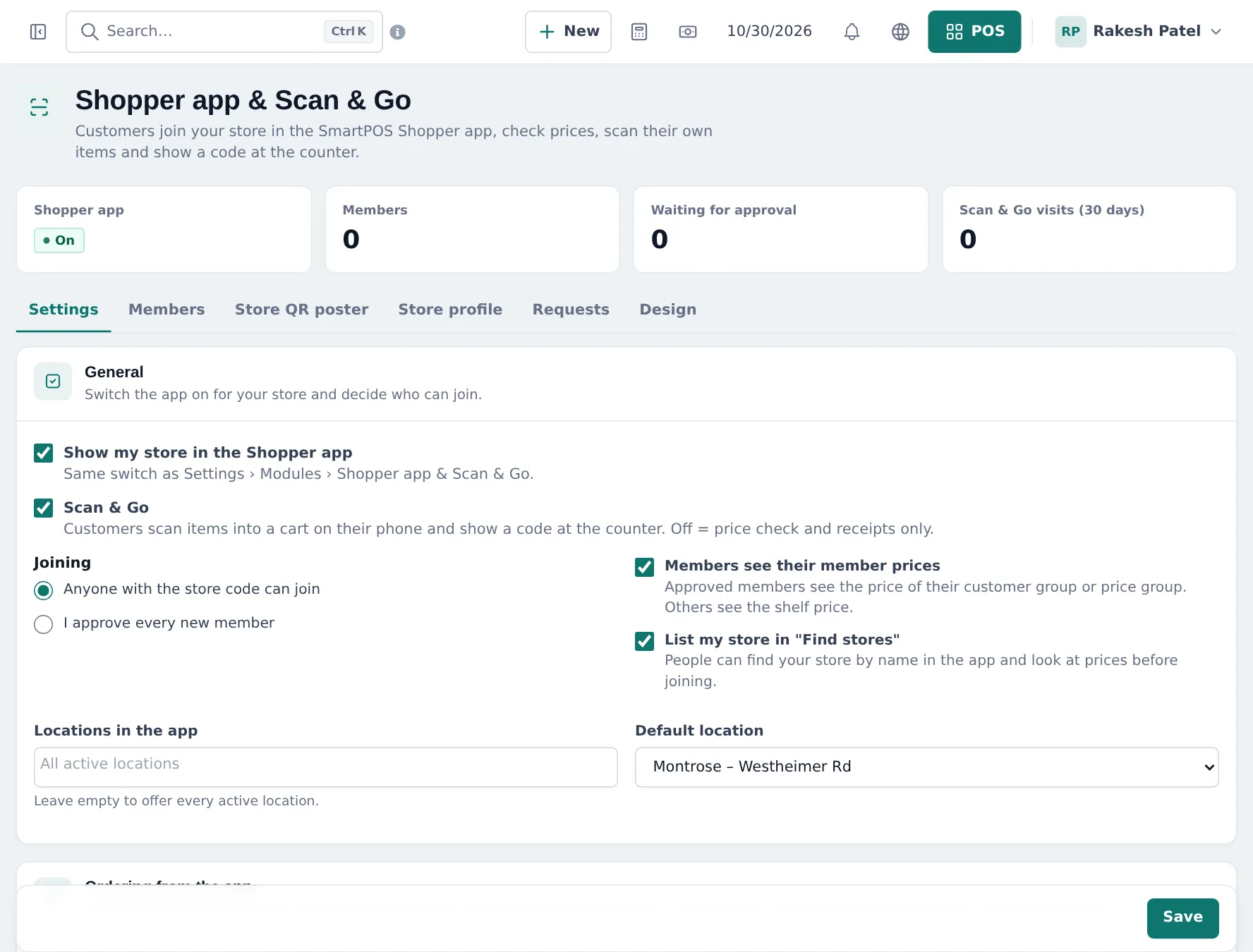
Section titled “Turn it on”- Open Settings › Shopper app & Scan & Go.
- Tick Show my store in the Shopper app and Scan & Go.
- Under Joining, choose Anyone with the store code can join or I approve every new member.
- Tick Members see their member prices and List my store in “Find stores” if you want them.
- Choose the Default location and click Save.
- Print the Store QR poster tab and put it at the door and the counter.
How the customer uses it
Section titled “How the customer uses it”- They join your store by scanning the poster QR.
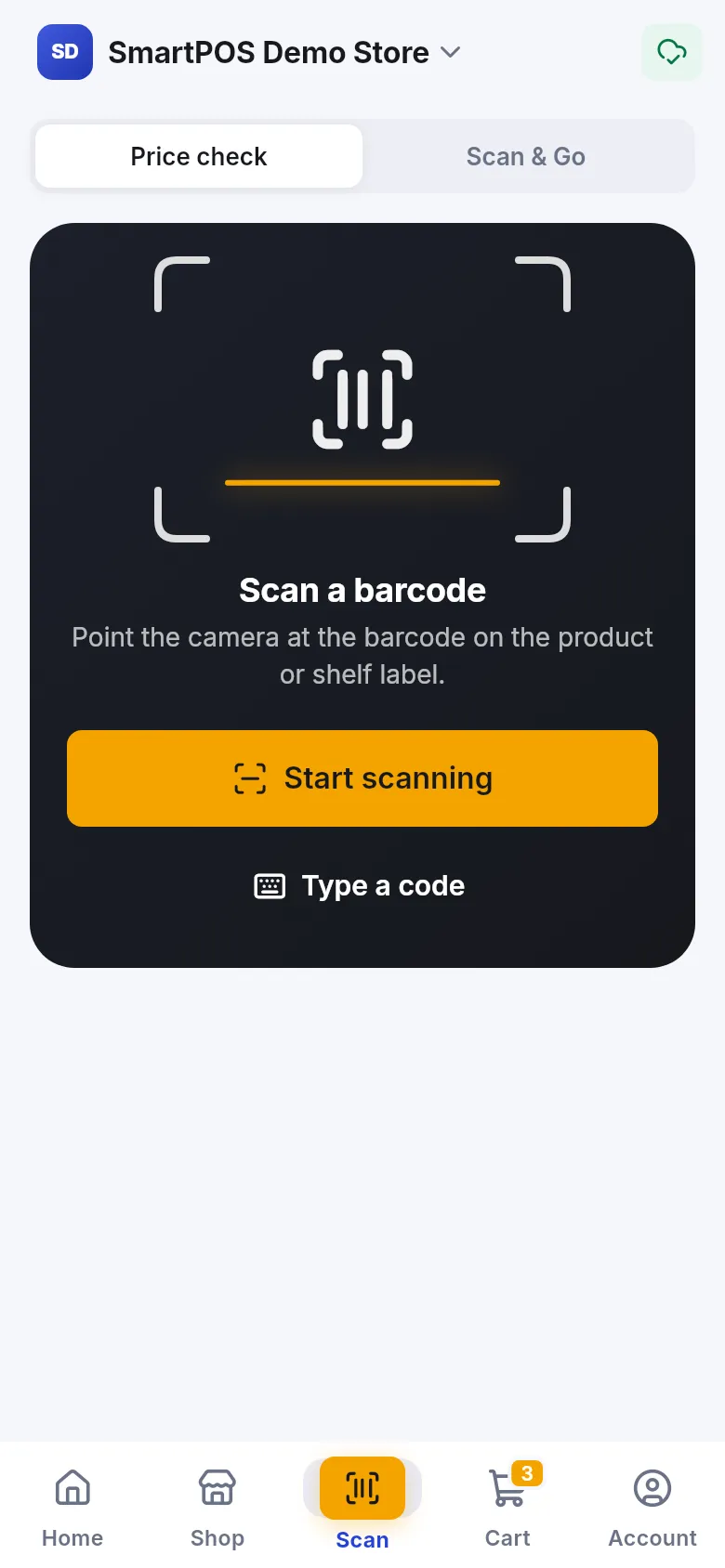
- In the store they open Scan › Scan & Go and scan each item.
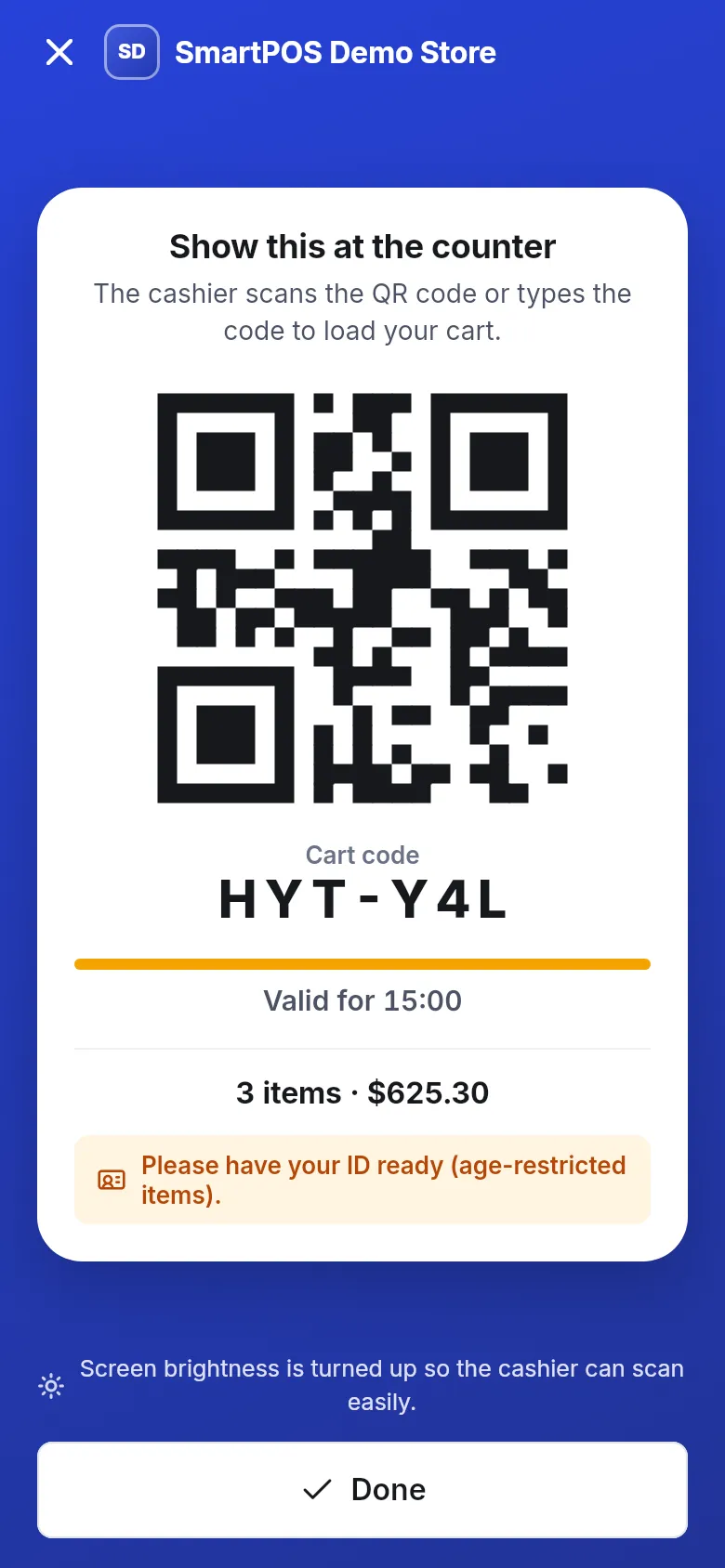
- At the counter they show the cart code (QR and short code).
Load the cart at the counter
Section titled “Load the cart at the counter”- In the POS, scan or type the code in the Shopper cart box (Business app: Scan & Go › scan the cart QR).
- Lines come in at today’s prices. Check ID if a line shows the age note.
- Take payment as usual. The customer gets the receipt in the app.
- Scan & Go is optional; with it off the app still offers Price check and receipts.
- Keep barcodes on products accurate; customers scan the same codes as your cashiers.
Frequently asked questions
Do customers pay in the app?
No. Scan & Go builds the cart on the customer's phone; they pay at your counter as a normal POS sale, so registers and receipts work as usual.
How does the cashier load the cart?
In the web POS, scan or type the customer's cart code in the Shopper cart box. In the SmartPOS Business app, use Scan & Go and scan the cart QR. Lines are re-priced with today's POS prices.
What about tobacco and alcohol in a Scan & Go cart?
Products marked Age restricted carry a check-ID note when the cart is loaded, so the cashier checks ID before payment.
Can members see special prices?
Yes. Tick Members see their member prices. Approved members see the price of their customer group or price group; others see the shelf price.
How do customers find my store?
Print the Store QR poster for the door and the counter, or tick List my store in Find stores so people can search for it in the app.