
Offline POS – keep selling without internet
Offline POS keeps your counter selling when the internet drops. It is a POS screen you install on a computer, tablet or phone. Products, prices and customers are stored on the device, sales are kept encrypted, and everything is sent to SmartPOS Hub automatically when the connection is back. Marts, pharmacies, restaurants, food trucks and any shop with unreliable internet should set it up before they need it.
How it works
Section titled “How it works”- Set up, online, once per device. Name the device, choose its location and an offline PIN. The device downloads products, prices, stock, customers, taxes, discounts and your receipt layout.
- Internet drops. POS V1 and V2 show a banner telling you to continue in Offline POS. Opening the POS or Offline POS without internet loads the saved Offline POS screen. Unlock it with the PIN.
- Sell. Search or scan products, add customers (even new ones), take cash, card, bank transfer, cheque or your own methods, park sales and print receipts. Each sale gets an offline reference like
OFF-WRH9-0001. - Internet back. Sales sync by themselves (every 30 seconds, on reconnect, after each sale, or with Sync now) and get real invoice numbers.
- Manager check. Anything that did not match the rules appears under Sync issues.
Offline POS also works online (sales sync at once), so you can use it as a third POS screen.
First-time setup
Section titled “First-time setup”- Check your plan includes Offline POS, then open Settings › Business Settings › Modules, switch on Offline POS and click Update Settings.
- In User Management › Roles, tick Use Offline POS (sell offline on a registered device) for cashier roles and Manage Offline POS (devices, sync issues, settings) for managers.
- Open Offline POS › Settings and review the limits (see below). The defaults suit most shops.
- On each counter device, while online, open Offline POS › Open Offline POS.
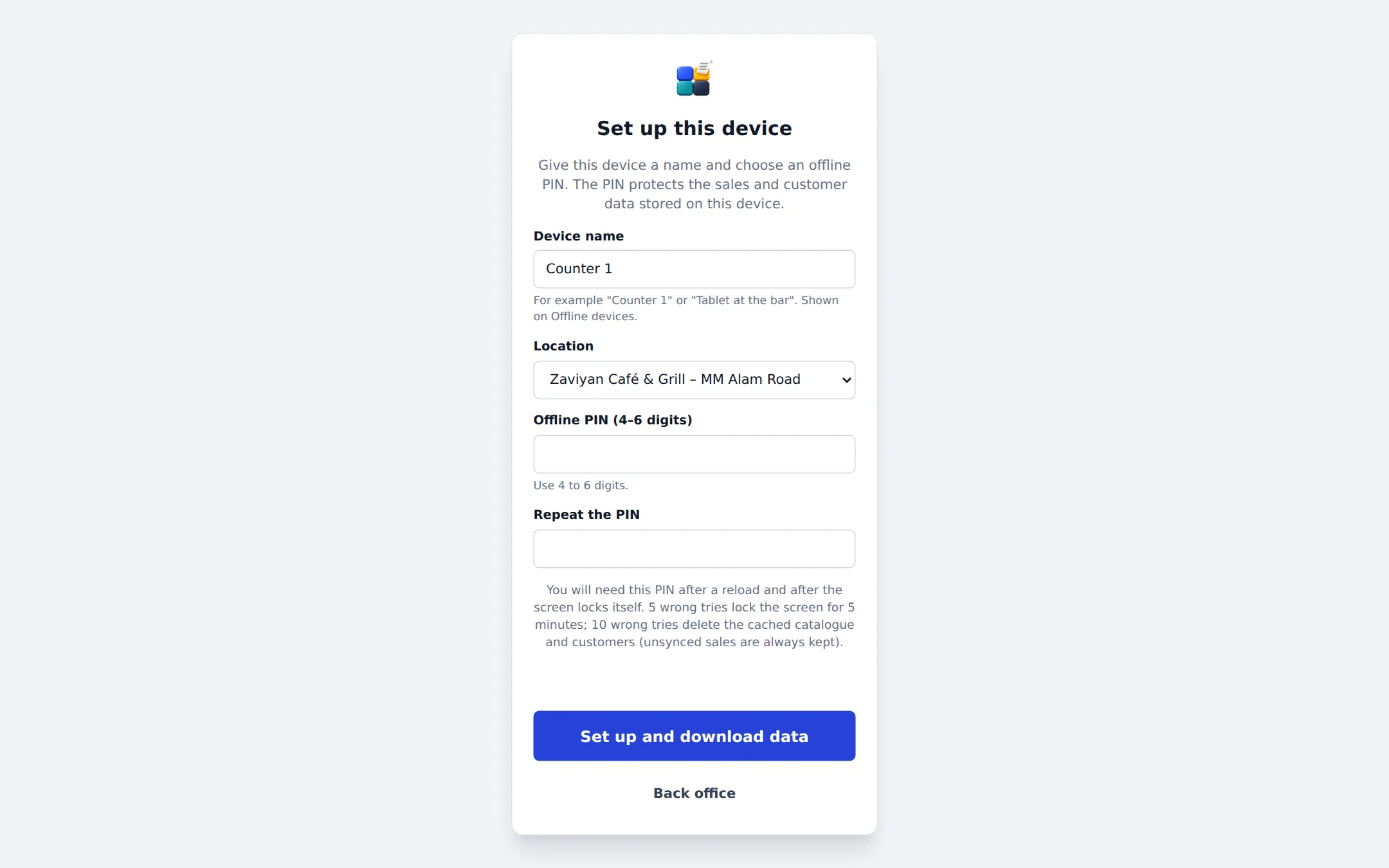
- Enter a Device name (for example “Counter 1”), pick the Location, choose an Offline PIN (4-6 digits), repeat it and click Set up and download data.
- On a tablet or phone, install it: Chrome › Install app, or on iPhone/iPad Share › Add to Home Screen.
- Test it: turn off Wi-Fi, open the POS, make a small test sale, turn Wi-Fi back on and watch it sync.
Everyday use
Section titled “Everyday use”- Selling offline: open the POS as usual. If the internet is down, the Offline POS screen opens; enter your PIN and sell.
- The screen locks after a few minutes without use (default 10) and after every reload. Enter the PIN again.
- Signing out: if offline sales are still waiting, SmartPOS Hub warns you (“3 sales not synced yet”). The sales stay encrypted on the device until they sync.
- Sales list: synced offline sales show an Offline badge next to the invoice in Sell › All sales.
For the cashier’s step-by-step guide, see Sell offline.
Managing devices and sync issues
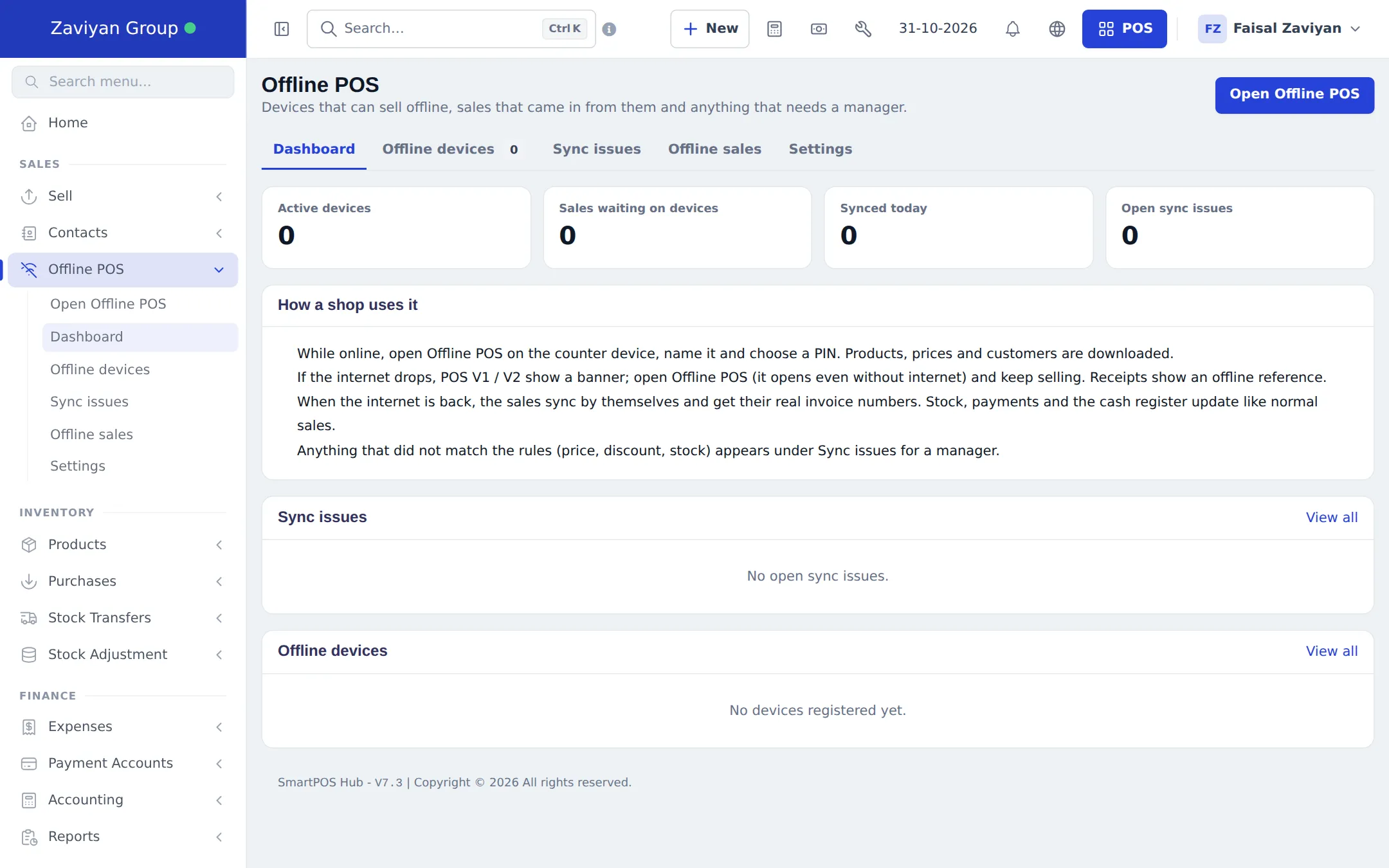
Section titled “Managing devices and sync issues”Open Offline POS in the sidebar. The tabs are Dashboard, Offline devices, Sync issues, Offline sales and Settings.
| Tab | What you do there |
|---|---|
| Offline devices | See each device, its location, last sync and waiting sales. Rename or revoke a device (for example a lost tablet). |
| Sync issues | Review sales that were recorded but need a look (price not allowed, discount above the user’s limit, stock conflict, cash register closed) and sales that were held. Open the sale, mark it resolved, or use Create anyway for a held sale. |
| Offline sales | Search synced sales by offline reference or invoice number. |
Settings explained
Section titled “Settings explained”Offline POS › Settings:
| Setting | Default | What it means |
|---|---|---|
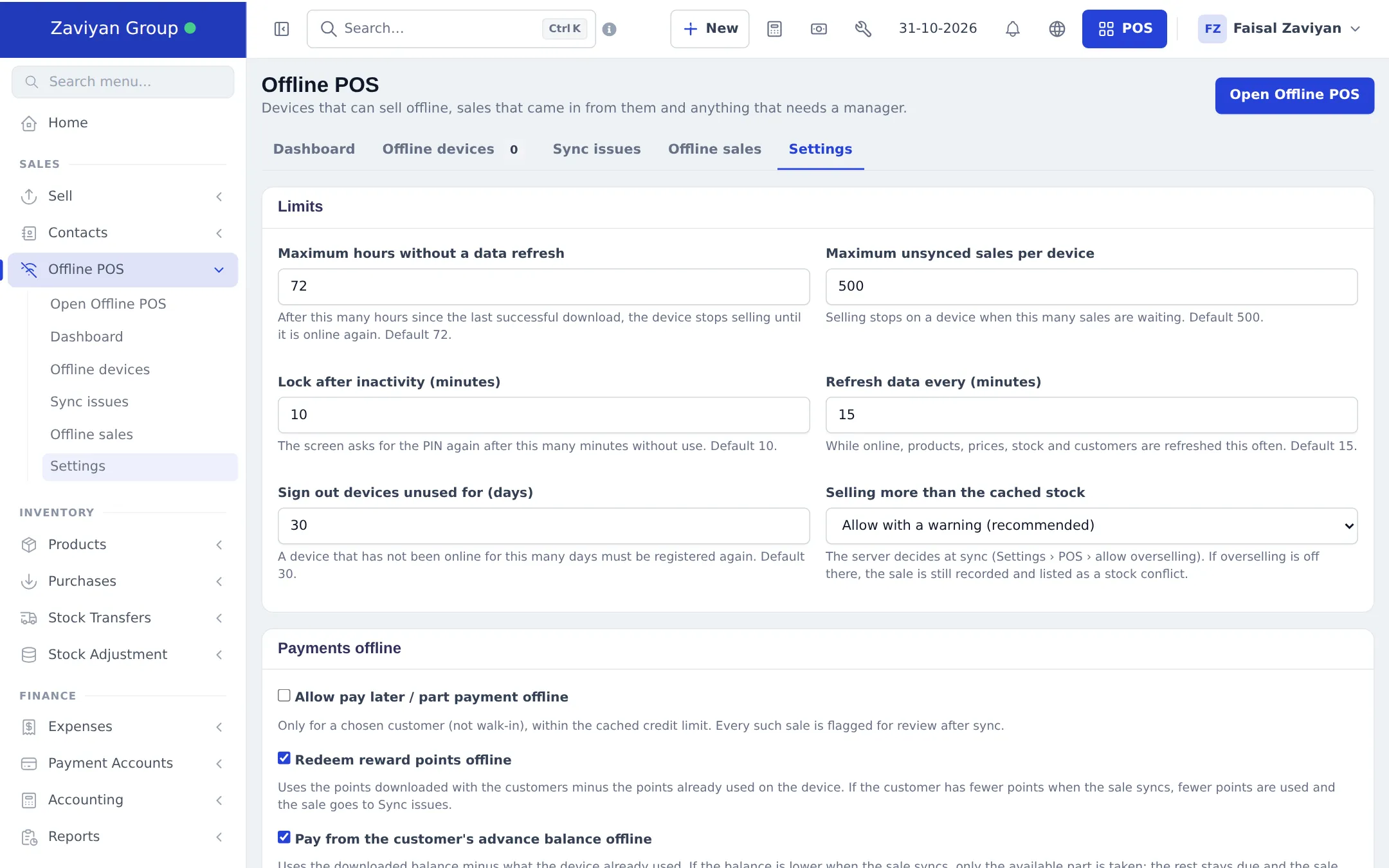
| Maximum hours without a data refresh | 72 | After this many hours offline, the device stops selling until it is online again. |
| Maximum unsynced sales per device | 500 | Selling stops on a device when this many sales are waiting. |
| Lock after inactivity (minutes) | 10 | The screen asks for the PIN again after this long without use. |
| Refresh data every (minutes) | 15 | While online, products, prices, stock and customers refresh this often. |
| Sign out devices unused for (days) | 30 | A device not online for this long must be set up again. |
| Selling more than the cached stock | Allow with a warning | The server decides at sync using your overselling setting; a shortfall becomes a stock conflict. |
| Allow pay later / part payment offline | Off | Only for a chosen customer within their credit limit; each such sale goes to review. |
| Redeem reward points offline | Optional | Uses the points downloaded with the customer. |
| Pay from the customer’s advance balance offline | Optional | Uses the downloaded balance; any shortfall stays due. |
| Payment methods | All methods of the location | Online gateways and the advance balance (unless allowed) are never offered offline. |
An offline PIN is always required on every device.
Not available offline
Section titled “Not available offline”These need the internet, and the app’s Help explains why: sales returns; editing or deleting earlier sales; open restaurant tabs (tables, waiters and kitchen orders do work); online payment gateways (use a separate card terminal and record the payment as Card); gift cards; subscriptions and recurring invoices; repair, hotel and gym flows; service staff per item and sale custom fields; order options with a file upload or signature.
Permissions
Section titled “Permissions”| Permission (Roles page, OfflinePos section) | What it allows |
|---|---|
| Use Offline POS (sell offline on a registered device) | Set up a device and sell offline (also needs the normal sell permission) |
| Manage Offline POS (devices, sync issues, settings) | Dashboard, devices, sync issues, offline sales and settings |
In the SmartPOS Business app
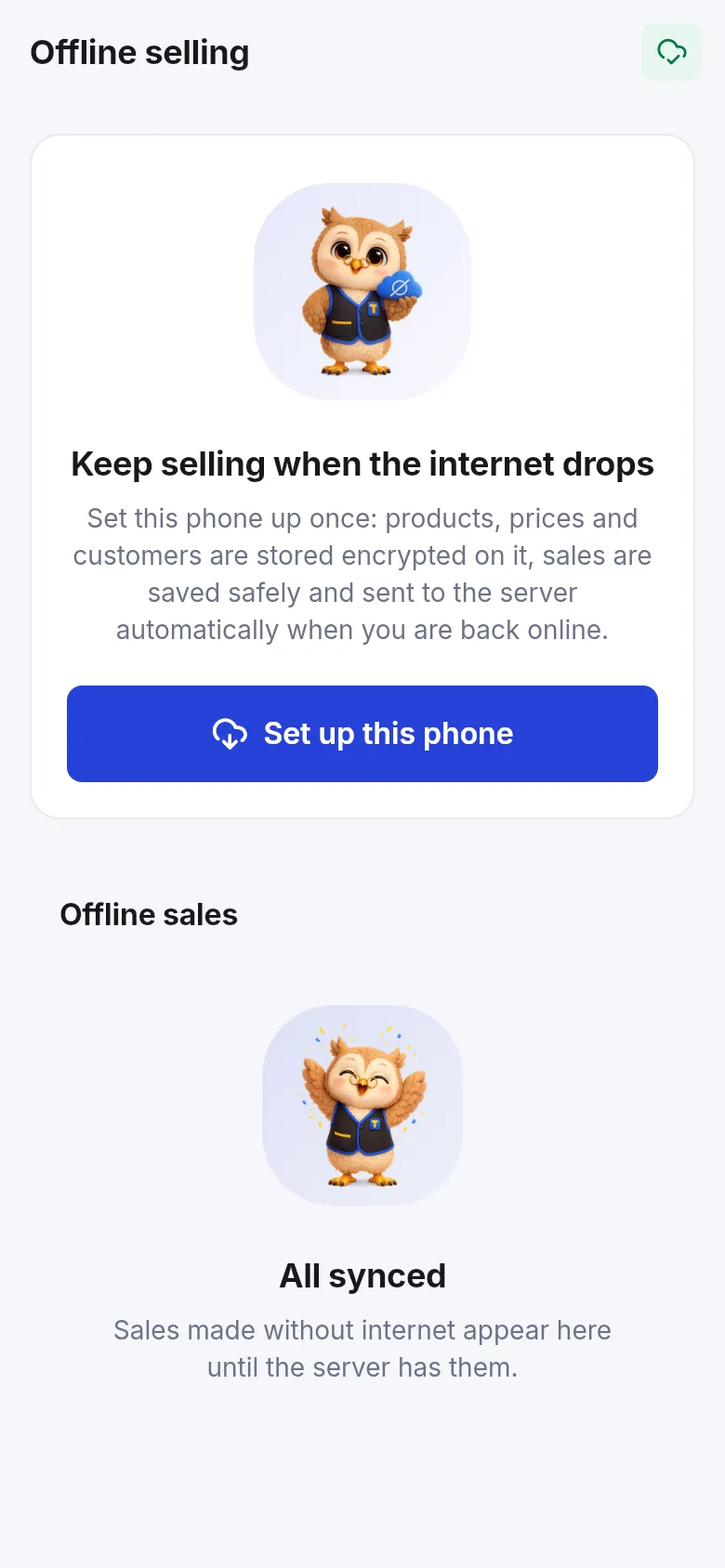
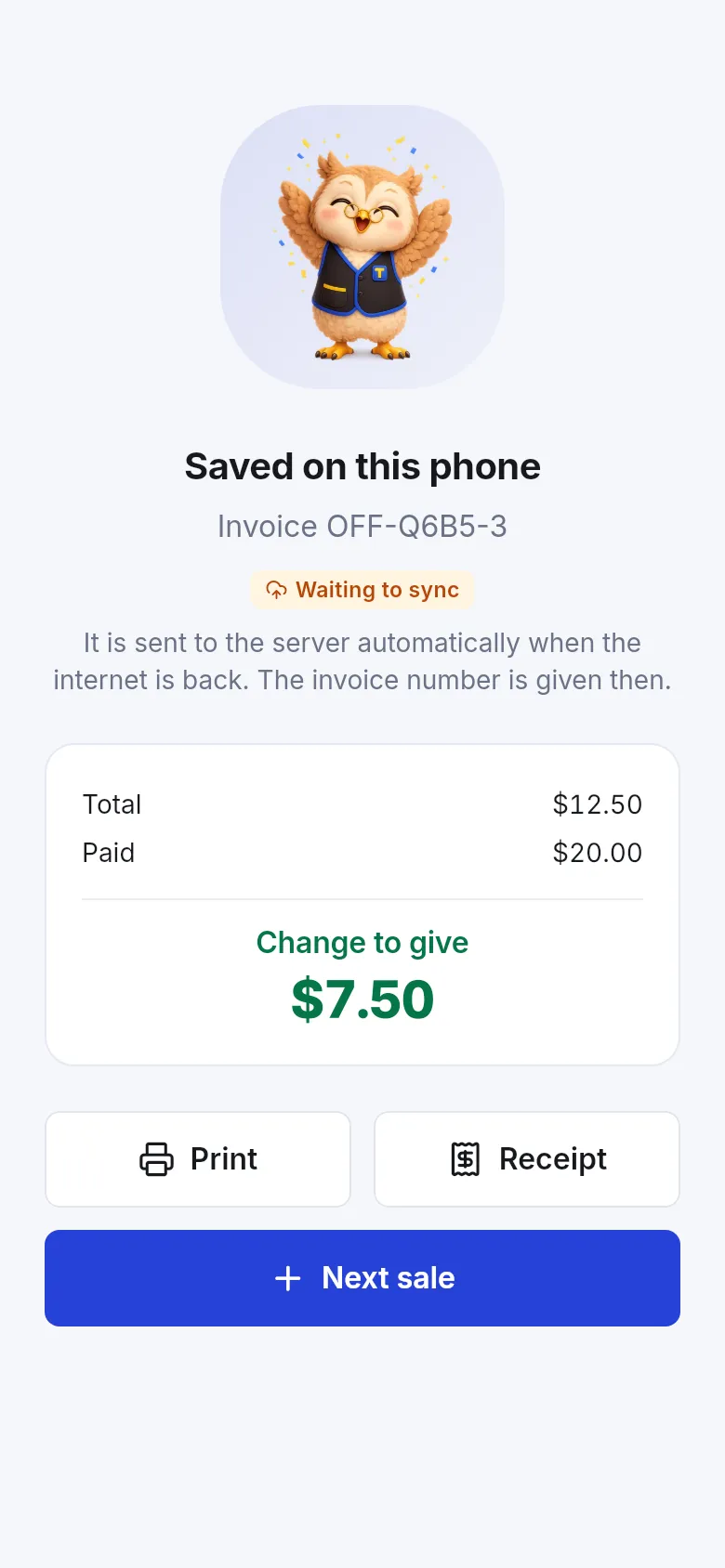
Section titled “In the SmartPOS Business app”When Offline POS is on and the user has Use Offline POS, the app shows Offline selling. Tap Set up this phone once while online. Sales made without internet show Saved on this phone and Waiting to sync, then get their invoice number when the phone is back online.
Related pages
Section titled “Related pages”Frequently asked questions
What happens to sales made offline?
They are saved encrypted on the device and sent to the server automatically when the internet is back. Each one becomes a normal sale with a real invoice number, and stock, payments and the cash register update like any other sale.
Do I have to set up each device?
Yes, once per device and browser, while online. Name the device, pick its location and choose a 4 to 6 digit offline PIN. Products, prices and customers then download to it.
What receipt number does an offline sale get?
An offline reference such as OFF-WRH9-0001 at the time of sale. The real invoice number is given when the sale syncs.
What if a price or stock changed while we were offline?
The sale is still recorded, because the money was already taken. If something does not match the rules, such as a price the device was not given or stock that ran out, the sale appears under Sync issues for a manager to review.
What cannot be done offline?
Sales returns, editing earlier sales, open restaurant tabs, online payment gateways, gift cards, recurring invoices, repair, hotel and gym flows, per-item service staff, and order options with a file upload or signature.
A cashier forgot the offline PIN. Is the data lost?
No. While online, the cashier signs in with their normal password to set a new PIN. Unsynced sales are never deleted, even after too many wrong PIN tries.
Can I use Offline POS on a phone?
Yes, in the browser, and you can install it on the home screen. On iPhone and iPad add it to the Home Screen, because Safari removes data of sites that are not installed after 7 days without use. The SmartPOS Business app also sells offline when Offline POS is on.
How do I stop a lost device from selling?
Open Offline POS › Offline devices and revoke it. Changing the user's password or deactivating the user also revokes their devices.