
Mart step 6: customer credit (khata) and instalments
Many grocery and kiryana stores run a khata: regular customers take goods now and pay at the end of the week or month, often in parts. SmartPOS Hub records this as a credit sale or a part-paid sale on the customer’s ledger. This page shows the mart routine; the full step-by-step with every screen is in Credit and part payments.
Before you start
Section titled “Before you start”- The customer exists in Contacts › Customers with a phone number, or you add them from the POS.
- Decide on a Credit Limit per customer (leave it empty for no limit). See Customer credit limits and advances.
Example: 20 %, then 50 %, then the rest
Section titled “Example: 20 %, then 50 %, then the rest”A regular buys groceries for 10,000.
| Day | What happens | Paid | Due |
|---|---|---|---|
| Monday | Sale of 10,000; the customer pays 2,000 (20 %) at the till | 2,000 | 8,000 |
| Next week | The customer pays 5,000 (50 %) | 7,000 | 3,000 |
| End of month | The customer pays the last 3,000 | 10,000 | 0 |
Sell on credit or part payment
Section titled “Sell on credit or part payment”- At the POS, pick the customer (search by name or phone, or add a new one with the + button).
- Scan the items as usual.
- For no payment now: click Credit Sale. The whole amount becomes due.
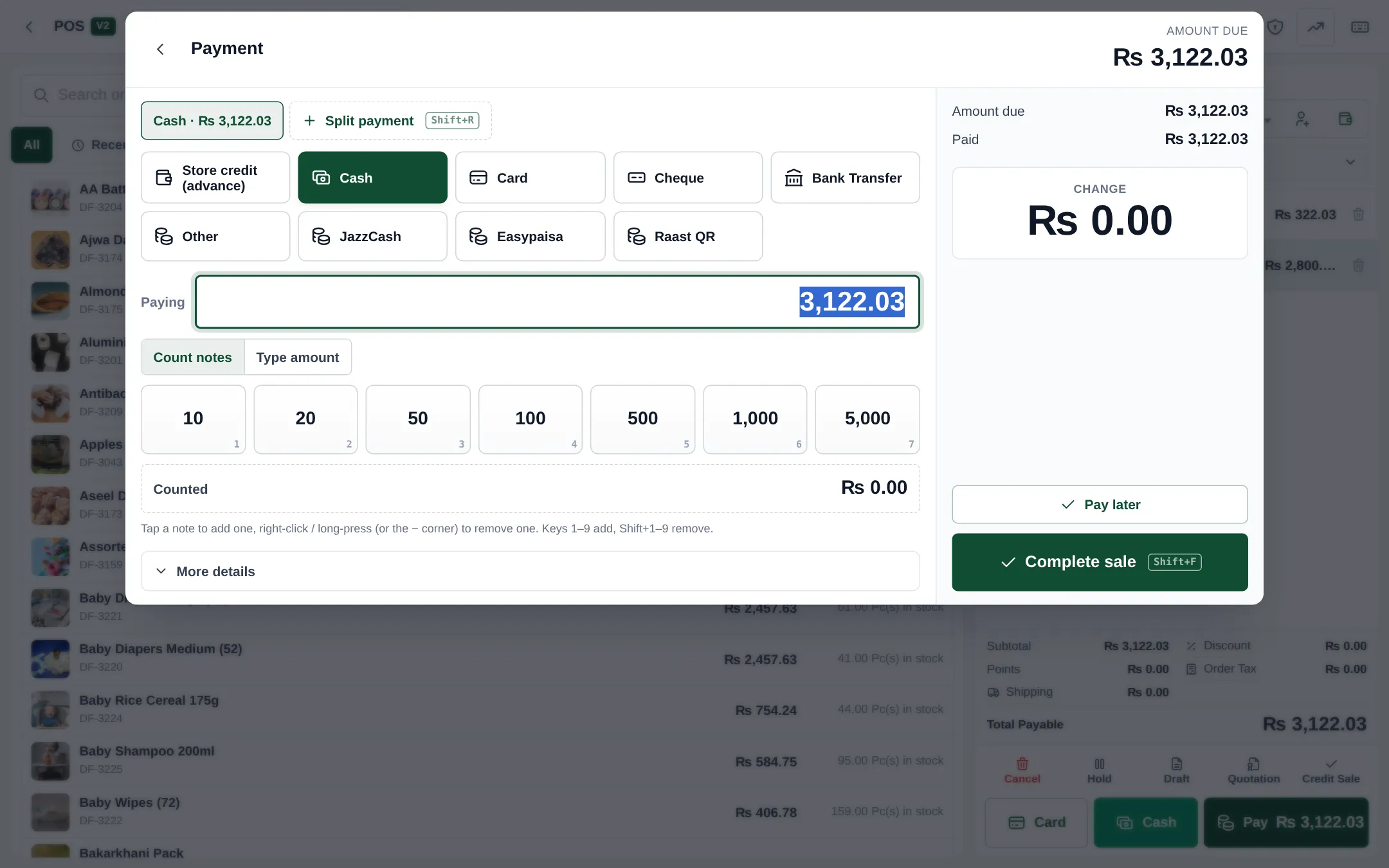
- For part payment: click Pay, enter only the amount paid now (2,000), and click Complete sale. The rest stays due on the sale.
- The receipt shows the amount paid and the balance due.
Collect the next instalments
Section titled “Collect the next instalments”- Open Contacts › Customers and find the customer.
- Use Pay Due Amount (in the Actions menu or on the customer’s page).
- Enter the amount (5,000), the method and the date, and save. The payment is applied to their oldest due sales.
- Repeat at each visit until the due is 0.
You can also open a single sale in Sell › All sales and use Add payment on it.
See who owes what
Section titled “See who owes what”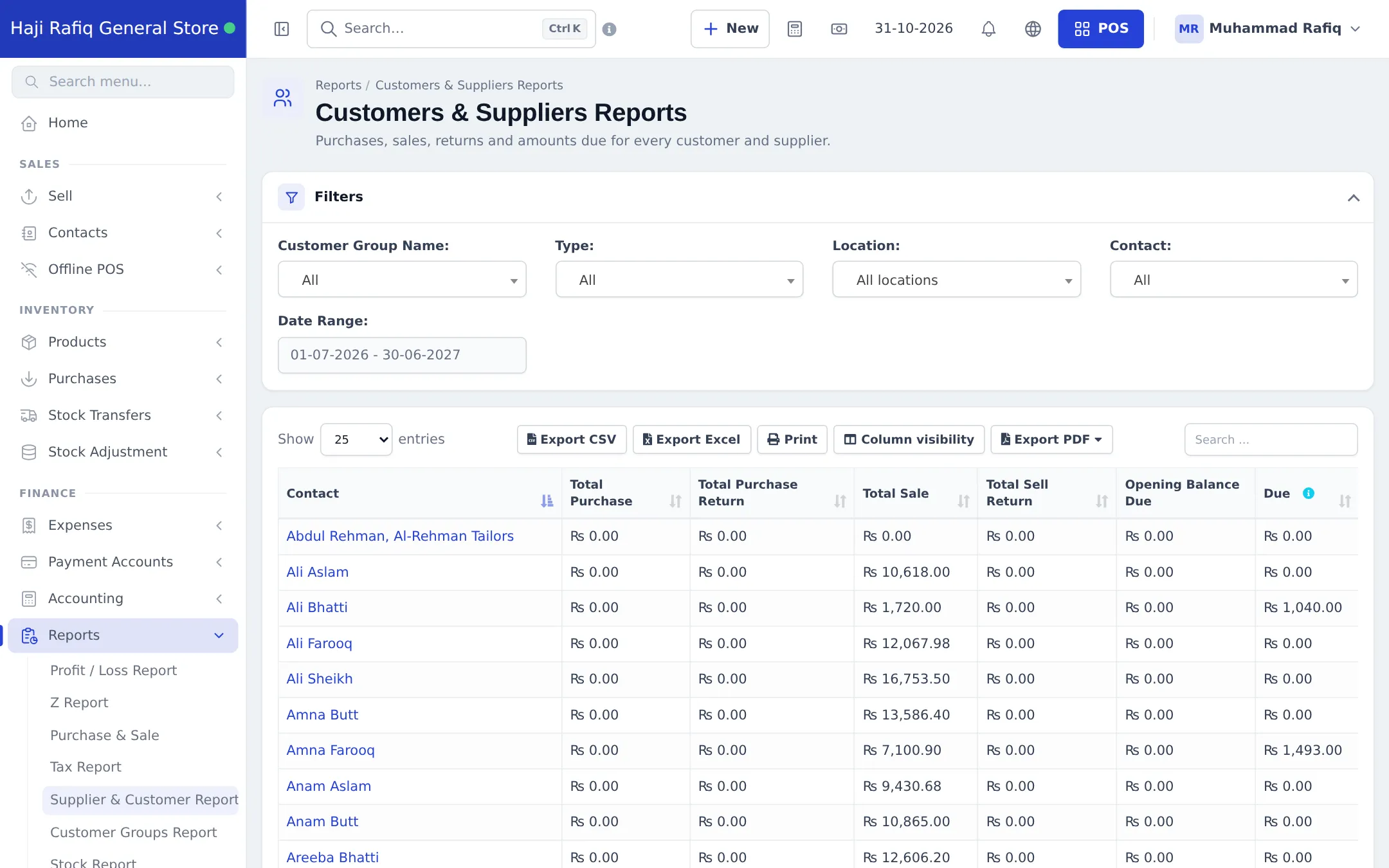
- Customer Ledger: every invoice and payment for one customer, with a running balance; download or e-mail it as PDF. See Customer ledger.
- Payment by Age report: how long dues have been open.
- In the SmartPOS Business app, the customer’s page shows their balance and lets you export the ledger.
Good practice
Section titled “Good practice”- Always use a real customer for credit, never Walk-In Customer.
- Set credit limits for new khata customers and raise them as trust grows.
- Collect at the till: when a khata customer shops, remind them of the due shown on their customer.
- Advance payments: a customer can also pay in advance and buy against it; see Customer credit limits and advances.
Frequently asked questions
Can a walk-in customer buy on credit?
No. A credit or part-paid sale needs a named customer, because the balance goes on their ledger. The POS asks for a name and phone and creates the customer in seconds.
How does a customer pay off a balance in several instalments?
Each time they pay, record a payment against their due sales from the customer's page (Pay Due Amount) or on the sale itself. The due goes down with every payment until it reaches zero.
What happens when a customer reaches the credit limit?
The POS stops the credit sale and shows the limit, what is already due and what this sale would make. Raise the limit on the customer page if you want to allow it.
Where do I see everyone who owes money?
Reports › Supplier & Customer Report shows total sales, returns, opening balance and due per customer. The customer's Ledger shows every invoice and payment.
Can I send a customer their statement?
Yes. Open the customer, go to Ledger, pick the dates and download or e-mail the ledger as a PDF.
Can customers see their own balance?
Yes, if they use the customer portal or the SmartPOS Shopper app with your store; both show their account balance and bills.