
Customers, balances and ledger export in the app
SmartPOS Business shows every customer’s and supplier’s balance in plain words, lets you receive payments on the spot and exports a ledger statement as PDF, Excel or CSV that you can send straight from your phone. This page helps owners, managers and cashiers collect dues and answer “how much do I owe?”.
Before you start
Section titled “Before you start”- Your role needs permission to view customers (and suppliers, for supplier balances). Staff limited to their own customers see only those.
- Location-restricted staff see the ledger for their own location only.
Find and add customers
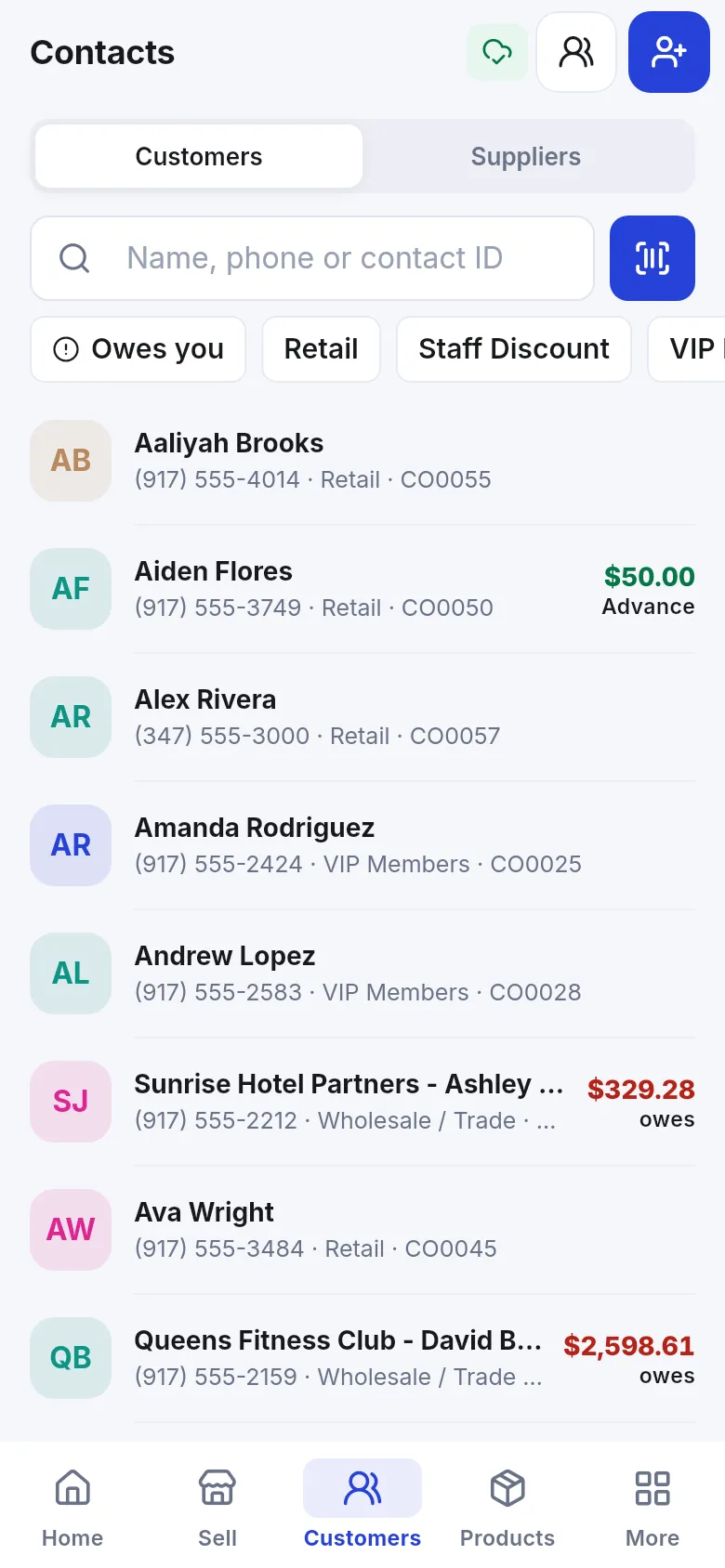
Section titled “Find and add customers”Open Customers (bottom tab). Switch between Customers and Suppliers, search by Name, phone or contact ID or scan, and filter with chips such as Owes you or customer groups. The list shows who owes you and who has an Advance.
To add one, tap the add-person button: choose Person or Company, enter the name, Mobile and E-mail, and under Money set the Customer group, Credit limit, Pay within (days or months) and Already owes you (opening balance). Tap Save.
Read the balance
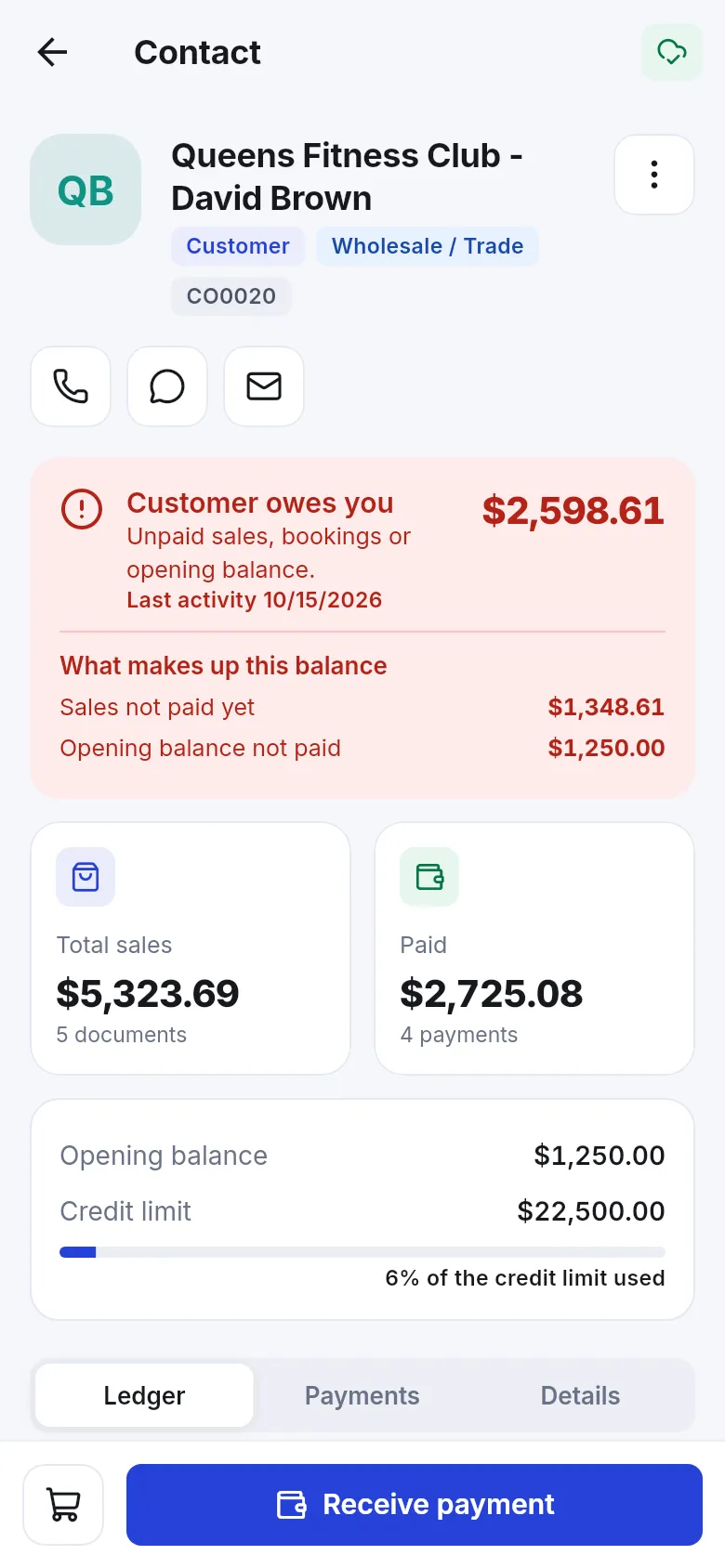
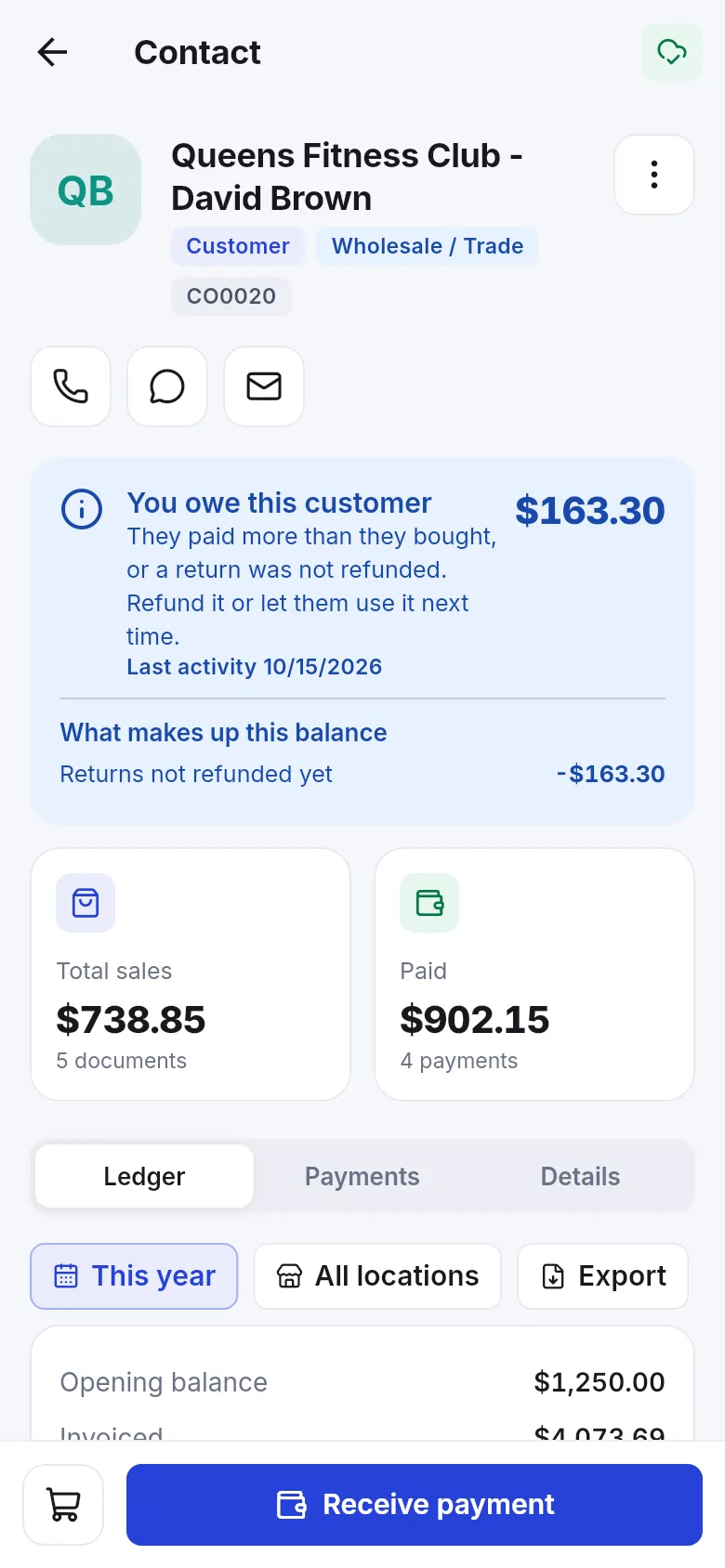
Section titled “Read the balance”The card at the top of a customer page says in plain words who owes whom:
| The app says | It means |
|---|---|
| Customer owes you | Unpaid sales, bookings or opening balance. |
| You owe this customer | They paid more than they bought, or a return was not refunded. Refund it or let them use it next time. |
| This supplier owes you | You paid a supplier more than you bought, or a return was not refunded yet. |
| You owe this supplier | Purchases or opening balance not fully paid yet. |
| All settled | Nothing is owed either way. |
Under What makes up this balance the app lists the parts – for example Sales not paid yet, Hotel bookings and gym memberships not paid, Opening balance not paid or Returns not refunded yet. Below are Total sales, Paid, Opening balance, Advance balance (money the customer left with you to spend later) and Credit limit with how much of it is used.
Receive a payment
Section titled “Receive a payment”- Open the customer and tap Receive payment.
- Enter the amount and payment method.
- Save. The payment is applied to the customer’s unpaid sales and the balance updates at once.
This is how you collect each instalment of a credit sale (for example 20 %, then 50 %, then the rest). The tabs Ledger, Payments and Details show the full history. The cart button next to Receive payment starts a new sale for this customer.
Export or share the ledger
Section titled “Export or share the ledger”- On the customer (or supplier), open Ledger.
- Pick the period chip – Today, Yesterday, Last 7 days, Last 30 days, This month, Previous month, This year, Last year or Custom range – and the location, if you work at several.
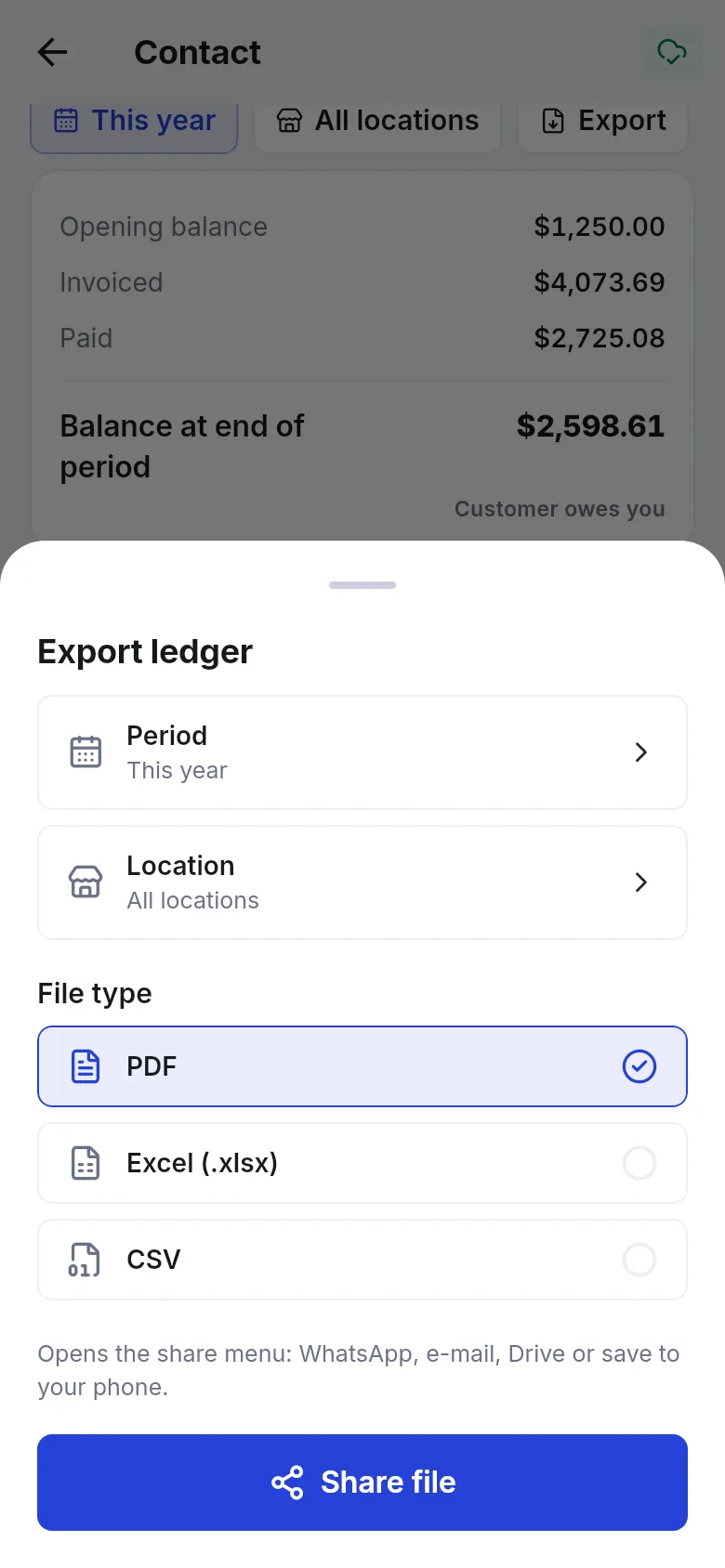
- Tap Export (or ⋮ › Export / share ledger).
- In Export ledger, check the Period and Location and choose the File type: PDF, Excel (.xlsx) or CSV.
- Tap Share file. The phone’s share menu opens: WhatsApp, e-mail, Drive or save to your phone.
The statement starts with the opening balance before the period, lists every entry with a running balance, and ends with the period summary, overall balance due and advance balance.
Related pages
Section titled “Related pages”Frequently asked questions
What does Customer owes you mean?
The customer has unpaid sales, unpaid hotel bookings or gym memberships, or an unpaid opening balance. The card shows the amount and What makes up this balance.
Why does the app say You owe this customer?
The customer paid more than they bought, or a return was not refunded yet. Refund the money or let them use it next time.
What is the advance balance?
Money the customer left with you to spend later. It is shown separately from the balance due.
When does the app say All settled?
Only when nothing is owed either way, including the advance balance.
How do I export a customer's ledger?
Open the customer, go to Ledger, tap Export, choose the period, location and file type (PDF, Excel or CSV) and tap Share file. The phone's share menu opens so you can send it on WhatsApp, e-mail, Drive or save it.
Which periods can I export?
Today, Yesterday, Last 7 days, Last 30 days, This month, Previous month, This year, Last year or a Custom range.
Does the app balance match the web?
Yes. It uses the same ledger figures as the contact page on the web app.
Can I remind a customer about their balance?
Yes. When a customer owes you, the WhatsApp button on the customer page pre-fills a friendly balance reminder.