
Product barcodes – extra barcodes and "No product found"
Product barcodes lets one product open from several barcodes, and fixes unknown scans on the spot. Many products carry more than one code (a case and a unit EAN, an old label, a supplier code). Add them all to the product, and every scan or search finds it. When a scan finds nothing, the POS asks whether to add a new product with that barcode or link it to an existing one. Marts, pharmacies, electronics and hardware stores use it every day.
Where additional barcodes are found
Section titled “Where additional barcodes are found”Once a barcode is linked, it works everywhere a product can be searched or scanned:
- POS V1 and POS V2 search, scanners and the camera scanner
- Add sale, purchases, stock adjustments, stock transfers and Print Labels product search
- The products list search and the global search (Ctrl K)
- The SmartPOS Business app scanner and offline catalog
- Offline POS, your online store search and the SmartPOS Shopper app price check
First-time setup
Section titled “First-time setup”There is nothing to install. Check two things:
- Open User Management › Roles and edit each role. In the Product section, tick Link barcodes to products for staff who may attach barcodes (for example store managers). Leave it off for cashiers if you want only managers to change barcodes.
- If cashiers should be able to create products at the till, also tick Add product.
Everyday use: an unknown barcode at the till
Section titled “Everyday use: an unknown barcode at the till”- Scan the item in POS (V1 or V2), or type the code and press Enter.
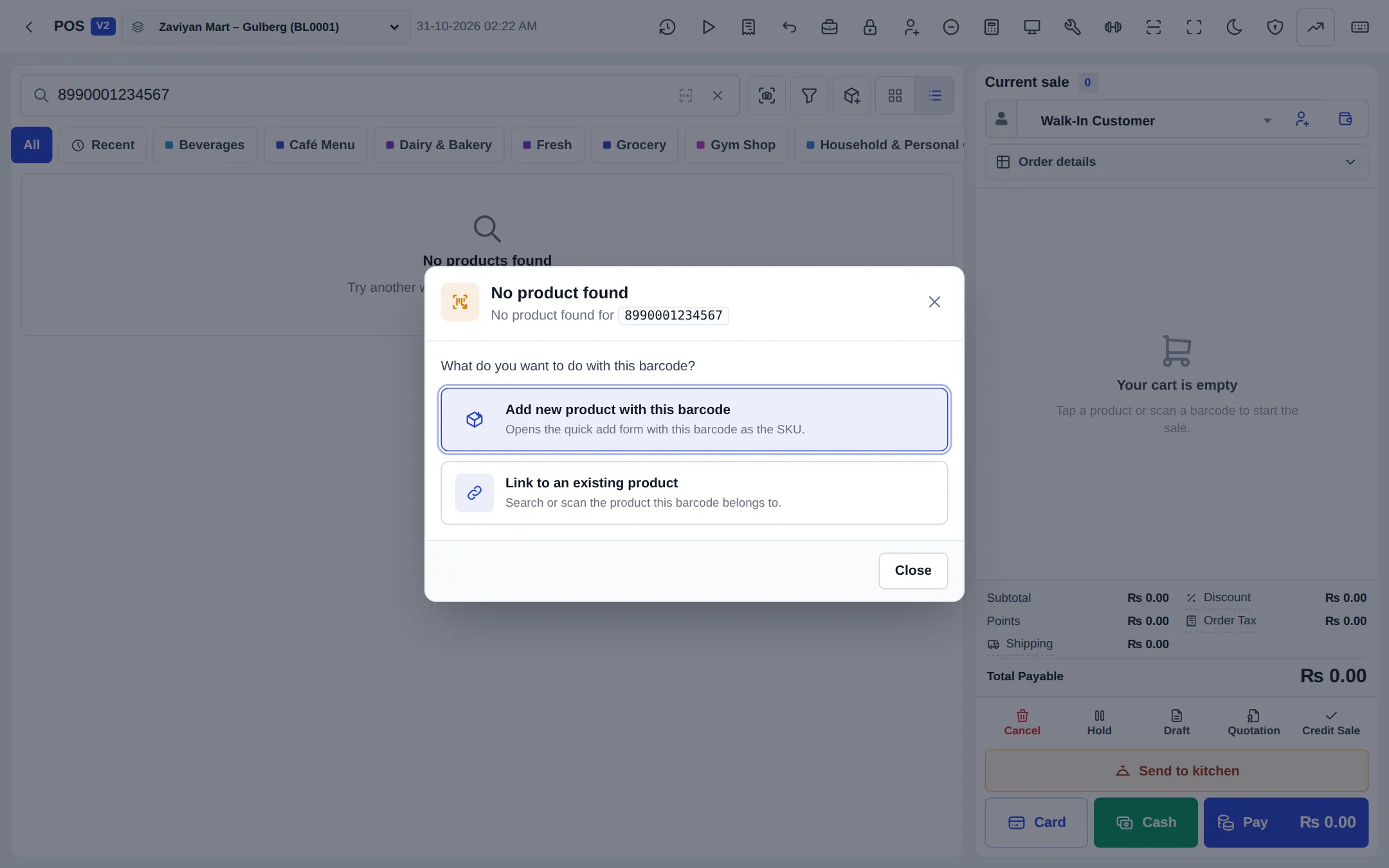
- If no product uses that code, the No product found window opens and shows the code.
- Choose one:
- Add new product with this barcode opens the quick add form with the barcode already filled in as the SKU. Save it, and the product is added to the sale.
- Link to an existing product lets you search by name or SKU, or scan the product’s own barcode. Pick the product, check the message “From now on, barcode … will open …”, and click Link barcode. The product is added to the sale.
- Scan the same code again later and it adds the product straight away, with no window.
Everyday use: manage a product’s barcodes
Section titled “Everyday use: manage a product’s barcodes”- Open Products › List Products and click the product to open its view window.
- Find the Additional barcodes panel. It lists every extra barcode per variation.
- To add one, scan or type it in Scan or type a barcode, pick the variation and click Add.
- To remove one, click Remove next to it and confirm.
Permissions
Section titled “Permissions”| Permission (Roles page) | What it allows |
|---|---|
| Link barcodes to products | Link an unknown barcode to an existing product; add or remove barcodes in the Additional barcodes panel |
| Add product | Use Add new product with this barcode from the No product found window |
| View product | See additional barcodes on the product view |
Staff with neither Link barcodes nor Add product see the plain “No products found” message instead of the window.
In the SmartPOS Business app
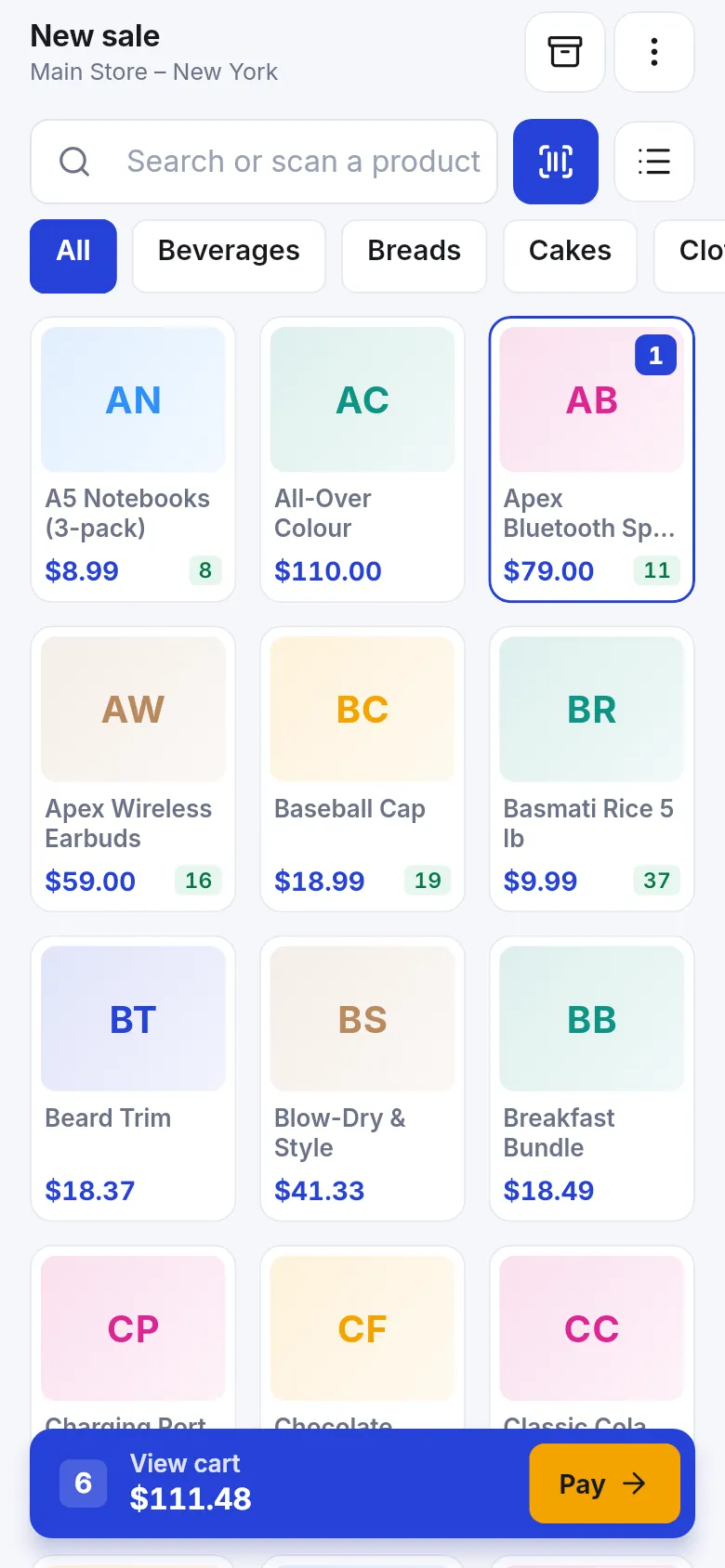
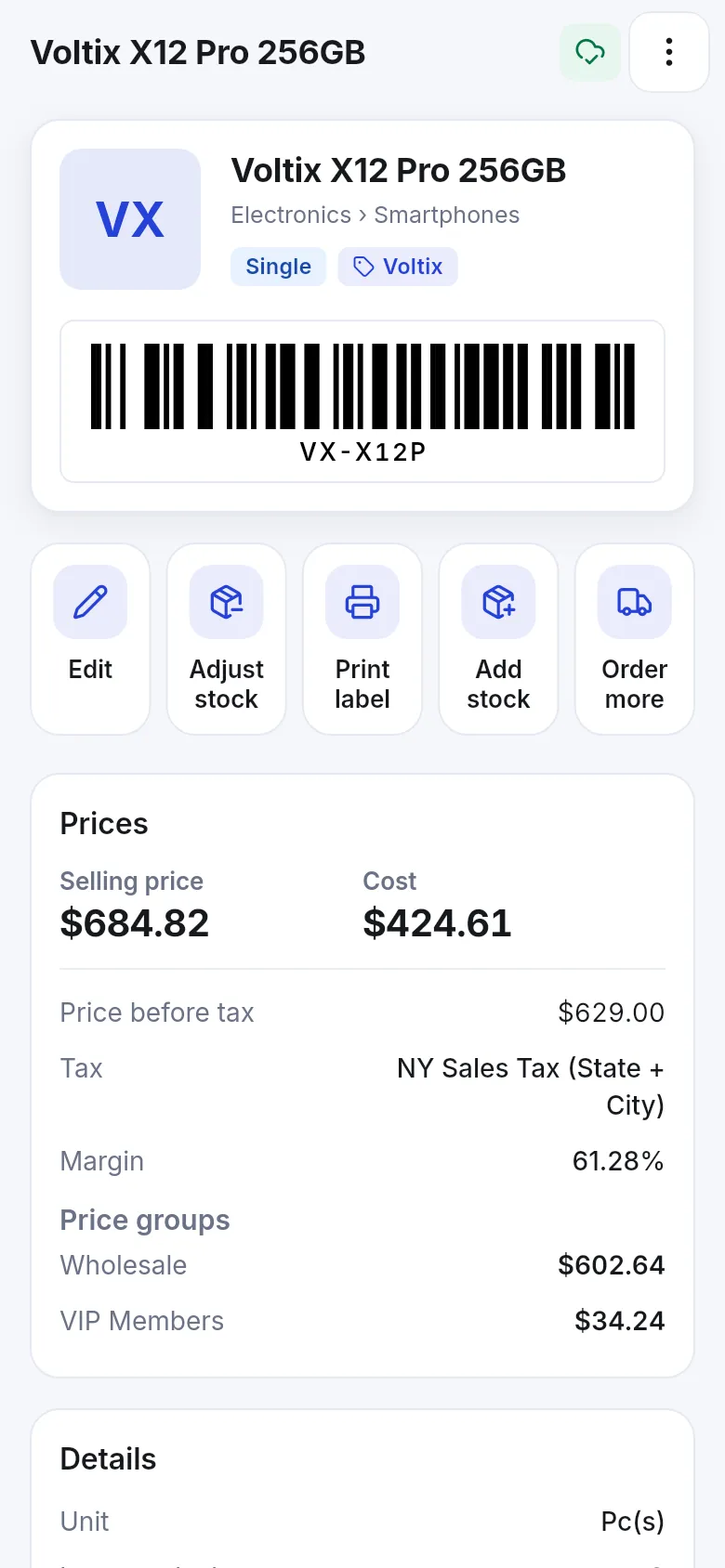
Section titled “In the SmartPOS Business app”The Sell screen has a scan button next to Search or scan a product. An unknown code opens the same add-new or link choices on top of the camera, and each product page shows its barcode and extra barcodes.
Related pages
Section titled “Related pages”Frequently asked questions
How many barcodes can one product have?
Each product or variation keeps its main SKU plus additional barcodes, such as the manufacturer EAN, an old label or a supplier code. Every scan and search finds all of them.
Do I need to switch anything on?
No. Additional barcodes are part of every plan with no module switch. Staff only need the right permission. Add product lets them create a new product from an unknown code, and Link barcodes to products lets them attach a code to an existing product.
Can two products share the same barcode?
No. A barcode can belong to one product only. If you try to reuse it, SmartPOS Hub tells you which product already uses it so you can remove it there first.
Why does the No product found window not open when I type a name?
The window opens only for codes that look scanned (a scanner or camera, or a code typed and confirmed with Enter, without spaces). Typing a product name keeps the normal search.
My scanner adds strange characters like ]E0 before the code. Is that a problem?
No. SmartPOS Hub removes the symbology prefix some scanners send, so the code still matches your product.
Does this work in the SmartPOS Business app?
Yes. When the app scanner reads an unknown code on Sell, Products or the universal scan, it offers the same add-new or link choices, and the product page lists the extra barcodes.