
Auto shop step 2: parts and labour
A garage sells two kinds of things: parts you keep on the shelf (filters, pads, batteries, tires, fluids, wipers) and labour you sell by the job or the hour. Both are products in SmartPOS Hub, so they work the same on the POS, on job cards and in reports.
Before you start
Section titled “Before you start”- Enable Brands and Enable Warranty are on (step 1).
- Categories are set up, for example Brakes › Pads, Filters › Oil Filters, Oil & Fluids › Motor Oil, Tires › Passenger, and Labor & Services.
Add parts
Section titled “Add parts”- Open Products › Add Product (or Products › Import Products for a long list).
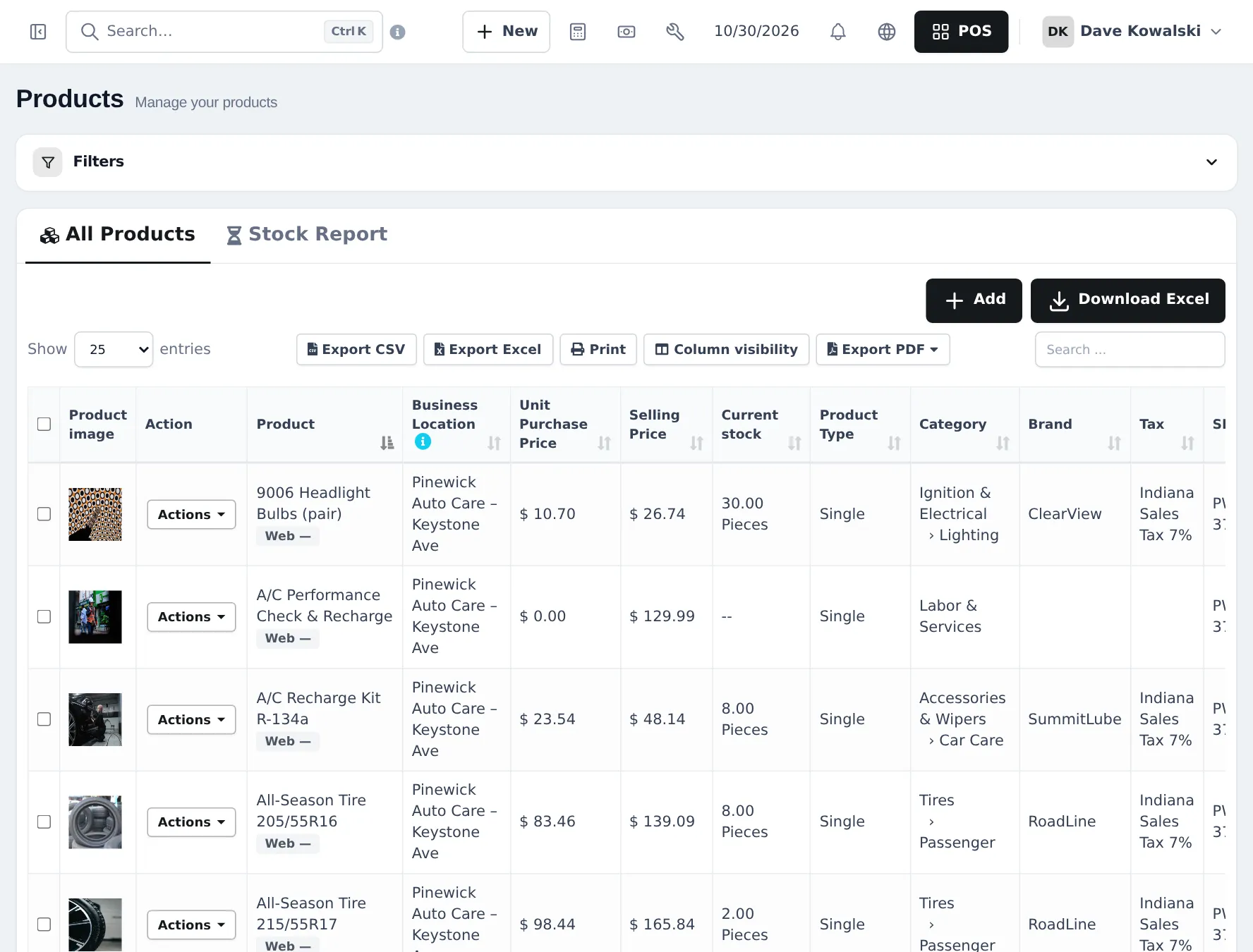
- Enter the name with the part number and fitment, for example “9006 Headlight Bulbs (pair)”.
- Use the manufacturer’s barcode or your part number as the SKU. Pick the Brand, Category and Unit (Pieces, Quart…).
- Choose a Warranty (for example 3 years on a battery).
- On Pricing, enter the purchase price and selling price; on Stock, keep Manage Stock? ticked and set an Alert quantity.
- Save.
Add labour as products without stock
Section titled “Add labour as products without stock”- Open Products › Add Product.
- Name it after the job, for example “A/C Performance Check & Recharge”, “Brake pad replacement - labour” or “Diagnostic - 1 hour”.
- Category Labor & Services, unit Pieces or an hour unit.
- Untick Manage Stock? so it never runs out.
- Enter the price. Save.
Link parts to car models (optional)
Section titled “Link parts to car models (optional)”In Repair › Device models you keep the models you service most (Honda Civic, Ford F-150…). To link a part, edit it in Products › List Products and choose the model under Device model (for parts); the model list shows how many parts are linked. On a job card for that model, those parts are suggested first.
Sell parts over the counter with vehicle details
Section titled “Sell parts over the counter with vehicle details”A parts-only sale does not need a job card. If you want the plate, VIN or mileage on the sale (to check fitment or for returns), switch on Order options & personalisation and import the Part for my vehicle form from Products › Order options › Import prebuilt. The form opens when the part is added to the sale. See Order options.
Tips and mistakes to avoid
Section titled “Tips and mistakes to avoid”- Keep labour and parts in separate categories; the profit report then shows labour margin and parts margin clearly.
- Don’t put tire sizes only in the description. Put them in the name so cashiers can search “205/55R16”.
- Core charges (battery or alternator cores) can be a separate product without stock that you add and refund on return.
Frequently asked questions
How do I add labour?
As a product with Manage Stock? unticked, in a category such as Labor & Services. Give it a price per job (oil change labour) or per hour, and sell more than one for several hours.
Can I sell oil by the quart and by the 5-quart jug?
Yes. Use a base unit Quart and a sub-unit such as Jug (5 qt) with Enable Sub Units on, or sell the jug as its own product.
How do I make parts show first for a car model?
Add the model in Repair › Device models, then edit the part in Products and choose the model under Device model (for parts). Those parts are suggested first on job cards for that model.
Can I import my parts list?
Yes. Products › Import Products takes a spreadsheet with name, SKU or part number, brand, category, unit, cost and price.
Do tires need variations?
Only if you want one product with several sizes. Many shops create one product per tire size so the size is in the name and the barcode.