
Asset management module (equipment register)
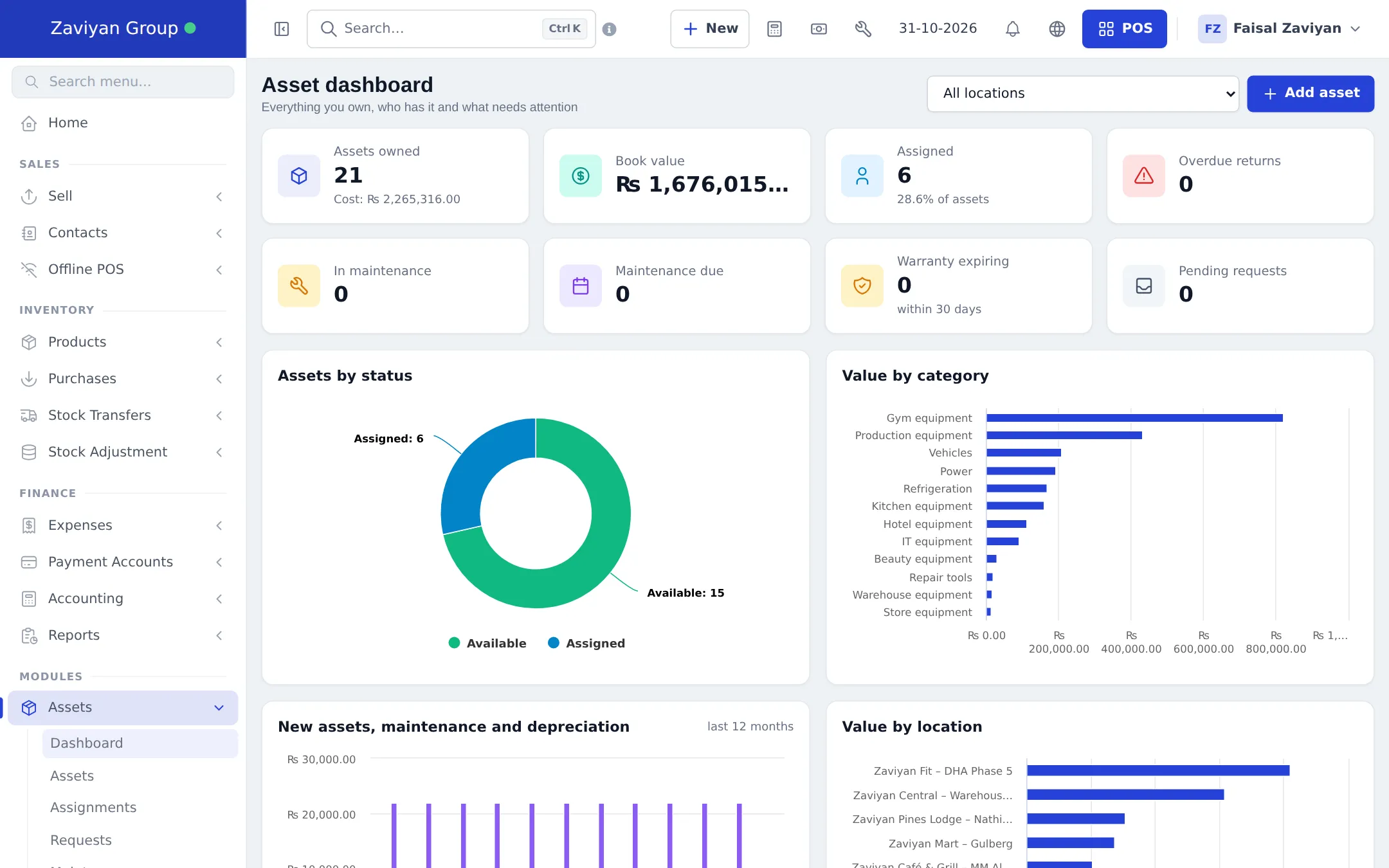
The Asset management module is a register of everything your business owns and uses: POS terminals, scanners, fridges, ovens, gym machines, hotel TVs, vans and laptops. You see where each asset is, who has it, when it needs maintenance, what it is worth today and when its warranty ends. It works for every business type and every location.
What you get
Section titled “What you get”| Menu item (sidebar Assets) | What it is for |
|---|---|
| Dashboard | Assets owned, book value, assigned, overdue returns, in maintenance, maintenance due, warranty expiring, pending requests, charts and recent activity |
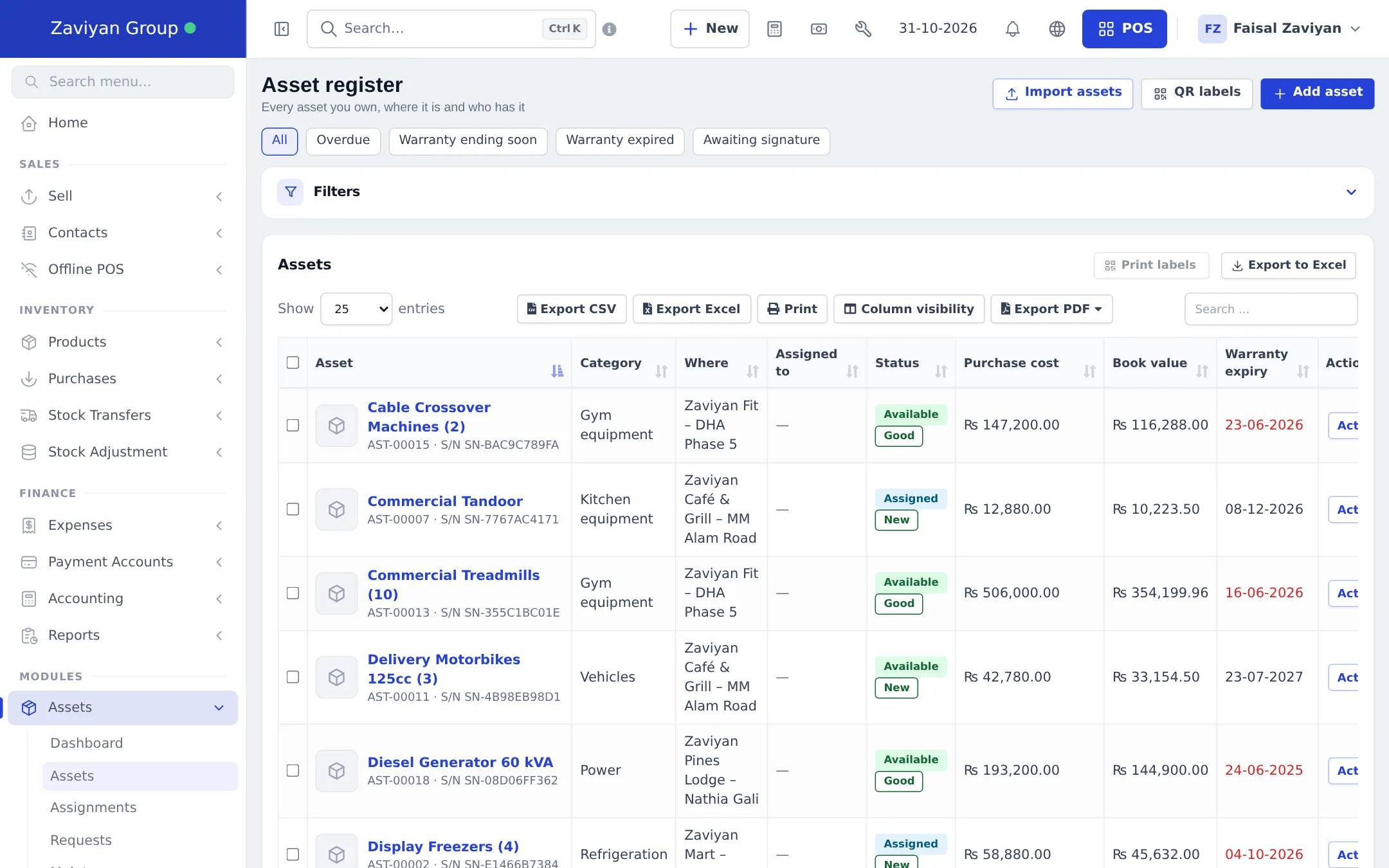
| Assets | The Asset register: every asset, where it is and who has it; Import assets, QR labels, Add asset |
| Assignments | Who holds which asset, what is due back and what is overdue; Assign an asset |
| Requests | Staff ask for equipment; approvers approve or reject |
| Maintenance | Maintenance plans and work orders, with cost and downtime |
| Depreciation | Schedules, book values and disposals |
| Audits | Count assets by location or category: found, missing, damaged, wrong place |
| Reports | Register, summaries, assignment history, overdue, maintenance, warranty and insurance, depreciation, disposals, audits |
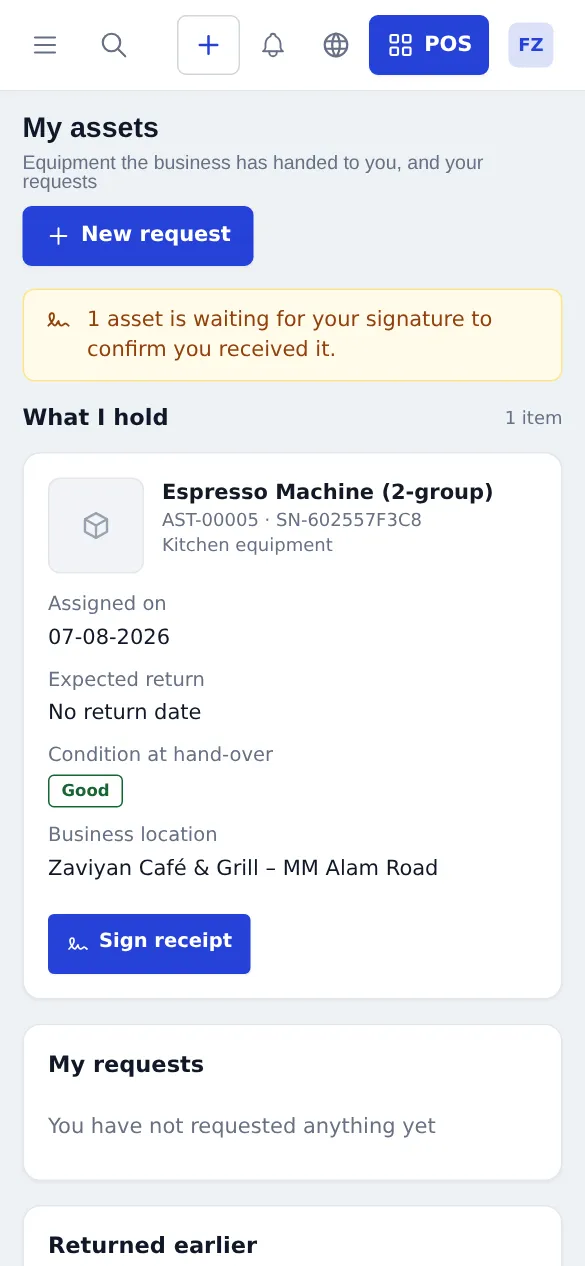
| My assets | What the signed-in user holds, their requests and signatures |
| Settings | Numbering, depreciation, assignments, alerts, maintenance, bookkeeping, labels, categories |
First-time setup
Section titled “First-time setup”- Switch the module on in Settings › Business Settings › Modules (Asset management) and click Update settings.
- Open Assets › Settings and go through the tabs:
- Numbering: Asset code prefix and digits (for example AST-00001), and whether to Add the category code to asset codes.
- Depreciation: your default method and useful life.
- Assignments & requests: require a signature, default loan days, allow lending to customers.
- Alerts & e-mails: how many days ahead to warn about warranty, insurance, returns and maintenance, and which e-mails to send.
- Maintenance: the expense category for maintenance costs.
- Bookkeeping: link depreciation and disposal accounts if you use Accounting & Bookkeeping.
- Labels: label size for QR labels.
- Categories & places: your category tree and sub-locations or departments. Use Import prebuilt to load ready-made categories with depreciation presets.
- Add your assets with Add asset (name, category, brand, model, serial, photo, documents, location, purchase date, supplier, cost, warranty and insurance), or use Import assets with the Excel template.
- Print QR labels and stick them on the equipment so anyone can scan them.
Everyday use
Section titled “Everyday use”- Hand equipment to someone: on the asset or under Assignments, click Assign an asset, choose a staff member, department, location or customer, an expected return date and the condition. The receiver signs on screen.
- Take it back: check the asset in, note its condition and any damage or charge.
- Staff requests: staff open My assets › New request; approvers approve and can hand the asset out in the same step.
- Maintenance: set a plan (every N days, months or meter units) and the daily check opens a work order before it is due. Record cost and downtime; the cost can be posted as an expense.
- Audits: start an audit for a location, scan each QR or tick items, then complete it to mark missing items lost or move misplaced ones.
- Dispose of an asset (sale, scrap, donation, lost or trade-in) to record the gain or loss.
Staff who hold equipment see it under My assets, including anything waiting for their signature.
Permissions
Section titled “Permissions”| Permission (as on the Roles page) | Lets the user |
|---|---|
| View assets, dashboard and history | See the register and dashboard |
| Add and import assets | Add assets and import from Excel |
| Edit assets, upload documents, change status | Edit assets |
| Delete assets | Delete assets |
| Assign, return and transfer assets | Check equipment out and in |
| Request assets (staff self-service) | Use New request in My assets |
| Approve asset requests | Approve or reject requests |
| Manage maintenance and work orders | Plans and work orders |
| Depreciation and disposals | Depreciation and disposal |
| Run asset audits | Audits |
| View asset reports | Reports |
| Asset management settings | Settings |
Lists only show assets at the locations the user is allowed to see. A prebuilt Asset Manager role (everything except settings) is available in the roles import.
In the SmartPOS Business app
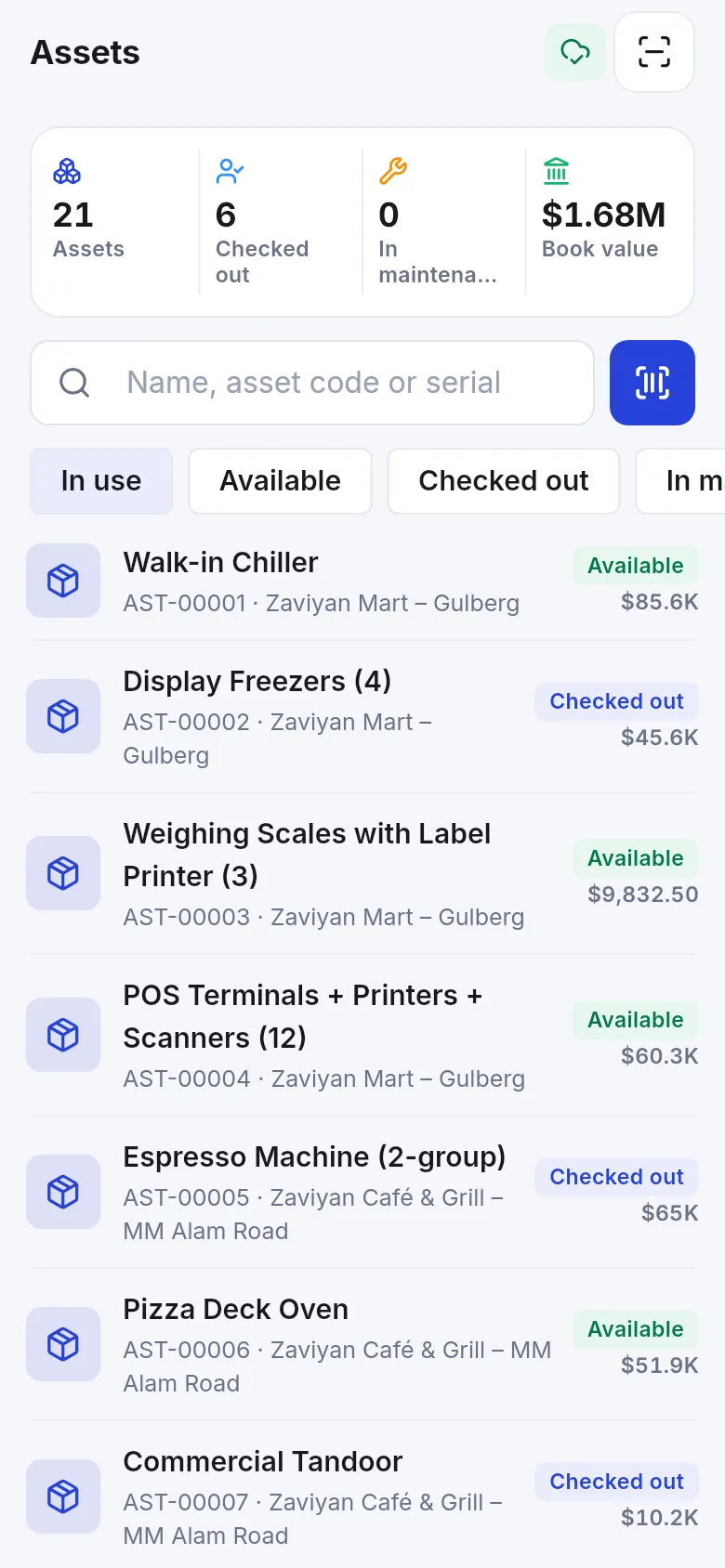
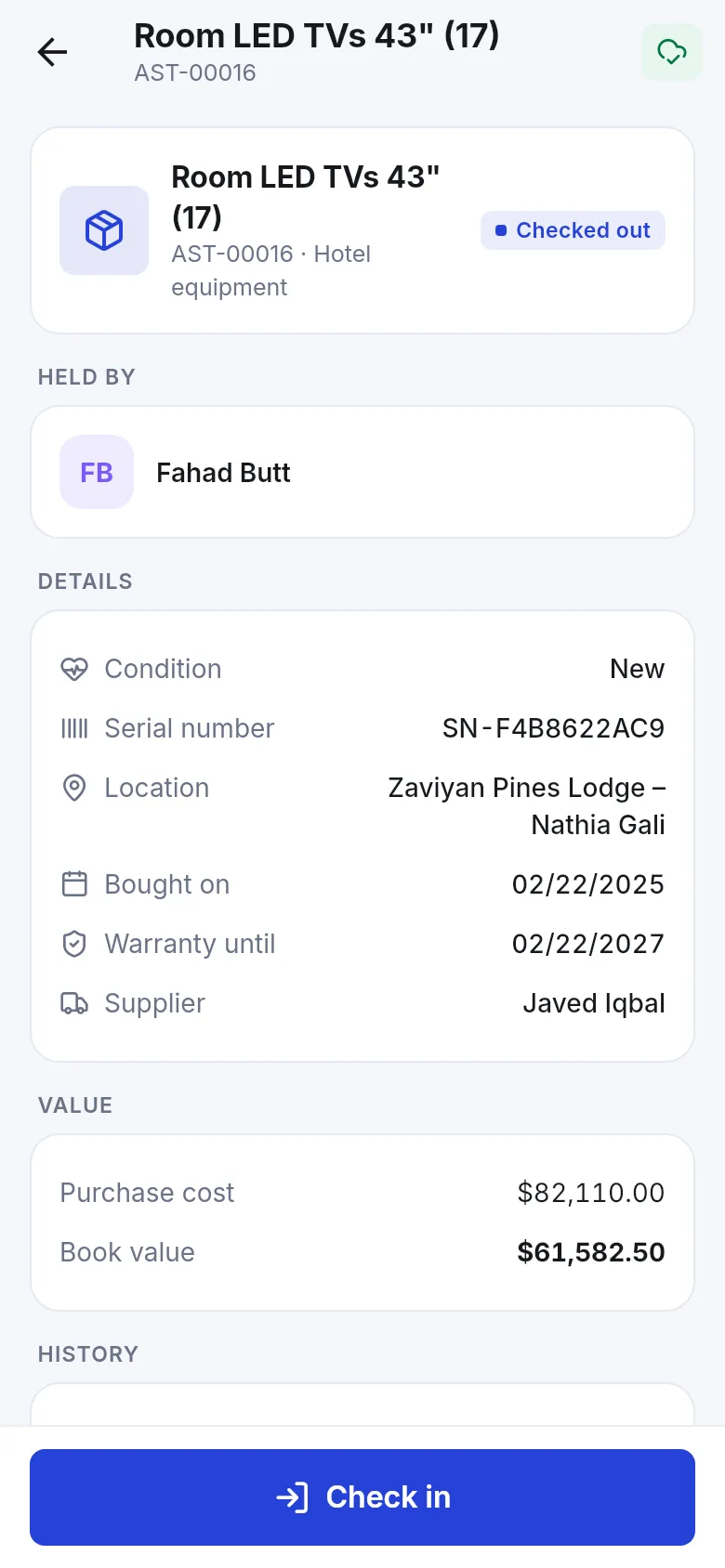
Section titled “In the SmartPOS Business app”The Assets screen shows counters (assets, checked out, in maintenance, book value), filters and a search by name, asset code or serial. Tap the scan button to read an asset’s QR label. On an asset you see who holds it, its details and value, and you can Check in or check it out.
Tips and mistakes to avoid
Section titled “Tips and mistakes to avoid”- Use categories with depreciation presets so new assets get the right useful life automatically.
- Keep warranty and insurance dates filled in: the dashboard warns you before they run out.
- Don’t add assets as products. If you sold it at the till, it is a product; if you use it, it is an asset.
Related pages
Section titled “Related pages”Frequently asked questions
What is the difference between assets and products?
Products are what you sell and keep in stock. Assets are things you own and use, such as POS terminals, fridges, ovens, treadmills, vans or laptops. Assets are never sold at the till and do not affect stock.
Can staff sign when they receive equipment?
Yes. When you assign an asset, the staff member signs on screen. If Assignments & requests in settings requires a signature, the hand-over is not complete until they sign. Staff can also sign later from My assets.
Can I lend an asset to a customer?
Yes, if you allow customers in Assignments & requests settings. The asset then shows on that customer's contact page.
How is depreciation calculated?
Per asset you choose none, straight-line, declining balance or units of production, with a useful life and salvage value. Depreciation is posted monthly, never twice for the same month, and disposals record the gain or loss.
Will depreciation show in my accounts?
Yes, if the Accounting & Bookkeeping module is set up and you link the accounts in Asset management settings › Bookkeeping. Each month's depreciation and each disposal then gets a journal entry.
Can I import my existing equipment list?
Yes. Click Import assets on the Asset register, download the template, fill it in and upload it. If any row has an error, nothing is imported and the errors are listed per row.
Can I check an asset out from my phone?
Yes. The Assets screen in the SmartPOS Business app can scan an asset's QR code, show its details and check it out to a staff member or check it back in.