
Direct order links and table QR codes
Every shop widget comes with a direct link and a QR code, so customers can order without visiting your website. This page shows how to share the link, build links for one product or table, and print table QR codes so restaurant guests scan and order from their seat.
Before you start
Section titled “Before you start”- Create a widget first (see Widgets). All widget types have a link except Floating cart; Category tiles has one only when its tiles open a link.
- The widget must be live. A paused widget’s link shows “This store isn’t available right now”.
- For table QR codes: an Online menu or Full shop widget with Dine-in ticked, and tables in Restaurant › Tables & floor plan.
Share the direct link
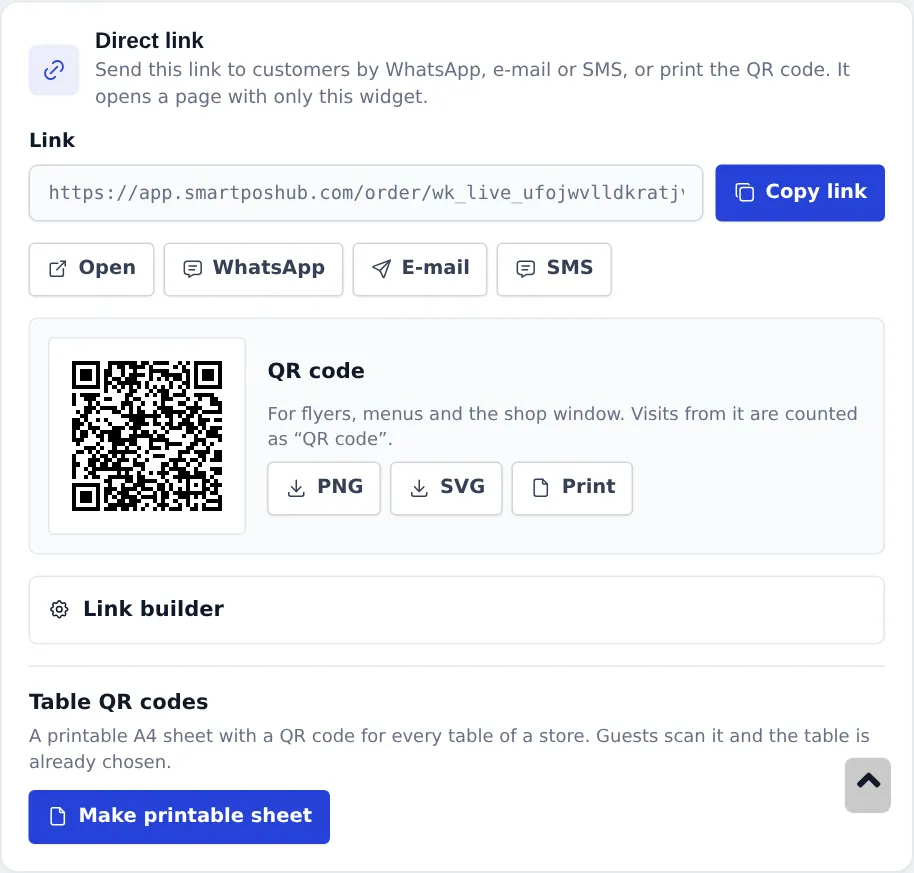
Section titled “Share the direct link”- Open Website › Widgets and press Link on the widget (or open the widget and scroll to the Direct link card).
- Press Copy link, or send it straight away with WhatsApp, E-mail or SMS. Open shows the page as customers see it.
- Put the link in your social media bio, WhatsApp Business catalog message or e-mail signature.
The link page shows your store name and logo, the widget, and a footer with your stores, phone and WhatsApp. It works on phones first and in right-to-left languages.
Print the QR code for flyers and windows
Section titled “Print the QR code for flyers and windows”In the QR code box, press PNG or SVG to download it, or Print. Visits from it are counted as “QR code”, separately from the link and the embedded widget.
Build a link for one product, category, store or table
Section titled “Build a link for one product, category, store or table”- Open Link builder in the Direct link card.
- Pre-select any of: order type (pickup, delivery, dine-in), store, table (filtered by store), category, product and language.
- The link and QR code update at once. Choices the widget cannot take are listed as “left out”.
- Copy or share the new link.
Table QR codes for dine-in ordering
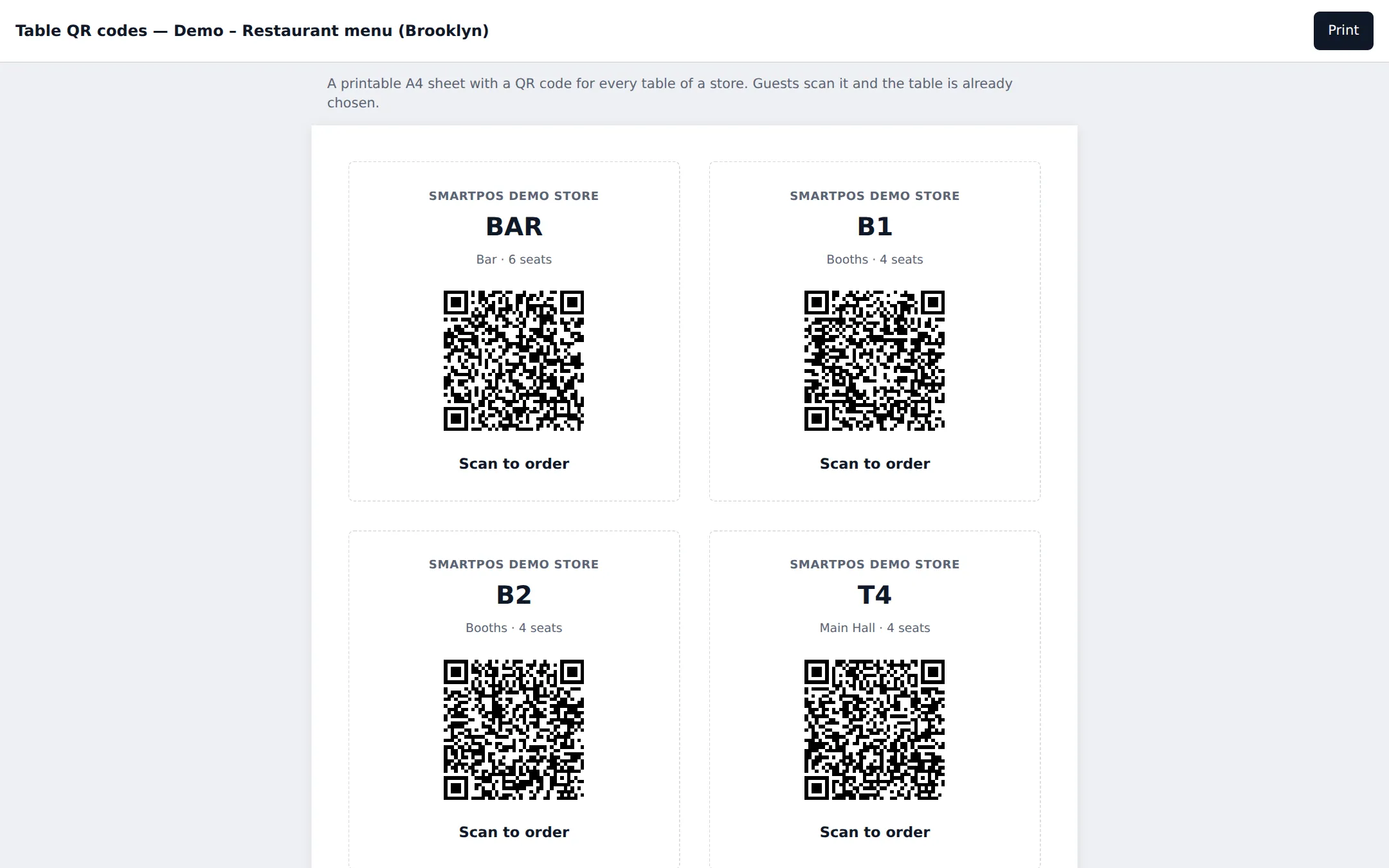
Section titled “Table QR codes for dine-in ordering”- In the Direct link card, under Table QR codes, choose the store and press Make printable sheet.
- A printable A4 sheet opens: one card per table with the store name, table name, area and seats, the QR code and “Scan to order” - six cards per page.
- Press Print, cut the cards and place them on the tables.
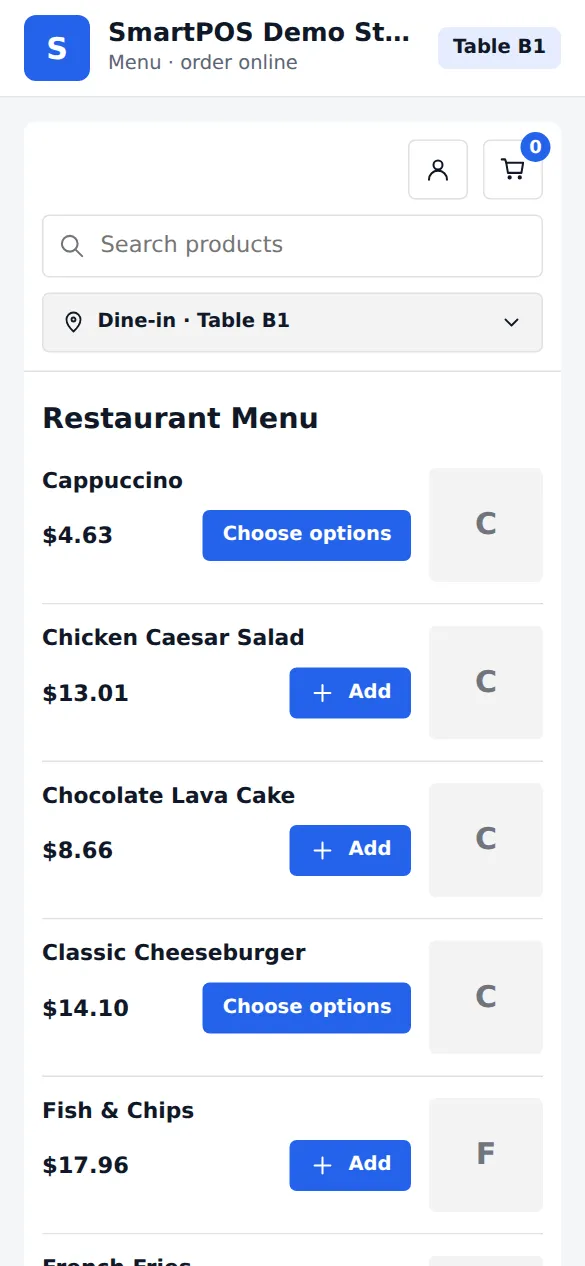
When a guest scans the code, the popup is skipped: the page already shows Dine-in · Table B1. They add dishes (with modifiers), check out and pay at the table or online. The order appears in Website › Orders as “Dine-in · Table B1”, as a sale linked to the table, and on the kitchen display.
Link page settings
Section titled “Link page settings”In the widget’s Link page section you can set a Short description for link previews (shown when the link is shared on WhatsApp or Facebook) and Let search engines show this page (off by default).
Not the same: the store QR poster for the Shopper app
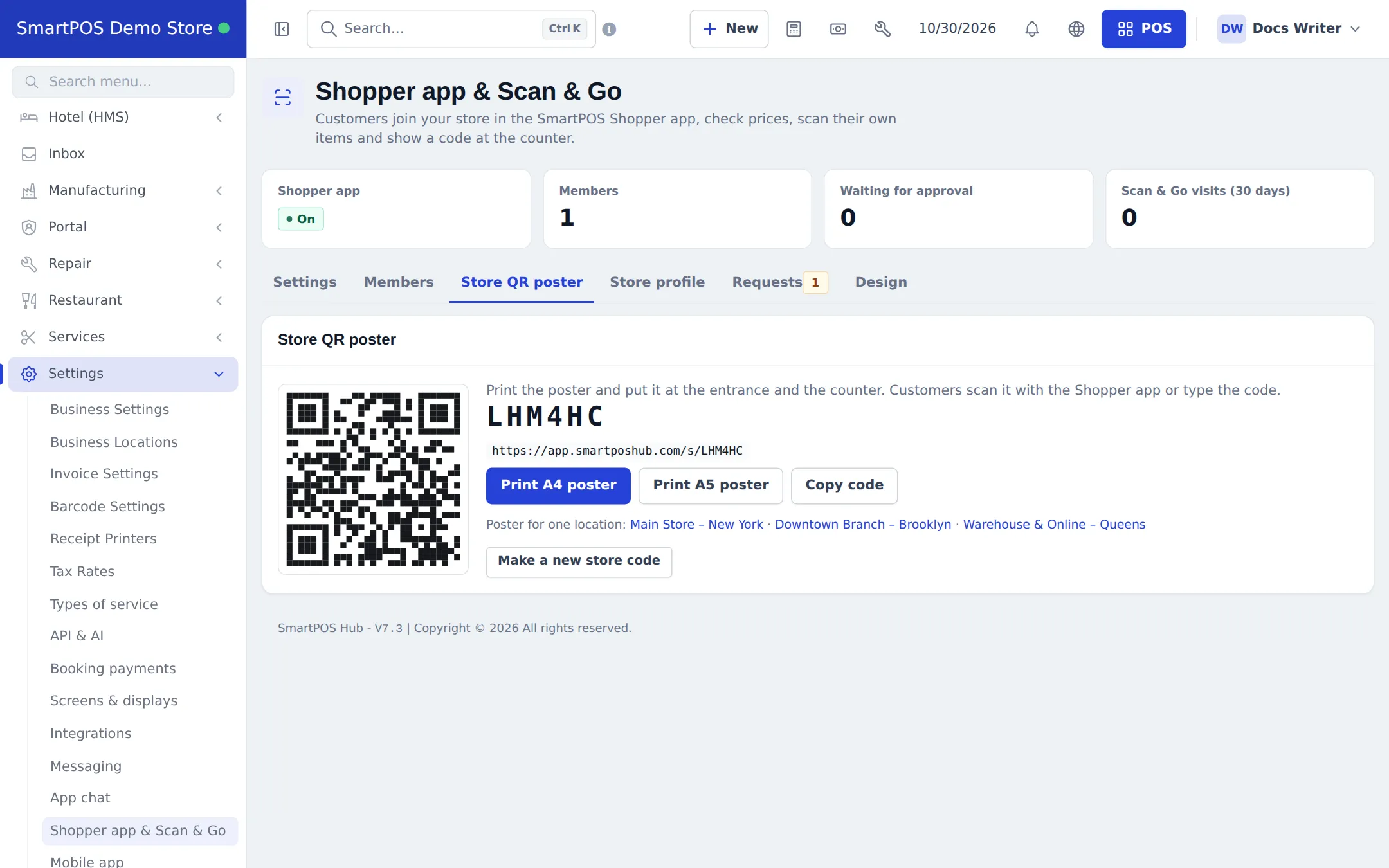
Section titled “Not the same: the store QR poster for the Shopper app”The Store QR poster in Settings › Shopper app & Scan & Go is a different QR code. It lets customers join your store in the SmartPOS Shopper app with your 6-character store code. Use it at the entrance and the counter for members and Scan & Go. See Shopper app for your store.
Related pages
Section titled “Related pages”Frequently asked questions
Do I need a website to use an order link?
No. The direct link opens a page hosted by SmartPOS Hub with only your widget, your store name, logo and contact details. Share it on WhatsApp, Instagram, Facebook, SMS or e-mail.
What is the difference between the widget QR code and the store QR poster?
The widget QR code opens an ordering page in any phone browser - no app needed. The store QR poster (Settings › Shopper app & Scan & Go › Store QR poster) lets customers join your store in the SmartPOS Shopper app.
How do table QR codes work?
Each table gets its own QR code. A guest scans it, the order type is already Dine-in and the table is already chosen, so they just pick dishes and order. The kitchen ticket and the order show the table.
Where do I add tables?
In Restaurant › Tables & floor plan. The table QR sheet lists the active tables of the chosen store, with their area and number of seats.
Can I see how many orders came from a QR code?
Yes. The widget's Performance card splits views and orders by Embedded, Direct link and QR code. Orders from links also carry a source in Website › Insights.
Can I make a link that opens one product or one category?
Yes. Use the Link builder to pre-select the order type, store, table, category, product or language. The link and QR code update at once.
Will the link page appear on Google?
Not by default. Turn on "Let search engines show this page" in the Link page section if you want it to. Links with a table, store or order type are never shown in search engines.