
Car wash step 4: bookings and the queue
Detail jobs are booked; tunnel customers just drive in. Bookings keeps both in one place: appointments from the website or phone, walk-ins, and the cars in service right now.
Before you start
Section titled “Before you start”Turn on online booking
Section titled “Turn on online booking”- Open Services › Settings. Make sure Online booking page is on and tick Customers can book services online.
- Choose Customers can choose a staff member and Show prices on the booking page.
- Decide on Confirm online bookings automatically. Off means bookings arrive as Requested.
- Optional: under Payment to confirm — Appointment, ask for a Deposit or Full payment with the allowed payment methods.
- Save, then copy the link from Copy booking link on Services › Overview.
Add phone bookings and walk-ins
Section titled “Add phone bookings and walk-ins”- Click New appointment on Services › Overview (or New booking on Bookings).
- Choose the customer and one or more services (for example Interior Detail plus Headlight Restoration).
- Pick a crew member or Any available staff, then a free time. Busy staff are flagged.
- Save. The booking gets a reference number and the source (Walk-in, Phone, Online, POS).
Run today’s line
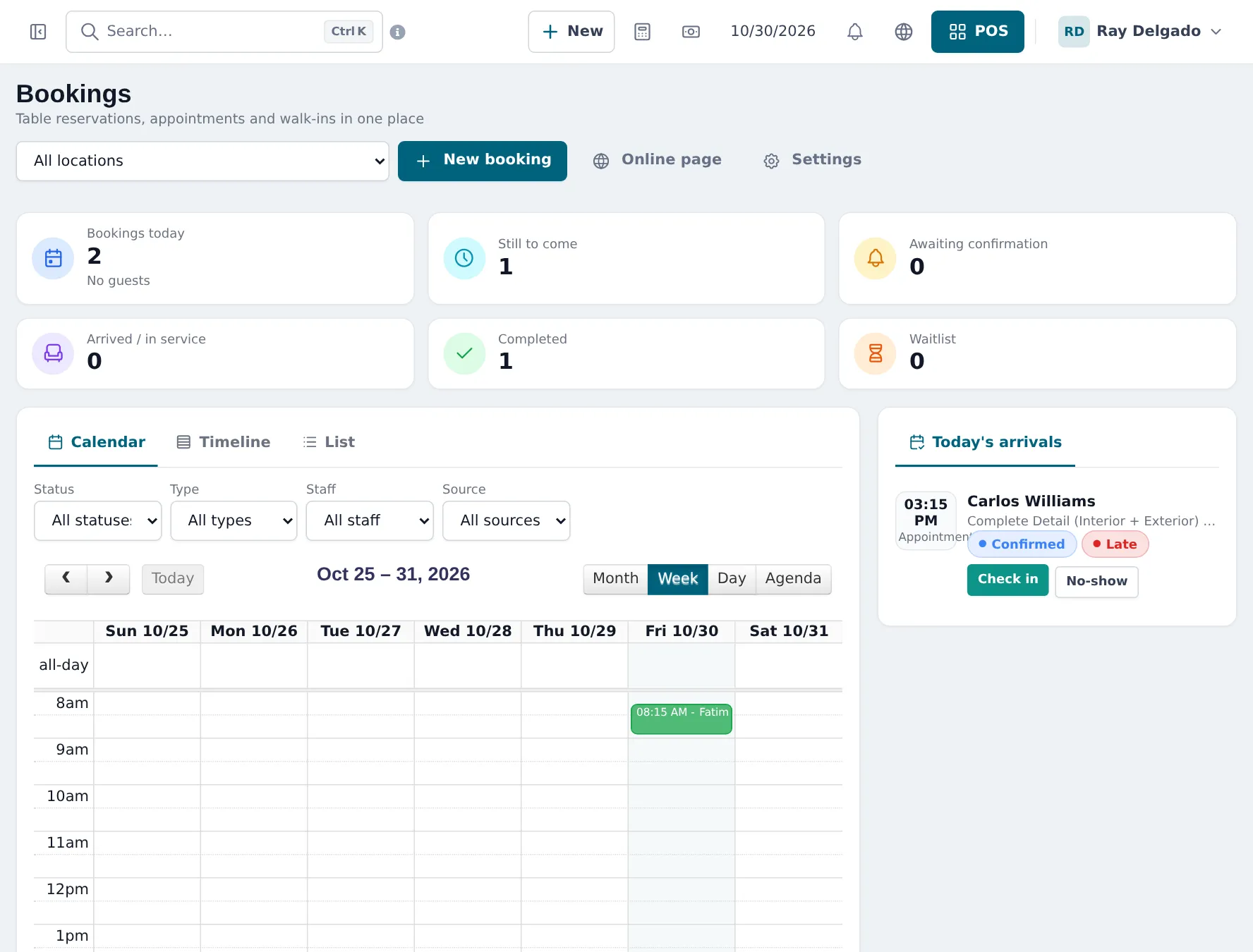
Section titled “Run today’s line”The Bookings page shows counters (Bookings today, Still to come, Awaiting confirmation, Arrived / in service, Completed, Waitlist) and Today’s arrivals with Check in and No-show buttons. Late arrivals are marked Late.
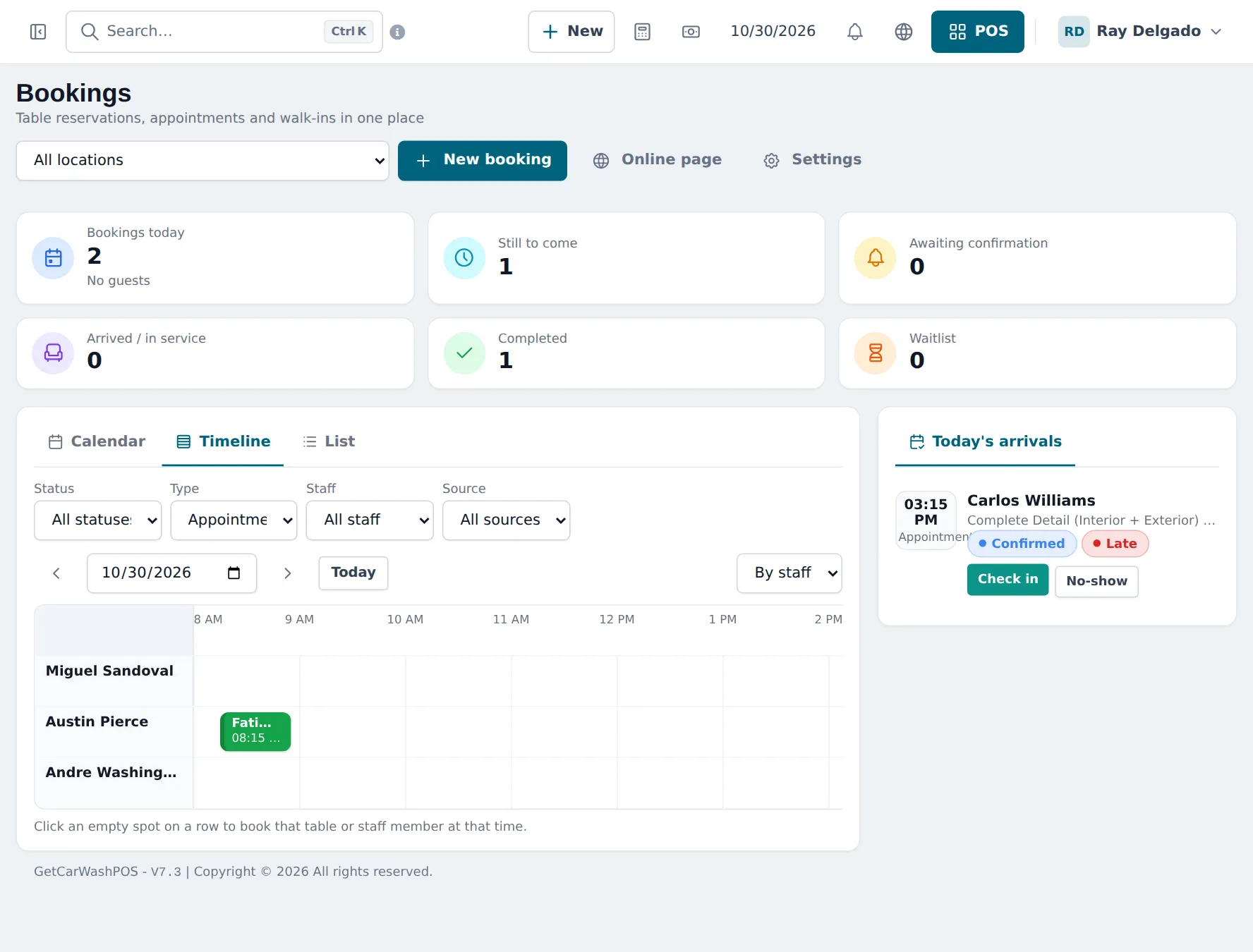
Switch to Timeline to see one row per crew member. Click an empty spot on a row to book that person at that time.
- Customer arrives: Check in. The overview moves them to Arrived / in service.
- Work starts: Start.
- Work done: Checkout opens the POS with the customer, services and crew filled in (step 5).
Tips and mistakes to avoid
Section titled “Tips and mistakes to avoid”- Put realistic durations and clean-up times on long services, or the calendar overbooks.
- Use No-show rather than cancelling; the no-show rate appears in Services reports.
- For drive-through tunnel customers, skip bookings and ring the wash straight up in the POS.
Frequently asked questions
Where do customers book online?
On your online booking page. Copy the link with Copy booking link on Services › Overview and put it on your website, Google profile and social pages.
Can I ask for a deposit when someone books a ceramic coating?
Yes. Set an Online deposit on the service, or set a payment rule under Payment to confirm in Services settings (deposit or full payment, pay now or within some hours).
How do I see the line of cars today?
Bookings shows cards for bookings today, still to come, awaiting confirmation, arrived or in service, completed and waitlist, plus Today's arrivals. The Timeline view shows one row per crew member.
What do I do when the customer arrives?
Click Check in on the booking (in Today's arrivals or on the booking itself), then Start when work begins. Mark No-show if they don't come.
Do online bookings need my approval?
Only if Confirm online bookings automatically is off. Then they arrive as Requested until someone confirms them.
Can I send reminders?
Yes. Send email reminders with Reminder (hours before) in Services settings, if e-mail is set up for your business.