
Gym step 4: members, photos and cards
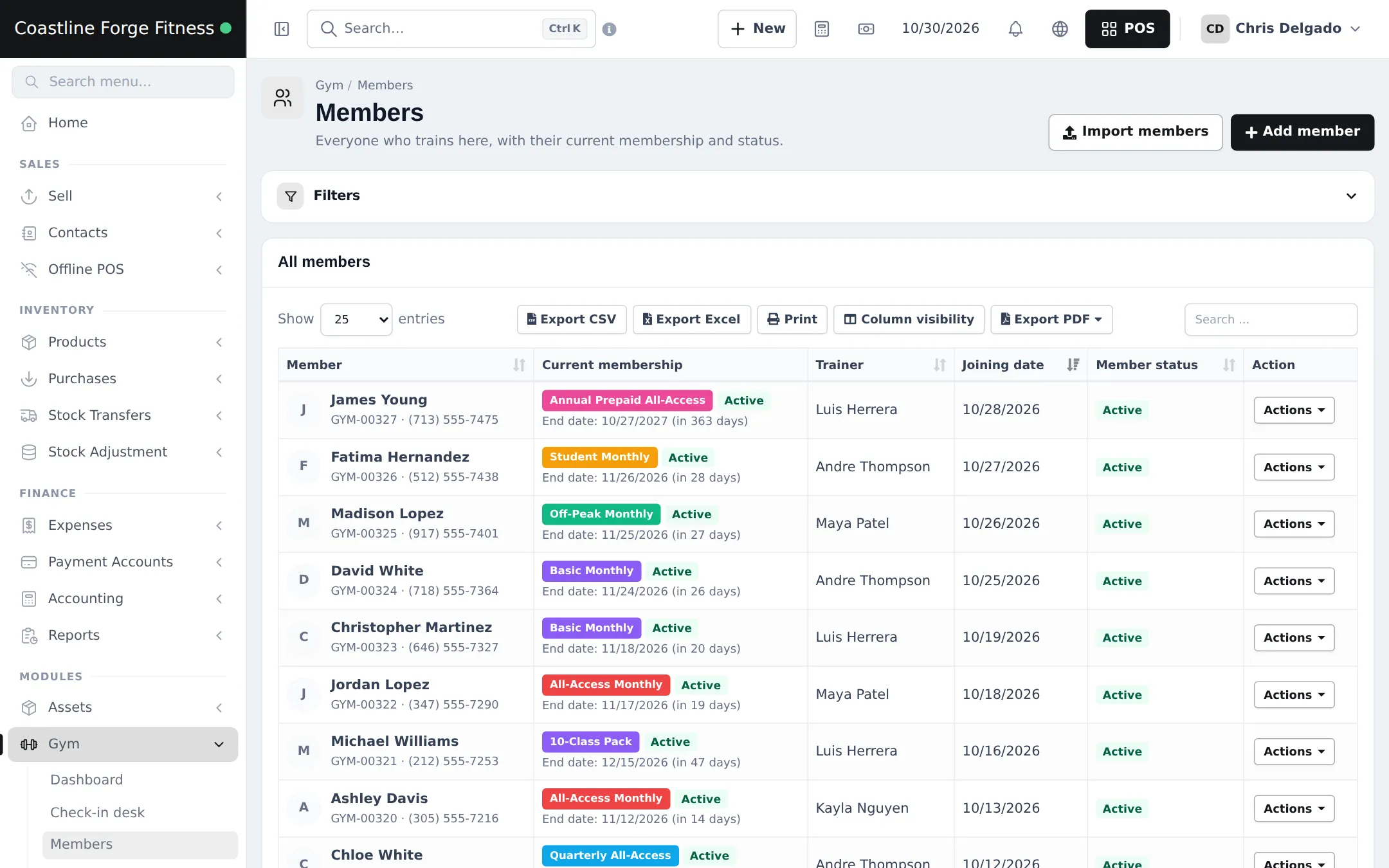
Every person who trains with you is a member: a customer contact plus a member profile with code, photo, health notes and trainer. This page adds members, imports an existing list and prints member cards for fast check-in. It is for the manager and front desk.
Add a member
Section titled “Add a member”- Open Gym › Members and click Add member.
- Under Customer, choose New customer (first name, last name, mobile, email) or Existing customer to link someone already in Contacts.
- Add a Photo with Use camera or drag one in. Leave Member code empty to generate one.
- Fill in Personal details (gender, date of birth, address, Emergency contact), Health & fitness (blood group, Height (cm), Medical conditions / injuries, Fitness goals) and Gym details (Joining date, Assigned trainer, Home location, How did they hear about us?, Member status).
- Save. Then sell the first membership from the member page with Sell membership (step 5).
Import an existing member list
Section titled “Import an existing member list”- On Gym › Members, click Import members.
- Download the template, fill in one row per member and upload it.
- Fix any rows the import reports, then sell each member their current membership with the right start date.
The member page
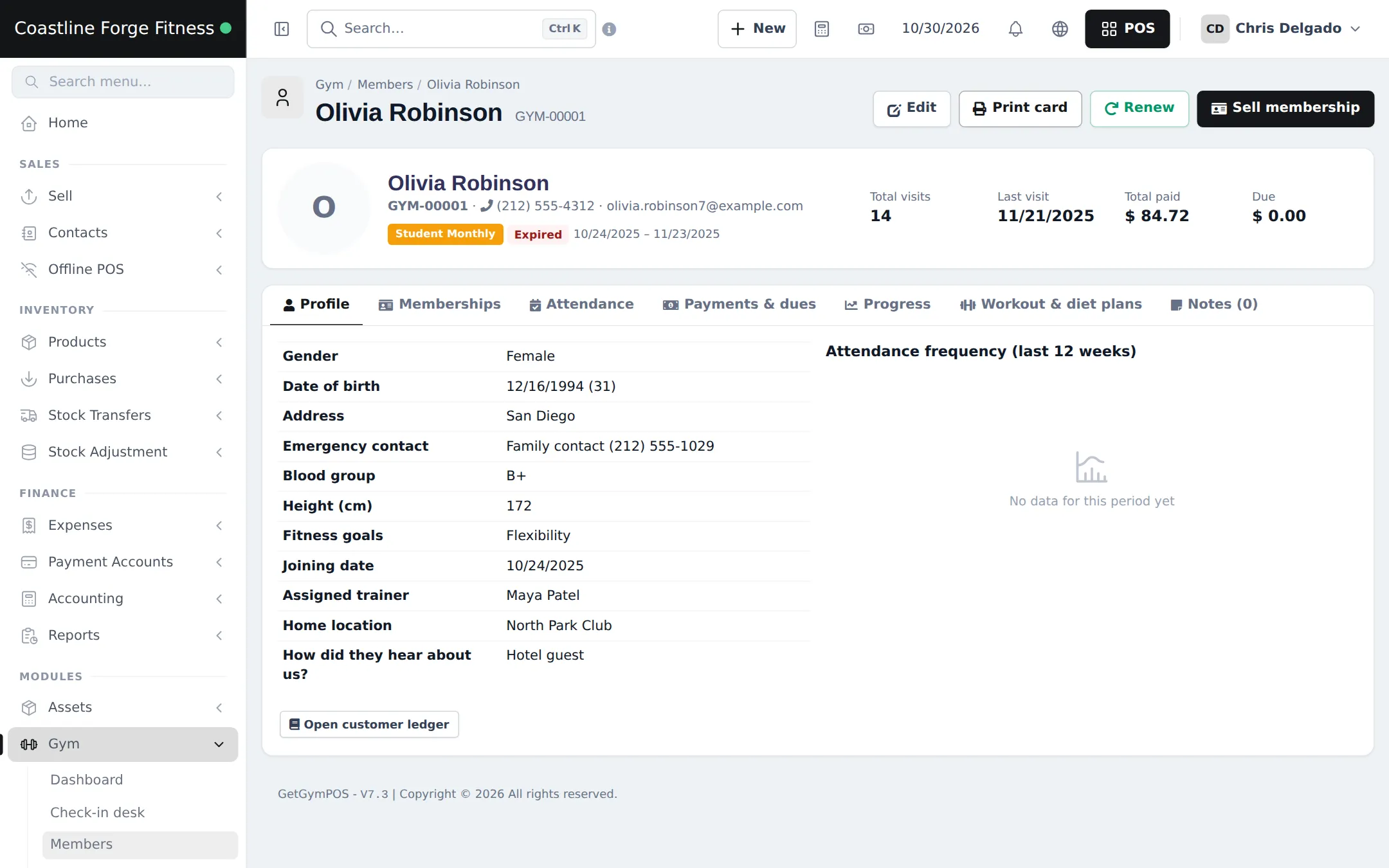
Section titled “The member page”Click a member to see the header (code, phone, plan, Total visits, Last visit, Total paid, Due) and tabs for Profile, Memberships, Attendance, Payments & dues, Progress (body measurements), Workout & diet plans and Notes. Buttons at the top: Edit, Print card, Renew and Sell membership.
Print member cards
Section titled “Print member cards”Click Print card on the member page. The card has the photo, name, code, a QR code and a barcode, so any keyboard-style scanner at the check-in desk can read it. Card colour and terms are set in Gym › Settings › Cards & receipts.
Frequently asked questions
Is a member the same as a customer?
Each member is linked to a customer contact, so their membership sales, POS purchases and payments share one ledger. Link an existing customer or create a new one when you add the member.
How do I move members from my old system?
Use Import members on Gym › Members. Download the template, fill it in and upload it. Then sell each member their current membership with the right start date.
What is the member code for?
It is printed on the member card and used at the check-in desk. Leave it empty and SmartPOS Hub generates one with your prefix, for example GYM-00327.
Can I take a photo at the front desk?
Yes. Use camera takes a photo with the computer's webcam, or drag a picture onto the photo box. The photo shows at the check-in desk and on the card.
Who sees medical notes?
Medical conditions / injuries show on the member page and at the check-in desk, so staff with member access can see them. Keep them short and factual.