
Screens & displays – customer, kitchen and TV screens
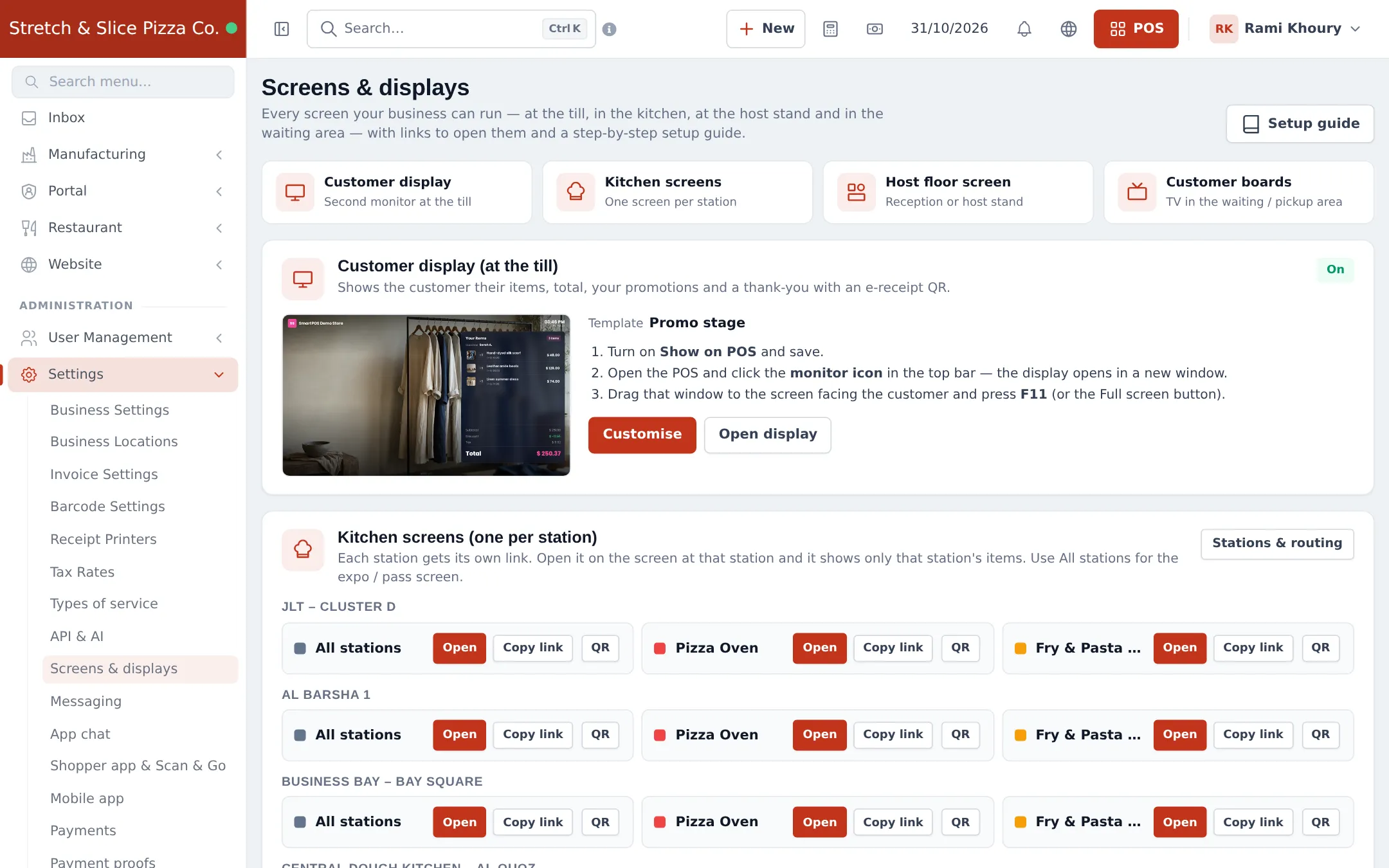
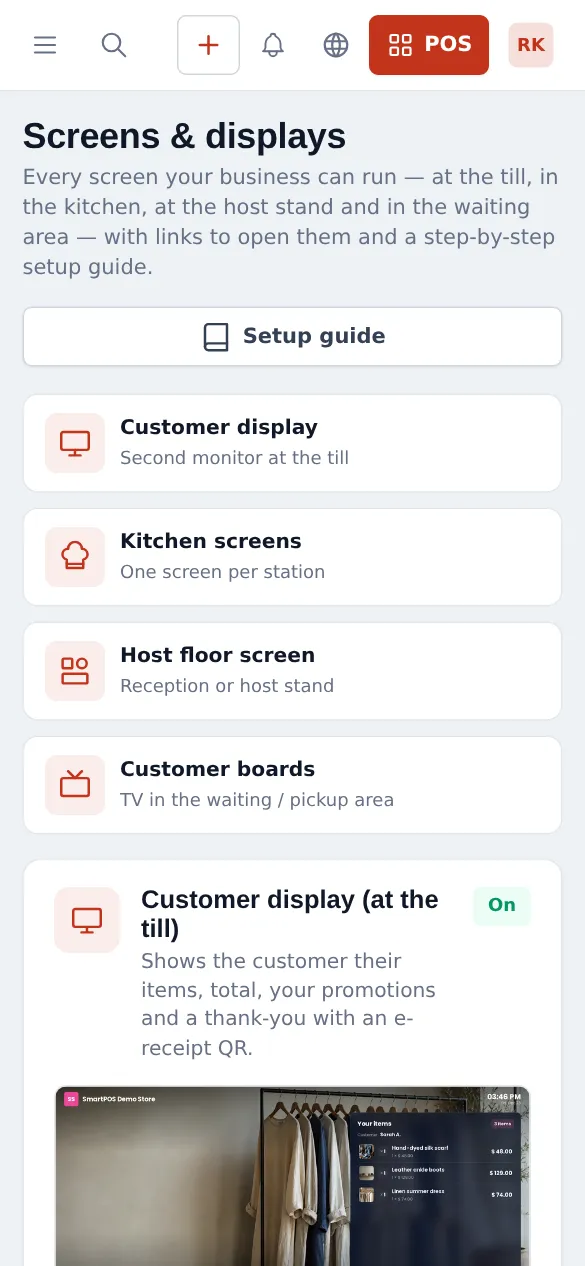
Screens & displays is one page for every screen your business can run: a customer display facing the customer at the till, a kitchen screen per station, a host floor screen for the reception stand, customer boards on a TV in the waiting area, and a hotel front desk room board. Every screen is a web page, so any computer, tablet or smart TV with a modern browser works.
What you can set up
Section titled “What you can set up”| Screen | Where it goes | What it shows |
|---|---|---|
| Customer display | Second monitor at the till | The customer’s items, total, your promotions and a thank-you with an e-receipt QR |
| Kitchen screens | One screen per kitchen station | Only that station’s items, big tickets, no menus (All stations for the expo / pass) |
| Host floor screen | Reception or host stand | The live floor plan with free, occupied and reserved tables |
| Customer boards | TV in the waiting / pickup area | Order status, Now serving or Repair collection |
| Hotel front desk | Front desk & housekeeping | A live room board per floor: vacant, occupied, arriving, departing, needs cleaning, out of order |
Only the screens your business uses are offered. For example, the Repair collection board appears only when the Repair module is on.
Before you start
Section titled “Before you start”- Your role has Access business settings.
- For kitchen screens: Kitchen is on and your stations exist in Restaurant › Restaurant settings. See Restaurant.
- For the host floor screen: Tables is on and your floor plan is drawn.
Set up the customer display
Section titled “Set up the customer display”- Connect a second monitor to the POS computer and turn it towards the customer. On Windows press Win + P and choose Extend; on a Mac choose Extended display in System Settings › Displays.
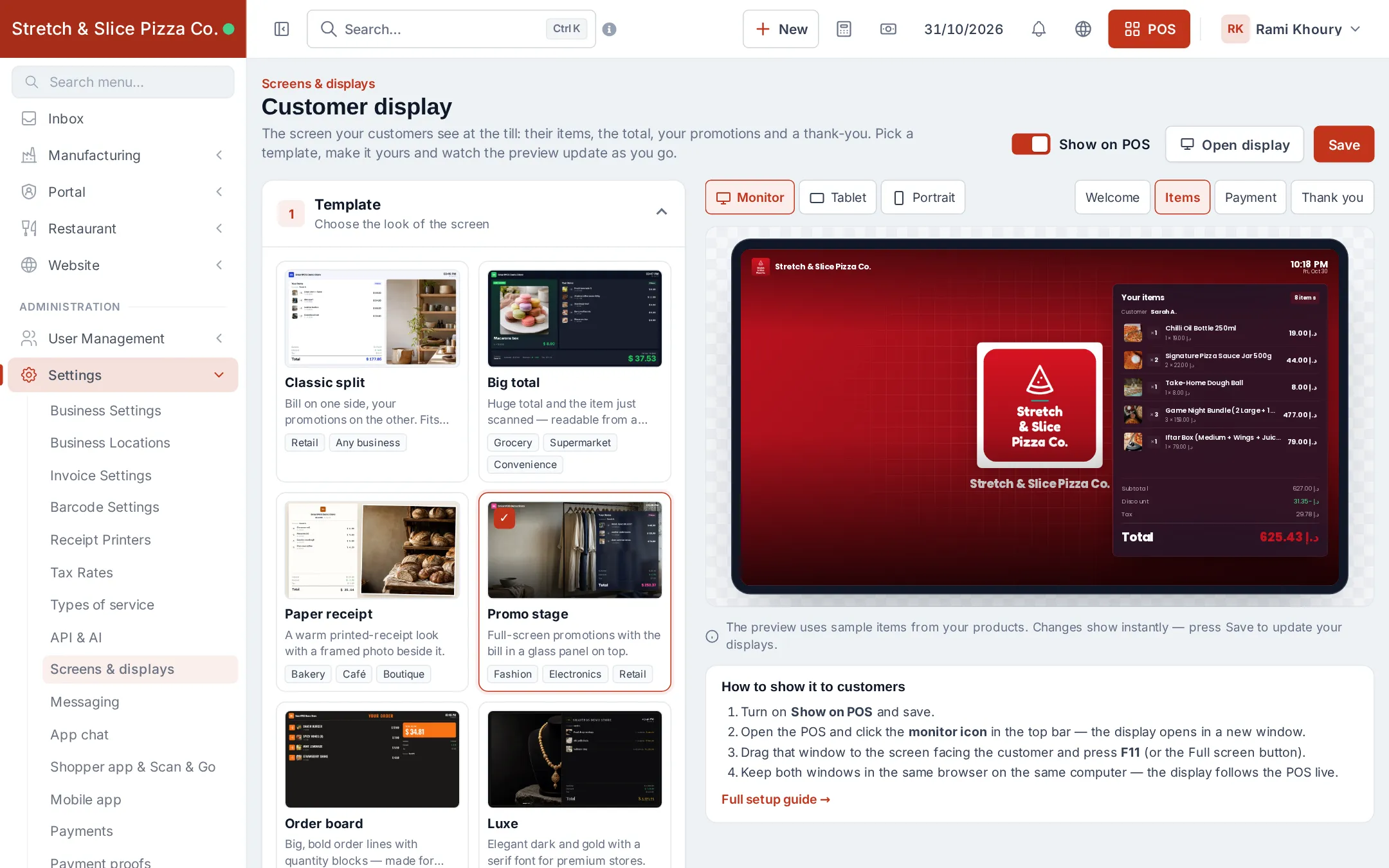
- Open Sales › Screens & displays and click Customise under Customer display.
- Under Template, pick a look: Classic split, Big total, Paper receipt, Promo stage, Order board, Luxe, Fresh market or Tablet portrait.
- Adjust Colours & text, the Welcome screen (logo, welcome title, scrolling message), Bill details, the Slideshow (images or videos shown while the till is idle), up to two QR codes (website, Google review, Wi-Fi, payment…) and the Thank-you screen. The preview on the right updates as you go.
- Turn on Show on POS and click Save.
- Open the POS and click the monitor icon in the top bar. The display opens in a new window.
- Drag that window to the customer monitor and press F11 for full screen.
Set up kitchen station screens
Section titled “Set up kitchen station screens”- Create your stations in Restaurant › Restaurant settings › Kitchen stations and tick the categories each one makes.
- Put a screen at each station: a tablet, an old laptop or a monitor with a mini PC.
- In Sales › Screens & displays, under Kitchen screens, click Open or Copy link for that station. On a tablet, tap QR and scan it with the tablet’s camera.
- Sign in on that screen with a Kitchen staff user.
- The screen opens in screen mode: only that station’s items, big tickets, no menus. Tap Tap to enable sound once so new orders beep.
- Use the All stations link on the expo / pass screen to see whole orders.
Tickets are routed automatically: a product’s own station first, then its sub-category’s, then its category’s, then the default station.
Set up a customer board on a TV
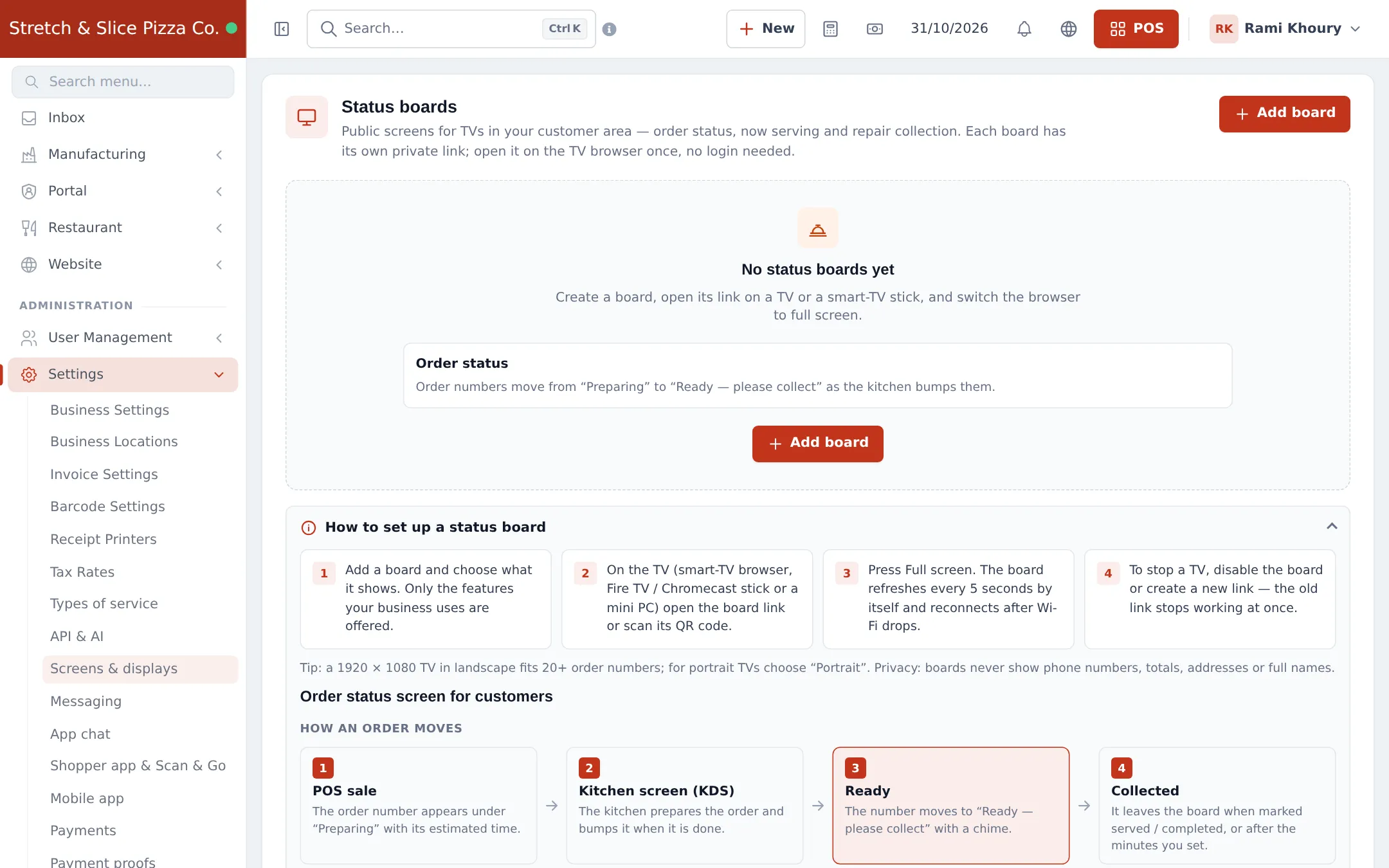
Section titled “Set up a customer board on a TV”- In Sales › Screens & displays, open Customer boards and click Add board.
- Choose what it shows: Order status (numbers move from “Preparing” to “Ready — please collect”), Now serving (who is being served and who is next from today’s bookings and walk-ins) or Repair collection (job numbers in progress and ready).
- On the TV, open its web browser (or a Fire TV / Chromecast stick or mini PC with Chrome) and open the board link, or scan its QR code.
- Press Full screen and set the TV’s sleep timer to Off. The board refreshes every 5 seconds and reconnects after Wi-Fi drops.
- To stop a TV, disable the board or click New link; the old link stops working at once.
Host floor screen and hotel room board
Section titled “Host floor screen and hotel room board”- Host floor screen: under Host floor screen, open the link for the location and area. It shows the floor plan full screen; the host can seat walk-ins and assign bookings from it.
- Hotel front desk: with the Hotel module on, open the Room board link per floor. Staff can book, check in or out and mark rooms clean from the screen. See Hotel.
Make screens start by themselves
Section titled “Make screens start by themselves”Click Setup guide on the Screens & displays page for step-by-step help: two monitors on one PC, a screen per kitchen station, using a tablet (Add to Home screen, keep the screen on), a TV in the customer area, starting automatically in kiosk mode when the PC turns on, and troubleshooting.
Permissions
Section titled “Permissions”| Permission (Roles page) | Needed for |
|---|---|
| Access business settings | Opening Sales › Screens & displays, the customer display studio and boards |
| View kitchen display | Signing in on a kitchen station screen |
| Start / advance / bump orders on the kitchen display | Moving orders on from the station screen |
| View tables & floor plan | Using the host floor screen |
Customer boards need no sign-in; the secret link is the key.
Tips and mistakes to avoid
Section titled “Tips and mistakes to avoid”- Turn off battery saver for the browser on tablets, or the screen stops refreshing in the background.
- Keep links private. A board link works without a password. Rotate it with New link if it leaks.
- Use Portrait templates and boards for screens turned on their side.
- Videos in the slideshow start muted; sound needs one tap or the kiosk autoplay option.
Related pages
Section titled “Related pages”Frequently asked questions
What hardware do I need for a customer display?
Any second monitor connected to the POS computer, set to Extend. The display is a web page, so any computer, tablet or smart TV with a modern browser (Chrome, Edge, Safari) works.
Why does the customer display stay blank?
The display reads the POS from the same browser. Open it from the monitor icon in the POS top bar, use the same browser profile for both windows, keep the POS tab open, and make sure Show on POS is on.
Do TV boards need a login?
No. Each board has its own secret link, so only open it on your own TVs. If a link is shared by mistake, click New link and the old one stops working at once.
Do boards show customer phone numbers or amounts?
No. Boards only show order numbers, first names with an initial, or job numbers - never phone numbers, totals or addresses.
Why is there no sound on the kitchen screen or board?
Browsers only allow sound after someone taps the screen once. Tap Tap to enable sound, or start the browser in kiosk mode with the autoplay option from the setup guide.
Can one computer drive several kitchen station screens?
Yes. Open each station link in its own window, drag each window to its monitor and press F11. Each window remembers its station.
Which businesses use these screens?
The customer display suits any shop with a till. Kitchen, host floor and order-status screens are for restaurants and cafés, the Now serving board for salons and other booking businesses, the Repair collection board for repair shops, and the room board for hotels.