
Hotel step 4: policies, house rules and deposits
Clear rules avoid arguments at the desk. In this step you fill in Policies & house rules (times, smoking, pets, children, parties, cancellation) and decide how much a guest must pay before a booking counts as confirmed.
Before you start
Section titled “Before you start”- Hotel settings are saved (step 1).
- Your role has Hotel: settings.
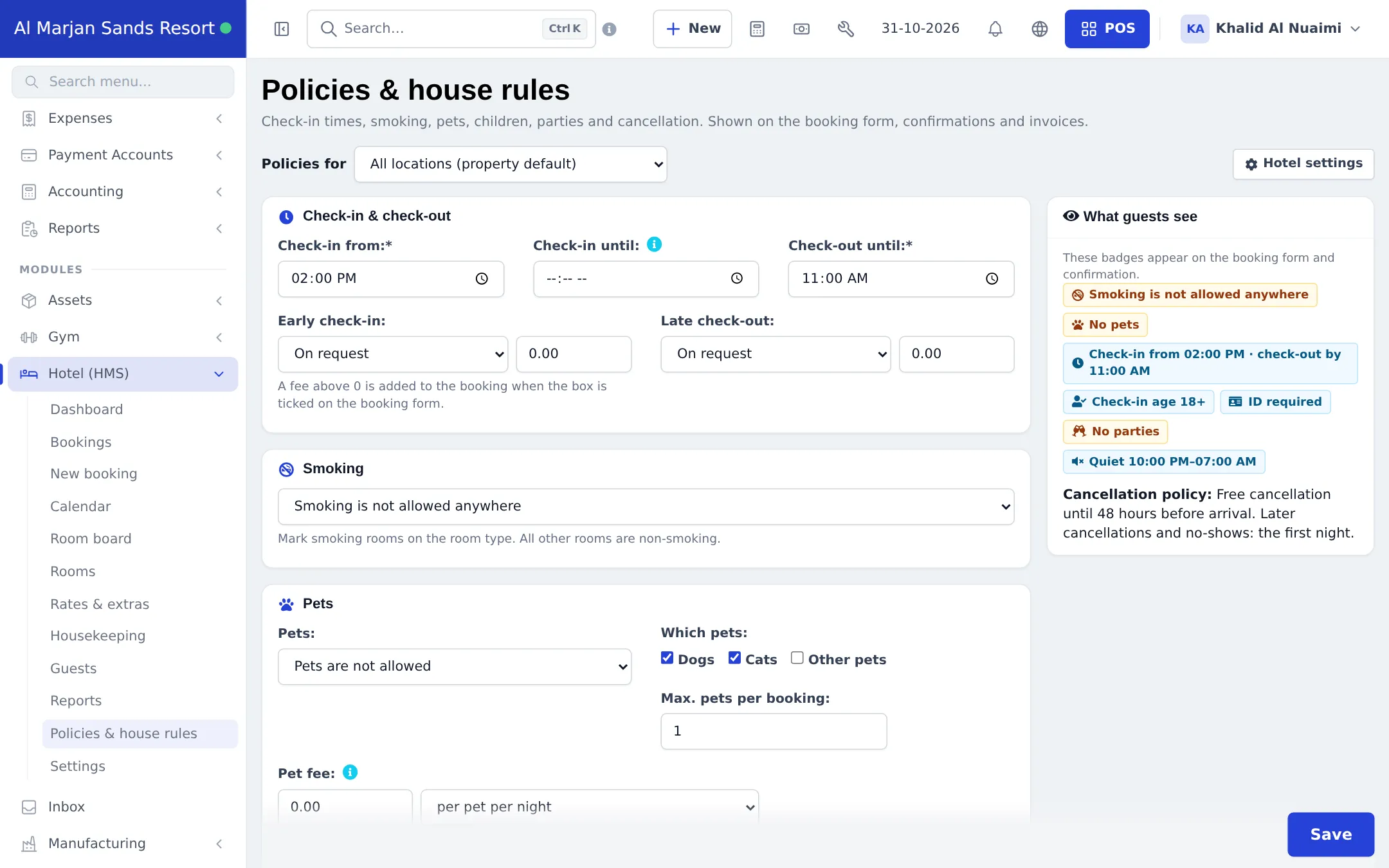
Fill in policies and house rules
Section titled “Fill in policies and house rules”- Open Hotel (HMS) › Policies & house rules.
- Under Policies for, keep All locations (property default) or pick one location to override.
- Check-in & check-out: set Check-in from, Check-in until and Check-out until, and whether Early check-in and Late check-out are Not possible, On request or Possible, with an optional fee.
- Smoking: not allowed anywhere, only in designated areas, or allowed in smoking rooms.
- Pets: allowed, not allowed or on request; which pets, maximum per booking and the Pet fee per night or per stay.
- Children, beds & ID: whether children are welcome, the minimum check-in age and whether photo ID is required.
- House rules: parties and events, quiet hours, other rules and accessibility notes.
- Deposit & cancellation: the prepayment note, free cancellation until so many hours or days before arrival, and what you charge after that (the first night, a percentage or nothing).
- Check the What guests see panel and click Save.
Require a deposit before confirming
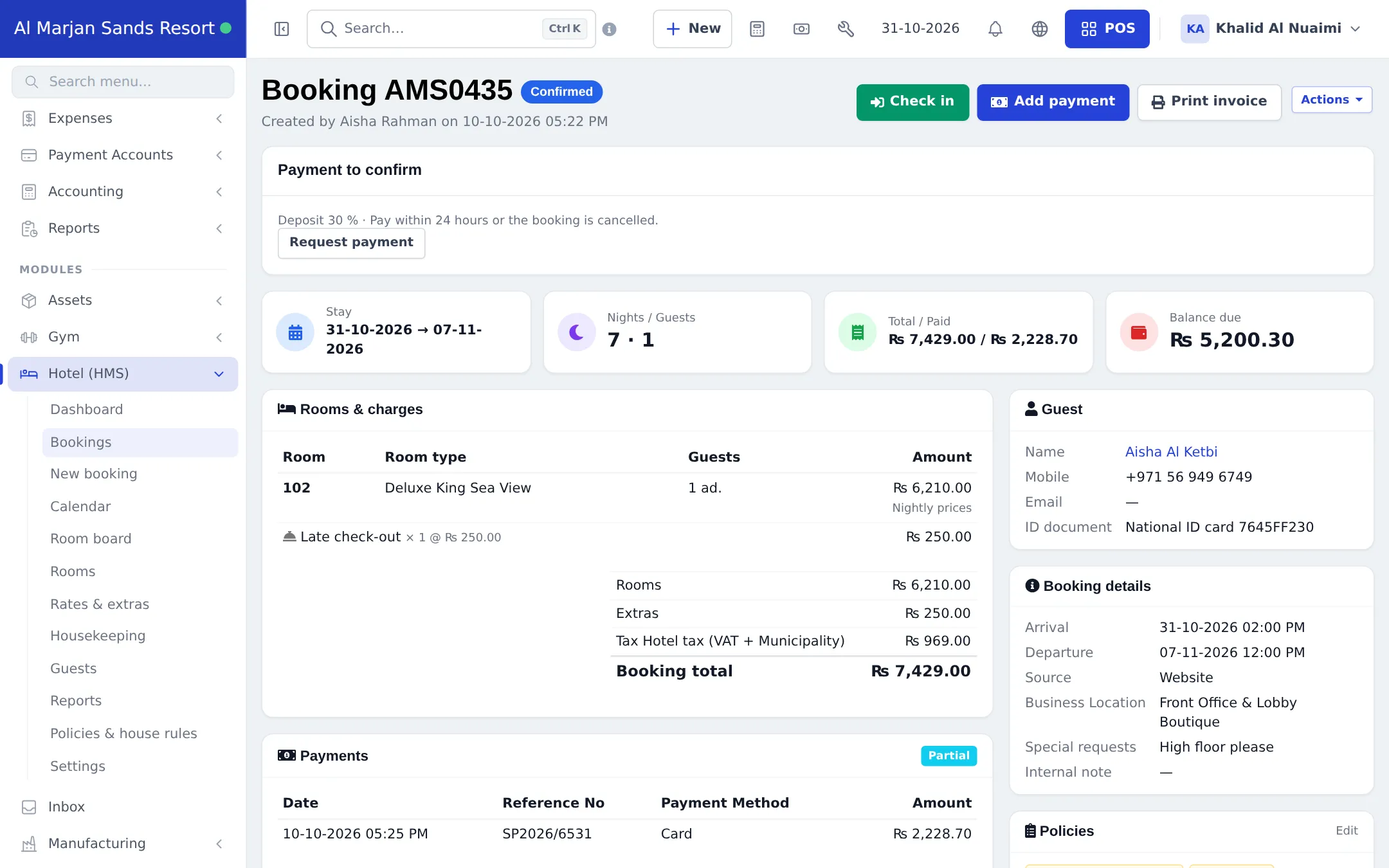
Section titled “Require a deposit before confirming”The simplest rule lives in Hotel (HMS) › Settings › Booking rules: Deposit required to confirm (for example 30 %). A pending booking can’t be confirmed until that share is paid; the booking page warns staff when it hasn’t been.
Ask online guests to pay to confirm
Section titled “Ask online guests to pay to confirm”- Open Hotel (HMS) › Settings and scroll to Payment to confirm — Hotel stay.
- Set Payment required to Deposit or Full payment. For a deposit, pick Percentage of the total or Fixed amount and enter the value.
- Under When it is due, choose Pay now to confirm or Pay within a number of hours and enter the hours.
- Tick the Allowed payment methods (none ticked = every method attached to this channel in Settings › Payments).
- Write the refund and cancellation policy guests see, and click Save. Use Different rule for a location if one property needs its own rule.
Bookings that wait for money appear in Settings › Booking payments and on the booking itself under Payment to confirm, with a Request payment button.
Tips and mistakes to avoid
Section titled “Tips and mistakes to avoid”- Keep the cancellation text short and match it to the numbers you enter; guests read the text, staff apply the numbers.
- If you take deposits by bank transfer, check uploaded receipts under Settings › Payment proofs every morning.
- More detail: Booking payments.
Next step
Section titled “Next step”Frequently asked questions
Where do guests see my policies?
The badges and cancellation text appear on the booking form, the printed confirmation and the invoice. The What guests see panel shows exactly how they read.
Can each location have its own policies?
Yes. Choose a location under Policies for. If you leave a location on the property default, it uses All locations.
How do I charge a pet fee?
Set Pets to allowed or on request, choose which pets, the maximum per booking, and enter a Pet fee per pet per night or per pet per stay. Service animals are always welcome free of charge.
What is the difference between the deposit % and Payment to confirm?
Deposit required to confirm (Booking rules) stops staff from confirming a pending booking until that share is paid. Payment to confirm (Booking payments) asks guests who request a stay online to pay by a deadline, or the request expires.
Which payment methods can guests use for a deposit?
The methods attached to the booking channel in Settings › Payments, such as card or bank transfer with a receipt upload. Tick only the ones you want under Allowed payment methods.