
Count your stock with the SmartPOS Business app
A stock count (stocktake) checks what is really on your shelves against what SmartPOS Hub expects, and fixes the difference in one step. Counting is done in the SmartPOS Business app: staff scan each item with the phone camera or a scanner, even without internet, and a manager reviews the result before stock changes.
Before you start
Section titled “Before you start”- The SmartPOS Business app is installed and you are signed in (see Install and sign in).
- Your role can adjust stock. To add extra (found) stock, it also needs the opening stock permission.
- Pick a quiet time if you can. Selling during a count is allowed, but fewer movements make the review easier.
How it works
Section titled “How it works”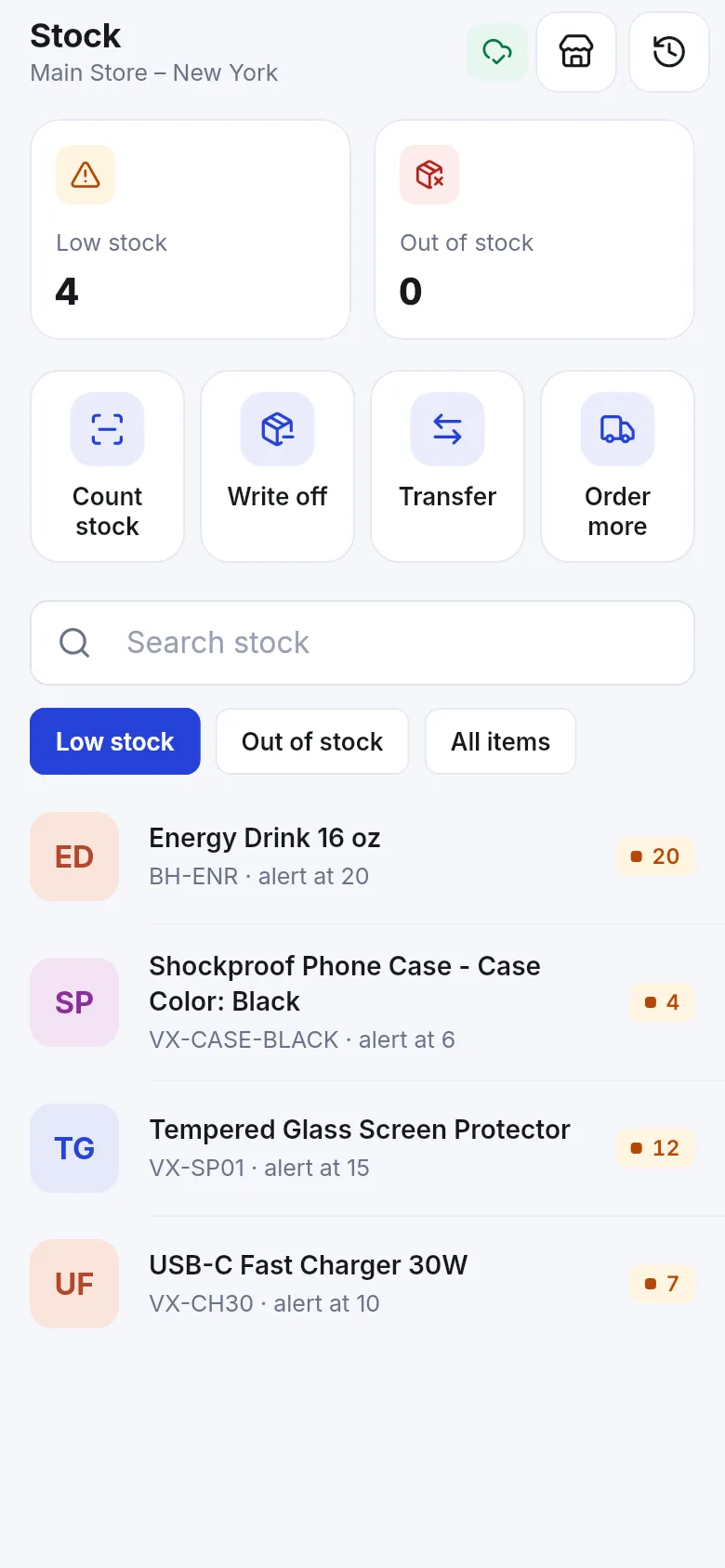
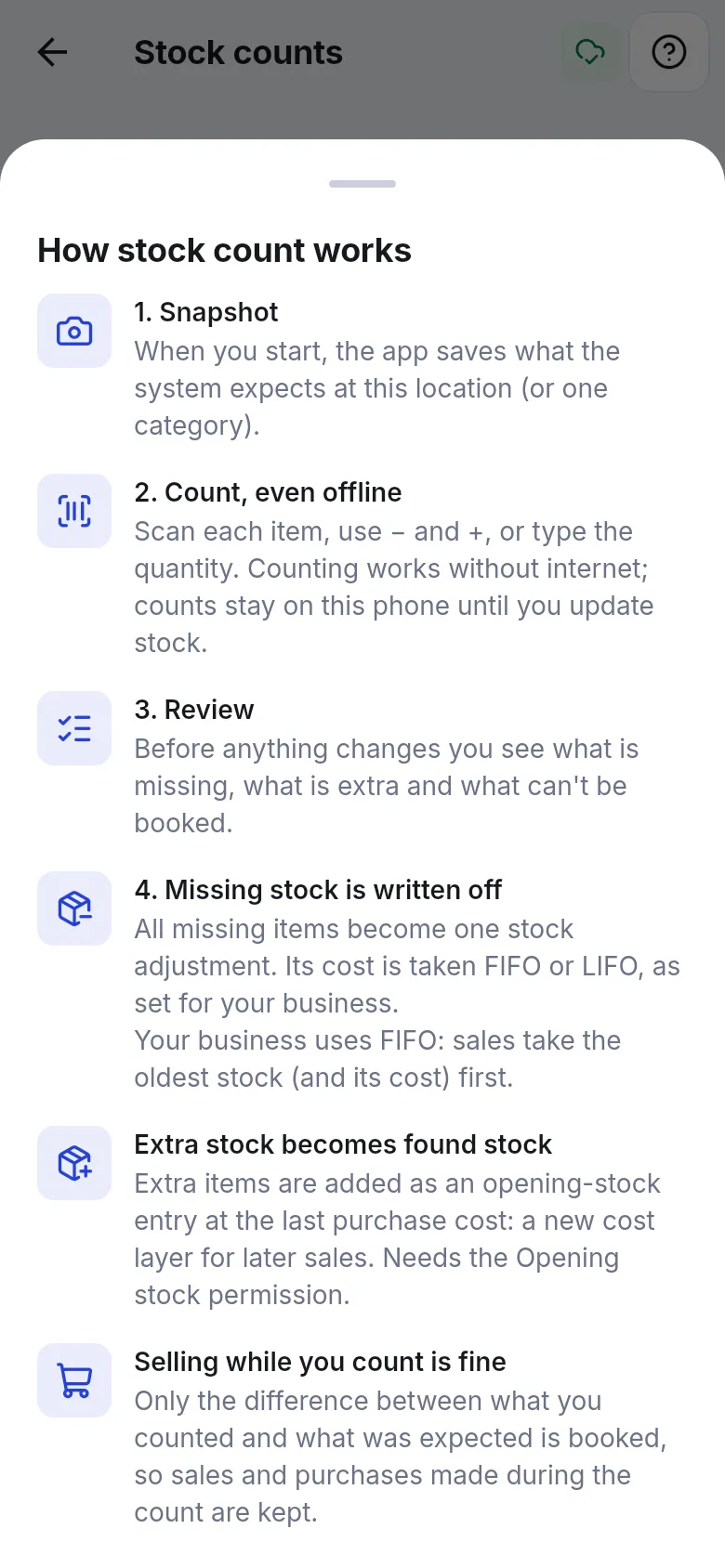
- Snapshot. When you start, the app saves what the system expects at this location (or one category).
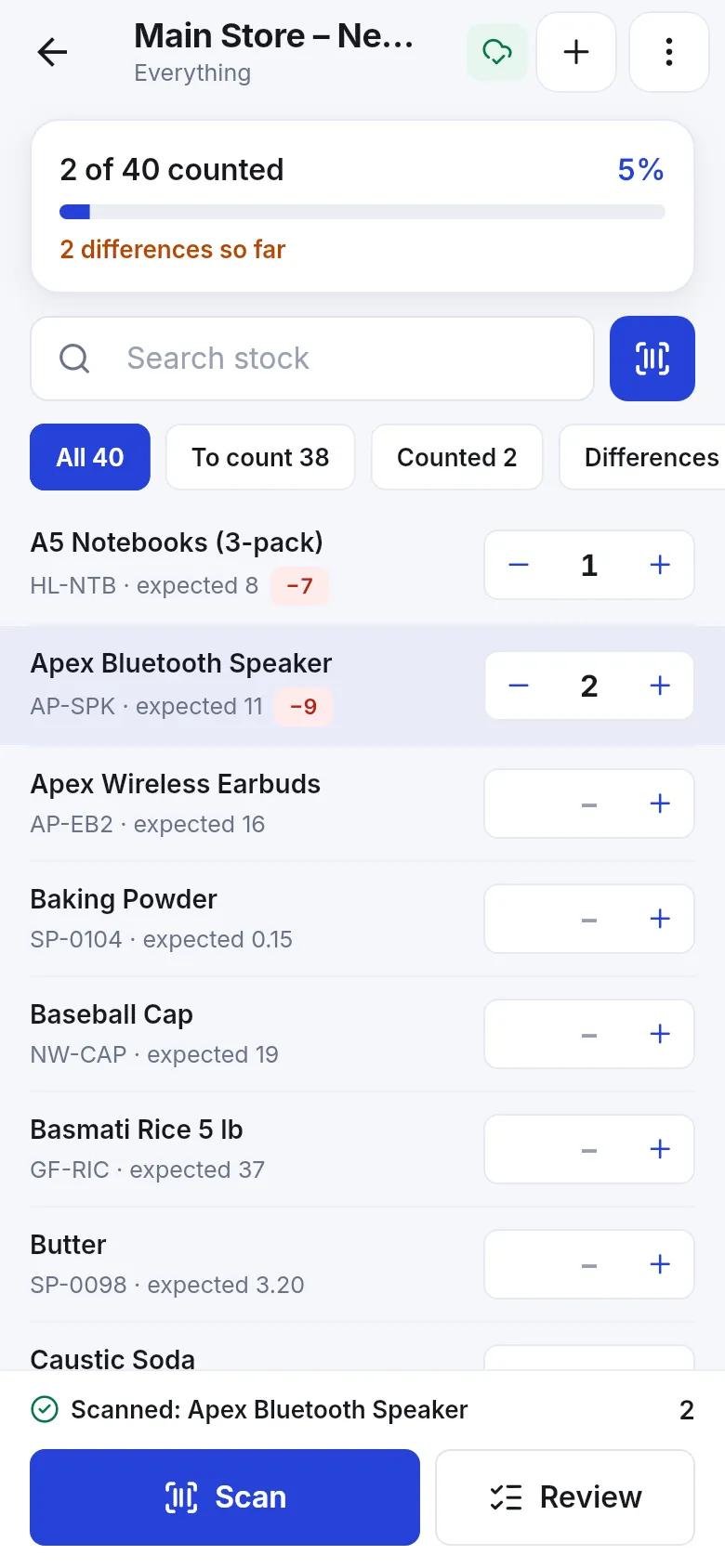
- Count, even offline. Scan each item, use – and +, or type the quantity.
- Review. Before anything changes you see what is missing and what is extra.
- Update stock. Missing stock is written off; extra stock becomes found stock.
Run a count
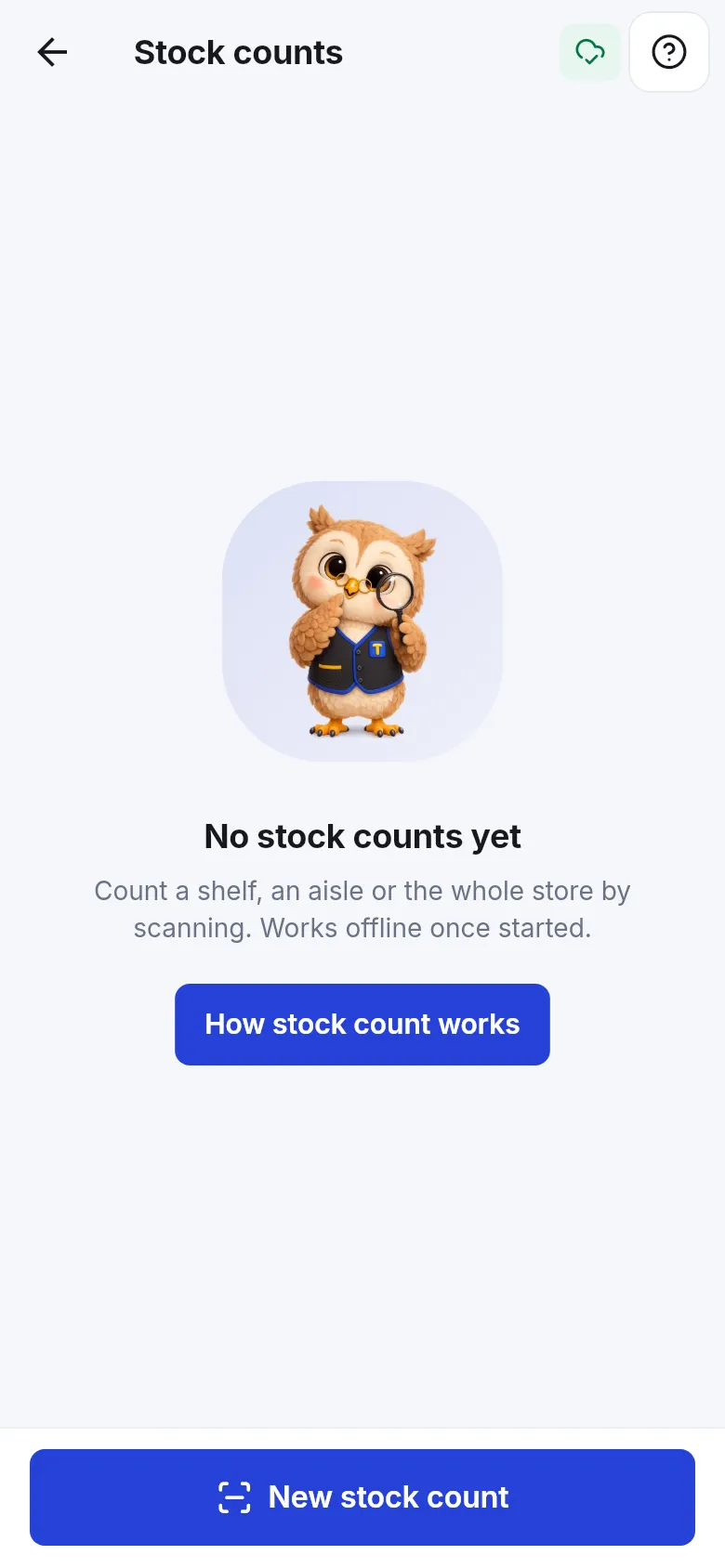
Section titled “Run a count”- In the app, open Stock and tap Count stock. The Stock counts list opens.
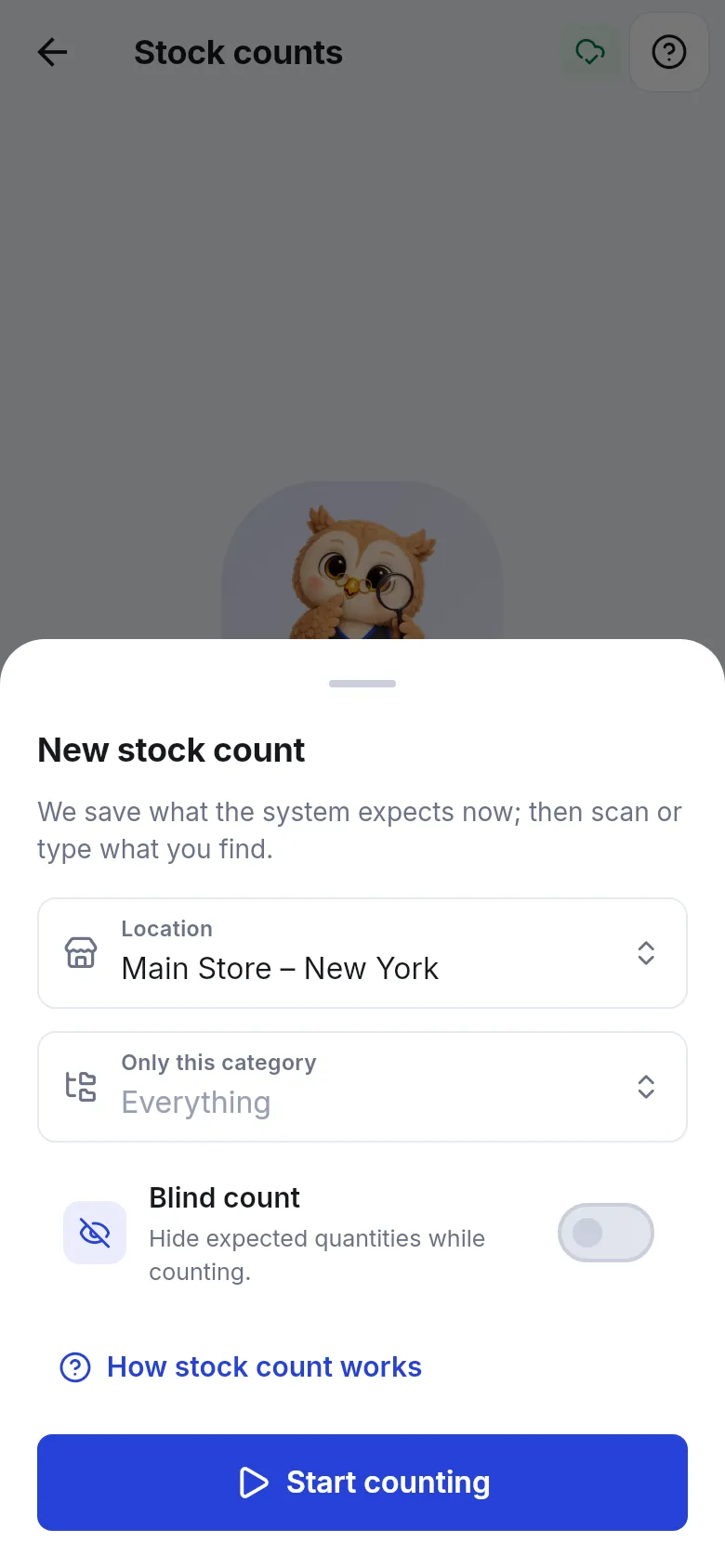
- Tap New stock count. Choose the Location and, to count only part of the store, Only this category.
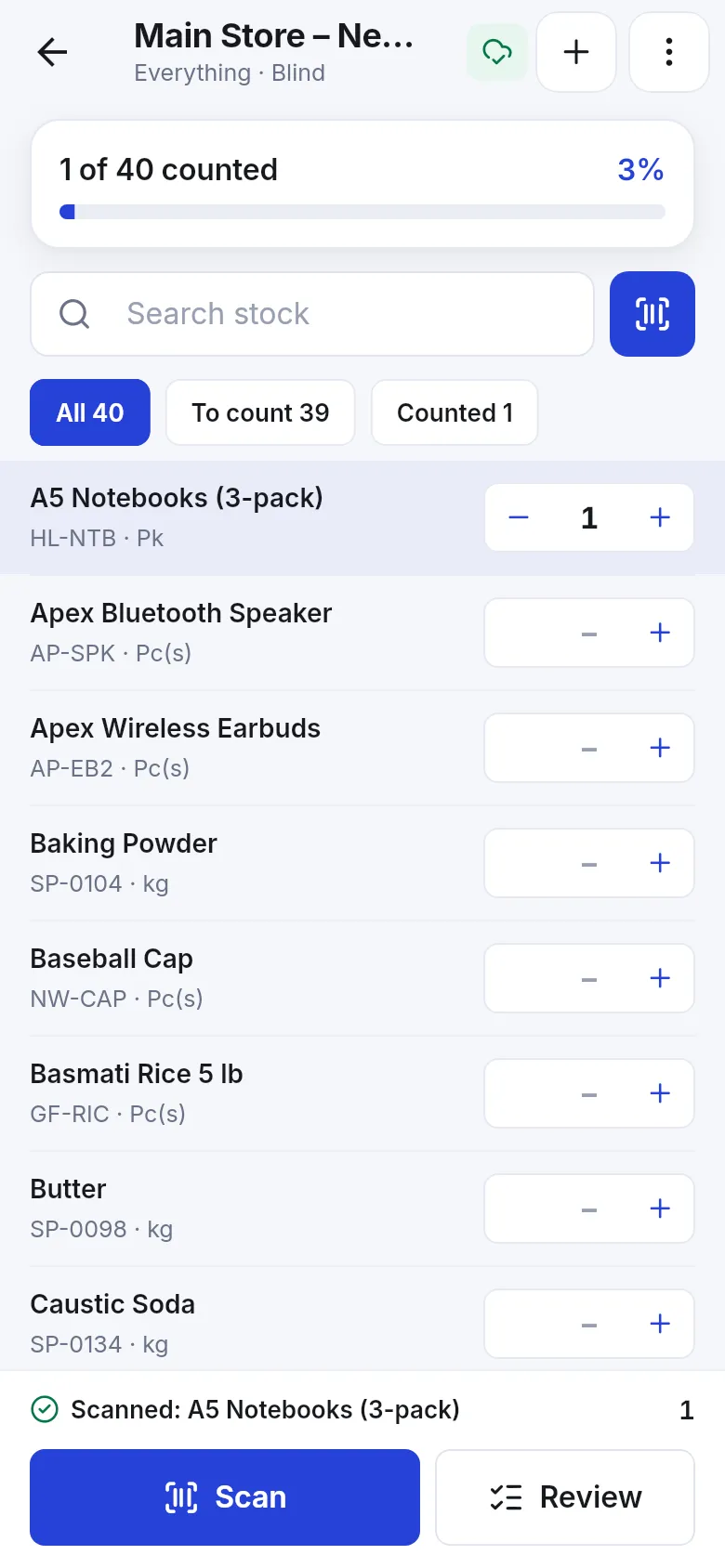
- Optional: turn on Blind count to hide expected quantities while counting.
- Tap Start counting. You need a connection for this step only.
- Scan each item with Scan, or search the list and use – / +. The bar at the top shows how many items are counted and how many differences there are so far. Filter by To count, Counted or Differences.
- When the area is done, tap Review.
Review and update stock
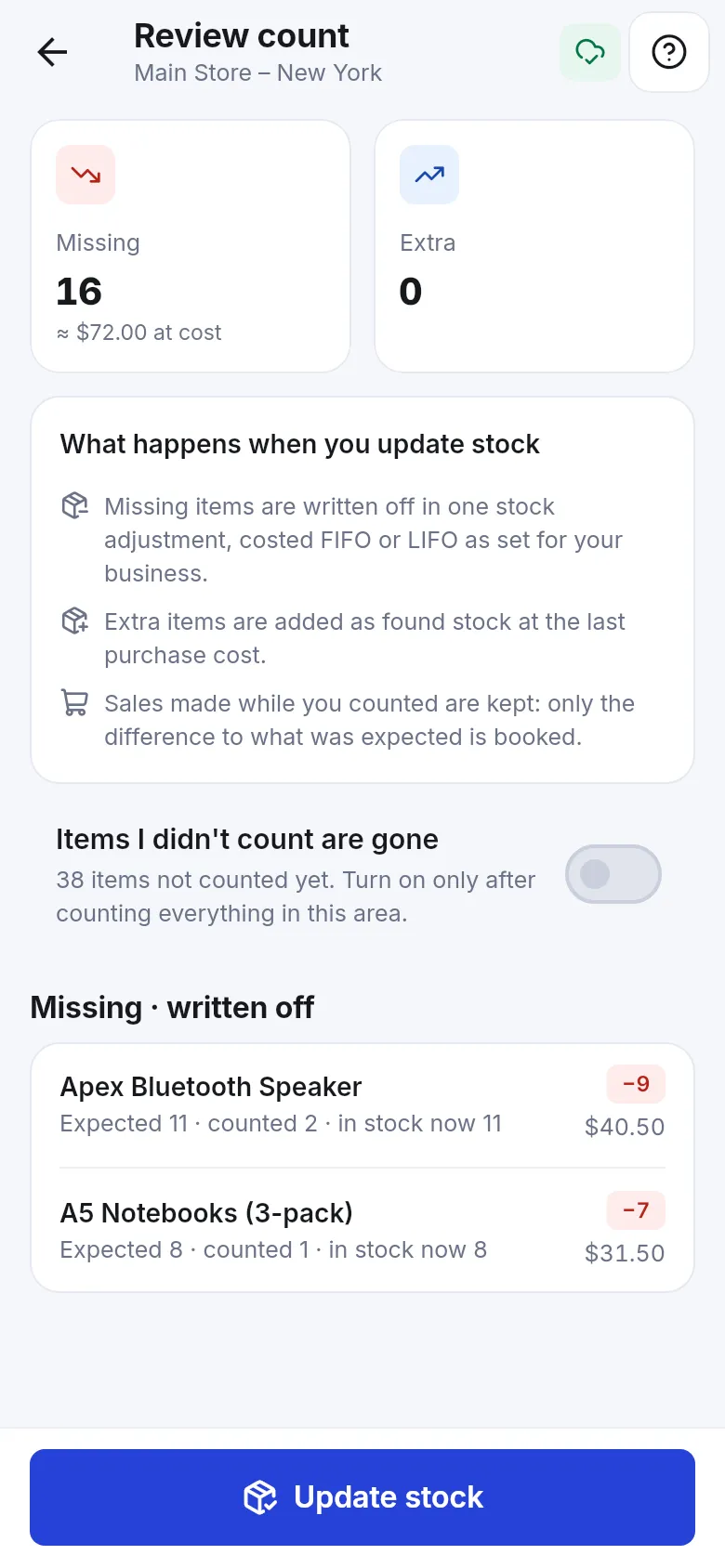
Section titled “Review and update stock”The Review count screen shows Missing and Extra with their value at cost, and explains what will happen. Check the lists, then:
- Leave Items I didn’t count are gone off unless you really counted everything in this area. When on, every uncounted item is treated as zero.
- Tap Update stock and confirm Update stock with this count?
What happens after you update stock
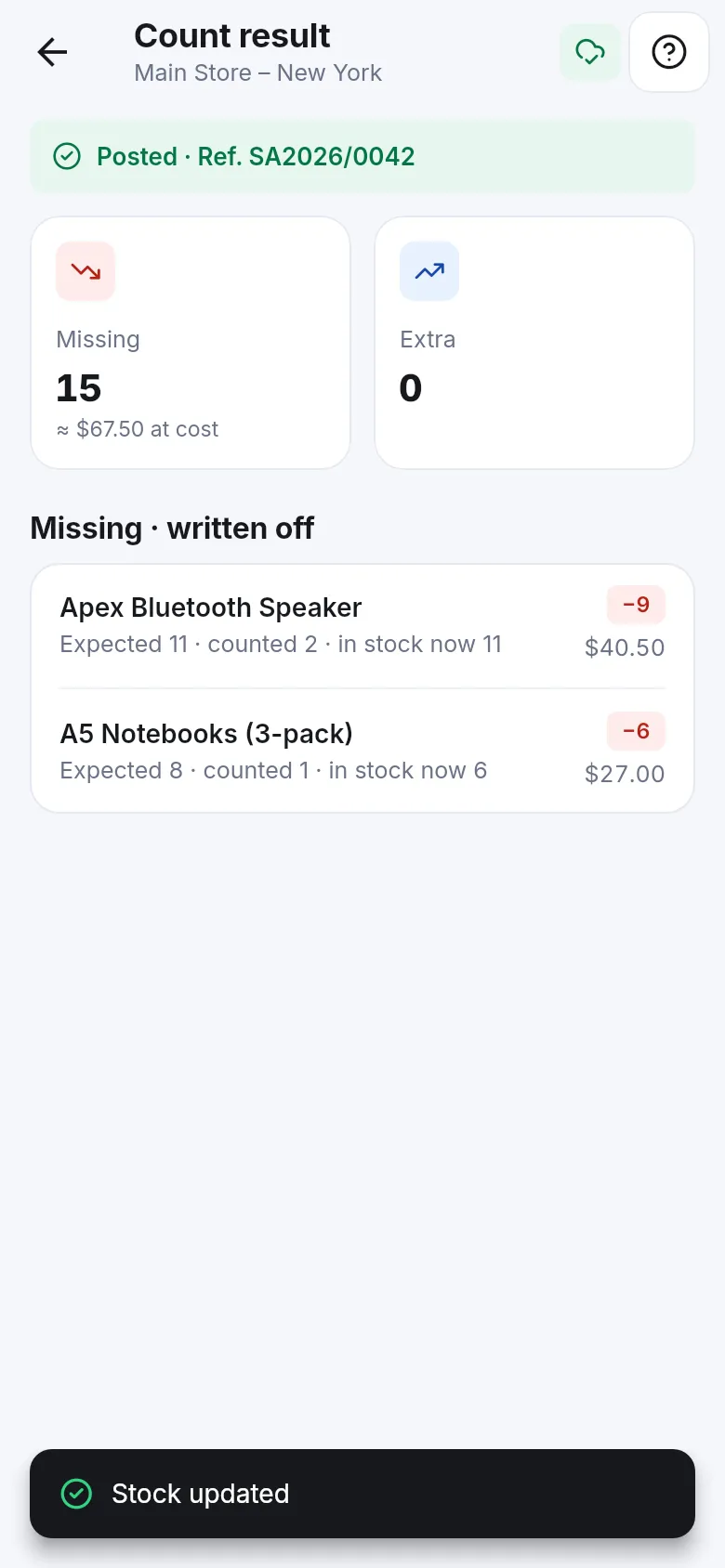
Section titled “What happens after you update stock”- Missing items are written off in one stock adjustment (reference like SA2026/0042), costed FIFO or LIFO as set for your business. You find it on the web in Stock Adjustment › List Stock Adjustments.
- Extra items are added as found stock at the last purchase cost.
- Sales made while you counted are kept: only the difference from the snapshot is booked.
- The count moves from In progress to Posted in the Stock counts list.
Tips and mistakes to avoid
Section titled “Tips and mistakes to avoid”- Count one aisle or category at a time with Only this category; it is faster to review and less likely to miss shelves.
- Use Blind count for staff counts and spot checks; it gives more honest results.
- Deleting an unfinished count only removes the counted quantities on the phone. Nothing changes in stock.
- To check stock batch by batch (lot numbers and expiry dates), use the Lot Report described in Expiry and batches.
Related pages
Section titled “Related pages”Frequently asked questions
Where do I do a stock count?
In the SmartPOS Business app, under Stock › Count stock. The web back office has no separate stock-count screen; there you correct stock with Stock Adjustment and opening stock.
Does counting work without internet?
Yes. You need a connection only to start the count, because the app loads what the system expects. Counting itself works offline, and counts stay on the phone until you update stock.
Can I keep selling while we count?
Yes. When you update stock, only the difference between what you counted and what was expected at the start is booked, so sales and purchases made during the count are kept.
What is a blind count?
A count where the expected quantities are hidden from the person counting, so they count what is really on the shelf instead of confirming the number on screen.
What happens to missing and extra items?
Missing items are written off in one stock adjustment, costed FIFO or LIFO as set for your business. Extra items are added as found stock at the last purchase cost.
Can I count only one shelf or category?
Yes. When you start a new count, pick the location and, under Only this category, the category you want to count.
What does Items I didn't count are gone do?
It treats every item you did not count as zero and writes it off. Turn it on only after you have counted everything in that location or category.