
Integrations - connect stores, tax, couriers, SMS and e-mail
Settings › Integrations is the one place to connect SmartPOS Hub to other services. Each card is a category with its available providers; each connection has a test (sandbox) key and a live key, Test connection, logs, webhooks and sync history.
Categories
Section titled “Categories”| Category | Providers | Guide |
|---|---|---|
| E-commerce | WooCommerce, Shopify | E-commerce sync |
| Tax authority | FBR Digital Invoicing (Pakistan) | Tax authority (FBR) |
| Couriers | TCS, Leopards, M&P, Pakistan Post, Flaship, Kourify, Run Courier | Shipping & delivery |
| SMS | Twilio, Vonage, Infobip, Plivo, SendPK, LifetimeSMS | Messaging |
| Mailgun, Resend, own SMTP | Messaging | |
| Telephony | SmartPOS Connect (your phone) | Connect |
| Payments | Opens Settings › Payments | Payments hub |
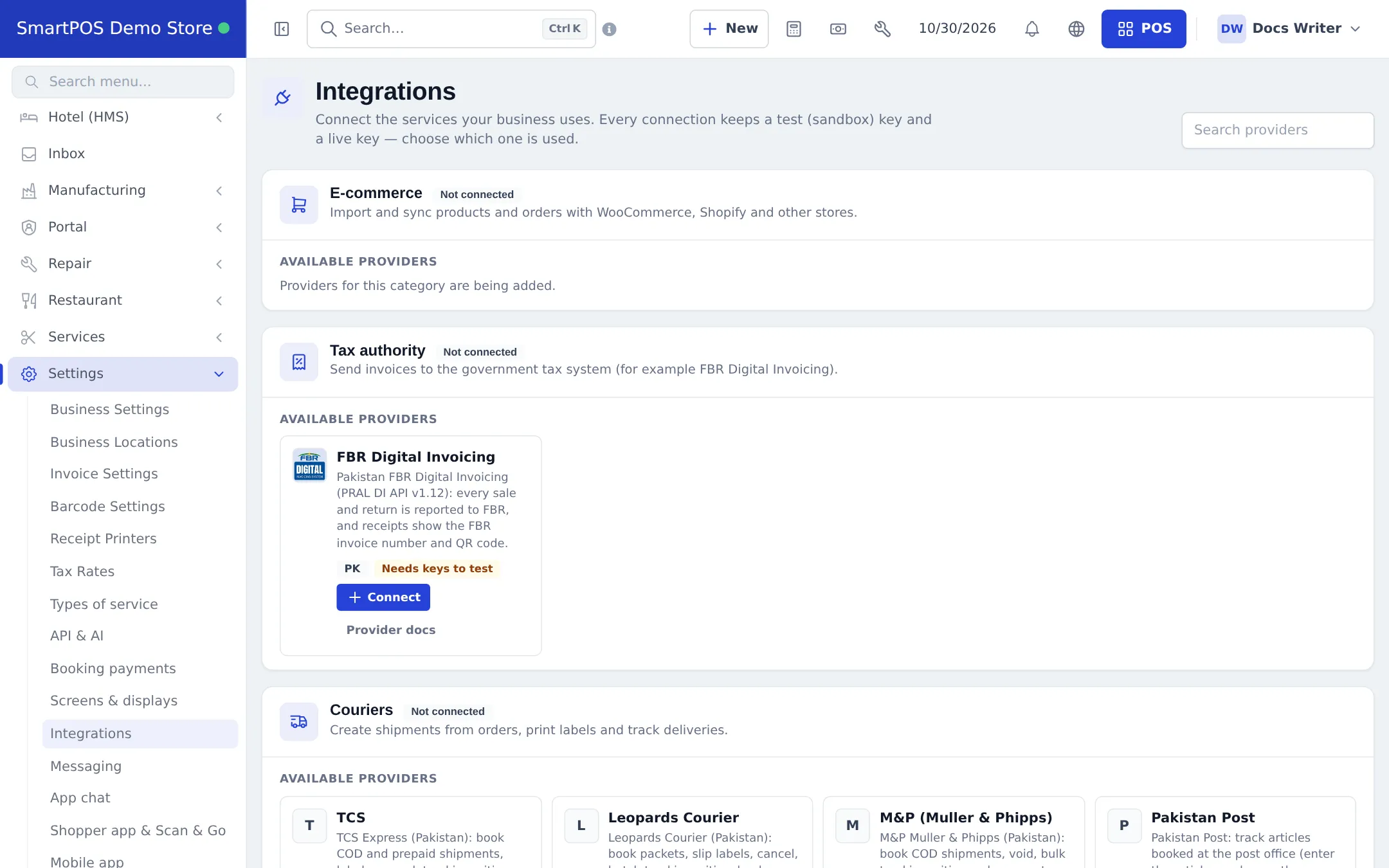
Connect a provider
Section titled “Connect a provider”- Switch on Integrations in Settings › Business Settings › Modules (and the related module, such as Shipping or Tax authority).
- Open Settings › Integrations, find the provider and press Connect.
- Enter the sandbox and/or live credentials from the provider’s dashboard and choose the mode.
- Press Test connection.
- If the provider sends updates, copy the webhook URL from the Set up box into the provider’s dashboard.
- Use Make default when you have several providers of the same kind.
Related pages
Section titled “Related pages”Frequently asked questions
What can I connect in Settings › Integrations?
E-commerce stores (WooCommerce, Shopify), the tax authority (FBR Digital Invoicing), couriers (TCS, Leopards, M&P, Pakistan Post, Flaship, Kourify, Run Courier), SMS providers, e-mail providers, telephony through SmartPOS Connect, and a link to Settings › Payments for payment gateways.
What are sandbox and live keys?
Each connection keeps a test (sandbox) key set and a live key set, and you choose which is active. Test first, then switch to live.
What does Needs keys to test mean?
The connector is new and is waiting to be checked with real keys. Use sandbox mode and test carefully before relying on it.
Where do I paste a provider's webhook address?
The connection page shows a Set up box with the exact webhook URL to copy and where to paste it in the provider's dashboard.
Are my API keys visible after saving?
No. Secrets are stored encrypted and shown masked. Leave a field empty to keep the saved value.
Why don't I see WooCommerce or Shopify?
E-commerce sync is its own switch: Settings › Business Settings › Modules › E-commerce sync, and your plan must include it.