
Messaging - SMS, e-mail and WhatsApp in one Inbox
The Messaging module brings every conversation with your customers into one place: the Inbox, and a Conversations tab on each contact. SMS, e-mail, WhatsApp (through a shop phone), calls and Shopper app chats appear in one thread per customer.
Set it up
Section titled “Set it up”- Switch on Messaging in Settings › Business Settings › Modules.
- Add a provider in Settings › Integrations: an SMS provider (Twilio, Vonage, Infobip, Plivo, SendPK, LifetimeSMS) and/or an e-mail provider (Mailgun, Resend, own SMTP). Use Test connection. For SMS and WhatsApp through your own SIM, pair a phone with SmartPOS Connect.
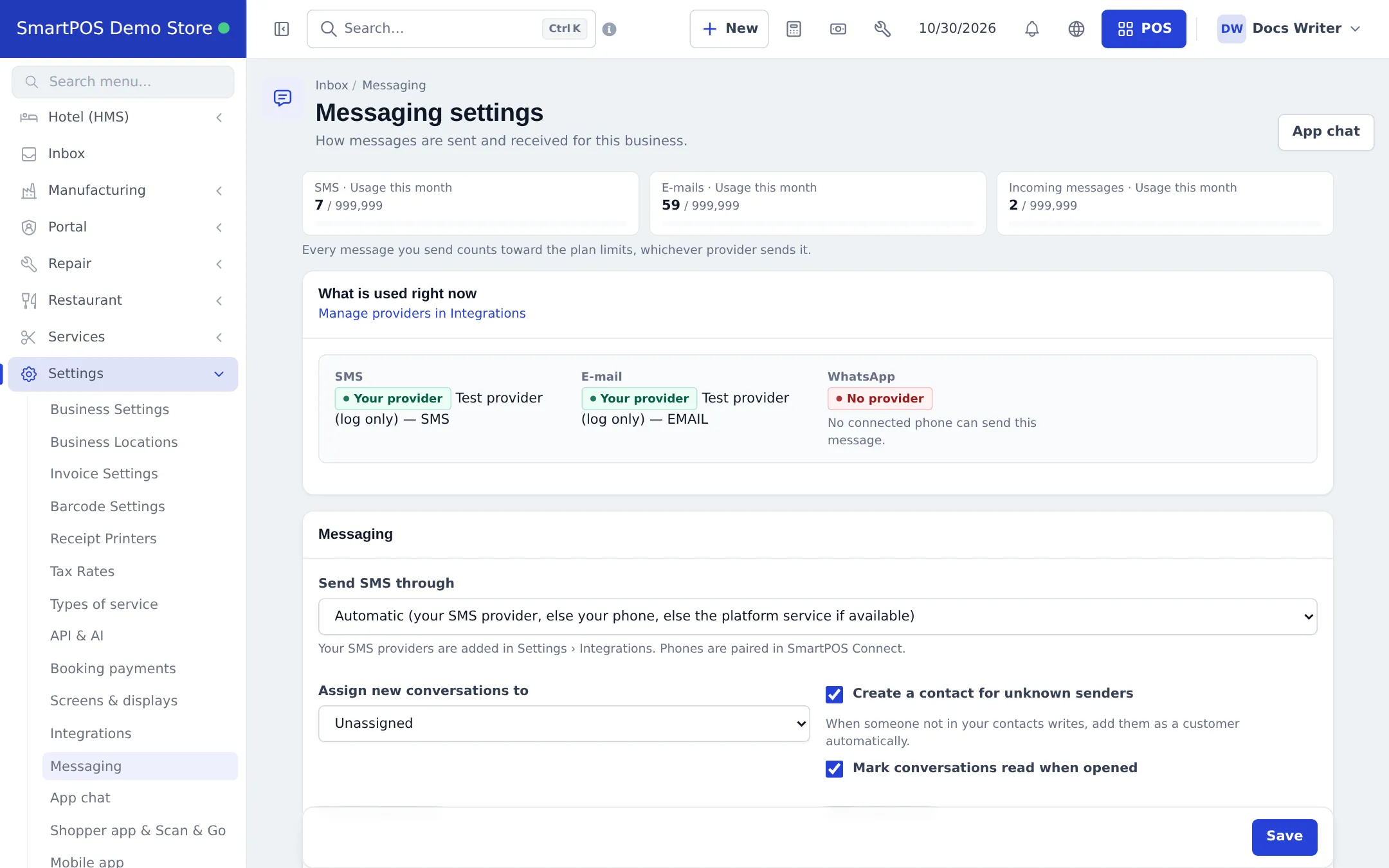
- Open Settings › Messaging. What is used right now shows the provider for SMS, E-mail and WhatsApp.
- Choose Send SMS through (automatic: your SMS provider, else your phone, else the platform service if available), Assign new conversations to, Create a contact for unknown senders and Mark conversations read when opened.
- Add signatures and message templates, then Save.
Use the Inbox
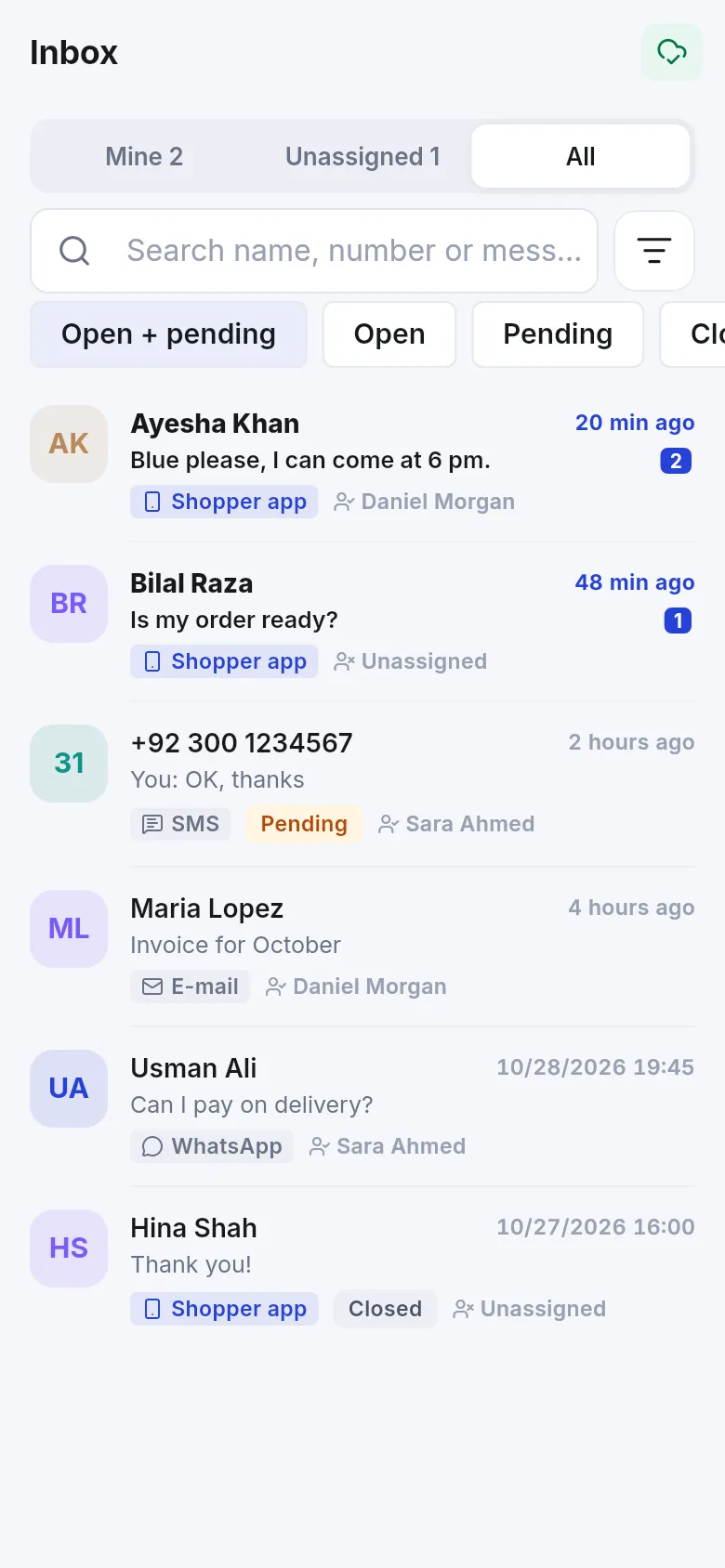
Section titled “Use the Inbox”- Filter by channel (Shopper app, SMS, E-mail, WhatsApp, Call), status (Open, Pending, Open + pending, Closed), location, assignee and Unread only.
- Reply on the same channel, add internal notes, assign and close conversations.
- On a contact’s Conversations tab, pick the channel and address and write; attachments and templates are available.
Related pages
Section titled “Related pages”Frequently asked questions
What does the Messaging module do?
It gives you one Inbox for every SMS, e-mail, WhatsApp message, call and Shopper app chat with your customers, plus a Conversations tab on each contact where you can send and receive.
Which SMS and e-mail providers can I use?
SMS: Twilio, Vonage, Infobip, Plivo, and for Pakistan SendPK and LifetimeSMS, or your own phone through SmartPOS Connect. E-mail: Mailgun, Resend or your own SMTP. Add them in Settings › Integrations.
How does WhatsApp work?
Through a paired shop phone with SmartPOS Connect: incoming WhatsApp messages are captured and sending is assisted (the phone opens the chat with your text). There is no official WhatsApp Business API connection.
What if I have no provider?
SMS and e-mail can go through the platform service when it is offered; otherwise sends are not possible. The What is used right now box on Settings › Messaging shows the route for each channel.
Are there monthly limits?
Yes. Your plan sets SMS, e-mails and incoming messages per month. Usage is shown at the top of the Inbox and Settings › Messaging; a warning appears at 80 % and sends stop at 100 %.
Where are message templates?
Settings › Messaging has templates you can insert when writing. Automatic customer notifications (invoice, payment, booking…) use Notification Templates.