
Take payments for online orders
All the ways your customers pay online are managed in one place: Settings › Payments. This page shows how to add a card gateway or a bank account, choose where each one is used (website store, Shopper app, invoice and POS pay links, bookings), and switch on cash on delivery and pay at pickup.
The tabs of Settings › Payments
Section titled “The tabs of Settings › Payments”| Tab | What it is for |
|---|---|
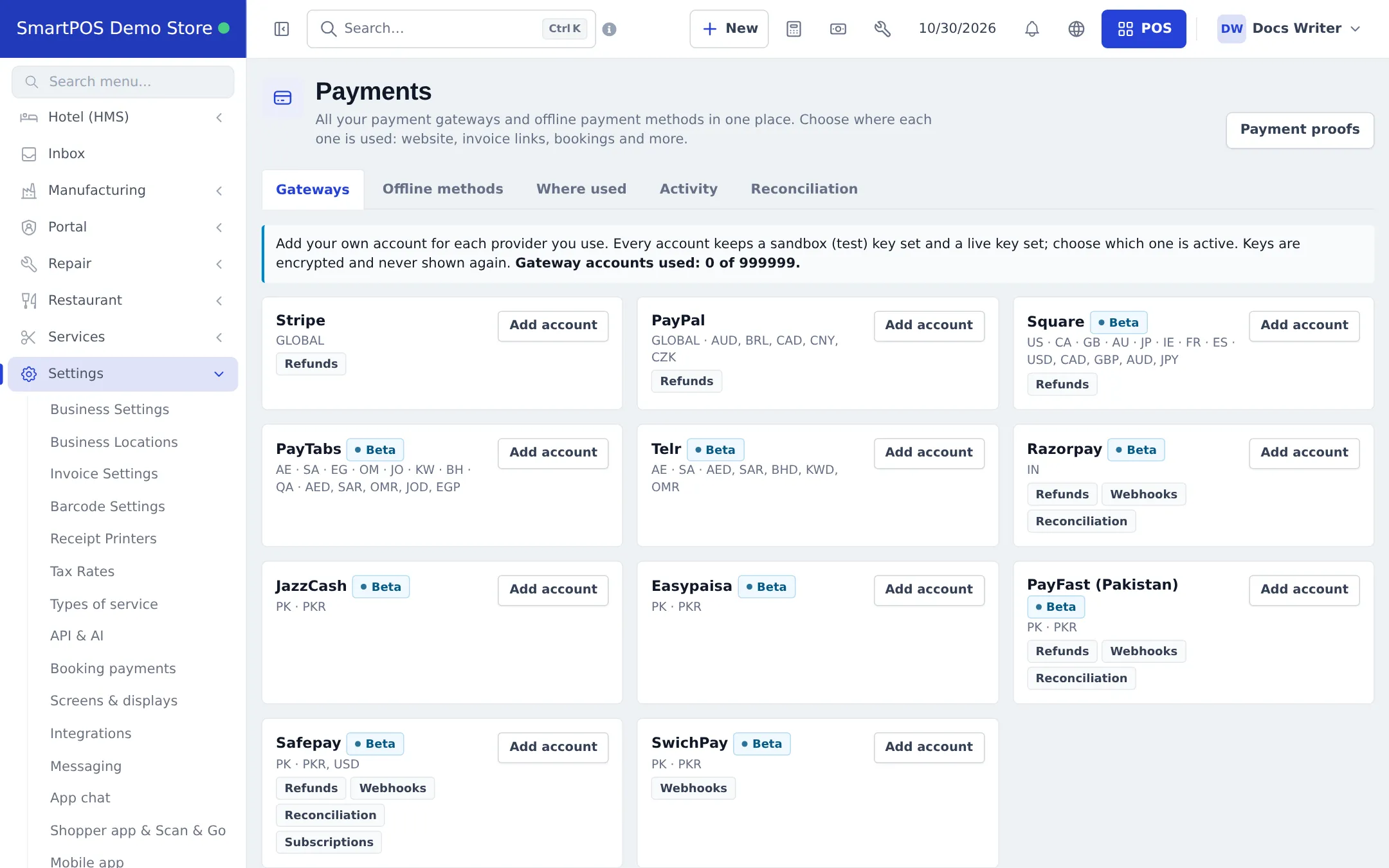
| Gateways | One card per provider. Add account with your keys (sandbox and live), test it, enable it |
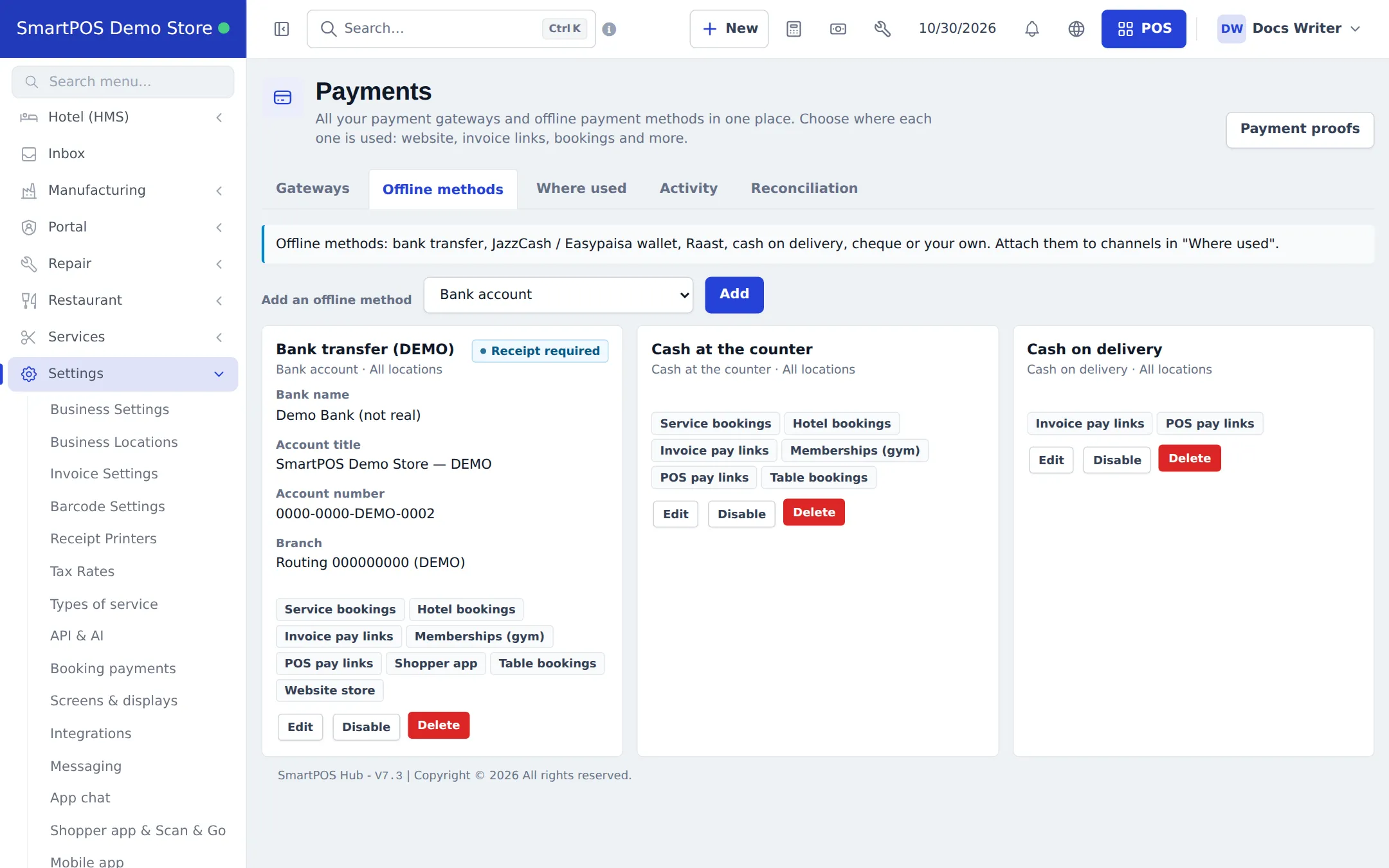
| Offline methods | Bank transfer, mobile wallets, Raast, cash on delivery, cheque or your own method, with account details, instructions, QR code and “receipt required” |
| Where used | A grid: tick which account is offered on Website store, Shopper app, Invoice pay links, POS pay links, Service bookings, Table bookings, Memberships (gym), Hotel bookings |
| Activity | Recent payments and a log of what each provider answered |
| Reconciliation | Compare payments with the provider for gateways that support it |
The Payment proofs button opens the queue of receipts customers uploaded for offline payments - from the website, invoice links, bookings and the apps.
Step 1 - Add a card gateway
Section titled “Step 1 - Add a card gateway”- Open Settings › Payments on the Gateways tab.
- On your provider’s card press Add account.
- Give it a name, paste the sandbox keys and the live keys from your provider’s dashboard, and choose the active mode.
- Copy the webhook URL shown and paste it in your provider’s dashboard when the provider uses webhooks.
- Choose the channels, locations, currencies and minimum/maximum amount, then save.
- Press Test to check the connection, and Enable it.
Step 2 - Add bank transfer or a wallet
Section titled “Step 2 - Add bank transfer or a wallet”- Open the Offline methods tab.
- Under Add an offline method choose the type (for example Bank account) and press Add.
- Enter the details customers see (bank name, account title, account number, branch), instructions, an optional QR code, and tick that a receipt is required if you want proof.
- Save. The card shows where it is used, with Edit, Disable and Delete.
Customers who choose a transfer see your account details with copy buttons, pay in their banking app, and upload the receipt and transaction ID. You approve it in Payment proofs - see Website orders.
Step 3 - Choose where each method is used
Section titled “Step 3 - Choose where each method is used”Open Where used and tick the boxes: for example the bank account on Website store and Shopper app, and cash on delivery only on pay links. Location limits of each account still apply. Press Save.
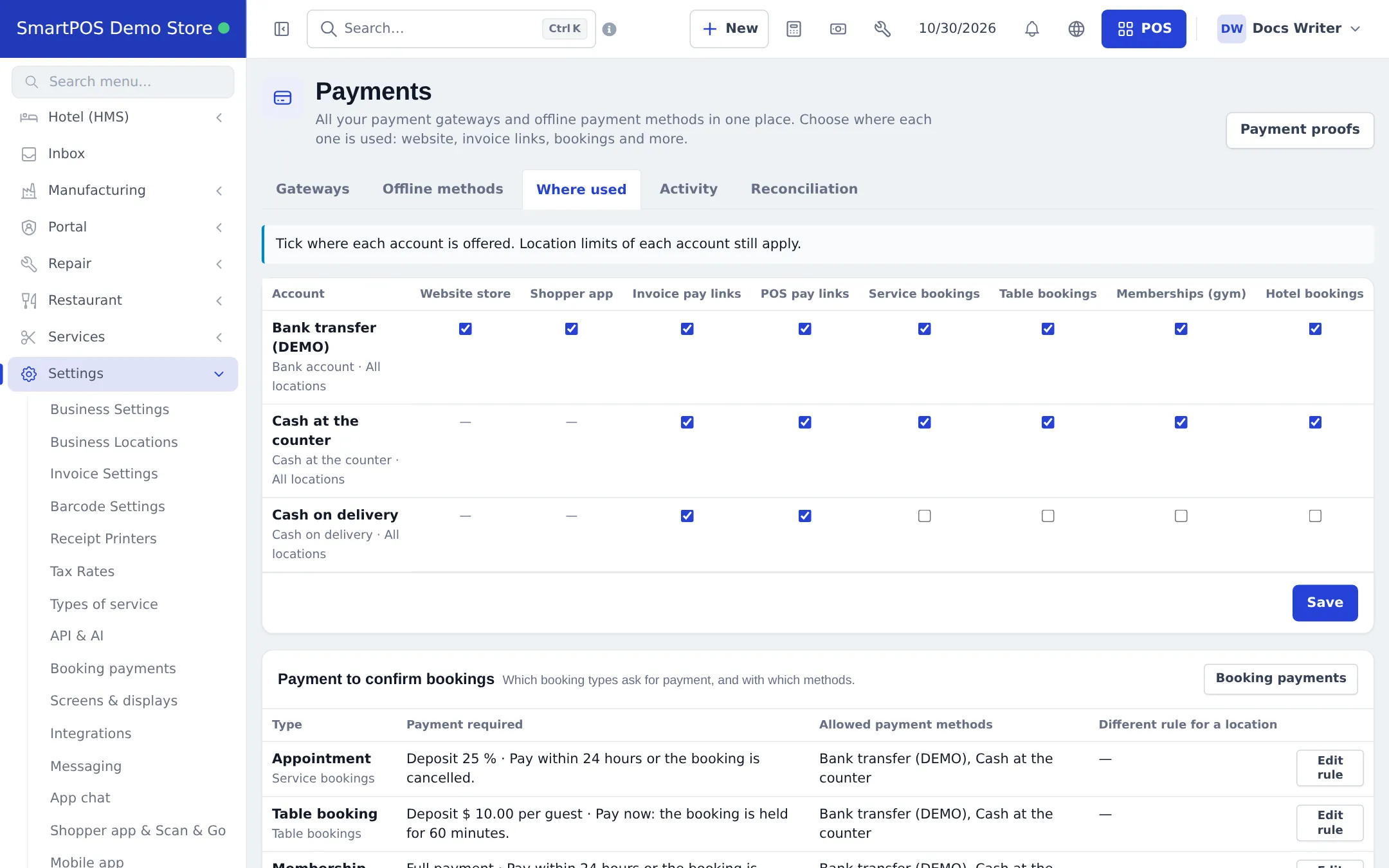
The lower table, Payment to confirm bookings, shows which booking types ask for a deposit or full payment - see Booking payments.
Step 4 - Check what your website offers
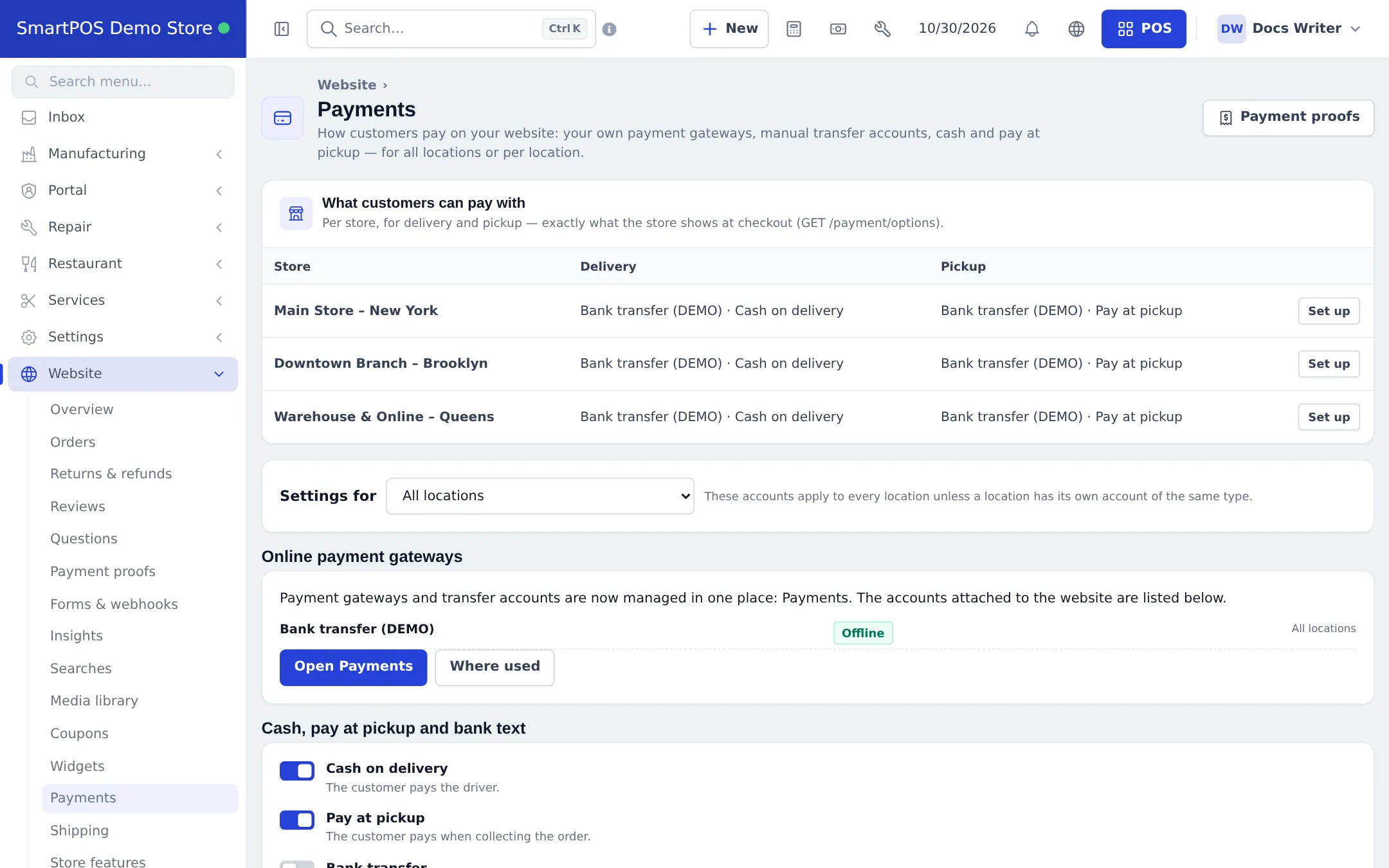
Section titled “Step 4 - Check what your website offers”Open Website › Payments. What customers can pay with shows, for every store, exactly what checkout offers for Delivery and Pickup. Below it you switch on Cash on delivery (“The customer pays the driver”) and Pay at pickup (“The customer pays when collecting the order”). The accounts attached to the website are listed with Open Payments and Where used buttons.
For the Shopper app, the payment choices for app orders are in Settings › Shopper app & Scan & Go › Ordering from the app › Payment.
Tips and mistakes to avoid
Section titled “Tips and mistakes to avoid”- “No payment method” at checkout means nothing is attached to Website store for that store and order type. Check Where used and the location limits.
- A gateway’s key must match its set: test keys in sandbox, live keys in live.
- Set an automatic cancel time for unpaid transfers so stock is not held forever.
- Your SmartPOS Hub subscription billing is separate - it is not set up here.
Related pages
Section titled “Related pages”Frequently asked questions
Where do I add my Stripe, PayPal or local gateway keys?
In Settings › Payments, on the Gateways tab. Each provider card has Add account. You paste your own keys - SmartPOS Hub never uses a shared account for your money.
Which gateways are available?
Stripe, PayPal, Square, PayTabs, Telr, Razorpay, JazzCash, Easypaisa, PayFast (Pakistan), Safepay and SwichPay. The page shows the countries and currencies of each; providers marked Beta are new.
What is the difference between sandbox and live keys?
Every gateway account keeps a sandbox (test) key set and a live key set. Choose which one is active. Use sandbox to place test orders without real money, then switch to live.
How do I accept bank transfers or mobile wallets?
Add an offline method (bank account, JazzCash / Easypaisa wallet, Raast, cheque or your own) on the Offline methods tab, tick "requires receipt" if you want proof, and attach it to Website store and Shopper app under Where used.
Are cash on delivery and pay at pickup gateways?
No. They are switched on for the website in Website › Payments (Cash on delivery, Pay at pickup) and for the app in the Shopper app ordering settings.
Can each branch use its own payment account?
Yes. Accounts can be limited to some locations, and a location's own account replaces the general one of the same type.
Can I refund an online card payment?
Yes, for gateways that support refunds (marked Refunds on the Gateways tab). Refunds of website orders are started from Website › Returns & refunds.
Are my keys safe?
Keys are stored encrypted and never shown again after saving. To change one, enter a new value; leave the field empty to keep the old one.