
Tech store step 7: run a repair from intake to invoice
This page follows one repair through the shop: a customer brings in a phone with a broken screen, you book it in, send an estimate, take a deposit, fix it, invoice it and hand it back. The customer follows the job online.
Before you start
Section titled “Before you start”- Repair settings are done (step 6).
- Parts and labour exist as products, and a cash register is open for whoever takes payment.
1. Book the device in
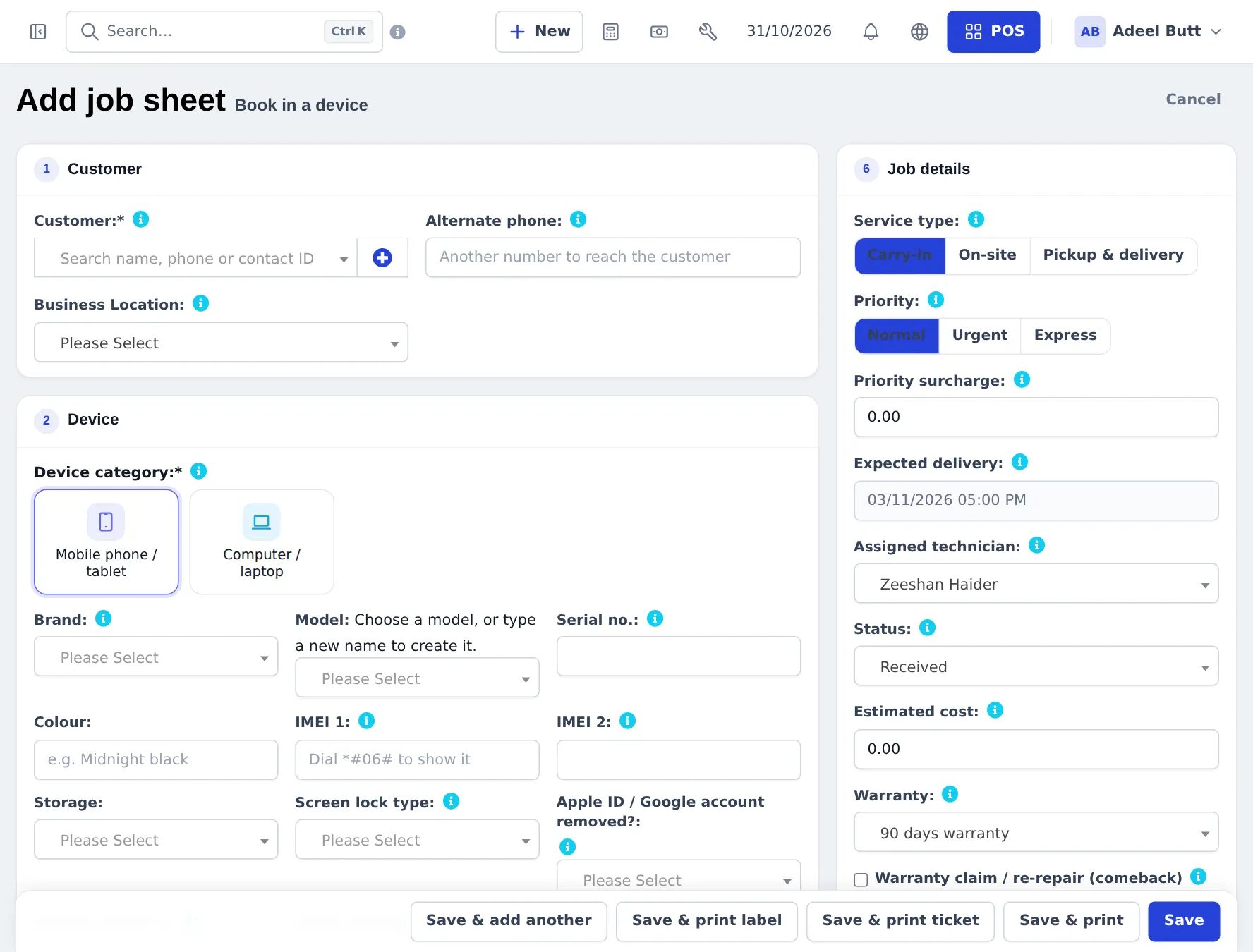
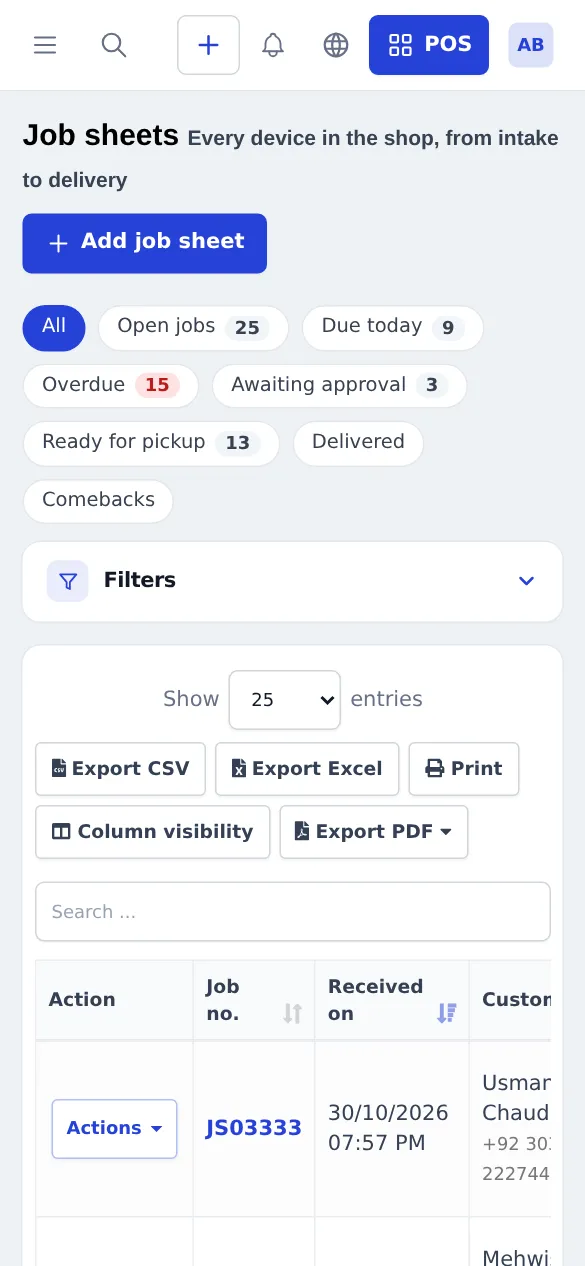
Section titled “1. Book the device in”- Open Repair › Add job sheet (or Add job sheet on the repair dashboard).
- Customer: search by name, phone or contact ID, or click + to add a new customer. Add an Alternate phone if needed, and the Business Location.
- Device: click the category tile (for example Mobile phone / tablet). The category’s own fields appear: brand, model, colour, IMEI 1 and IMEI 2, storage, screen lock type and so on.
- Reported problems: pick or type the faults and describe the problem in the customer’s words.
- Intake: tick the pre-repair checklist (powers on, charging…), the accessories received, add condition photos, and capture the customer’s signature and terms acceptance.
- Parts and services: add the parts and labour you expect to use. This builds the estimate.
- Job details: service type, priority, expected delivery, assigned technician, status, estimated cost and warranty.
- Advance / deposit: enter an amount and payment method if the customer pays something now.
- Save with Save & print ticket to hand the customer a claim ticket with the status page QR code, or Save & print label for a sticker on the device.
2. Send an estimate and record the answer
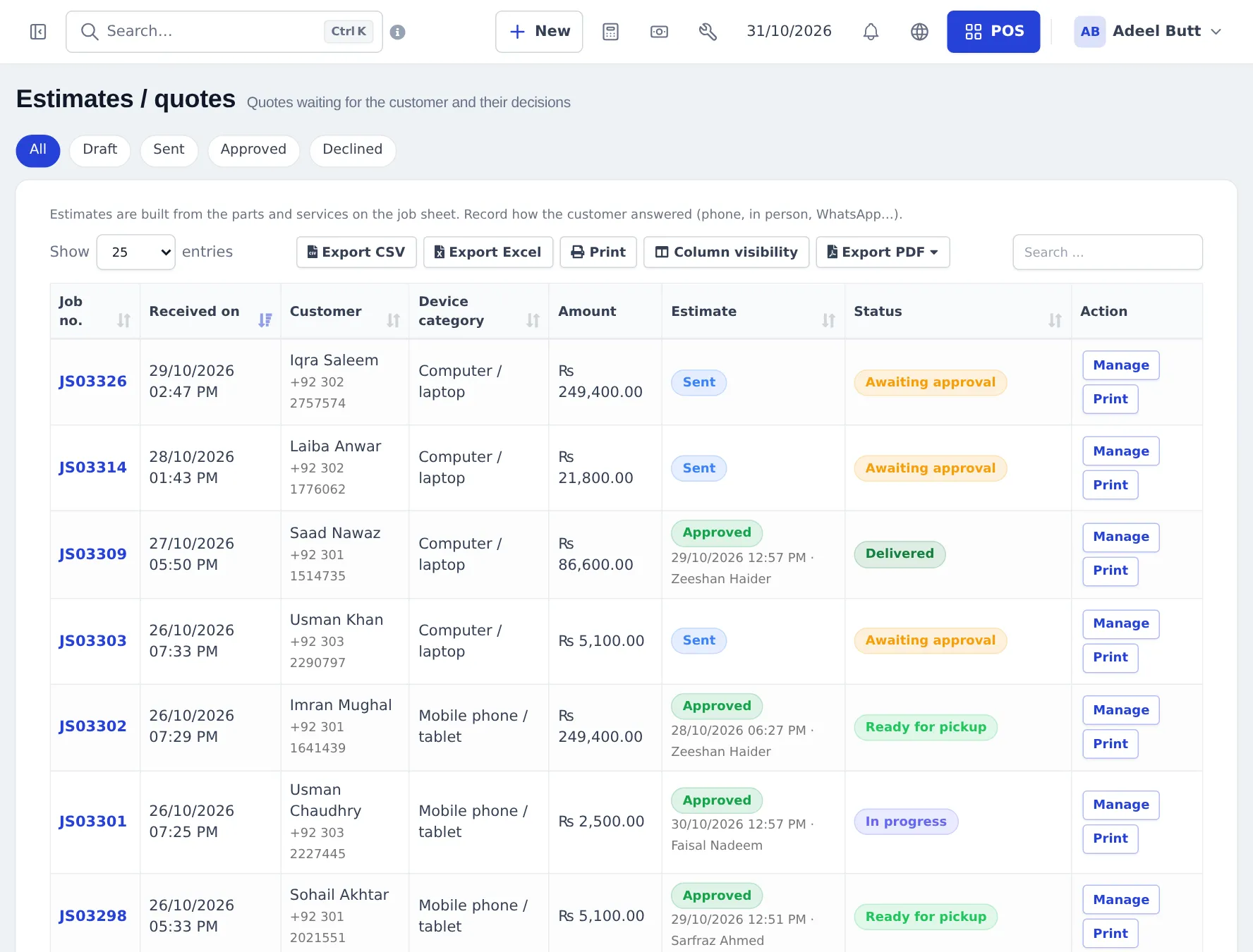
Section titled “2. Send an estimate and record the answer”From the job, open Actions › Estimate. The estimate is built from the parts and services on the job plus any surcharge. Mark as sent, print it, then record approved or declined with the date and channel. Repair › Estimates / quotes lists every estimate waiting for an answer.
3. Work on the job
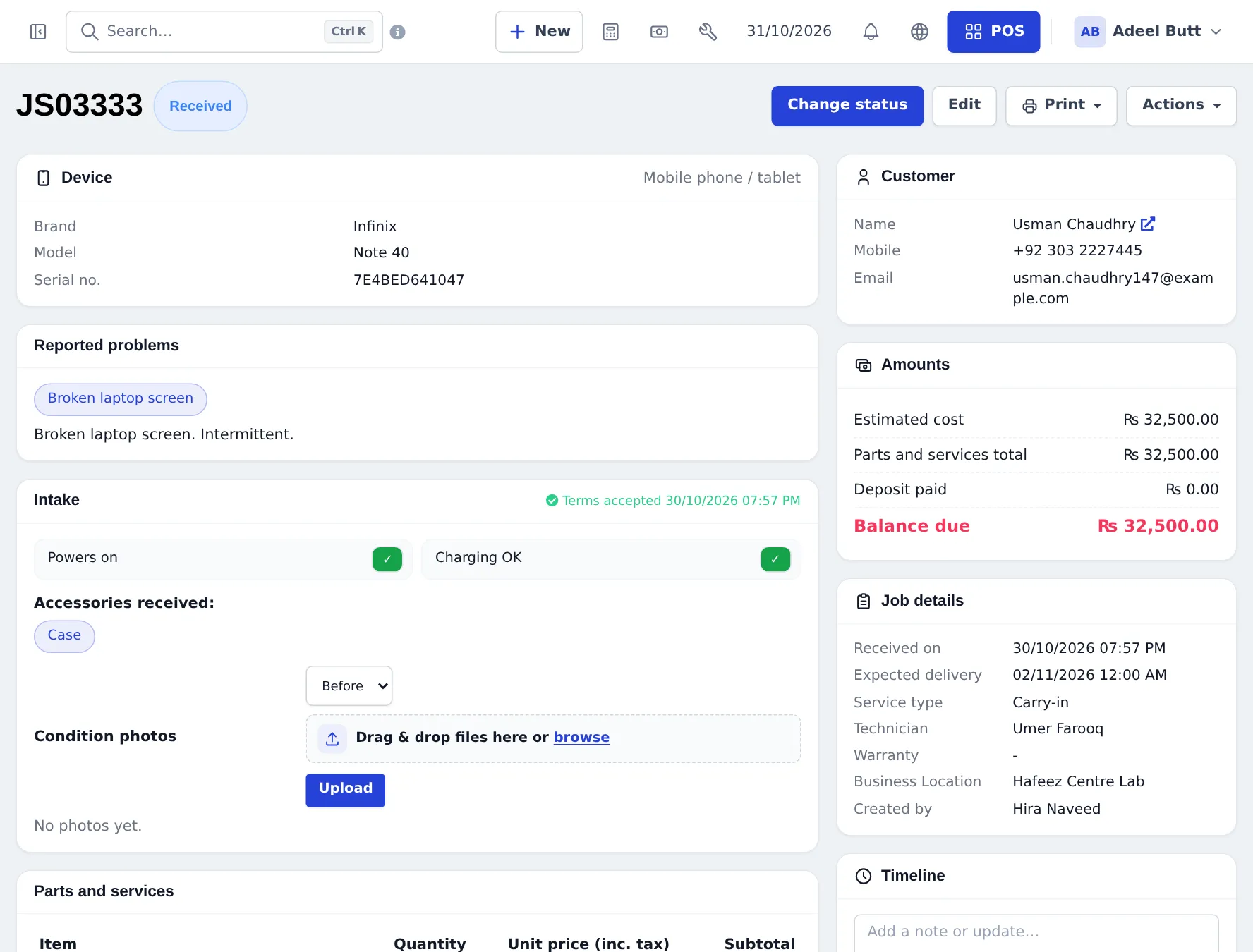
Section titled “3. Work on the job”The job page shows the device, problems, intake, parts and services, amounts (estimated cost, deposit paid, Balance due), job details and a Timeline.
- Change status as work moves on. If the status has a template and you tick SMS or email, the customer is notified.
- Add comment: tick Visible to customer for updates the customer should see on the status page.
- Actions › Record deposit for money taken later; Schedule visit for on-site work.
- Device secrets (PINs, patterns) are revealed only for users with that permission, and each reveal is logged.
4. Convert to an invoice and hand it back
Section titled “4. Convert to an invoice and hand it back”- Set the status to Ready for pickup when the repair is done.
- When the customer comes, open Actions › Convert to invoice. The POS opens with the customer, the job’s parts and services (and any surcharge) already in the cart.
- Take payment. To use the deposit, choose Store credit (advance) for that amount, then the rest in cash or card.
- After saving, the POS returns to the job. Stock for the parts is deducted now, and the repair invoice prints the device, serial, defects and warranty if your layout shows them.
- Click Mark as delivered and record who collected it.
5. Let the customer track the repair
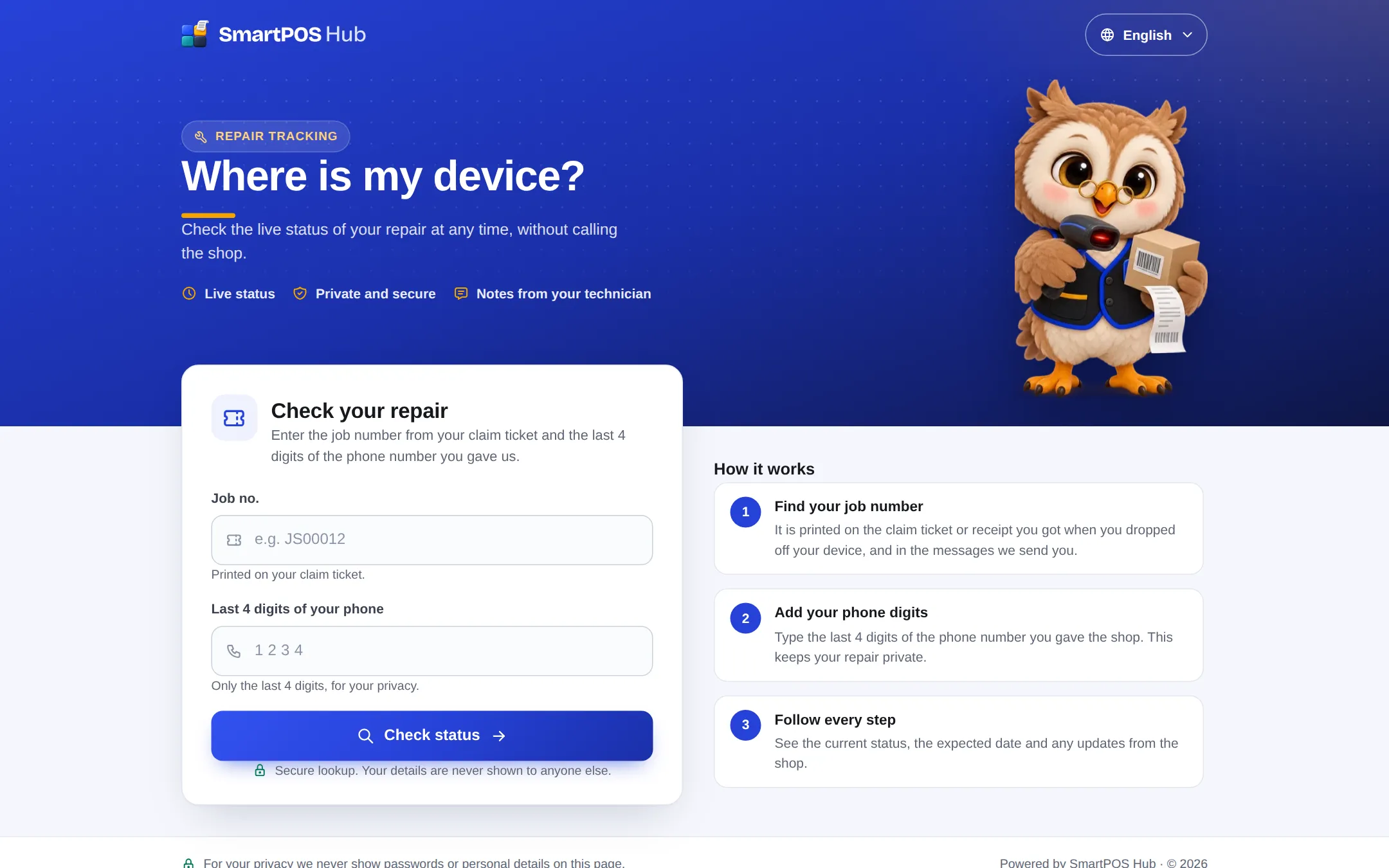
Section titled “5. Let the customer track the repair”Customers open the status page on your app address (/repair-status), or scan the QR on their claim ticket, enter the Job no. and the last 4 digits of their phone, and click Check status.
Keep an eye on the desk
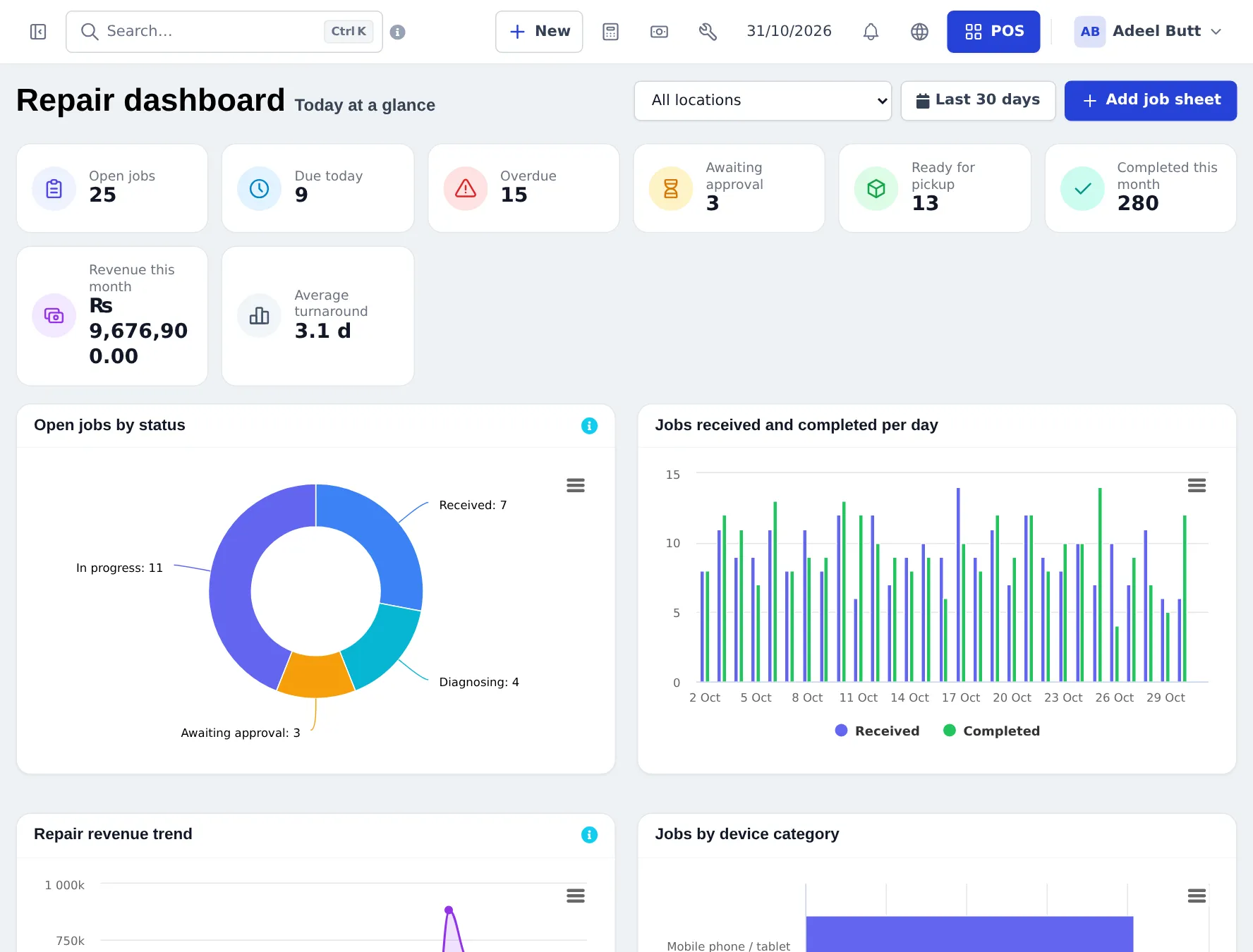
Section titled “Keep an eye on the desk”Repair › Dashboard shows open jobs, due today, overdue, awaiting approval, ready for pickup, completed this month, revenue and average turnaround, with charts by status, category and technician. Staff can find any job with Repair › Repair status lookup.
Mistakes to avoid
Section titled “Mistakes to avoid”- Don’t sell the parts on a separate POS sale; convert the job instead, so the repair, parts and warranty stay linked.
- Don’t leave jobs in Ready for pickup after the customer collected the device; reports count them as pending pickups.
Frequently asked questions
When is stock deducted for parts used in a repair?
Only when the job is converted to an invoice. Adding parts to the job sheet records them for the estimate but does not move stock yet.
How is the customer's deposit used?
A deposit on a job sheet is saved as a customer advance payment. When you convert the job to an invoice, pay with the Store credit (advance) method to use it, and collect only the balance.
How does the customer check the status?
The claim ticket has a QR code to the public repair status page. The customer enters the job number and the last 4 digits of their phone number. They see the status, expected date and updates you mark as visible to the customer, never passwords or personal details.
Can I find a job by IMEI?
Yes. Repair › Repair status lookup searches job number, customer phone and name, alternate phone and serial or IMEI. The Business app's Repairs screen also searches by IMEI.
What is a comeback?
A device that returns with the same fault. Tick Warranty claim / re-repair (comeback) on the new job and link the original job. Comebacks are counted in repair reports per technician.
Can the customer approve the estimate by phone?
Yes. Record the decision on the estimate with the date, staff member and channel (phone, in person, SMS, WhatsApp or email). Approval moves the job on; a decline can cancel it.