
Café step 4: bar screen, kitchen screen and customer display
In a busy café, the cashier, the barista and the kitchen should never have to shout. This step sends drinks to an Espresso Bar screen, food to a Kitchen screen, shows the customer their order at the till, and puts an order-ready board on a TV.
Before you start
Section titled “Before you start”- Kitchen is on (step 1).
- You have a tablet or screen at the bar (and one in the kitchen if you cook).
- A user with the Kitchen staff role for each screen. Restaurant settings can create the role in one click.
1. Create stations and route categories
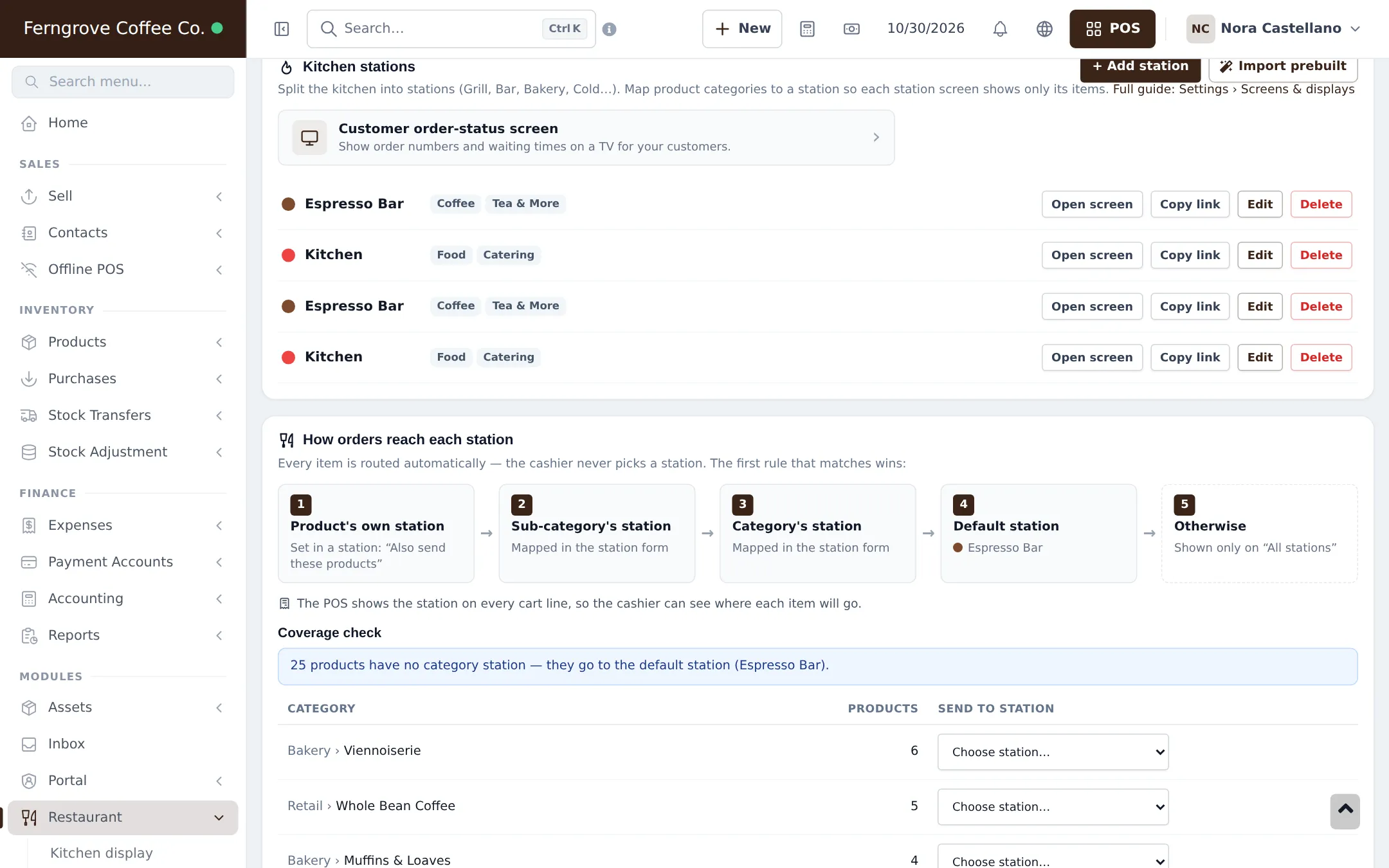
Section titled “1. Create stations and route categories”- Open Restaurant › Restaurant settings and go to Kitchen stations.
- Click + Add station (or Import prebuilt). Create Espresso Bar with the categories Coffee and Tea & More, and Kitchen with Food and Catering.
- Set the Default station for anything unmapped.
- Check the Coverage check: map any category still listed with Send to station.
2. Open the bar screen
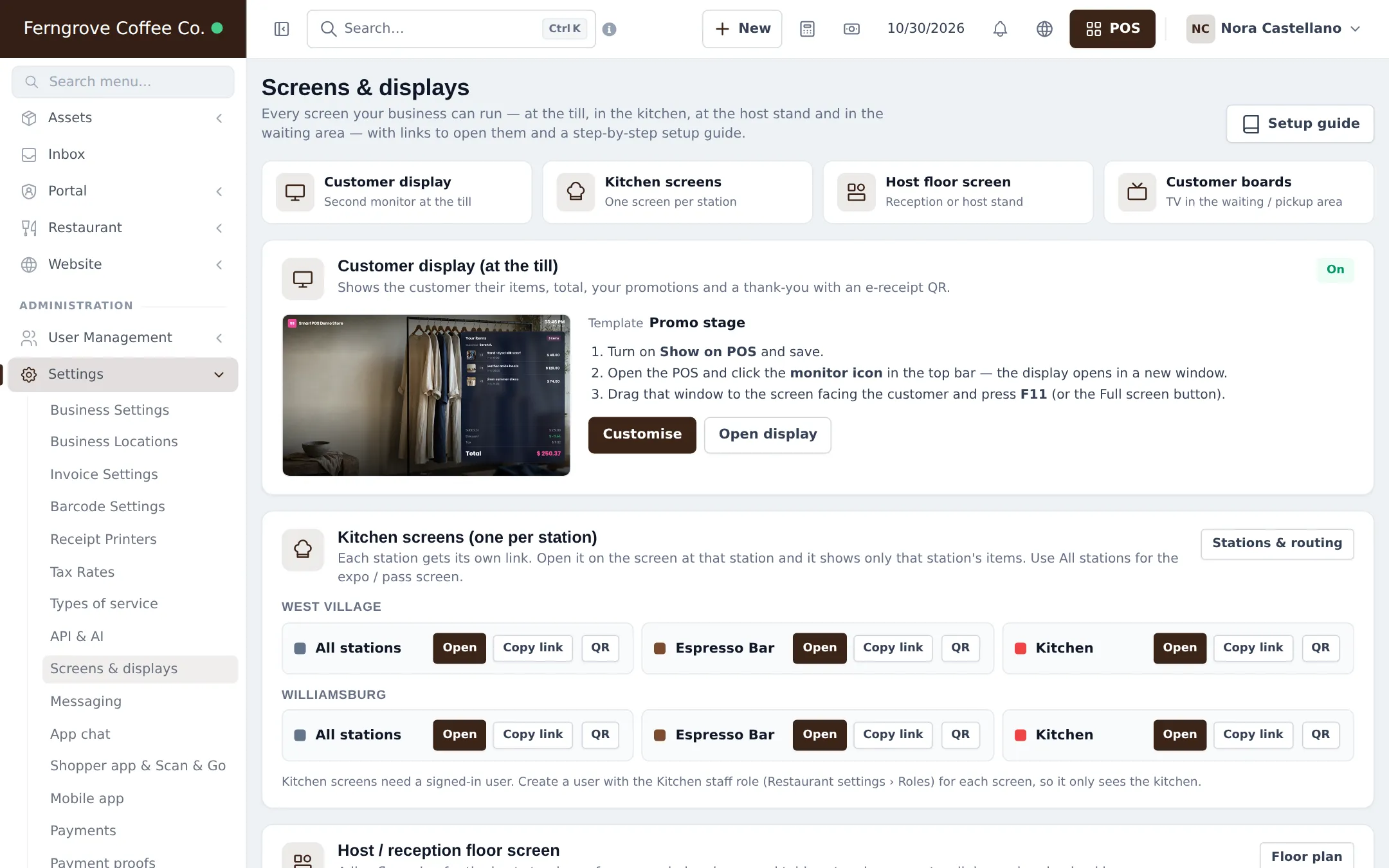
Section titled “2. Open the bar screen”On the bar tablet, sign in with the kitchen user and open the station link (Open screen or the QR code under Sales › Screens & displays). Baristas see only drinks with their sizes and options, tap Start and then Bump when the drink is handed over.
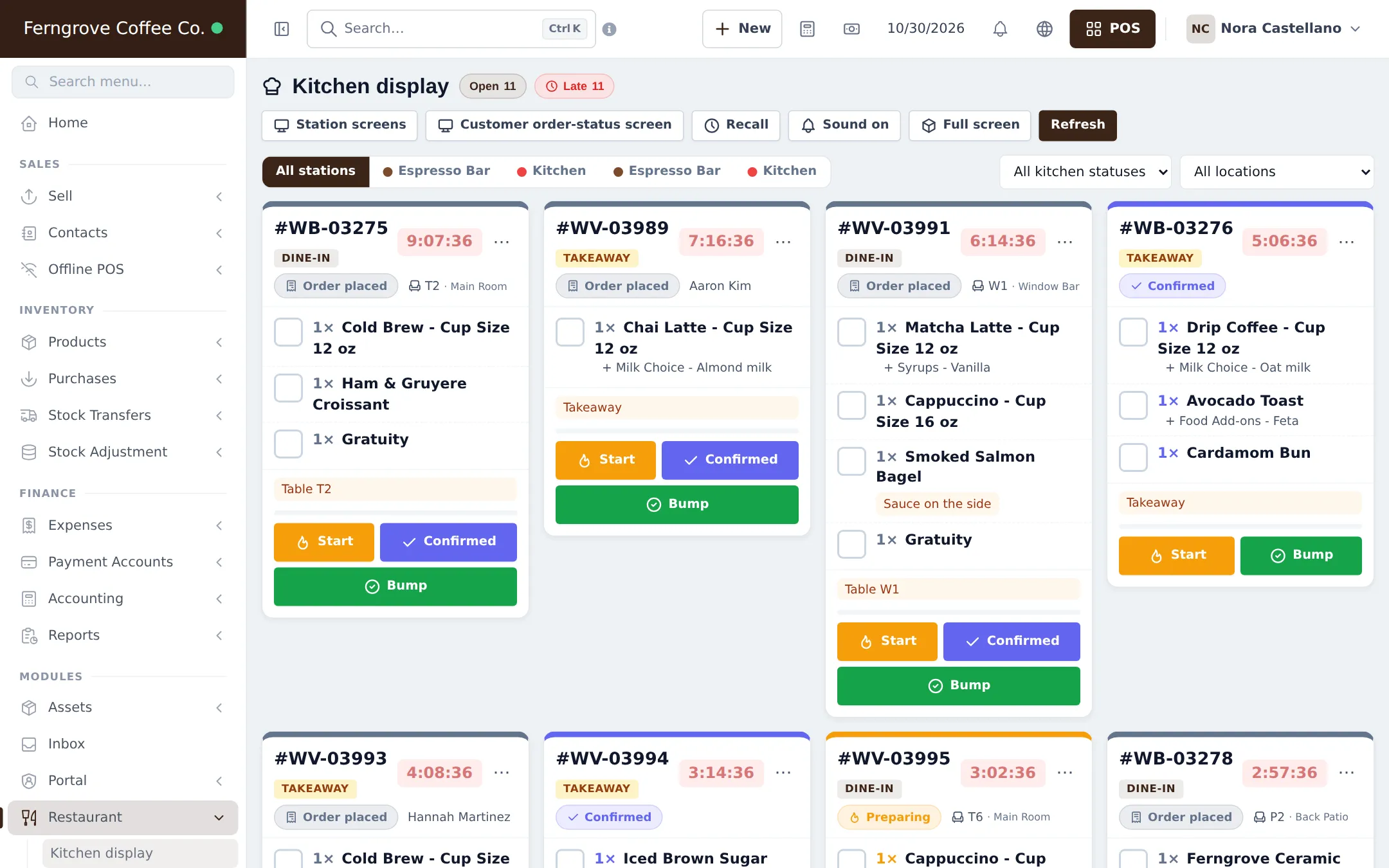
Statuses, timers and colours are explained in Restaurant step 6.
3. Customer display at the till
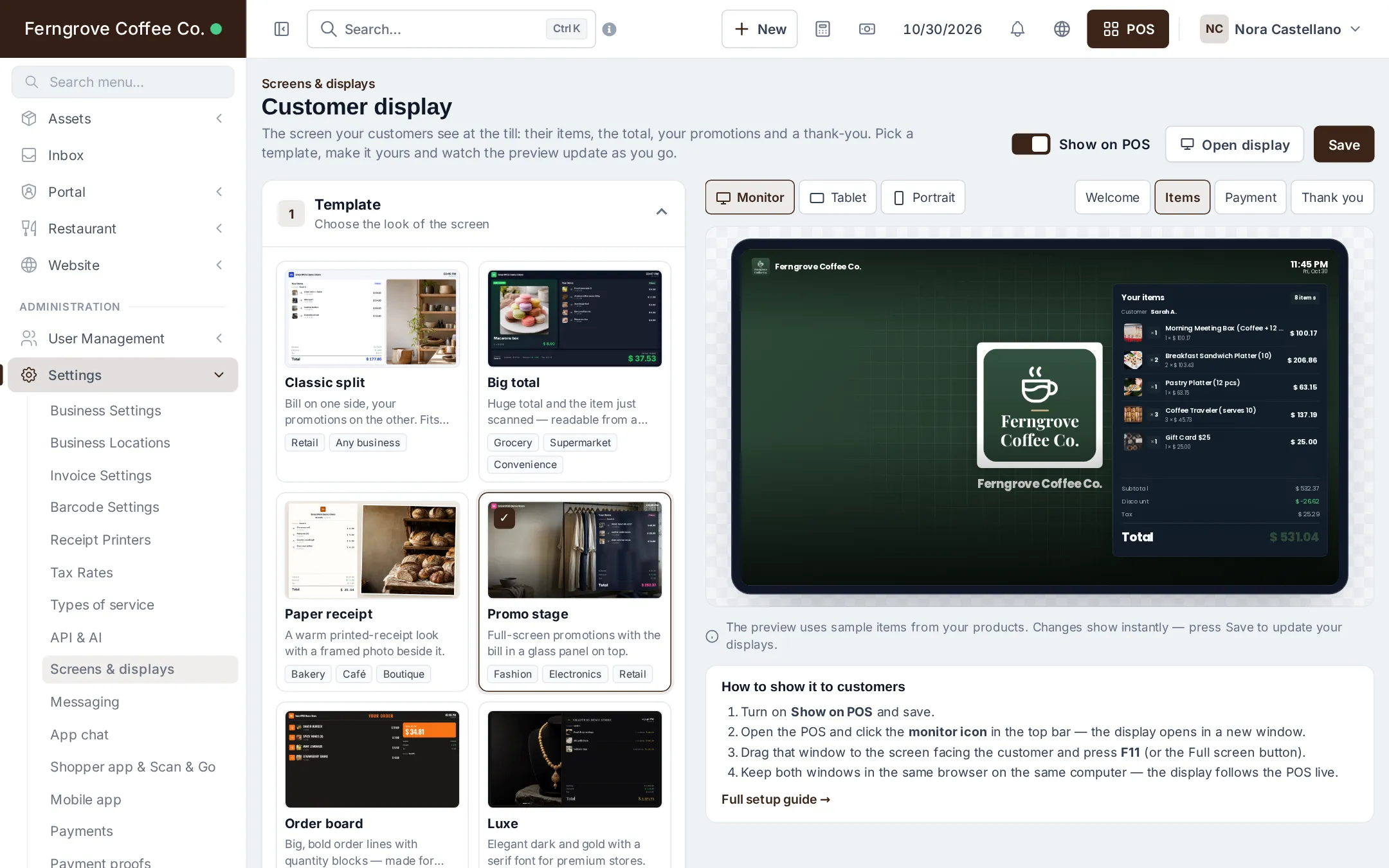
Section titled “3. Customer display at the till”- Open Sales › Screens & displays and click Customise on Customer display.
- Pick a template (Promo stage, Big total, Order board…), your colours, welcome text, logo and a slideshow of drinks.
- Turn on Show on POS and click Save.
- On the POS, click the monitor icon in the top bar. Drag the new window to the customer screen and press F11.
4. Order-ready board on a TV
Section titled “4. Order-ready board on a TV”In Sales › Screens & displays, under Status boards, click Add board, choose Order status, and open its link on the TV browser. Numbers move from Preparing to “Ready — please collect” as baristas bump them.
Tips and mistakes to avoid
Section titled “Tips and mistakes to avoid”- With two branches, check you open the station link of the right branch; the hub lists them per branch.
- Keep the bar tablet plugged in; the screen stays awake while the page is open.
- Full guide: Screens & displays.
Next step
Section titled “Next step”Frequently asked questions
How does a latte end up on the bar screen and a sandwich in the kitchen?
Each station is mapped to categories. Map Coffee and Tea & More to Espresso Bar and Food to Kitchen. Items are routed automatically; the cashier never picks a station.
What happens to items with no station?
They go to the Default station you set in Restaurant settings. The coverage check lists categories without a station so you can map them with one click.
Do I need a second monitor for the customer display?
Yes, any screen facing the customer connected to the till computer, or a tablet using the same browser. Turn on Show on POS and open the display from the monitor icon in the POS top bar.
How do customers know their drink is ready?
Add an Order status board under Sales › Screens & displays and open its link on a TV. Order numbers move from Preparing to Ready when the barista bumps them.
Does a station screen need a login?
Yes. Sign it in with a user that has the Kitchen staff role, so it only sees the kitchen display. TV boards need no login.