
Hotel step 8: restaurant, spa and bookkeeping
A resort is several businesses under one roof. SmartPOS Hub runs them all in one account: rooms in the Hotel module, the restaurant with tables and a kitchen display, the spa with appointments and the lobby shop with the POS. Each outlet is a location, so you see each one’s numbers and the whole property’s total.
Before you start
Section titled “Before you start”- Each outlet has its own location (step 1).
- The users who work in an outlet have access to that location only (Users and roles).
Set up the restaurant and spa
Section titled “Set up the restaurant and spa”| Outlet | What to switch on | Guide to follow |
|---|---|---|
| Restaurant, bar, pool bar | Tables, Kitchen, Modifiers (Settings › Business Settings › Modules) | Restaurant guide, steps 2–9 |
| Spa and salon | Services | Services module |
| Lobby shop, minibar stock | Nothing extra: the normal POS and stock | POS overview |
| Gym | Gym Management | Gym module |
Bill an outlet charge to an in-house guest
Section titled “Bill an outlet charge to an in-house guest”- At the restaurant or spa POS, pick the guest as the customer (search by name or phone).
- Add the items and finish with Credit Sale instead of taking money. The bill is now due on the guest’s ledger.
- At check-out, open the guest’s contact page, check the ledger and take one payment for the open bills with Add payment, next to the room balance on the booking.
Read Credit and part payments and Customer credit limits before you start, and set a credit limit if you only want to allow in-house guests to charge.
Keep the books
Section titled “Keep the books”- Switch on Accounting & Bookkeeping in Settings › Business Settings › Modules and click Update Settings.
- Open Accounting › Dashboard and run the three-step setup (chart template, opening balances, linking your payment accounts).
- From then on, bookings, sales, payments, purchases and expenses post themselves. Check Accounting › Sync log if something looks missing.
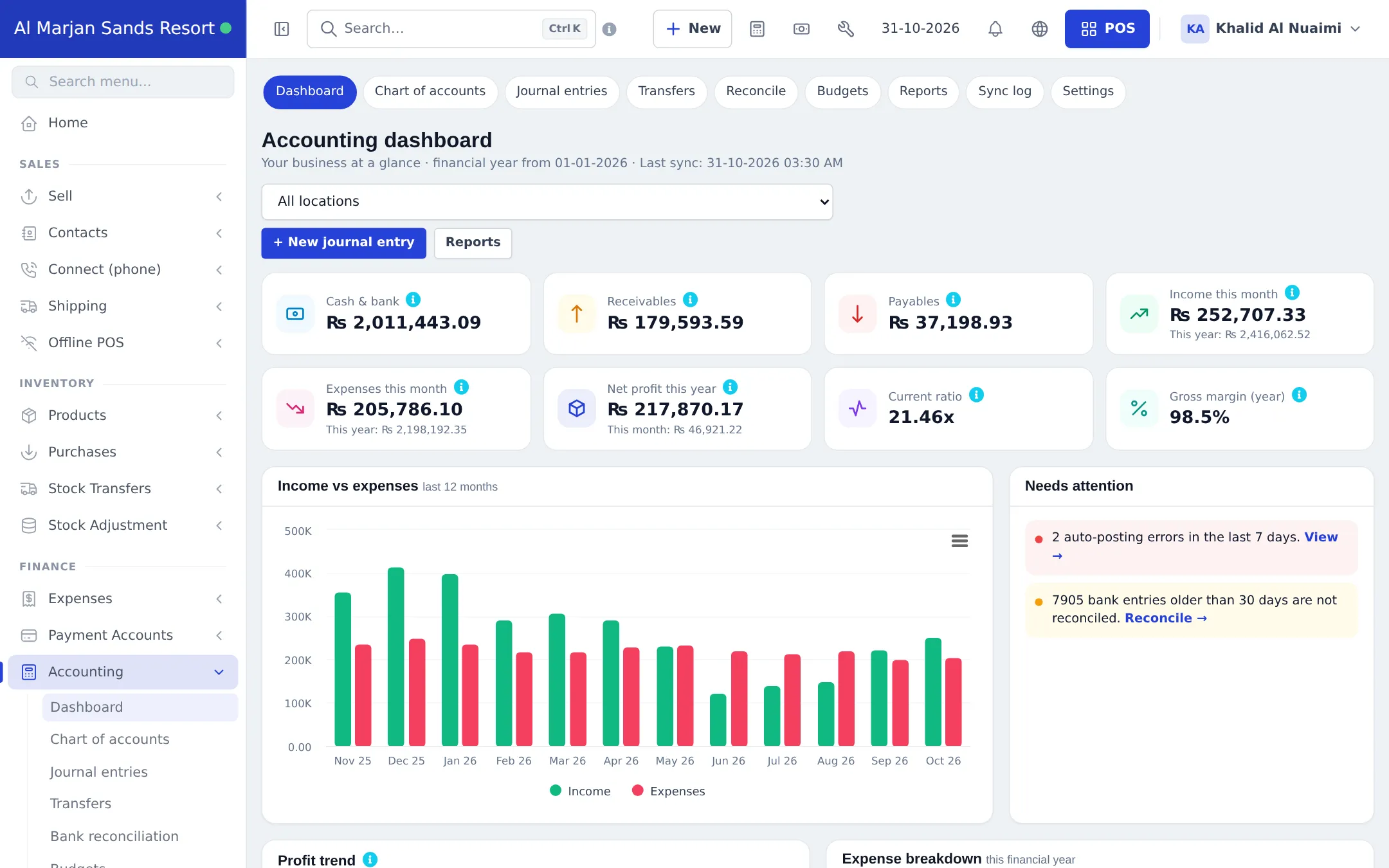
Full guide: Accounting & Bookkeeping.
Hotel reports
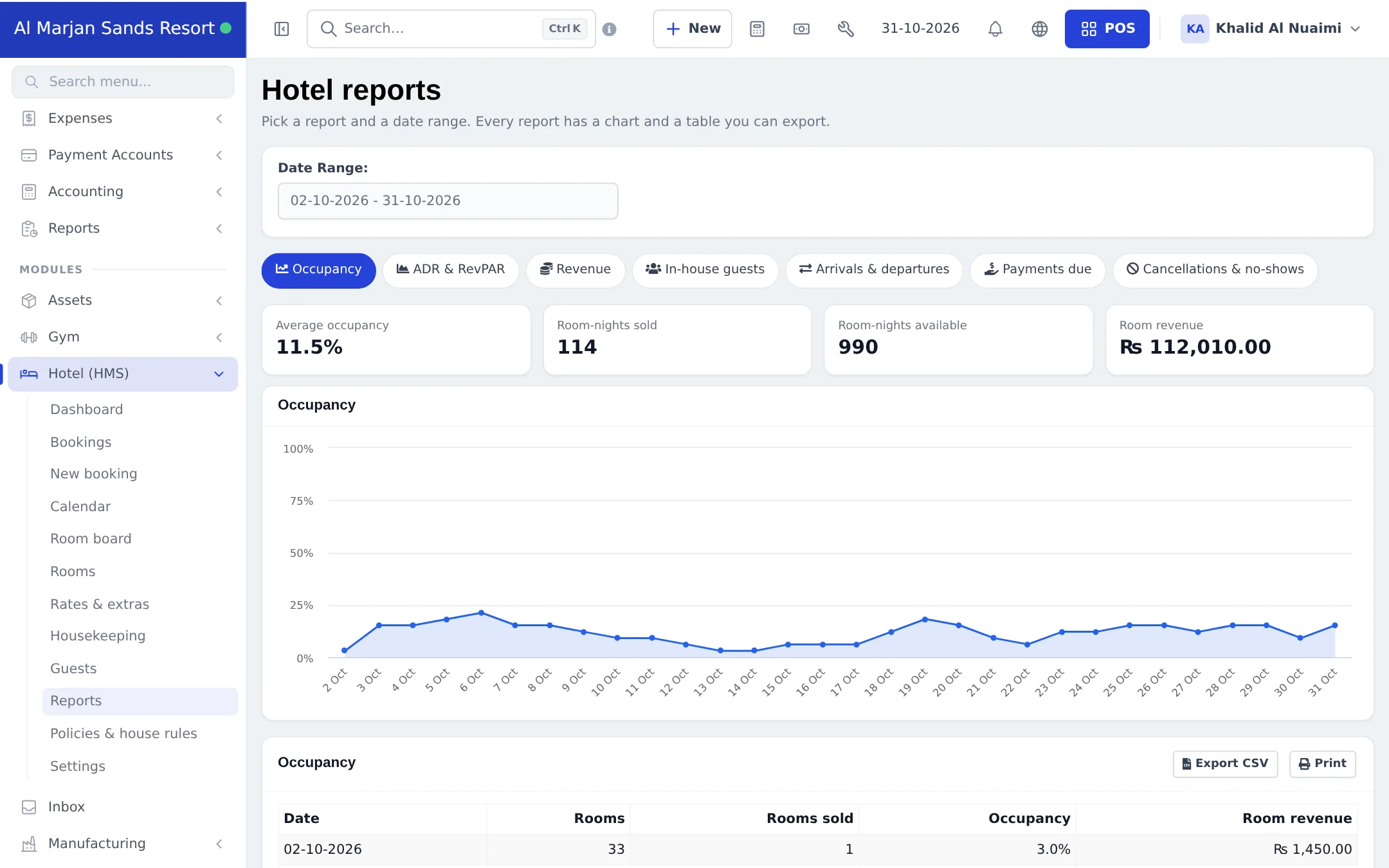
Section titled “Hotel reports”Hotel (HMS) › Reports has Occupancy, ADR & RevPAR, Revenue (by room type and source), In-house guests, Arrivals & departures, Payments due (with aging) and Cancellations & no-shows. Each has a chart, summary cards and a table with Export CSV and Print.
Tips and mistakes to avoid
Section titled “Tips and mistakes to avoid”- Don’t sell room nights at the POS; always use a booking so occupancy and room revenue are right.
- Give outlet staff access only to their location, so restaurant cashiers don’t see front-desk money.
- Booking revenue shows as its own row in the Profit / Loss Report.
Frequently asked questions
Is there a charge-to-room button in the restaurant?
No. To bill a guest later, sell the restaurant or spa bill to the guest as the customer and choose Pay later. The amount waits on the guest's ledger and you collect it with the room balance at check-out.
Do restaurant sales show in hotel reports?
Hotel reports cover rooms only (occupancy, ADR, RevPAR, room revenue). Restaurant and spa sales appear in the normal sales reports per location, and everything comes together in the Profit / Loss Report and your books.
Do I need the Accounting & Bookkeeping module?
Not to run the hotel. Without it you still have profit and loss, payment accounts and expenses. Switch it on when you or your accountant want a chart of accounts, journals, balance sheet and bank reconciliation.
Are booking payments posted to the books automatically?
Yes. Once Accounting & Bookkeeping is set up, bookings, sales, purchases, expenses and payments post themselves. The Sync log shows every automatic posting.
Can the restaurant use its own price list?
Yes. Each location can use its own selling price group, receipt layout and invoice numbering.