
Troubleshoot the SmartPOS Business app
Use this page when something in SmartPOS Business doesn’t work as expected: you can’t sign in, a menu is missing, the app asks for an update, or the scanner, printer, notifications or sync misbehave. Each section names the message you see and the fix.
A feature or menu is missing
Section titled “A feature or menu is missing”The app shows only what passes three gates, in this order:
- Plan – the feature is included in your SmartPOS Hub plan. The owner checks the Subscription page on the web.
- Switch – the module is switched on in Settings › Business Settings › Modules (or the module’s own settings page) on the web.
- Role – your role has the permission, set in User Management › Roles, and you are allowed at this location.
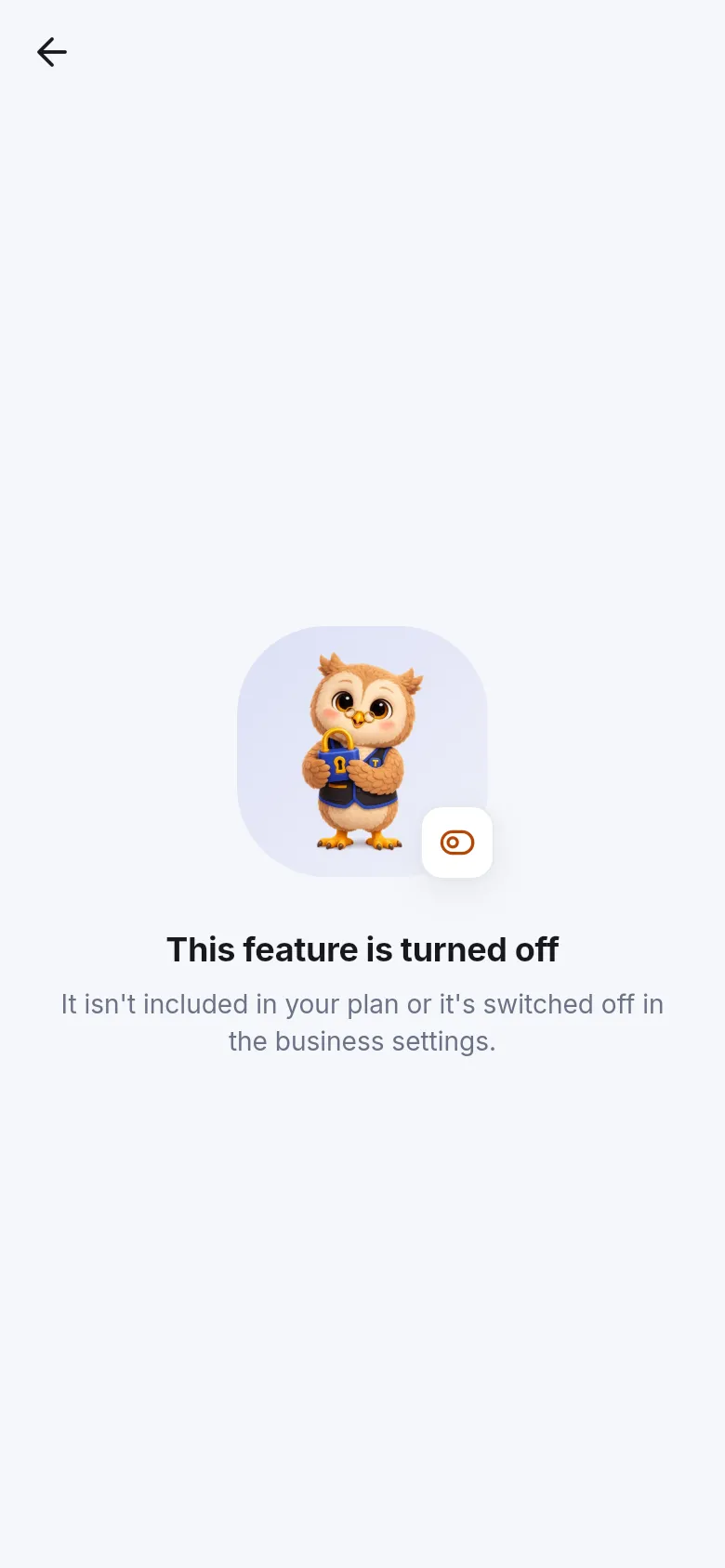
If a gate fails, the menu is hidden, or a screen says This feature is turned off (It isn’t included in your plan or it’s switched off in the business settings) or You don’t have access (Your role doesn’t include this). After the owner changes something, pull down on Home to refresh, or sign out and back in.
Sign-in problems
Section titled “Sign-in problems”| Message | Fix |
|---|---|
| That username/e-mail and password don’t match | Use the same login as the web app; check caps. Use Forgot password? if needed. |
| Too many attempts. Try again in … minutes | Wait, then try again. |
| Your user account is switched off | The owner activates your user on the web. |
| The mobile app isn’t included in this business’s plan | The owner upgrades the plan. |
| The mobile app is turned off for this business | The owner turns on Mobile app in Settings › Business Settings › Modules. |
| This business has reached its limit of signed-in phones | The owner signs out an old phone or raises Maximum signed-in devices in Online & apps › Business app. |
| This business has no active subscription / Subscription ended | The owner renews on the web. |
| You’re offline – We need the internet once to load your business | Connect to Wi-Fi or mobile data. |
| Back in a moment | SmartPOS Hub is being updated; try again in a few minutes. |
Genuine-app check and updates
Section titled “Genuine-app check and updates”- This copy of the app is not genuine. Install SmartPOS Business only from Google Play. Copies from file-sharing sites or modified apps are refused.
- This phone looks rooted or modified. Your data may be at risk on this phone. If the owner turned on Block rooted or modified devices, use another phone.
- Time for an update. This version of the app is too old for the server. Open SmartPOS Business in Google Play and tap Update; tap Update now if offered. Your settings are kept. Check your version in Settings › About.
Scanner
Section titled “Scanner”- Camera access is needed to scan barcodes – tap Allow camera, or Open settings and allow the camera in Settings › Apps › Permissions.
- The camera is not responding – another app may be using it; close it and reopen the scanner.
- A Bluetooth scanner adds nothing – pair it as a keyboard device and make sure the scan screen is open.
- No product found – the barcode isn’t in your catalogue. Add the product or link the barcode. See Scanner.
Printer
Section titled “Printer”- No printer set up – pair a 58 mm or 80 mm Bluetooth receipt printer in Settings › Printers.
- Turn on Bluetooth to print / Allow Bluetooth for SmartPOS Hub to print – switch on Bluetooth and allow nearby-devices access.
- The printer isn’t connected – switch it on, keep it close, and try again.
Notifications
Section titled “Notifications”- No alerts on the phone: open Settings › Notification settings. If it says Notifications are blocked, tap Open phone settings and allow them.
- Alerts arrive late: turn off battery saving for the app.
- No SMS or e-mail option: add a mobile number or e-mail to your profile; SMS also needs an SMS route for the business.
Offline and sync
Section titled “Offline and sync”- This phone isn’t set up for offline selling yet – set it up in Sell › Offline while online.
- The offline prices are too old – go online once and tap Update prices.
- This phone sells offline for another location – switch to that location on Home.
- Too many sales are waiting to sync – go online to send them first.
- A sale shows Needs review, Stock conflict, Rejected or Blocked – see Offline sales.
- Figures look old: Settings › Offline data & sync › Clear saved data reloads lists from the server (waiting changes are kept).
Still stuck?
Section titled “Still stuck?”Open Settings › Help & support, tap Copy diagnostic info and paste it into a message to SmartPOS Hub support. It contains no passwords or personal data.
Related pages
Section titled “Related pages”Frequently asked questions
A feature I see on the web is missing in the app. Why?
Check three gates in order. Is the module in your plan (Subscription page)? Is it switched on in Settings › Business Settings › Modules? Does your role have the permission (User Management › Roles)? Then pull down on Home or sign out and in again.
The app says Time for an update. What do I do?
Your version is too old for the server. Open SmartPOS Business in Google Play and tap Update. Your sign-in and settings are kept.
The app says this copy is not genuine.
The app was not installed from the official source or was changed. Uninstall it and install SmartPOS Business from Google Play.
The printer does not print.
Turn on Bluetooth, allow nearby-devices access for the app, switch the printer on and pair it in Settings › Printers. Then try Print again.
The camera does not open for scanning.
Allow camera access for the app in Android settings, close other apps that use the camera, and reopen the scanner. You can also type the code.
Sales are stuck as Waiting to sync.
Make sure the phone is online, then open Sell › Offline and tap Sync now. If a sale shows Rejected or Blocked, ask a manager.
I see “Mobile app is off”.
The mobile app isn't in your business's plan or is switched off. The owner checks the plan and turns on Mobile app in Settings › Business Settings › Modules.
How do I send diagnostic details to support?
Open Settings › Help & support and tap Copy diagnostic info. It copies technical details without passwords or personal data, which you can paste into an e-mail to support.