
Tax rates and tax groups (VAT, GST, sales tax)
This guide shows how to set up the taxes you charge in SmartPOS Hub: single tax rates (VAT, GST, sales tax), tax groups that combine several rates, and ready-made rates for your country. It is for owners and accountants. A basic setup takes about five minutes.
Before you start
Section titled “Before you start”- Know which rates you charge and on what (ask your accountant if unsure).
- Permission: tax rate add / edit (owners and Admin have it).
- Put your tax registration number on Settings › Business Settings › Tax (Tax 1 Name, Tax 1 No.).
The Tax Rates page
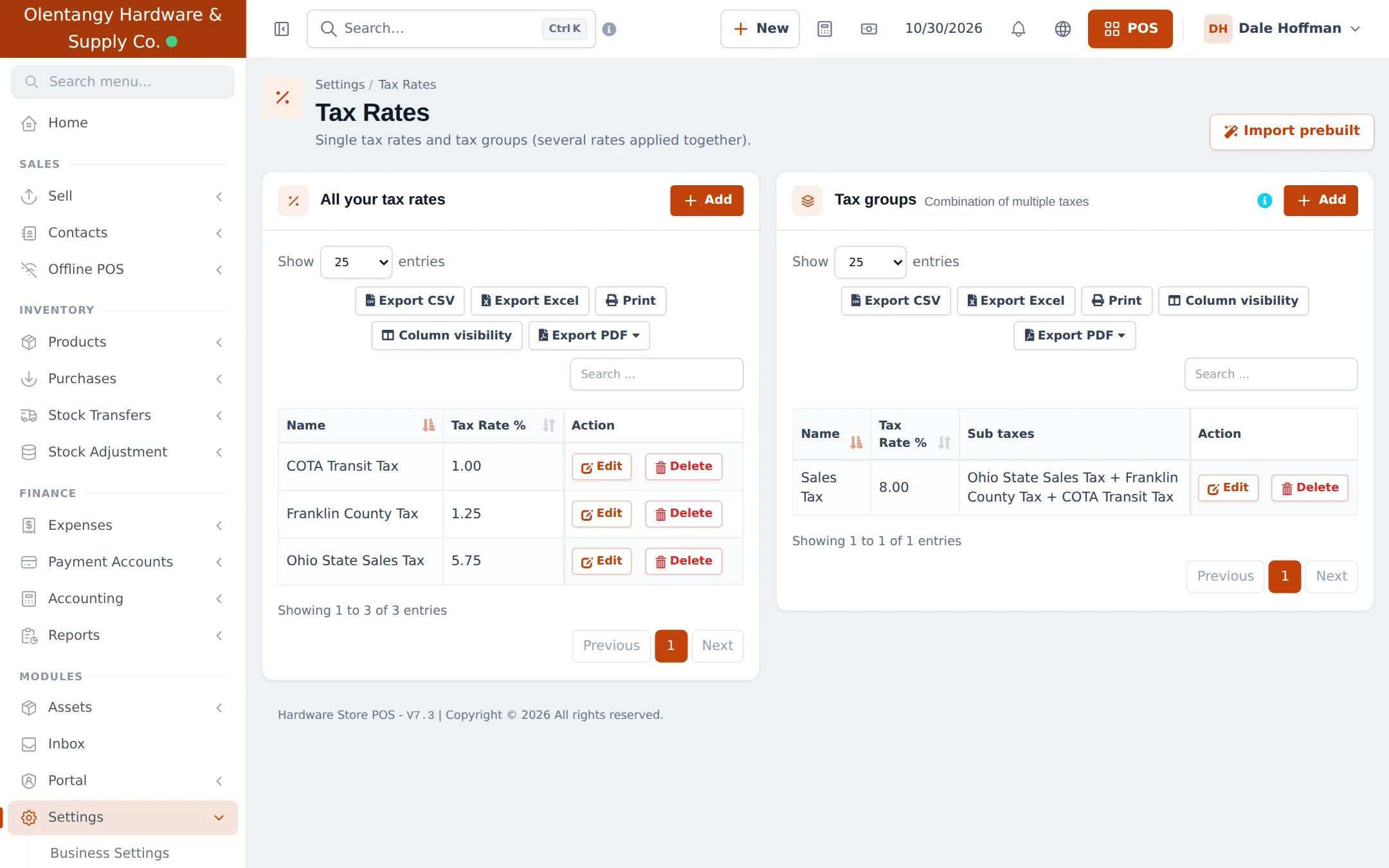
Section titled “The Tax Rates page”Open Settings › Tax Rates. The left card, All your tax rates, lists single rates; the right card, Tax groups, lists combinations with their Sub taxes.
Option A: import ready-made rates for your country
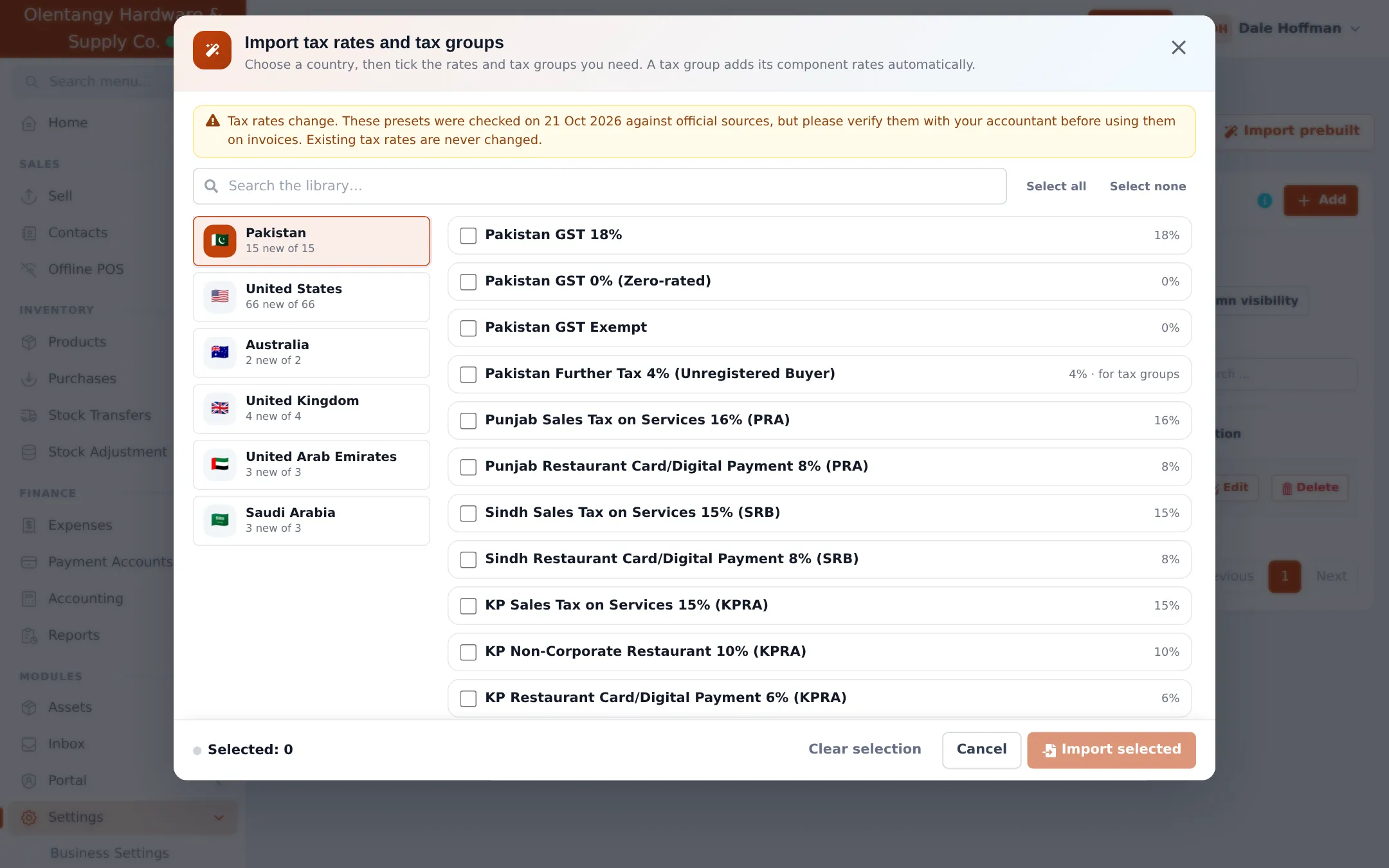
Section titled “Option A: import ready-made rates for your country”- On Settings › Tax Rates, click Import prebuilt.
- Pick your country on the left: Pakistan, United States, Australia, United Kingdom, United Arab Emirates or Saudi Arabia. Each shows how many rates are new for you.
- Tick the rates and groups you need, or type in Search the library… (for example your state).
- Click Import selected and confirm the list. A tax group brings its component rates with it automatically.
Option B: add a tax rate yourself
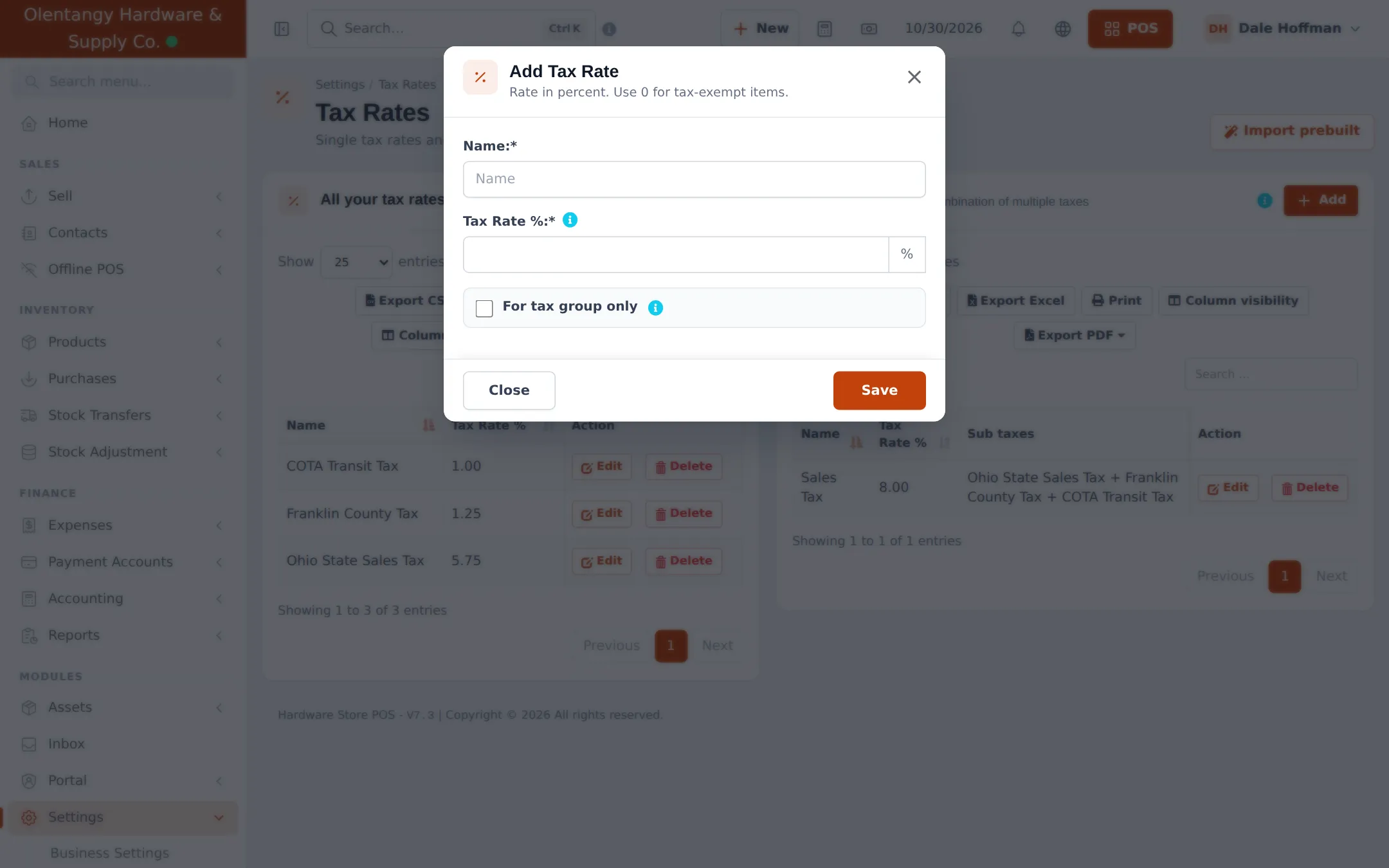
Section titled “Option B: add a tax rate yourself”- On All your tax rates, click + Add.
- Type the Name as it should appear on receipts, for example “VAT 15%”.
- Enter the Tax Rate % (use 0 for tax-exempt or zero-rated items).
- Tick For tax group only if this rate is only a part of a group.
- Click Save.
Add a tax group
Section titled “Add a tax group”Use a group when several taxes apply together (for example state + county + city sales tax).
- Add each part as a tax rate first (tick For tax group only if it is never charged alone).
- On the Tax groups card, click + Add.
- Give the group a name and pick its sub taxes.
- Click Save. The group’s rate is the sum of its parts.
Use taxes on products and sales
Section titled “Use taxes on products and sales”- On a product: choose the Applicable Tax and the Selling Price Tax Type (inclusive or exclusive) on the product form. See Add products.
- Default sale tax: Business Settings › Sale › Default Sale Tax adds a tax to the whole order by default.
- Per line: Business Settings › Tax › Enable inline tax in purchase and sell lets staff pick a tax on each line.
- Reports: Reports › Tax Report shows tax collected on sales and paid on purchases and expenses.
Tips and mistakes to avoid
Section titled “Tips and mistakes to avoid”- Name rates clearly, including the percent (“GST 18%”), so cashiers and reports are easy to read.
- Do not delete a rate that was used. Create a new one and switch products to it; old invoices keep the old rate.
- Inclusive vs exclusive: decide once for your whole catalog; mixing them confuses staff.
Related pages
Section titled “Related pages”Frequently asked questions
What is the difference between a tax rate and a tax group?
A tax rate is one percentage, such as VAT 15%. A tax group adds several rates together, such as state tax 5.75% plus county tax 1.25% plus transit tax 1%, and shows each part on reports.
Can I import the tax rates for my country?
Yes. Click Import prebuilt on Settings, Tax Rates and pick your country. Ready-made rates exist for Pakistan, the United States (states and some cities), Australia, the United Kingdom, the United Arab Emirates and Saudi Arabia. Check them with your accountant before use.
Do imported tax rates change my existing ones?
No. Rates you already have are marked Already added and skipped. Existing tax rates are never changed by an import.
How do I make a product tax-free?
Leave the product's Applicable Tax empty, or create a 0% rate (for example Zero-rated or Exempt) and choose it, so the receipt shows the item is not taxed.
What does For tax group only mean?
The rate is used only inside tax groups and is hidden from the normal tax lists, so staff cannot pick a single part of a group by mistake.
Are prices entered with or without tax?
You choose per product with Selling Price Tax Type, inclusive or exclusive. The POS and receipts calculate the tax either way.
Where do I put my VAT or GST registration number?
In Settings, Business Settings, Tax tab, as Tax 1 Name and Tax 1 No. It prints on invoices whose layout shows it.
Can I report tax to the tax authority automatically?
In Pakistan, the Tax authority (FBR) module sends sales and returns to FBR and prints the FBR invoice number and QR code. See the Tax authority module guide.