
Jewelry store step 6: part payments and layaway plans
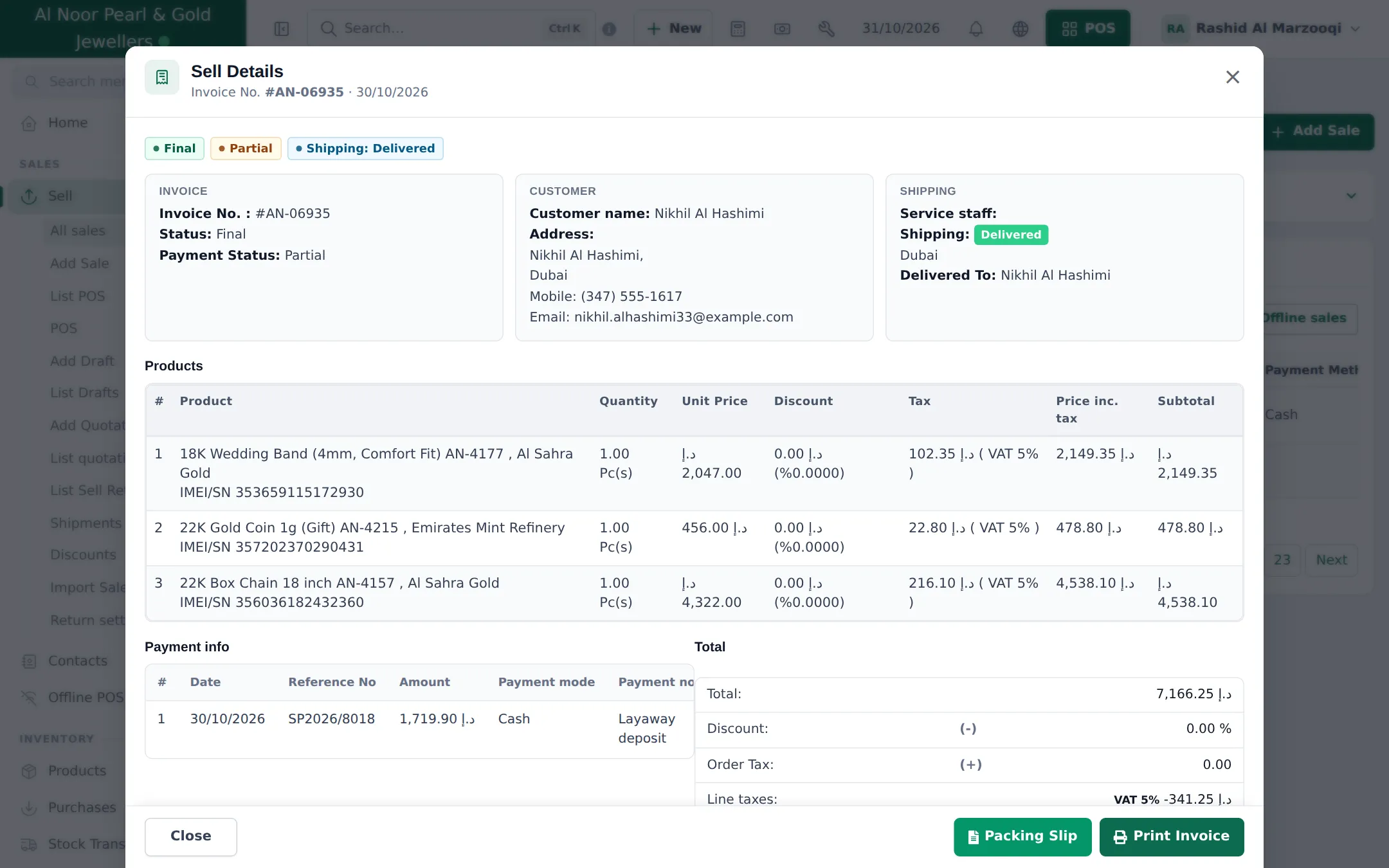
Jewelry is often bought over several weeks: a deposit today, then monthly instalments, and the piece goes home when it’s paid. In SmartPOS Hub a layaway is simply a sale with a part payment: the balance stays due on the invoice and you record each instalment against it.
Before you start
Section titled “Before you start”- The customer is a named contact (Walk-In Customer can’t owe money). Add phone and ID details in the contact.
- Set a credit limit and pay term on the customer if you want limits. See Customer credit limits and advances.
1. Take the deposit
Section titled “1. Take the deposit”- In Sell › POS, pick the customer and add the piece (with its tag number, step 4).
- Press Multiple Pay.
- Type the deposit in Amount and choose the method. The Balance in red is what stays due.
- Write the plan in the payment note or sale note, for example “Layaway: 3 instalments every 30 days”.
- Press Finalize Payment and confirm with OK. Print the invoice for the customer.
- Put the piece in your layaway drawer with the invoice number.
2. Record each instalment
Section titled “2. Record each instalment”- Open Sell › All sales, search the customer and choose Actions › Add payment on the layaway sale. (Or open the customer and press Add payment.)
- Enter the amount and method and Save.
- The Payment Status stays Partial until the last instalment, then turns Paid.
3. Hand over the piece
Section titled “3. Hand over the piece”When the status is Paid, give the customer the piece, its certificate and a final receipt. The full history of payments is on the sale and in the customer ledger.
Follow up on open layaways
Section titled “Follow up on open layaways”| Check | Where |
|---|---|
| All open layaways | Sell › All sales, filter Payment Status Partial |
| Late instalments | Filter Overdue (older than the customer’s pay term) |
| What one customer owes | Customer page: Balance due, ledger |
| Totals per customer | Reports › Supplier & Customer Report |
Cancelled layaways
Section titled “Cancelled layaways”Take a Sell Return of the piece: the piece goes back into stock, and the money already paid is refunded or kept as store credit, depending on the outcome you choose and your return settings. A cancellation fee can be set as Restocking fee (%) in Sell › Return settings.
The full worked example (20 % now, 50 % later, the rest at the end) is in Credit and part payments.
Next: step 7: repairs.
Frequently asked questions
Is there a separate layaway screen?
No. A layaway is a normal sale with a part payment. The invoice shows Partial and the amount still due, and you add each instalment with Add payment.
Does the piece leave stock when I take the deposit?
Yes, the sale takes it out of stock straight away, so nobody else can sell it. Keep the piece in a layaway drawer with the invoice number until the last payment.
How do I see all open layaways?
Sell › All sales with Payment Status Partial (or Due), or the customer's page, which shows the balance due. Reports › Supplier & Customer Report lists what each customer owes.
What if the customer wants to pay before choosing a piece?
Record the money as an advance payment on the customer. It sits as Advance Balance and pays for the sale later.
The customer gives up the layaway. What now?
Take a sell return of the piece. The amount already paid can go back as a refund or stay as store credit, following your return settings.
Can I stop credit for some customers?
Yes. Set a credit limit on the customer. A sale that would go over the limit is stopped.