
Salon step 4: online booking and deposits
Most salon and spa clients would rather book at midnight than call during opening hours. This page switches on your online booking page, lets clients choose a stylist, and asks for a deposit to confirm so no-shows cost you less. It is for the owner or manager.
Before you start
Section titled “Before you start”- Services, staff and working hours are set (step 2 and step 3).
- For card deposits, a payment gateway is connected in Finance › Payments › Payments & gateways (see Payments hub). For bank transfer deposits, add an offline payment method there.
Switch on online booking
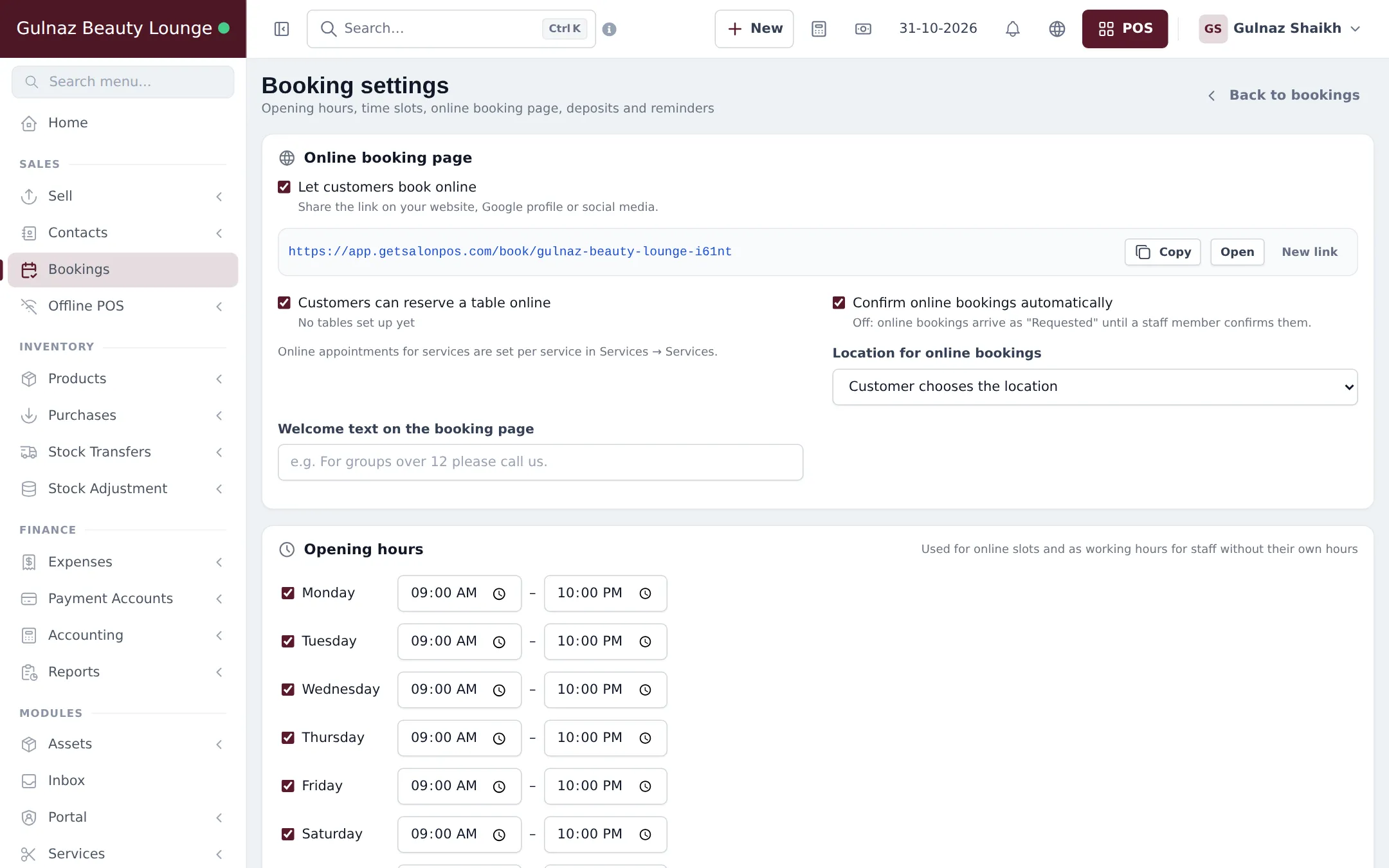
Section titled “Switch on online booking”- Open Services › Settings. Under Online booking, tick Online booking page is on and Customers can book services online.
- Tick Customers can choose a staff member if clients may pick their stylist. Otherwise they book Anyone available.
- Tick Show prices on the booking page if you want prices visible.
- Decide on Confirm online bookings automatically. Off means online bookings arrive as Requested until a receptionist confirms them.
- Under Scheduling, set Start times every (min), for example 15.
- Under Reminders & cancellation, tick Send email reminders and set Reminder (hours before); tick Customers can cancel online, set Cancel until (hours before) and write your Cancellation policy.
- Click Save.
In Bookings › Settings you can also choose the Location for online bookings (or let the client choose the branch) and add a Welcome text on the booking page.
What clients see
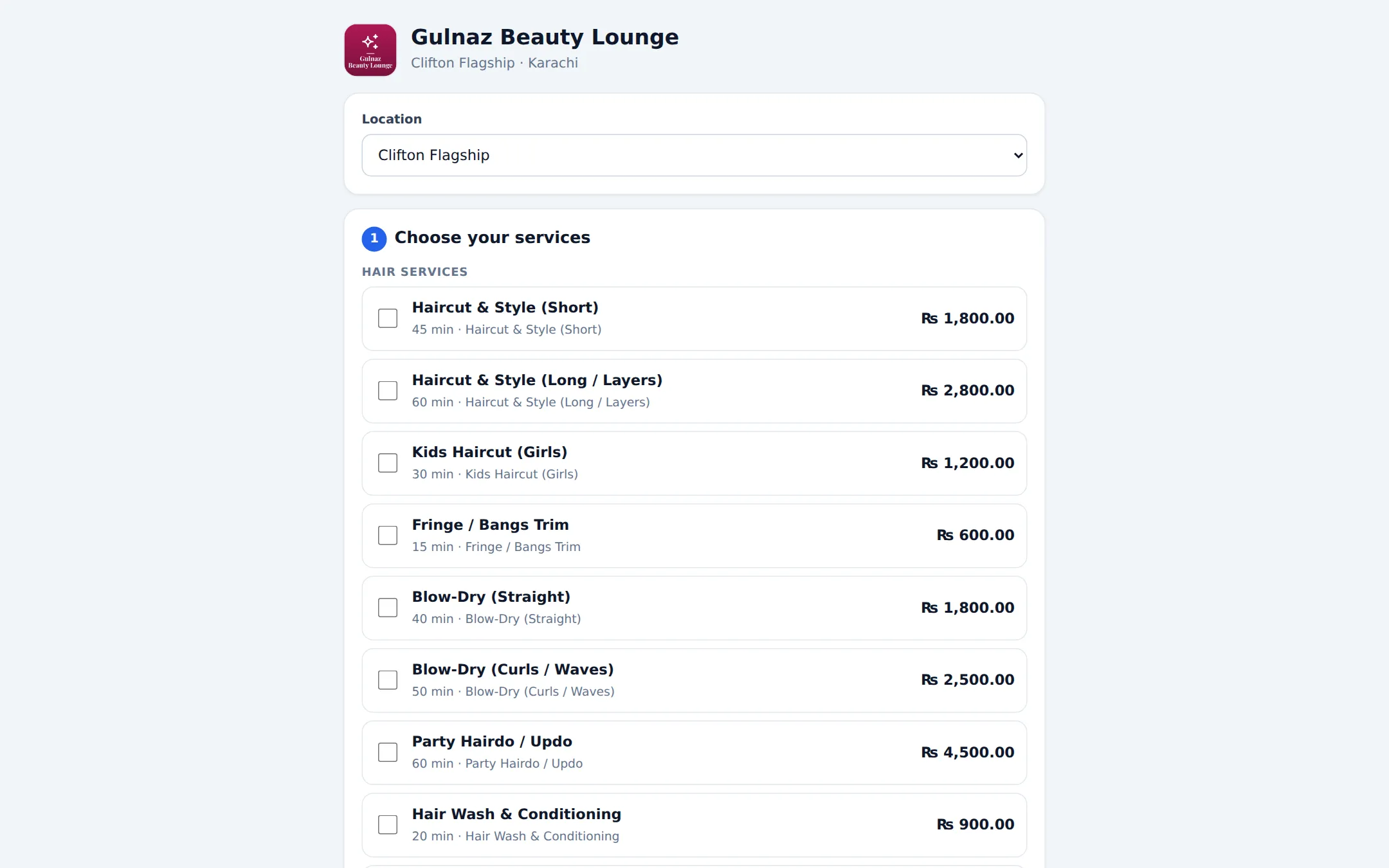
Section titled “What clients see”Clients open your link, choose the branch, tick one or more services, pick a stylist (if allowed), then a day and a free time, and enter their name and mobile. Times are only offered when someone who performs those services is working and free, including buffers and breaks.
Ask for a deposit to confirm
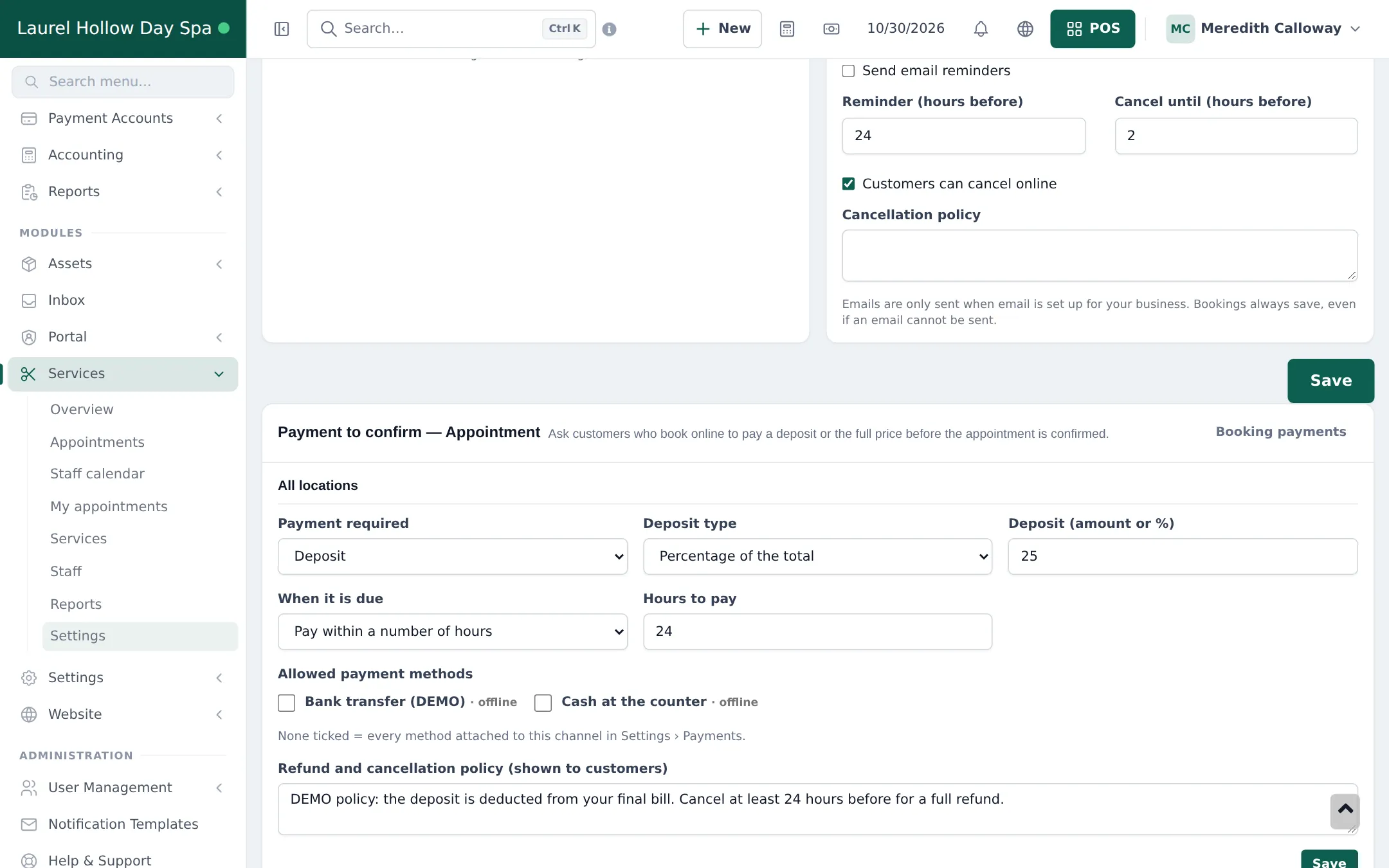
Section titled “Ask for a deposit to confirm”- Scroll to the card Payment to confirm — Appointment at the bottom of Services › Settings.
- Set Payment required to Deposit (or Full payment). Choose the Deposit type, for example Percentage of the total and 25, or use each service’s own Online deposit.
- Under When it is due, choose Pay within a number of hours (for example 24) or pay now with a short hold.
- Tick the Allowed payment methods, or none for every method attached to bookings in Finance › Payments › Payments & gateways.
- Write the Refund and cancellation policy (shown to customers) and click Save.
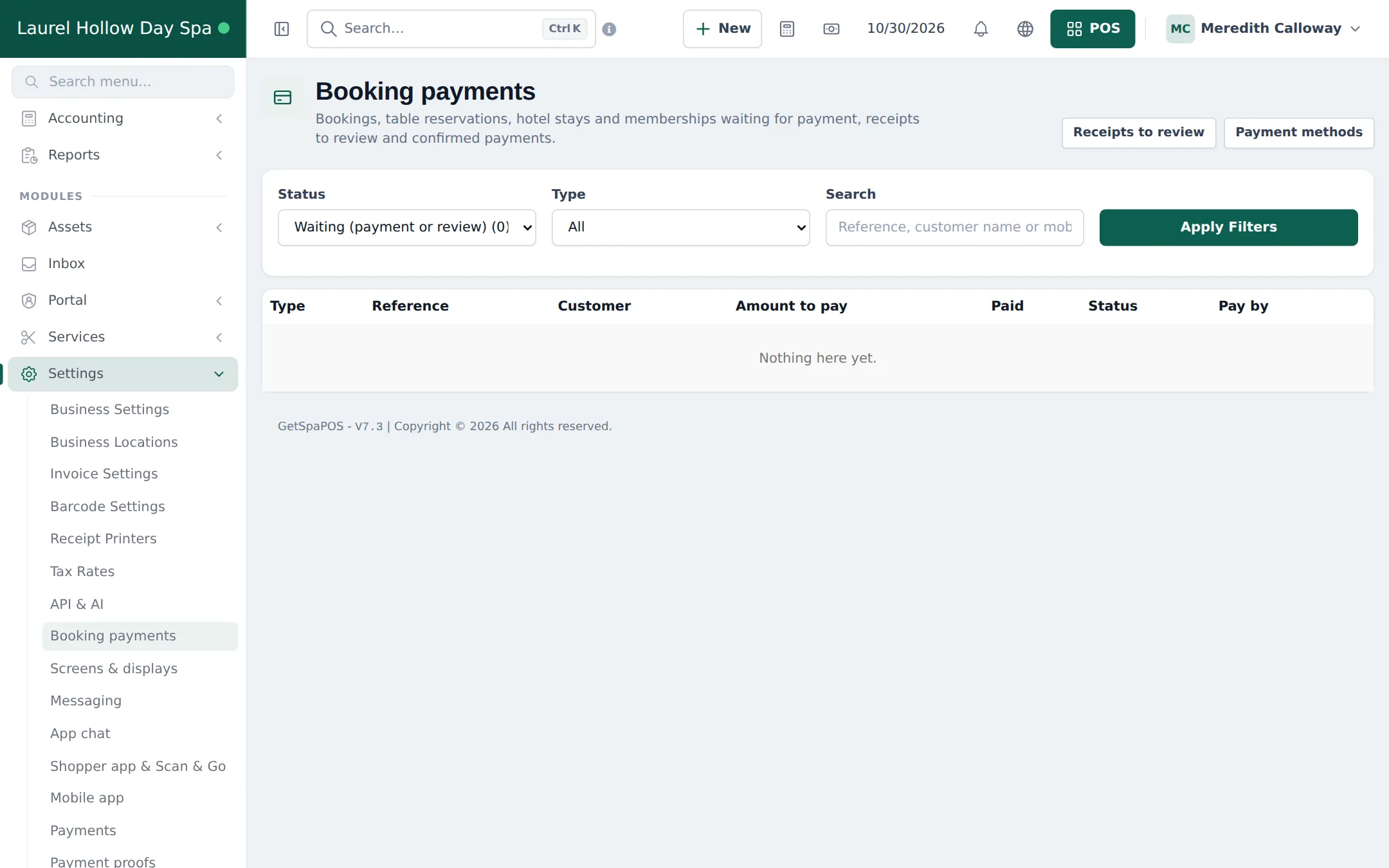
Follow every deposit in Finance › Payments › Booking payments: filter by status (waiting for payment, receipt under review, paid, expired) and open Receipts to review for bank transfers. On an appointment, the Payment to confirm panel lets you Request payment for a phone booking, Mark as paid or Confirm without payment.
Bookings from the SmartPOS Shopper app
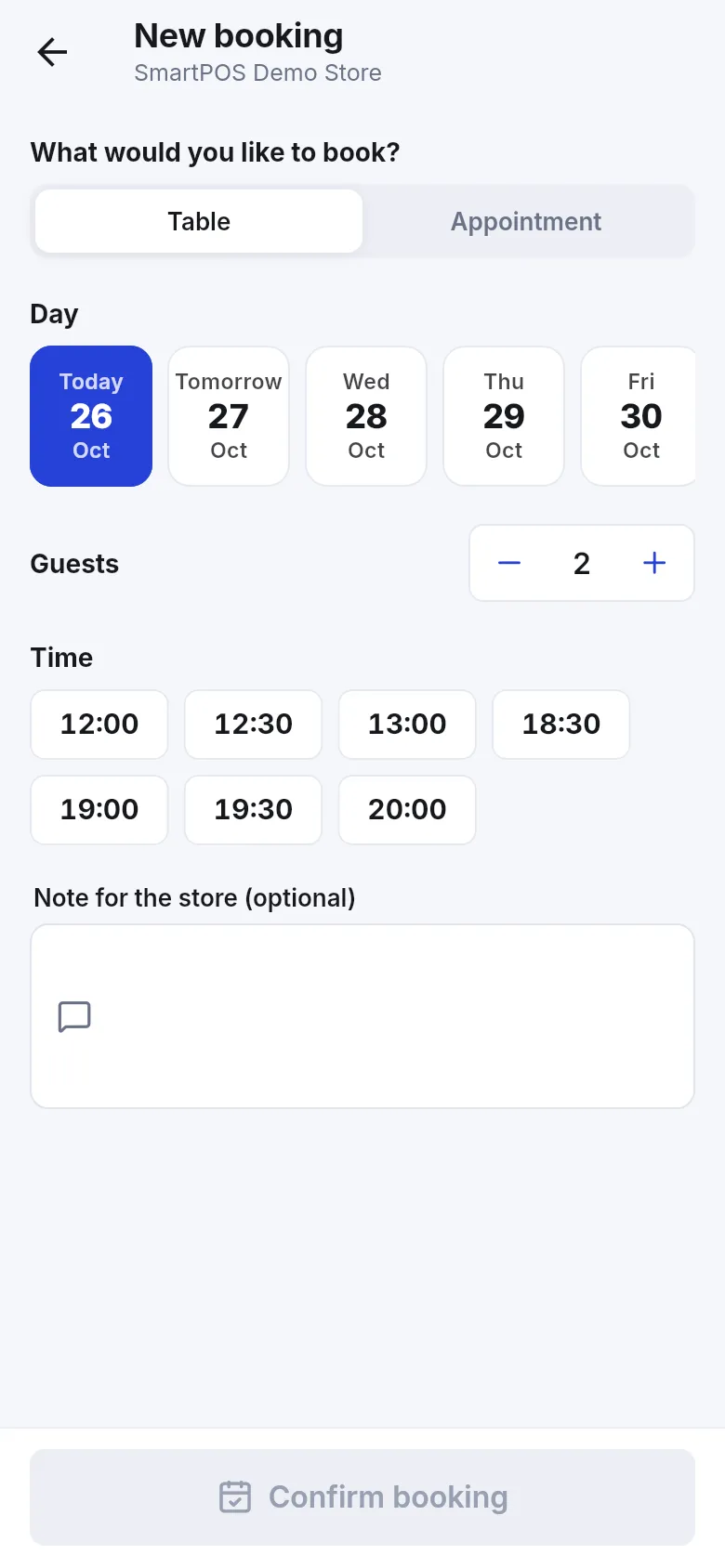
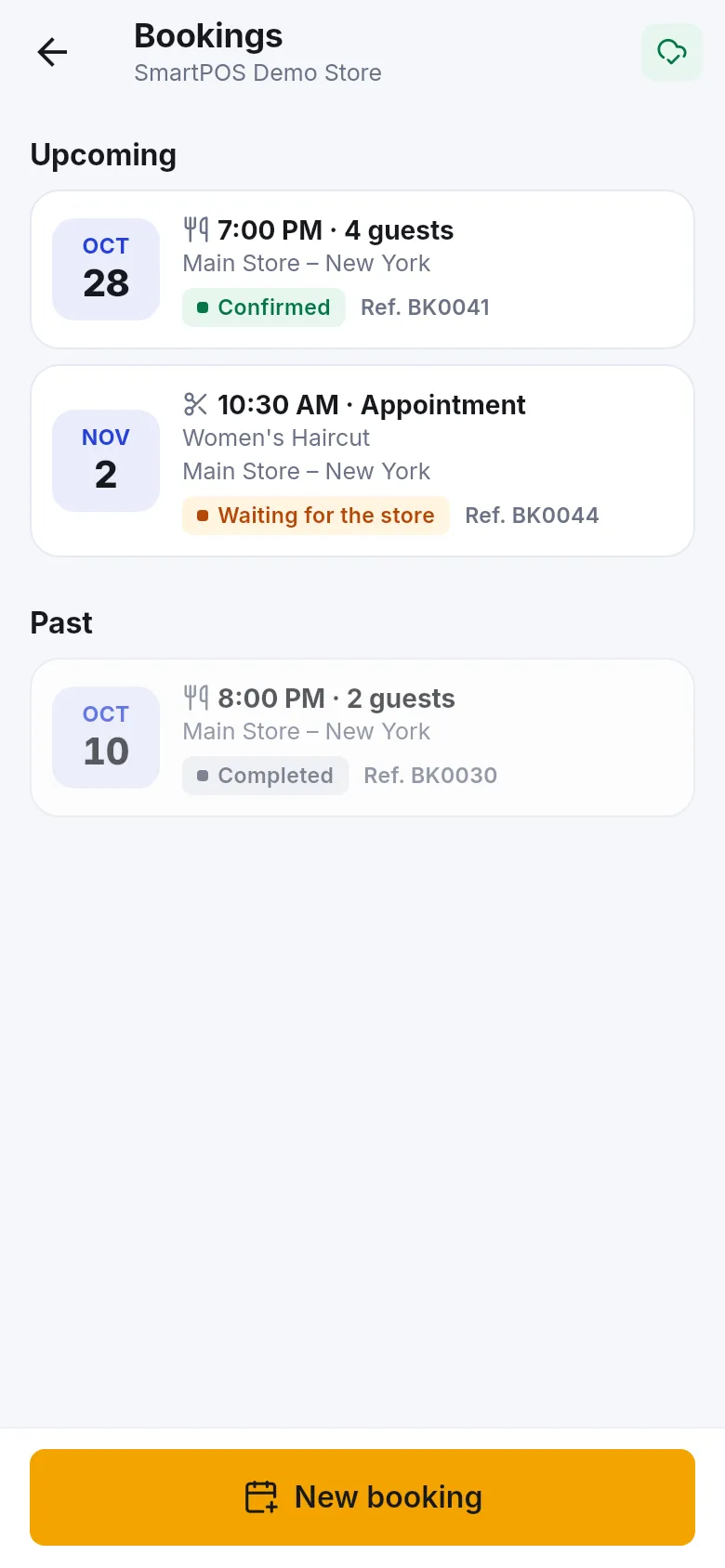
Section titled “Bookings from the SmartPOS Shopper app”Clients who use the SmartPOS Shopper app (Google Play) and follow your store can tap New booking, choose Appointment, pick a day and time and confirm. Their bookings, statuses and any deposit to pay are listed under Bookings. To make your store visible in the app, see Shopper app for your store.
What happens next
Section titled “What happens next”Online bookings appear in Bookings and on the Services overview, with Requests to confirm counting the ones that wait for you. Continue with step 5: appointments, walk-ins and checkout.
Frequently asked questions
Where do I find my booking link?
Click Copy booking link on the Services overview, or use Copy and Open next to the link in Services › Settings or Bookings › Settings. Share it on your website, Google profile, Instagram bio and WhatsApp.
Should online bookings be confirmed automatically?
It is up to you. With Confirm online bookings automatically off, online bookings arrive as Requested and a receptionist confirms them. With a pay-to-confirm rule, a booking stays pending until the deposit is paid.
How does the client pay the deposit?
After booking, the client sees a pay page with the amount and a deadline. They pay by card through your payment gateway, or pay by bank transfer and upload the receipt, which you approve in Payment proofs.
What happens to the deposit at checkout?
A paid appointment deposit is saved as the client's advance balance. At checkout the POS banner shows Deposit paid, and you take it off the bill with the Advance payment method.
What if the client does not pay in time?
When the deadline passes, the hold expires and the appointment is released so the slot can be booked again. The client gets an expired message.
Can clients cancel online?
Yes, when Customers can cancel online is ticked. They cancel from the link in their booking confirmation up to the number of hours before the appointment that you set in Cancel until.
Can clients book from the SmartPOS Shopper app?
Yes. Clients who follow your store in the SmartPOS Shopper app open New booking, choose Appointment, pick a day and time and confirm. If a deposit is required, they pay it in the app.