
Mart step 9: Scan & Go, Shopper app and online store
Grocery customers like to check prices, skip the queue and order from home. The SmartPOS Shopper app and your online store make that possible without extra staff. Customers who join your store in the app become leads in your contacts, and customers the first time they buy.
1. Turn on the Shopper app and Scan & Go
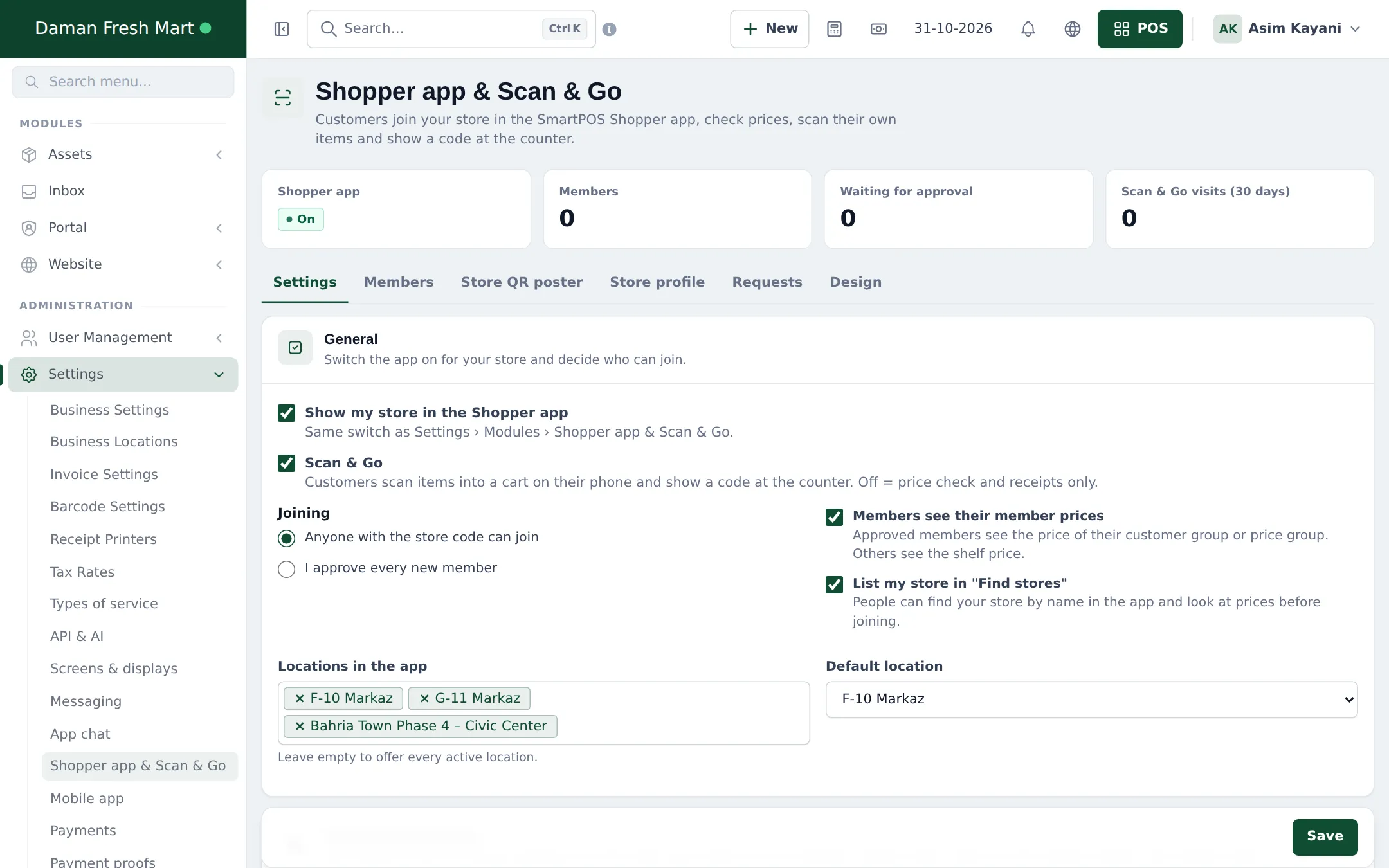
Section titled “1. Turn on the Shopper app and Scan & Go”- Open Settings › Shopper app & Scan & Go.
- On the Settings tab, tick Show my store in the Shopper app.
- Tick Scan & Go so customers can scan items into a cart and show a code at the counter. (Off = price check and receipts only.)
- Under Joining, choose Anyone with the store code can join or I approve every new member.
- Tick Members see their member prices if you use customer groups or price groups for members, and List my store in “Find stores” to be found by name.
- Under Locations in the app, pick the branches customers can choose, and a Default location.
- Click Save. Then fill Store profile, choose a look under Design, and print the Store QR poster for your entrance and tills.
2. What customers do
Section titled “2. What customers do”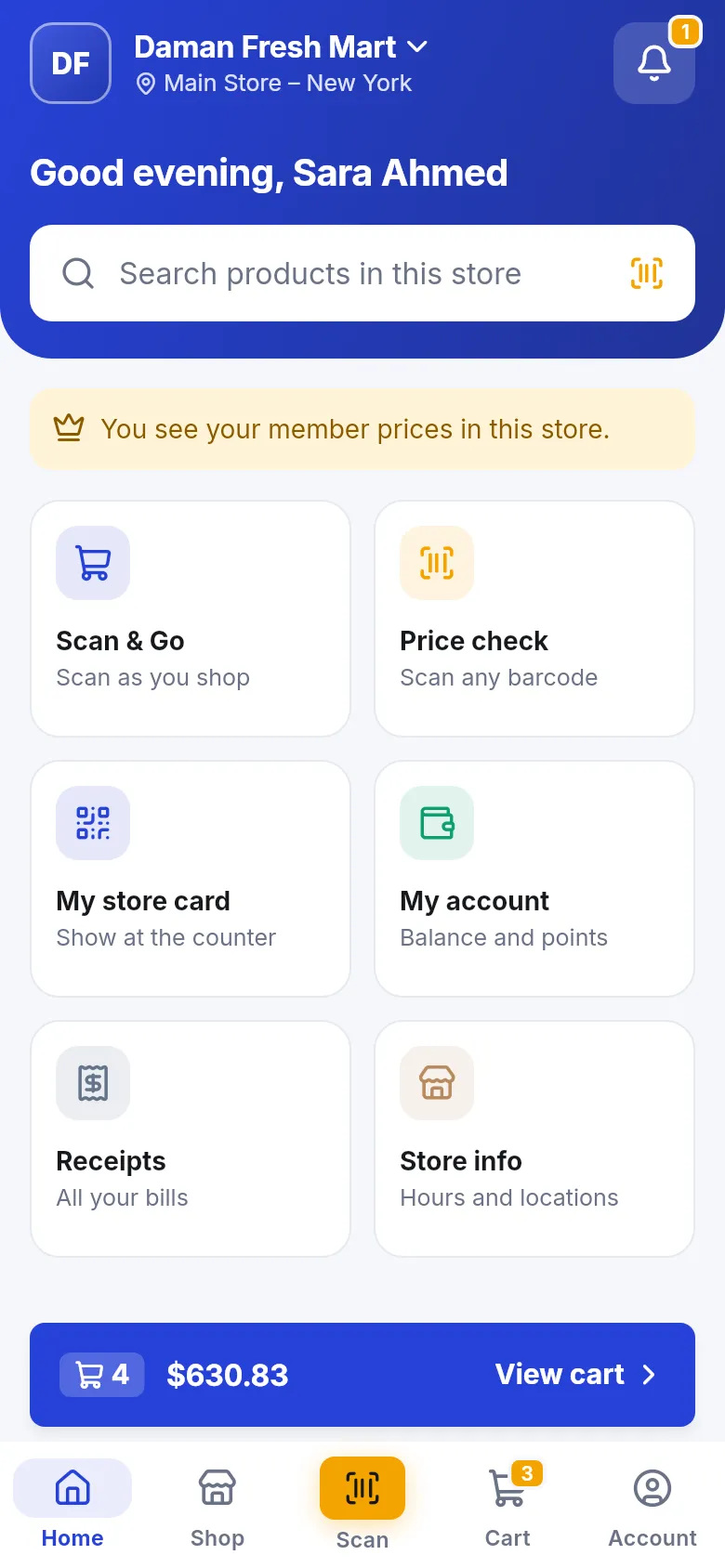
- The customer installs SmartPOS Shopper from Google Play, signs in with an e-mail code and joins your store by scanning the poster or typing your store code.
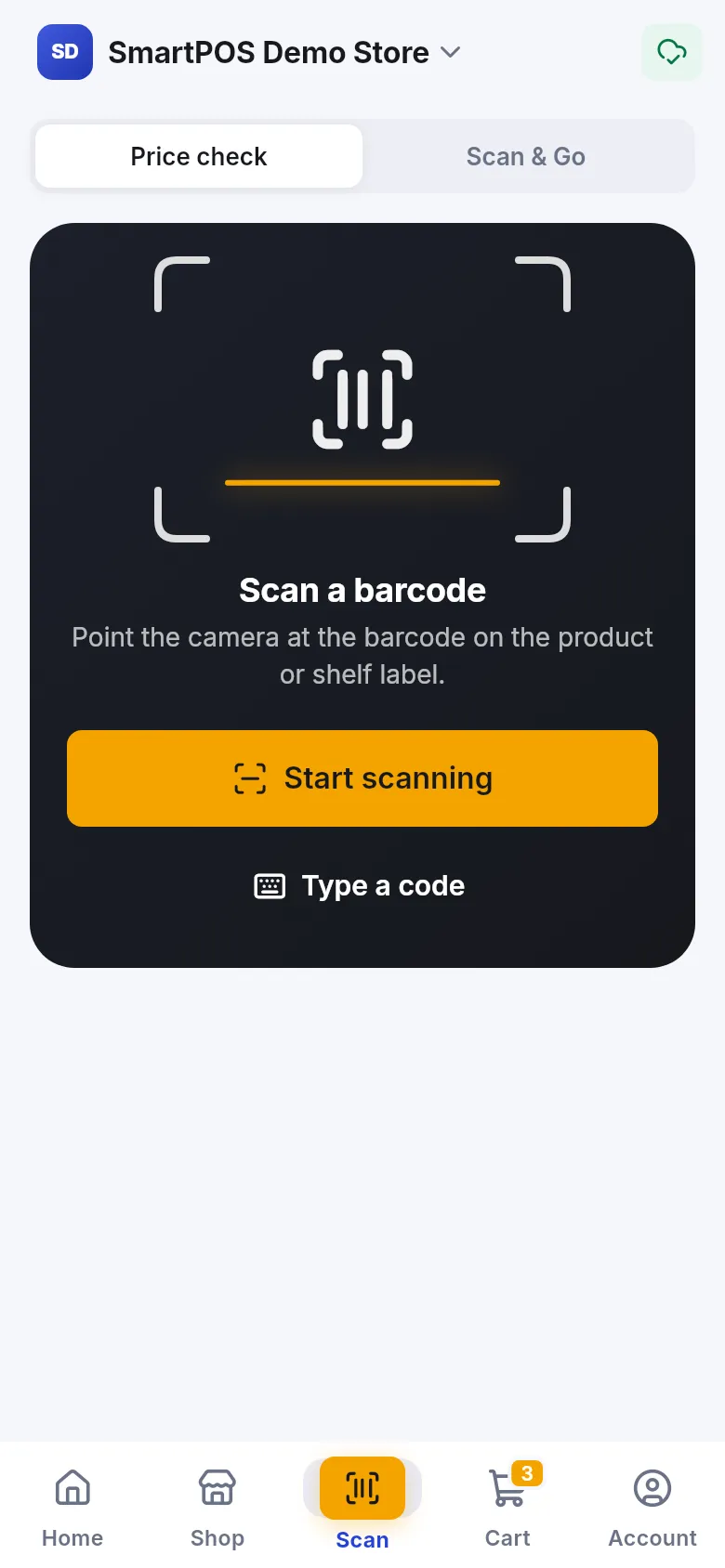
- In the store, they open Scan › Scan & Go and scan each item. The cart shows the total with your prices.
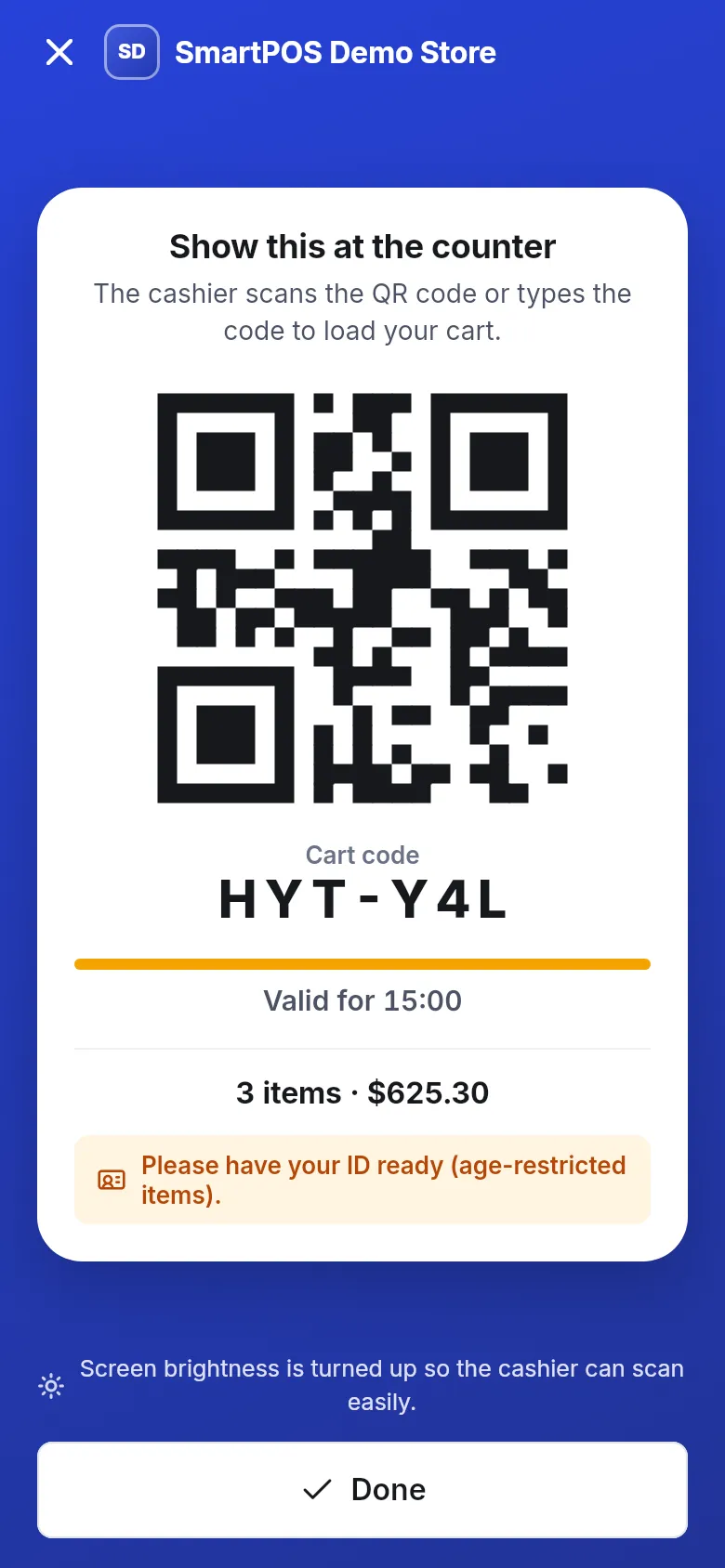
- At the counter, they show the cart code (QR and a short code).
3. Load the cart at the counter
Section titled “3. Load the cart at the counter”- In the web POS, open the Shopper cart box and scan the customer’s code (or type it). In the SmartPOS Business app, use Scan & Go › Scan the cart QR or type the Cart code.
- The items are added to the sale with POS prices, and the customer is filled in (a new member becomes a customer now).
- Check the basket if your bag-check rule asks for it, take payment and complete the sale. The receipt also appears in the customer’s app.
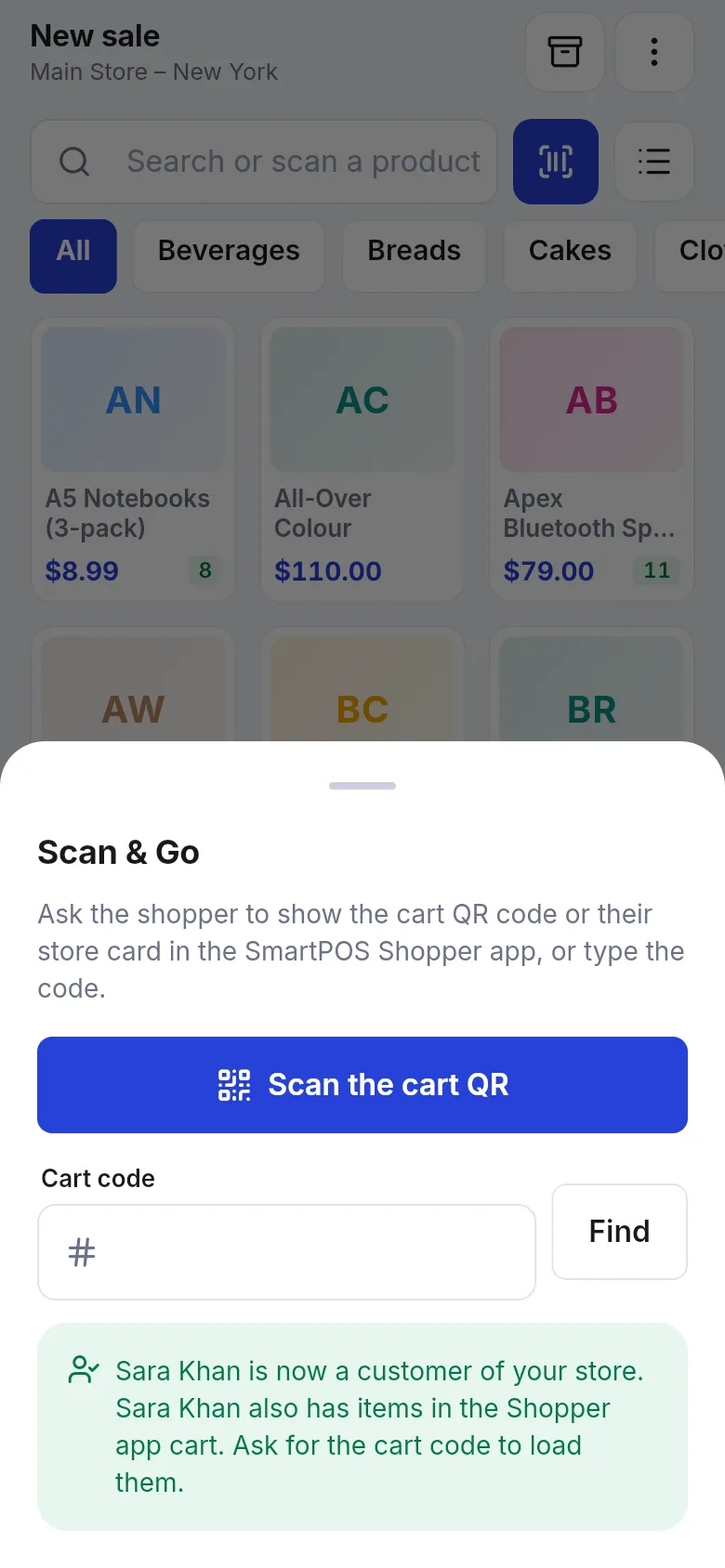
Customers who don’t use Scan & Go can still show My store card so the cashier picks the right customer for points and credit.
4. Online store and delivery
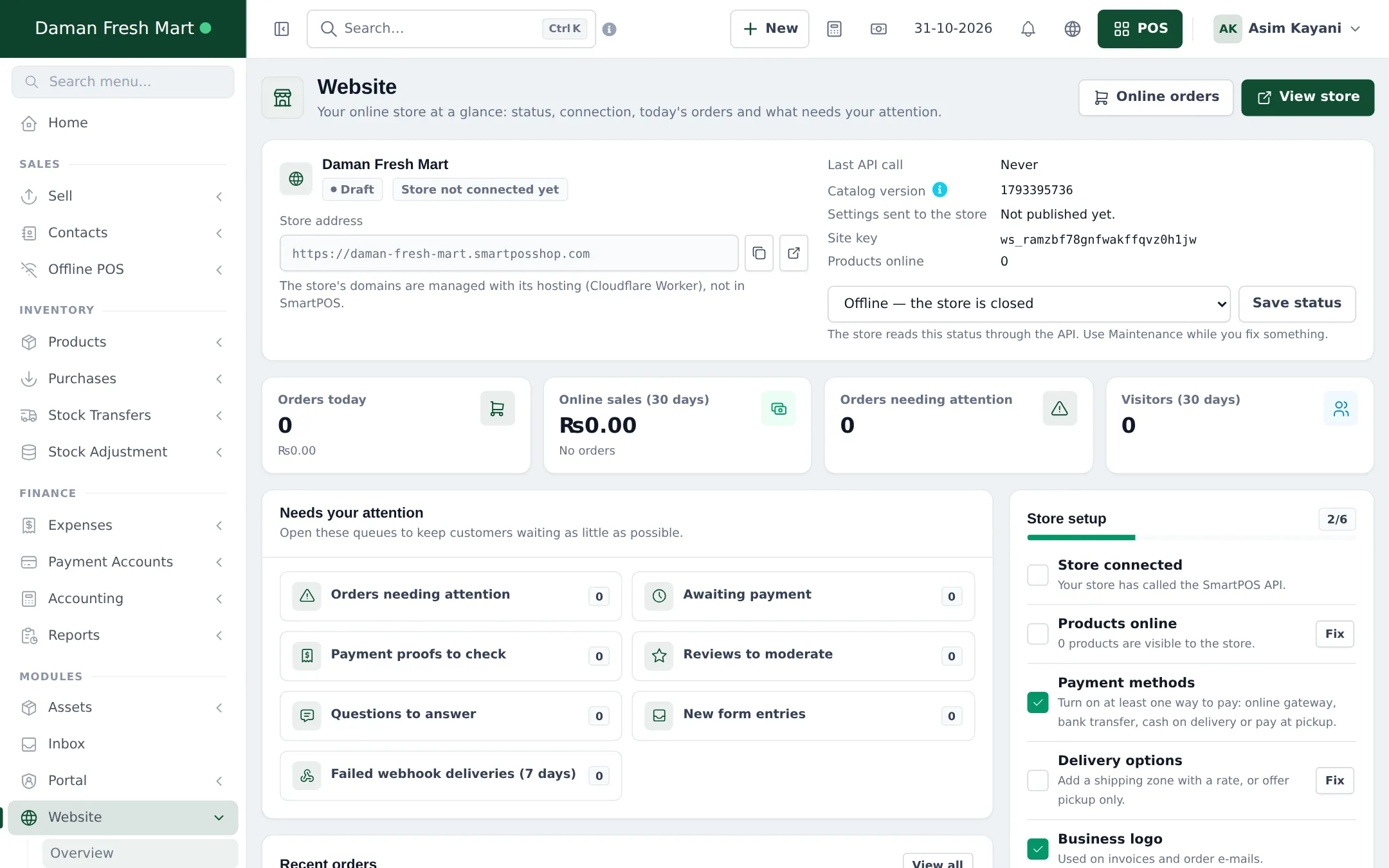
Section titled “4. Online store and delivery”With the Website module, your products can also be sold on your own online store, through widgets on any site, and in the Shopper app’s Shop tab for pickup or delivery. Orders arrive in Website › Orders. Start with Website › Overview, which shows store setup steps still to do.
More: Shopper app for your store, Scan & Go, Online store and Website orders.
Frequently asked questions
How does Scan & Go work for the customer?
In the SmartPOS Shopper app the customer opens your store, taps Scan, scans each item as they put it in the basket, then shows the cart code at the counter. The cashier loads the whole cart with one scan and takes payment.
Do customers pay inside the app with Scan & Go?
No. Scan & Go builds the cart; payment happens at your counter as a normal POS sale, so your cash register and receipts work as usual.
How long is a cart code valid?
15 minutes, and it can be used once. The customer's My store card QR is valid for 3 minutes.
Can I approve who joins my store?
Yes. Under Joining choose I approve every new member. Pending members wait in the Requests tab; serving them at the counter also approves them if the cashier may create customers.
What is the difference between Price check and Scan & Go?
With Scan & Go off, customers can still scan any product to see its price and details (Price check) and show their store card at the counter.
Are app orders the same as website orders?
Yes. Orders placed in the Shopper app arrive in Website › Orders like online store orders, marked as coming from the app.