
Café step 2: build a fast tile menu
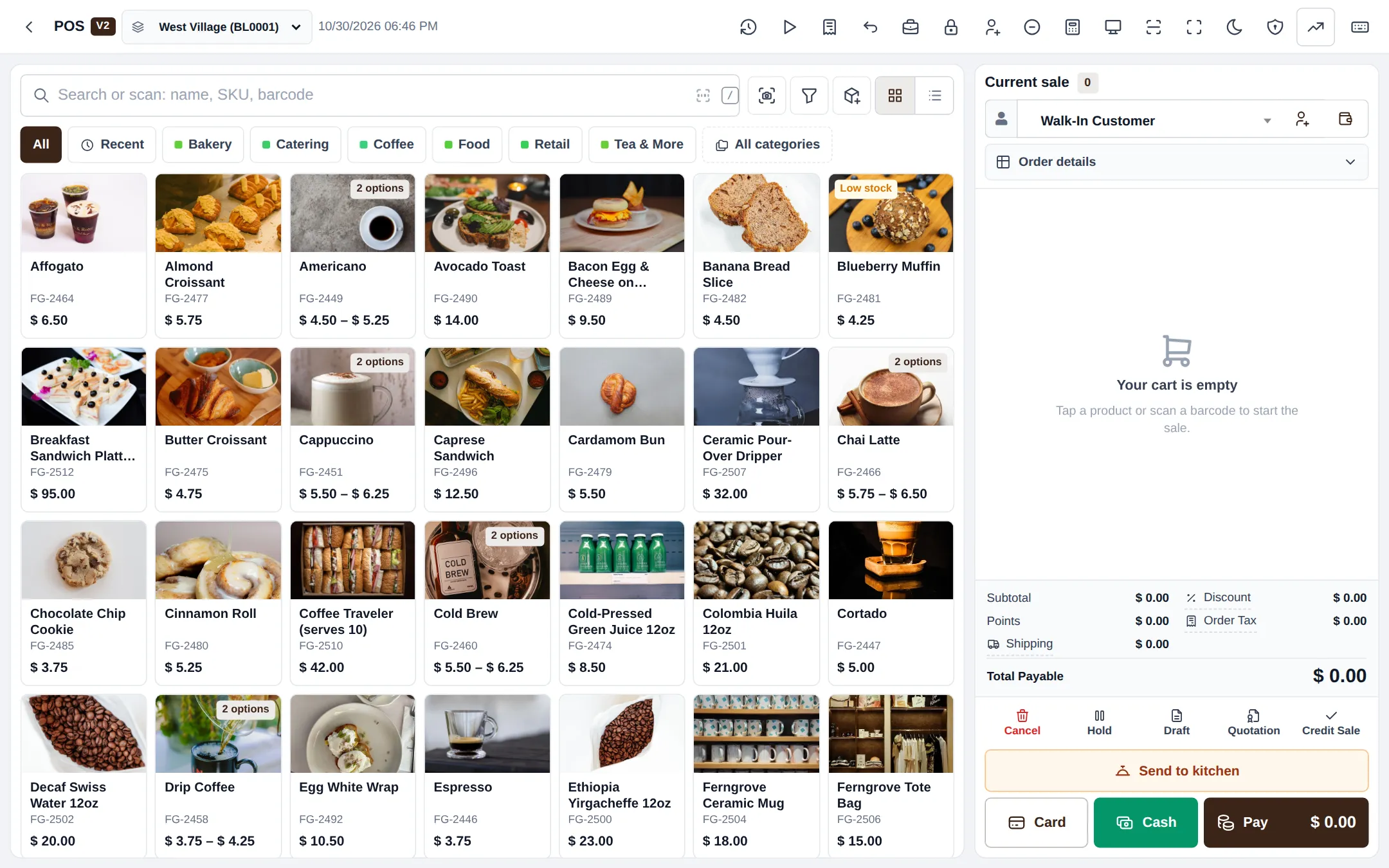
Speed at the counter comes from a tidy menu: few categories, clear names, sizes as variations, and the bestsellers one tap away. This step builds that menu.
Before you start
Section titled “Before you start”- POS V2 is set to the café style (step 1).
- Have your menu with prices per size.
1. Categories
Section titled “1. Categories”Keep 6–10 top categories, for example Coffee, Tea & More, Bakery, Food, Catering and Retail. Create them in Products › Categories or with Import prebuilt. Each category becomes a chip at the top of the POS. Categories also decide which station screen gets the item (step 4).
2. Drinks with cup sizes
Section titled “2. Drinks with cup sizes”- Open Products › Add Product and enter the drink name (“Latte”).
- Choose the category and untick Manage Stock? for made-to-order drinks.
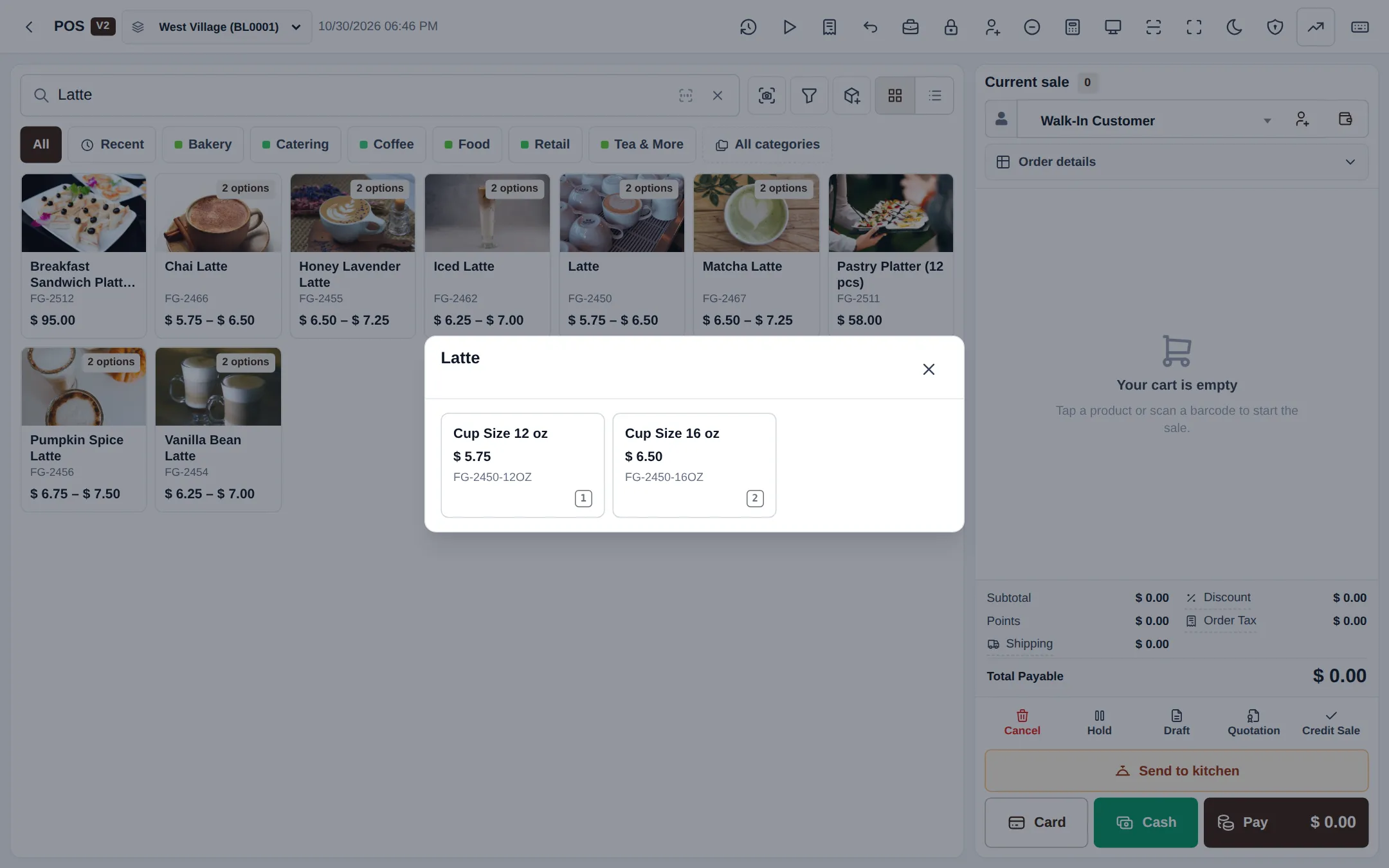
- Set Product Type to Variable and add a variation such as Cup Size with values 12 oz and 16 oz, each with its own price.
- Add a photo and save.
For many drinks, use Import products from Excel. More on sizes: Variable products.
3. Food and retail
Section titled “3. Food and retail”Add sandwiches, pastries and retail items (beans, mugs) as Single products. Keep Manage Stock? on for anything you buy in and count.
4. Favourites per branch
Section titled “4. Favourites per branch”Open Settings › Business Locations › Settings on each branch and add POS featured products. They appear on the POS Favourites tab.
Selling from the menu
Section titled “Selling from the menu”Tap a category chip or search, then tap a tile. Drinks with sizes open a small window with each size and price; tap one to add it. The cart shows each line with its options, and Card, Cash and Pay finish the sale.
Tips and mistakes to avoid
Section titled “Tips and mistakes to avoid”- Use the same size names on every drink (12 oz / 16 oz), so reports group them well.
- Put milk, syrups and shots in modifiers, not in separate products (step 3).
- Keep names short; long names are cut off on tiles.
Next step
Section titled “Next step”Frequently asked questions
How do I make the most popular drinks one tap away?
Add them as POS featured products on each location. POS V2 shows them on the Favourites tab, and the Recent tab remembers what was sold last.
Should I track stock on coffee drinks?
Usually not. Untick Manage Stock? for made-to-order drinks. Keep it on for bottled drinks, pastries you buy in and retail coffee beans.
How does the cashier pick the cup size?
When a drink with sizes is tapped, a small window lists each size with its price. One more tap adds it to the cart.
Can I show the menu without photos?
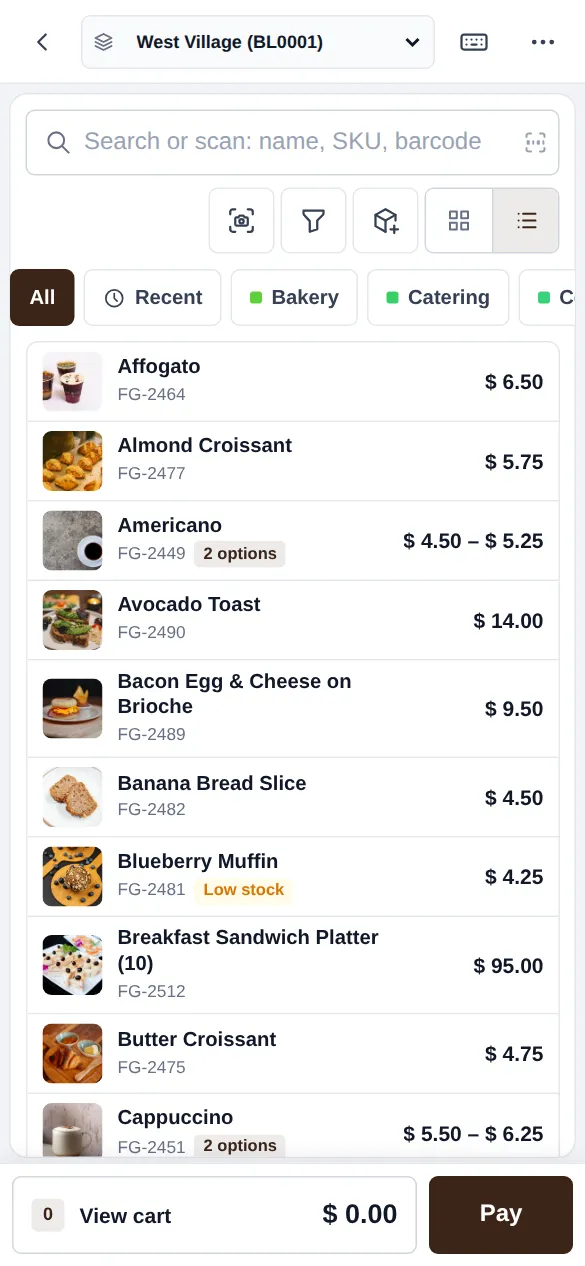
Yes. Turn off Show product pictures in the POS V2 settings, or switch the view to the list with the button next to the search.
Does the same menu work in the app?
Yes. The SmartPOS Business app uses the same products, sizes and modifiers, with category chips and tiles on the phone.